How to Check if a PDF Has Attachments on Linux: Okular, Browser Preview, and Safe-Send Checks
To check if a PDF has attachments on Linux, save the exact file locally and open it in a viewer that can show attachments, embedded files, or portfolio items; a clean preview alone does not prove the PDF is attachment-free.
If you only opened the file in Evince, Firefox, Chrome, or a cloud preview, switch to Validate PDF or a fuller PDF viewer before you forward, archive, or trust the document.
That is the short answer. The more useful answer is understanding where Linux users get false confidence: a PDF can look perfectly ordinary in a browser tab, email download preview, or simple desktop viewer while still carrying bundled spreadsheets, XML files, exhibits, images, or stale source material underneath. If you never inspect the embedded-file layer, you are checking the visible pages, not the whole package.
Fastest practical path: save one local copy, look for a real attachments or embedded-files panel in a fuller Linux PDF app, then confirm the package with a dedicated checker if the workflow is sensitive or the preview looks too quiet.
In a hurry? Jump to quick start: check PDF attachments on Linux in about 5 minutes.
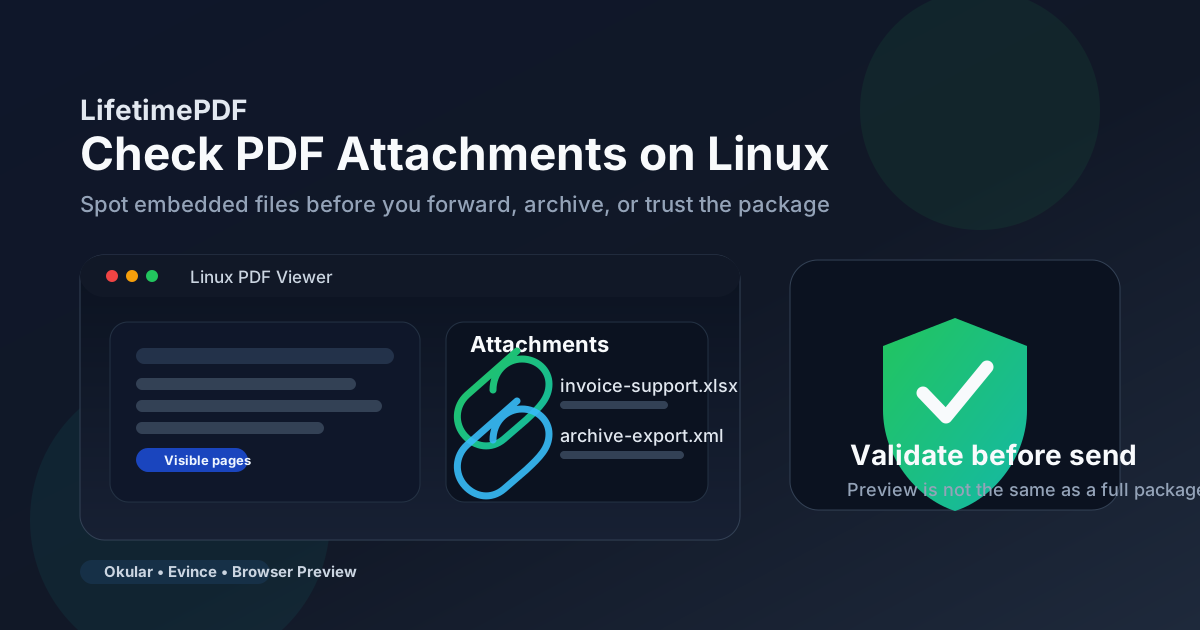
Table of contents
- Quick start: check PDF attachments on Linux in about 5 minutes
- What counts as a PDF attachment on Linux
- Step-by-step: check a PDF for attachments on Linux
- File manager preview vs browser preview vs full PDF viewer
- Signals that a PDF may contain embedded files
- When Linux preview is not enough
- What to do next if the PDF matters
- Related LifetimePDF tools and guides
- FAQ
Quick start: check PDF attachments on Linux in about 5 minutes
If you want the shortest dependable workflow, use this sequence:
- Save the exact PDF you plan to forward, upload, archive, or inspect later into one obvious local folder.
- Look for an attachments, embedded files, paperclip, or portfolio panel in your Linux PDF viewer.
- If you are only seeing a browser tab, file-manager preview, or a simple reader window, treat that as a first look, not a final answer.
- If the sender mentioned exhibits, spreadsheets, XML exports, source files, or a bundled package, assume extras may exist even if the visible pages look ordinary.
- Run the file through Validate PDF or inspect it in a fuller viewer when you need a dependable yes-or-no answer.
- Only open hidden files, forward the PDF, or archive it as clean after you know whether the embedded files are intentional and appropriate.
What counts as a PDF attachment on Linux
A PDF attachment is a separate file embedded inside the PDF package. It is not the same thing as a hyperlink, comment, highlight, or bookmark. On Linux, those embedded items may be spreadsheets, Word drafts, XML exports, ZIP files, images, CAD references, or supporting exhibits bundled with the main document.
Embedded files
Extra documents packed inside the PDF rather than shown as visible pages.
PDF portfolios
Container-style PDFs that behave more like a bundle of related files than one flat document.
Not the same as page content
Comments, links, highlights, and bookmarks may matter, but they are not hidden bundled files inside the package.
This distinction matters because Linux users often inspect the visible document, see nothing alarming, and assume the package is clean. That shortcut is exactly how stale source files and surprise exhibits slip into archives, submissions, or external handoffs.
Step-by-step: check a PDF for attachments on Linux
This workflow gives you a reliable answer without pretending every Linux preview path is equally informative.
Step 1: Start with the exact file you are about to use
Save the PDF locally if it is still sitting in webmail, chat, Nextcloud, Google Drive, or a browser download tab. Version mix-ups are common. People inspect one copy and send another. Checking the exact file first removes a surprisingly large share of avoidable mistakes.
Step 2: Do not confuse file-manager or browser preview with a structural check
A quick preview is useful for confirming you opened the right document, but it is not a complete attachment audit. A PDF can show the right page count and readable text while still carrying embedded files that your first preview never surfaces clearly.
Step 3: Open the PDF in a viewer that can expose attachments
Look for an attachments list, embedded-files panel, paperclip icon, or portfolio-style navigation. In Linux workflows, that often means moving beyond the quickest viewer and into a fuller PDF app such as Okular or another viewer that actually exposes packaged files. If your current viewer does not show bundled files at all, you are not done checking yet.
Step 4: Treat Evince, Firefox, and Chrome as convenient but incomplete
Simple viewing on Linux is fine for reading the pages, but it is often a weak place to make trust decisions about the document package. The PDF may look completely ordinary while the viewer hides the embedded-file layer or gives you no obvious way to inspect it. That does not mean the attachments are absent. It only means your current tool is not showing them.
Step 5: Use a definitive checker when certainty matters
If the PDF affects compliance, legal records, customer delivery, print handoff, or any other workflow where hidden files would change your decision, use Validate PDF or a more capable viewer before you trust the package. That step is especially worthwhile when the sender says the PDF includes references, exhibits, exports, or related source material.
Step 6: Decide whether the attachments belong before you move on
Once you confirm whether the PDF contains embedded files, decide whether those files are current, expected, and appropriate for the recipient or archive. Some attachments are intentional and helpful. Others are accidents that reveal more than the visible pages were meant to reveal.
Practical Linux sequence: check the saved file in a viewer that can expose attachments, compare what a lighter preview shows, then confirm the package before you let the PDF leave your workflow.
File manager preview vs browser preview vs full PDF viewer
Linux gives you several ways to open a PDF quickly, which is convenient but also where false confidence starts. These options are not interchangeable if your question is whether the package carries hidden files.
| Viewing path | What it is good for | What it cannot safely prove |
|---|---|---|
| File-manager preview | Confirming you grabbed the right document and getting a fast visual check. | That the PDF contains no embedded files or bundled extras. |
| Firefox or Chrome PDF tab | Reading pages quickly and seeing how many recipients may experience the file. | That the package is attachment-free just because the visible pages look normal. |
| Evince or another simple desktop reader | Basic readability and a cleaner local view than a browser tab. | A full audit of attachments, portfolio items, or hidden bundled files. |
| Okular or a fuller PDF app | Inspecting whether the PDF exposes attachments, embedded files, or portfolio cues. | It still may not answer broader trust questions by itself, which is why validation and follow-up checks still matter. |
Signals that a PDF may contain embedded files
You do not always need a deep investigation first. These signals often justify an attachment check immediately:
UI cues
- a paperclip icon or attachments panel appears,
- the PDF behaves like a portfolio or bundled package,
- your viewer exposes an embedded-files list.
Workflow cues
- the sender mentions exhibits, exports, source material, or supporting docs,
- the visible pages refer to files that do not appear anywhere on the page,
- the PDF came from a system that bundles related files for delivery or recordkeeping.
None of these signals proves the file is unsafe. They simply tell you that a visual page check is not enough and the package deserves a closer look before you share it onward.
When Linux preview is not enough
Lightweight preview is fine when you only need a quick read. It is not enough when embedded files would change your decision.
- Before forwarding outside your team: you do not want a hidden spreadsheet or draft source file traveling with the visible PDF.
- Before archiving a final record: embedded files can create retention and disclosure surprises later.
- Before opening suspicious bundled files: you should know what the package contains before you click deeper.
- Before upload or compliance handoff: the visible pages may be correct while the package still contains extras the recipient did not ask for.
- When the sender says “everything is included”: that phrase often means the PDF is acting as a bundle, not just a page document.
What to do next if the PDF matters
If you only need to confirm whether extra files exist
Start with Validate PDF. It is the fastest way to move from “the preview looks fine” to an actual package check when the answer needs to be dependable.
If you need to share the PDF safely
Pair the attachment check with related trust checks such as permissions and JavaScript when the document came from an unfamiliar workflow. Attachments are only one part of the package story.
If the embedded files are intentional and important
Keep them only if they are current, relevant, and expected by the recipient. If the PDF is supposed to act as a bundle, make sure the bundle is deliberate and defensible rather than an accidental byproduct of a rushed export.
If you cleaned the package and want to verify the outgoing copy
Use Compare PDFs to help confirm the visible document stayed intact while you removed or changed the parts that should not travel. That is especially helpful when you are balancing cleanup against record accuracy.
Related LifetimePDF tools and guides
These are the most useful follow-up pages when your Linux attachment check turns into action.
If you want the device-agnostic workflow first and the Linux nuance second, start with Check PDF Attachments and then come back to this page when browser preview, Evince, or file-manager preview leaves you uncertain.
FAQ
How do I check if a PDF has attachments on Linux?
Save the exact PDF locally on Linux, look for an attachments, embedded files, or portfolio panel, and do not rely on browser or lightweight preview alone. If the document matters, confirm it with a fuller viewer or Validate PDF before you trust or forward it.
Can Linux preview hide PDF attachments?
Yes. Evince, browser tabs, cloud preview, and file-manager preview can show the visible pages while hiding embedded files, so a normal-looking preview is not proof that the PDF has no attachments.
Are PDF attachments the same as comments, annotations, or links?
No. Attachments are separate embedded files inside the PDF package. Comments, annotations, and links live on or around the page itself.
Why would someone embed files inside a PDF?
To keep supporting spreadsheets, exhibits, source docs, XML exports, or other reference material bundled with the main document. That can be helpful, but it also means you should check what is inside before you share the package.
What should I do before forwarding a suspicious PDF from Linux?
Confirm whether the PDF contains embedded files, review any related trust issues such as permissions or active content, and avoid forwarding the document until you know the package is appropriate for the recipient.
Bottom line: on Linux, a PDF that previews perfectly can still carry embedded files you never intended to pass along. Check the real package, not just the pages.
Published by LifetimePDF — Pay once. Use forever.