How to Add Text to a PDF on Linux: Type on Forms, Scans & Documents Without Reformatting
To add text to a PDF on Linux, open LifetimePDF's PDF Field Editor in Firefox or Chrome, choose the file from Downloads, your home folder, shared storage, or a saved email attachment, then place a text box exactly where you need it and save the updated copy.
If the PDF is a scan, a flattened page, or a form that does not behave cleanly, run OCR first or switch to a form-filling workflow so the typed text stays readable and aligned.
That is the short answer. The useful part is knowing when a Linux PDF viewer is enough, when to stop fighting it and use a dedicated text workflow, and how to avoid the usual desktop problems of odd font spacing, opening the wrong downloaded copy, saving over the original, or trying to type onto a scan that is really just an image.
Fastest path: open PDF Field Editor in Firefox or Chrome, upload the file from Downloads or your home folder, add the text where it belongs, then save the updated PDF with a clear new filename.
In a hurry? Jump to Quick start: add text to a PDF on Linux in 3 minutes.
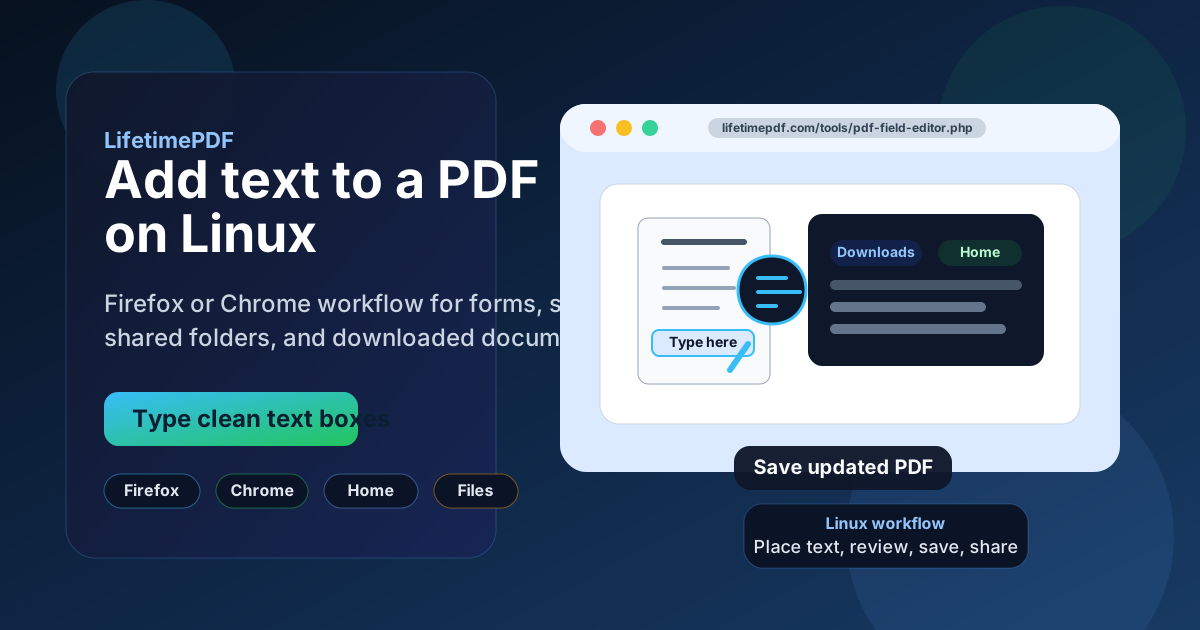
Table of contents
- Quick start: add text to a PDF on Linux in 3 minutes
- The best Linux workflow for typing on PDFs
- Text boxes vs form filling vs annotations
- Step-by-step: add text from Downloads, your home folder, shared storage, or email attachments
- Linux PDF viewers vs a dedicated text workflow
- Scanned PDFs, OCR, and image-only pages on Linux
- How to save, share, and keep the file readable
- Common Linux text-placement problems and quick fixes
- Related LifetimePDF tools and guides
- FAQ
Quick start: add text to a PDF on Linux in 3 minutes
If the PDF is already on your Linux computer and you just need to type on it cleanly, this is the workflow most people actually want:
- Open PDF Field Editor in Firefox or Chrome.
- Choose the file from Downloads, Documents, your home folder, a shared drive, or a saved email attachment.
- Add a text box where the wording should appear and zoom in before you finalize the position.
- If the file is really a form, use PDF Form Filler instead of layering loose text boxes across the page.
- If the page is a scan and placement feels slippery, run OCR PDF first.
- Download the updated PDF, reopen it once in your usual viewer or browser, and confirm the text lands where you intended before you send or archive it.
The best Linux workflow for typing on PDFs
On Linux, adding text to a PDF gets much easier when you stop treating every PDF job as the same thing. Most problems happen because people try to solve three different tasks with one tool:
- Adding visible text: placing words directly on the page for names, dates, labels, corrections, short answers, or typed notes.
- Filling fields: completing a real form in a way that stays lined up and looks intentional.
- Reviewing or marking up: leaving highlights, comments, boxes, or arrows rather than pretending to edit the document itself.
Linux users often bounce between Firefox, Chrome, Evince, Okular, and whatever desktop app opened the file by default. That is fine for reading, but it becomes messy fast when you need a polished finished document. A dedicated browser-based workflow is simpler because it behaves consistently whether the PDF started in Downloads, an SMB share, a synced folder, or an email attachment.
If all you need is to place a few clean words on a page, use a text-focused tool and keep the job small. If the file is a form, use a form workflow. If the file is a scan, make it searchable first. That one decision saves more time than any Linux-specific tweak.
Text boxes vs form filling vs annotations
Before you start typing, decide what kind of PDF you actually have. The wrong choice is why so many edited PDFs come back looking crooked, crowded, or hard to read.
| Situation | Best approach | Why it works better |
|---|---|---|
| You need to add a name, date, caption, label, or short correction | Use PDF Field Editor | It lets you place visible text exactly where it belongs without rebuilding the whole page. |
| The PDF has boxes, lines, or structured answer areas | Use PDF Form Filler | Form workflows keep answers aligned and usually look more professional than free text dropped all over the page. |
| You only need comments, highlights, circles, or review notes | Annotate instead of adding plain text | Review markups are easier for another person to interpret and they avoid confusing the original content with your notes. |
| The PDF is image-only or behaves like a scan | Run OCR PDF first | Searchable text makes placement, checking, and later reuse much easier than typing blindly over a picture. |
In other words, do not force a text box to do the work of a form filler, and do not expect a basic viewer to solve a scan problem. Once you match the task to the right workflow, Linux stops being the hard part.
Step-by-step: add text from Downloads, your home folder, shared storage, or email attachments
Here is the practical sequence that avoids most mistakes:
1. Start with the exact file you plan to send back
This sounds obvious, but Linux machines often accumulate multiple copies with names like form.pdf, form(1).pdf, and form-final.pdf. Before you edit anything, confirm whether the real source lives in Downloads, your project folder, a cloud-sync directory, or a mounted share.
2. Open the text workflow in Firefox or Chrome
Open PDF Field Editor in your browser and upload the file you actually want to modify. A browser workflow is especially useful on Linux because it behaves the same whether you use Ubuntu, Debian, Fedora, Mint, Pop!_OS, or another desktop setup.
3. Place text where it belongs, then zoom in
Add text for the exact thing you need: a date, a label, an answer, a paragraph heading, an invoice note, or a correction. Place it loosely first, then zoom in and refine the position. Tiny placement errors are much easier to catch before you save than after the file gets emailed back to someone else.
4. Handle multiline text carefully
If you need more than a few words, stop and check whether the page is really asking for a form-style response. Long text stuffed into a narrow box is where Linux users often end up with awkward wraps or text that looks fine in one viewer and cramped in another. When in doubt, use fewer words, widen the placement area, or move to a proper form-filling step.
5. Save a new copy and reopen it once
Download the updated PDF with a clear filename. Then reopen that saved copy in the viewer you normally use, whether that is Firefox, Chrome, Evince, Okular, or another desktop app. This final check matters because it confirms the file still looks right outside the editing session.
Linux PDF viewers vs a dedicated text workflow
Linux has solid PDF viewers. Firefox and Chrome open PDFs instantly. Evince is lightweight. Okular is powerful. Some distributions also have document viewers built into the desktop. The catch is that opening a PDF is not the same as adding polished text to it.
Viewers are great when you need to read, search, print, or occasionally mark something up. They are less reliable when the task is precise text placement on a page that may later be reopened in a different viewer, uploaded to a portal, or sent to another person who expects a clean result.
- Use a viewer when you only need to read, inspect, or leave a quick comment.
- Use a text workflow when the text must look intentional and stay in the right spot after download.
- Use form filling when the page clearly expects typed answers in fields or boxes.
- Use OCR first when the page behaves like a photo instead of a real text document.
If you have ever typed something that looked fine in one Linux app and odd in another, this is usually why. The viewer was never the right tool for the job.
Scanned PDFs, OCR, and image-only pages on Linux
A lot of “I cannot add text to this PDF” complaints are really scan problems. Old paperwork, printed forms, signed documents, and phone-camera scans often behave like flat images. You can still put visible text on top, but placement is harder and the result often looks less natural.
The cleaner fix is to run OCR PDF first. OCR does not magically redesign the page, but it makes the document more searchable and easier to work with. That helps when you need to line up text, check names, or confirm that the file is still readable after editing.
OCR is especially worth doing on Linux when the PDF came from a scanner, a fax, a photographed receipt, or a low-resolution office copier. In those cases, the real bottleneck is not Linux. It is the quality of the source file.
How to save, share, and keep the file readable
Once the text is in place, the last job is preserving a clean result. That mostly comes down to file hygiene:
- Save the edited file as a new copy instead of overwriting the source.
- Use a clear filename so you can tell the edited version from the original at a glance.
- Reopen the saved file once before you upload it to a portal or attach it to email.
- If the finished PDF is huge, run Compress PDF before sharing it.
- If the next step is signing, add the visible text first and then use Sign PDF afterward.
This matters even more on Linux when the file moves between local folders, shared storage, cloud sync, and email attachments. A clean naming habit prevents most version mix-ups.
Common Linux text-placement problems and quick fixes
If something feels off, it is usually one of these issues:
The text looks slightly misaligned after download
Go back, zoom in further, and reposition the text more carefully. Then reopen the saved copy in your normal viewer to make sure the final file still looks right outside the editor.
You are editing the wrong copy
Check whether the real source file is in Downloads, Documents, a synced folder, or a mounted share. Linux systems make it easy to end up with multiple similar filenames.
The page is really a form, not a free-text document
Move to PDF Form Filler. If the layout expects structured answers, the result will usually look cleaner than manually placing text boxes across the page.
The PDF behaves like an image
Run OCR PDF first. Scans and photographed pages are much harder to type over cleanly until they are searchable.
The file is fine, but it is too large to email or upload
Use Compress PDF after you finish editing so you do not waste time redoing work on a second copy.
Related LifetimePDF tools and guides
Adding text to a PDF on Linux often turns into one or two extra cleanup steps. These are the most useful companions:
- PDF Field Editor — add visible text and handle light field-level edits.
- PDF Form Filler — better for structured forms and answer boxes.
- OCR PDF — make scanned PDFs searchable before you place text.
- Sign PDF — add a signature after the typed content is final.
- Compress PDF — shrink large updated files for email or portal limits.
Related reading on LifetimePDF: How to Annotate a PDF on Linux, How to Fill Out a PDF Form on Linux, How to OCR a PDF on Linux, How to Sign a PDF on Linux, and Edit PDF Text Online Free.
Linux shortcut: if you only need a few words on the page, start with PDF Field Editor. If it is really a form, fill it properly. If it is really a scan, OCR it first.
FAQ: How to add text to a PDF on Linux
How do I add text to a PDF on Linux without Adobe Acrobat?
Open a browser-based PDF editor in Firefox or Chrome on your Linux computer, upload the file from Downloads, your home folder, or shared storage, place a text box exactly where you need it, then save the updated copy back to your machine.
Can I add text to a scanned PDF on Linux?
Yes, but the workflow is usually cleaner after OCR. If the PDF behaves like an image, make it searchable first so your added text is easier to position and review.
What if the PDF is a form with boxes I need to fill in?
If the file is really a form, use PDF Form Filler instead of placing loose text boxes all over the page. The final result is usually much cleaner and easier to read.
Is Evince or Okular enough to type on a PDF on Linux?
They are useful for viewing and light markup, but a dedicated PDF text workflow is usually better when you need precise placement, scanned-file handling, or a polished result you plan to send to someone else.
How do I save the updated PDF on Linux without overwriting the original?
Download the edited file with a clear new filename such as contract-filled.pdf or claim-form-updated.pdf, then keep the original untouched in its project folder so you always know which version is the source.
Published by LifetimePDF — Pay once. Use forever.