Webpage to PDF: The Practical Way to Save Web Pages as Clean Shareable PDFs
To make a webpage to PDF, print the live page to PDF for the fastest result, or save the page as HTML and convert it with LifetimePDF when you want cleaner page size and margin control.
If the page is a dashboard, web app, or stubborn layout, take clean screenshots and turn those into one PDF instead of forcing a broken print export.
That simple answer covers most searches, but the useful part is choosing the right workflow for the type of page in front of you. A help article, a receipt page, a booking confirmation, a long policy page, and a private dashboard do not behave the same way. People get bad results when they treat every webpage like a normal printable document. The better approach is to decide whether you need a fast capture, a cleaner archive copy, or a reliable visual record, then build the PDF around that goal.
Fastest practical path: use browser Print to PDF for simple live pages, switch to HTML to PDF when you want cleaner paper-style output, and use screenshots only when the page itself refuses to behave.
In a hurry? Jump to the quick answer and workflow.
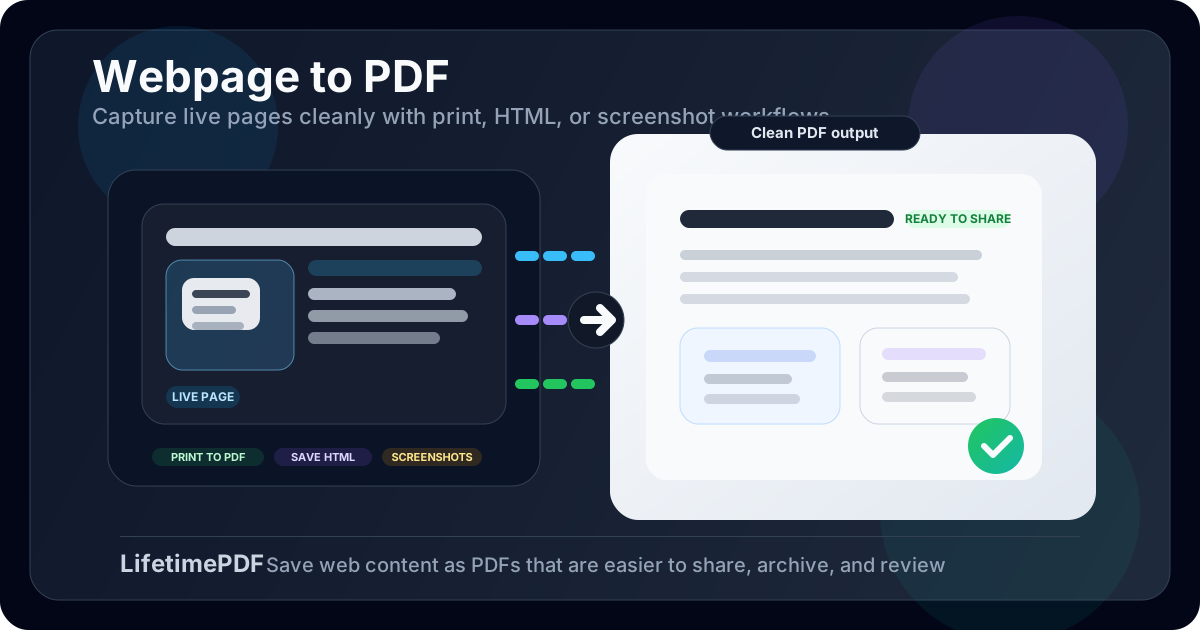
Table of contents
- Quick answer: the best way to make a webpage into a PDF
- When webpage to PDF is the right workflow
- Choose the right method: print, saved HTML, or screenshots
- Step-by-step: create a clean webpage PDF with LifetimePDF
- How to avoid bad page breaks, clipping, and missing sections
- Best use cases for webpage PDFs
- What to do after export
- Related tools and guides
- FAQ
Quick answer: the best way to make a webpage into a PDF
If the page is public, mostly static, and already looks good in your browser, use Print → Save as PDF first. That is usually the fastest route for articles, receipts, booking confirmations, policies, and documentation pages.
If the printed result looks awkward, save the page as an HTML file and use HTML to PDF so you have better control over paper size, margins, and a reusable file-based workflow. If the page is highly interactive or visually fragile, capture screenshots and combine them with Images to PDF instead.
When webpage to PDF is the right workflow
People usually search webpage to PDF when a normal bookmark is not enough anymore. They need a file they can send, archive, upload, annotate, or preserve before the page changes.
| Situation | Why a PDF helps | Best starting method |
|---|---|---|
| Articles, policies, and documentation | Easier offline reading, review, and archiving | Browser Print to PDF |
| Receipts, confirmations, and account pages | Creates a portable record that is easier to send or store | Browser Print to PDF |
| Pages you want to preserve before they change | A PDF keeps a stable snapshot | Print or screenshots depending on layout |
| Dashboards, apps, and visual proofs | Lets you capture what the page looked like at that moment | Screenshots to PDF |
| Reusable page archives | Saved HTML gives you a file you can reconvert later | HTML to PDF |
The real question is not just "Can I make this a PDF?" It is "What kind of copy do I actually need?" If you only need readable content, print is often enough. If you need a more controlled document output, HTML conversion helps. If you need visual proof of a complicated interface, screenshots are often more honest than a broken PDF export.
Choose the right method: print, saved HTML, or screenshots
Most bad webpage PDFs come from choosing the wrong capture method, not from using the wrong PDF tool.
1. Browser Print to PDF
This is best for pages that already behave like documents: articles, receipts, invoices, help-center pages, travel confirmations, and long text pages. It captures the live page as rendered in your browser, which is why it often works better than file conversion for ordinary public pages.
2. Save the page as HTML, then convert it
This is the better choice when you want a repeatable file-based workflow, paper-size control, or cleaner archiving. Use HTML to PDF when the saved page still behaves sensibly once it is local and you want a more document-like result.
3. Screenshots, then Images to PDF
This is the fallback that people should use sooner, not later, for dashboards, web apps, chat threads, live reports, maps, and interfaces with floating controls. If the page is obviously designed for interaction rather than printing, screenshots are often the cleanest path to a reliable PDF.
Step-by-step: create a clean webpage PDF with LifetimePDF
- Load the page fully. Scroll once so lazy-loaded images, charts, comments, or expandable sections appear before capture.
- Clean the view. Close cookie banners, chat widgets, popups, and anything else that would look ridiculous repeated across a PDF.
- Pick the right workflow. Use print for simple pages, saved HTML for cleaner paper control, or screenshots for interactive layouts.
- Create the PDF. Save directly from the browser, upload the HTML file to HTML to PDF, or combine screenshots with Images to PDF.
- Review the first, middle, and last page. That quick check catches most real problems without wasting time.
- Finish the file only if needed. Compress, protect, or merge it based on where the PDF goes next.
The reason this workflow works is that it stays close to the real job. You are not trying to prove that one method is universally best. You are trying to get a PDF that another human can actually read, store, or trust.
Recommended sequence: capture the page with the method that matches its layout, review it once, then optimize the PDF only if the next step needs that extra polish.
How to avoid bad page breaks, clipping, and missing sections
Webpage PDFs usually fail in a few predictable ways. Small workflow fixes make a bigger difference than endless retries.
Wide content gets clipped
- Try landscape mode.
- Reduce print scale slightly.
- Hide sidebars or switch to reader mode if available.
Sticky headers and floating widgets ruin the layout
- Close them before printing.
- Use a cleaner reader view for article-style pages.
- Switch to screenshots if the interface keeps reappearing in bad places.
Images or charts are missing
- Scroll through the page once before exporting.
- Wait for lazy content to load fully.
- Use screenshots if the graphics are rendered dynamically.
The PDF is readable but ugly
- Use saved HTML with HTML to PDF when you need cleaner paper-style output.
- Turn off backgrounds when design does not matter.
- Think like the recipient: they need a usable document, not a perfect replica of a messy webpage chrome.
Best use cases for webpage PDFs
A webpage PDF is most useful when you need a stable, portable copy of something that normally lives in a browser tab.
- Proof and record keeping: receipts, order confirmations, support threads, and booking pages.
- Documentation and research: help articles, policies, public docs, reference pages, and long-form reads.
- Project snapshots: launch pages, landing pages, knowledge-base revisions, and product states before changes.
- Internal reporting: dashboards, analytics screenshots, admin views, and review packets.
- Client or team sharing: create one portable file instead of telling someone to open a page that may have changed by the time they click it.
In other words, webpage-to-PDF is less about conversion for its own sake and more about creating a version that survives outside the browser.
What to do after export
Once the PDF exists, the next step often matters more than the capture itself.
- Compress PDF if the file is too large for email, chat, or portal uploads.
- Protect PDF if the page contains private account, billing, HR, or client information.
- Merge PDF if the webpage export belongs inside a bigger packet.
- PDF Page Numbers if the PDF will be reviewed in meetings, approvals, or reference-heavy discussions.
This is where a lot of webpage captures become genuinely useful. A clean PDF is good. A smaller, protected, properly organized PDF is usually better.
Ready to finish the workflow? Build the PDF first, then make it smaller, safer, or easier to review depending on where it goes next.
Related tools and guides
These are the most useful follow-up tools for a clean webpage-to-PDF workflow:
- HTML to PDF for saved-page conversion and cleaner paper-style exports
- Images to PDF for screenshot-based capture when print fails
- Compress PDF for sharing-friendly file sizes
- Protect PDF for password protection
- PDF Page Numbers for review-ready files
- Webpage to PDF Online for the browser-first angle
- HTML to PDF for the file-conversion companion workflow
- Images to PDF for screenshot packet creation
FAQ
How do I save a webpage as a PDF?
The fastest option is usually your browser's Print to PDF feature. If you want cleaner page settings or a reusable file-based workflow, save the page as HTML first and convert it with LifetimePDF HTML to PDF.
Why does my webpage PDF cut off content or break badly?
Because webpages are built for scrolling screens, not fixed paper pages. Wide tables, sticky headers, floating widgets, and responsive layouts often create clipping or awkward page breaks.
Should I use print, saved HTML, or screenshots?
Use print for simple readable pages, saved HTML for cleaner structured conversion, and screenshots for dashboards, apps, or complex layouts that do not behave well when printed.
Can I convert a private or login-only webpage to PDF?
Sometimes yes, but only if you are authorized to capture it. Private dashboards and web apps often work better with browser printing or screenshots than with saved HTML files.
What should I do after I create the webpage PDF?
Compress it if the file is too large, protect it if it contains sensitive information, and merge or number it if the PDF is going into a larger packet or review workflow.
Published by LifetimePDF — Pay once. Use forever.