Images to PDF: Turn Photos, Screenshots, and Scans Into One Clean Document Faster
Yes — the fastest way to turn images to PDF is to upload all the related image files at once, put them in the right reading order, choose one consistent page setup, and export a single PDF that is much easier to share, print, or upload. If the pages come from phone photos or scans, review the order first, then decide whether the finished PDF needs compression, OCR, or password protection as a follow-up step.
This matters more than it sounds. A loose pile of image files is easy to create and annoying to receive. A single PDF is easier to review, archive, submit to portals, attach to email, and keep in the right order. Whether you are packaging receipts, homework scans, onboarding paperwork, repair photos, or screenshots for a report, the real goal is not just conversion. The goal is to produce one document that someone else can actually use without friction.
Fastest practical path: gather the images for the same packet, arrange the order once, export one PDF, then only compress or OCR it if the next step actually needs that.
In a hurry? Jump to Quick start: convert images to PDF in a few minutes.
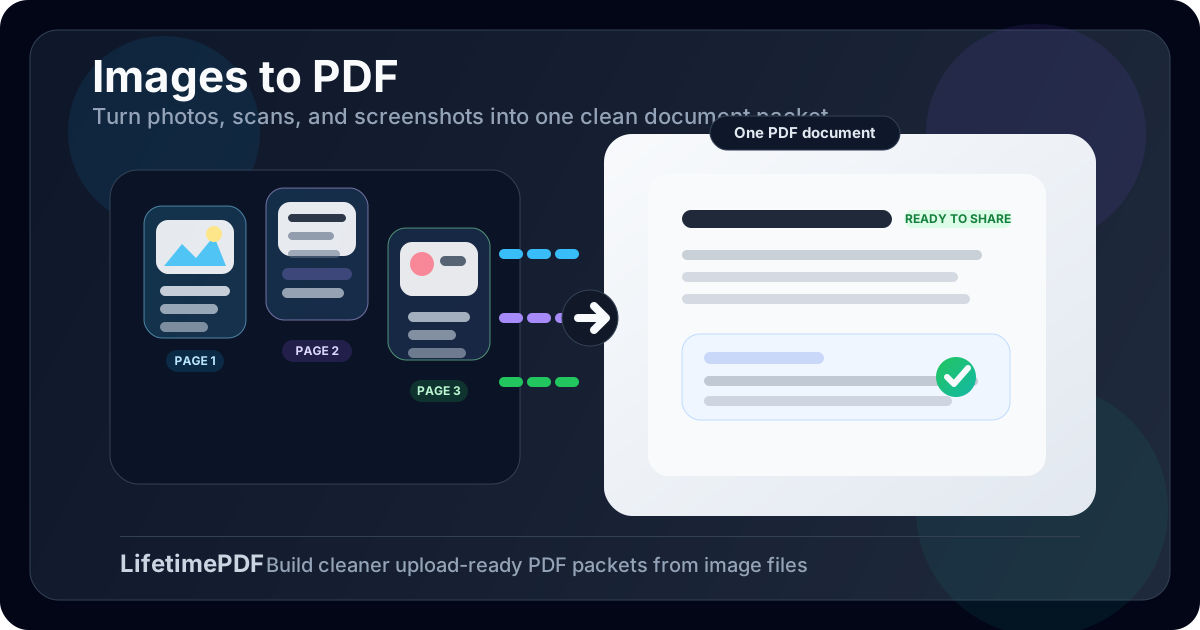
Table of contents
- Quick start: convert images to PDF in a few minutes
- When images to PDF is the right workflow
- How to prepare your images before converting
- Step-by-step: turn images into a PDF with LifetimePDF
- How to choose page size, orientation, and file names
- How to keep the PDF readable without making it huge
- What to do after conversion: compress, OCR, or protect
- Common images-to-PDF mistakes
- Related LifetimePDF tools and guides
- FAQ (People Also Ask)
Quick start: convert images to PDF in a few minutes
If your files are already on your device, the cleanest workflow usually looks like this:
- Open Images to PDF.
- Upload every image that belongs in the same packet.
- Arrange the files in the exact order you want the reader to see them.
- Choose a page size such as A4 or Letter and the orientation that fits most pages best.
- Export the PDF and review the first page, last page, and a few pages in the middle.
- If the file is too large, use Compress PDF.
- If the pages are photos or scans of paper documents and need searchable text, run OCR PDF.
When images to PDF is the right workflow
People usually search for images to PDF when the file format problem is really an organization problem. The images may already be fine on their own. The issue is that separate image files are awkward when the recipient needs to read them in sequence.
A single PDF is especially useful for workflows like these:
- Receipts and expense packets that need one upload instead of ten camera-roll files
- Scanned forms and ID pages that must stay in a specific order
- Homework, worksheets, or application materials submitted through school or job portals
- Phone photos of printed documents that need to become one readable handoff
- Screenshots for bug reports, tutorials, or case notes where the sequence matters
- Claims, inspections, and field photos that are easier to archive as one document
| Situation | Why a single PDF helps | What separate image files often cause |
|---|---|---|
| Receipts or statements | One upload, one filename, one document trail | Wrong order, missing pages, too many attachments |
| Scans of paper pages | Cleaner printing and easier archiving | Pages buried in the camera roll or shared one by one |
| Screenshots for review | The sequence reads like a report instead of a folder dump | Confusing filenames and context gaps |
In other words, the PDF is not just a different format. It is the format that makes the whole packet behave like a document instead of a bundle of loose images.
How to prepare your images before converting
Better input usually matters more than clever settings. Before you convert anything, take thirty seconds to clean up the source files.
1) Remove duplicates and obvious mistakes
If you accidentally captured the same page twice, or you have one blurry photo between several good ones, fix that now. It is faster to clean the packet before conversion than to explain a messy PDF later.
2) Put the pages in reading order
This is the biggest step people skip. A PDF can only be as logical as the page order you give it. If the document is meant to read top to bottom, put the files in that order before you export.
3) Check for cropping, shadows, and rotation problems
Phone photos of paper documents often include dark corners, tilted pages, or unnecessary background. A quick cleanup before conversion makes the final PDF look much more intentional. If you already know one page should be rotated later, keep that in mind for follow-up with Rotate PDF.
4) Decide whether the packet should print like a document
If the final file will be printed, filed, or uploaded to a formal portal, consistency matters. Mixed aspect ratios can still work, but they look better when you choose one standard page size for the whole output.
Step-by-step: turn images into a PDF with LifetimePDF
Open the converter
Start with LifetimePDF Images to PDF. It is the fastest path when you want one finished PDF instead of a collection of image files.
Upload every image for the same packet
Add all related JPG, PNG, or other image files in one pass. That gives you a better chance to review the full order before the document is created.
Set the order before exporting
This is where the workflow becomes useful. Think like the eventual reader. Would they expect the summary page first? Does the front of an ID card come before the back? Do receipts need to run oldest to newest, or newest to oldest? Decide that before you create the PDF, not after.
Choose your page settings
Pick a layout that matches the job. Standard paper sizes such as A4 or Letter make sense when the file will be printed or submitted as a normal document. Orientation matters too: portrait works for most document scans, while landscape can fit wide screenshots or slides better.
Export and review the result
After export, do a fast quality check. Open the file, make sure nothing obvious is missing, and verify that the order still feels right. You do not need to reread every page in detail. You do need to confirm that the PDF behaves like one coherent packet.
Need to package the file right now? Build the PDF first, then improve only what the next step requires.
How to choose page size, orientation, and file names
The best settings depend on how the file will be used next. If you are just trying to save a record for yourself, almost any readable setup will work. If someone else must print, submit, or review it formally, the settings matter more.
When to choose A4 or Letter
- A4 is a safe default for many international document workflows.
- Letter is often better when the recipient expects U.S. office-style pages.
- Use one standard size across the whole packet when consistency matters more than matching each image exactly.
When portrait or landscape makes more sense
- Portrait usually fits document photos, forms, receipts, and ID scans.
- Landscape is often better for wide screenshots, slide captures, or dashboard exports.
- If most pages are one orientation, match the majority instead of over-optimizing for one outlier image.
Use a filename people can understand later
A filename like receipts-march-2026.pdf is more useful than scan-final-new.pdf.
Clear filenames save time for you, the recipient, and anyone who has to find the file again a month from now.
How to keep the PDF readable without making it huge
People often worry that converting images to PDF will either ruin quality or create a giant file. Usually the better question is: what level of quality does this workflow actually need?
- For receipts, forms, and scans: prioritize legibility over oversized resolution.
- For screenshots: keep text readable, but do not preserve every pixel if the file is becoming painful to share.
- For detailed photo evidence: make sure zooming still works for the important pages, then compress only if necessary.
The best workflow is usually this: create the clean PDF first, then decide whether the output is already good enough. If it is too large, use Compress PDF afterward. That is usually more reliable than overthinking every image before conversion.
What to do after conversion: compress, OCR, or protect
Converting images to PDF is often the first step, not the last one. The right follow-up depends on what the PDF needs to do next.
Use compression when file size becomes the problem
Email limits, portal limits, and messaging apps do not care how nice your PDF looks. They care how big it is. If the file is too large to send comfortably, run it through Compress PDF.
Use OCR when the pages need to be searchable
If the PDF came from scans or phone photos of paper pages, the text may still behave like an image. OCR is what turns that into searchable, selectable text. That matters for archives, legal packets, school submissions, and any workflow where someone might need to search within the file later.
Use protection when the packet contains private information
If you are packaging IDs, financial paperwork, HR forms, contracts, or anything sensitive, add a security step before sending it onward. Protect PDF helps when the finished file needs access control rather than open circulation.
Common images-to-PDF mistakes
If the final PDF feels messy, one of these problems is usually responsible:
- Uploading pages in the wrong order and only noticing after sending the file
- Mixing unrelated images in one packet because everything came from the same phone album
- Keeping blurry or shadowed page photos that should have been retaken
- Using no follow-up step even when the file is too large or still not searchable
- Giving the PDF a vague filename that makes it hard to identify later
Related LifetimePDF tools and guides
Images to PDF is often the center of a larger document workflow. These related tools and guides help when the packet needs cleanup after conversion:
- Images to PDF to build the document packet itself
- Compress PDF when the finished file is too large
- OCR PDF when the pages need searchable text
- Protect PDF when the packet contains sensitive information
- Images to PDF Online for a more modifier-specific version of this workflow
- How to Convert Multiple Images to One PDF for a task-focused walkthrough using mixed image sets
Want the cleanest result? Make the PDF first, then decide whether it needs compression, OCR, or protection based on the next real use case.
FAQ (People Also Ask)
How do I turn images into a PDF?
Upload the image files to an images-to-PDF tool, arrange them in the correct order, choose page settings, create the PDF, and review the output before sharing it.
Can I combine photos and screenshots into one PDF?
Yes. Mixed image files such as photos, screenshots, and scans can all be packaged into one PDF as long as you review the order and make sure the pages still read clearly as one document.
What page size should I use for images to PDF?
A4 or Letter is usually best when the PDF will be printed, uploaded, or reviewed like a standard document. Pick the size that matches the recipient's workflow more than the camera's aspect ratio.
How do I make an image-based PDF smaller?
Create the PDF first, then compress it if the final file is too large for email, uploads, or messaging apps. That usually gives you a cleaner balance between readability and file size.
When should I use OCR after converting images to PDF?
Use OCR when the pages came from scans or phone photos of paper documents and someone needs the final PDF to have searchable, selectable text.