Verify PDF Signature Online Without Monthly Fees: Check Signed PDFs Without Another Approval-Tool Subscription
To verify a PDF signature online without monthly fees, upload the original signed PDF to a browser-based signature checker, read whether the result is valid, warning, or invalid, and confirm the signer details before you trust the file.
If the PDF was printed, screenshotted, or edited after signing, stop there and request the real signed copy or compare versions before you approve or file it.
That handles the search query, but the more useful question is what a sane verification workflow looks like when this is not a one-off task. Teams in finance, HR, legal, procurement, and operations often need to check signed PDFs repeatedly, yet a lot of tools try to turn a simple trust check into another recurring software bill. For most people, the real win is not fancy certificate jargon. It is getting a clear answer quickly, using the original file, and knowing exactly when to move forward and when to slow down.
Fastest path: upload the original signed PDF, read the status first, then review the signer and any warning details only as deeply as the situation requires.
In a hurry? Jump to Quick start: verify a signed PDF in under 4 minutes.
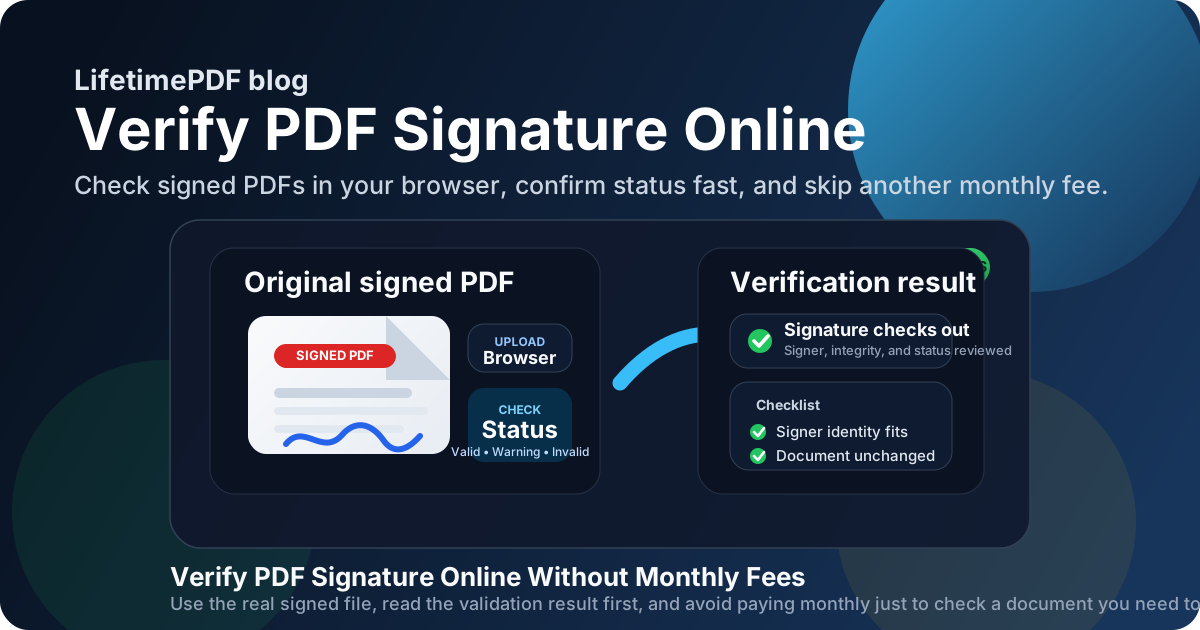
Table of contents
- Quick start: verify a signed PDF in under 4 minutes
- What “without monthly fees” should actually mean here
- Step-by-step: how to verify a PDF signature online
- What valid, warning, and invalid usually mean
- What to check before you trust the document
- When a warning is a caution and when it is a stop sign
- Where this workflow matters most
- Privacy and safer signed-document handling
- Related LifetimePDF tools and guides
- FAQ
Quick start: verify a signed PDF in under 4 minutes
If you only need the practical workflow, use this order:
- Start with the actual signed PDF, not a screenshot, flattened copy, or rescanned printout.
- Open Verify PDF Signature.
- Upload the file and read the result first: valid, warning, or invalid.
- Confirm the signer name, signing time, and integrity result fit the business context.
- If the result is unclear, compare versions or ask for a fresh signed PDF before you approve, archive, or forward anything.
What “without monthly fees” should actually mean here
People searching for verify PDF signature online without monthly fees are usually not looking for an enterprise compliance suite. They want a reliable browser workflow for a task that comes up regularly but does not justify another subscription.
In practice, that phrase should mean three simple things:
- Fast access: open the file in a browser and get a useful answer quickly.
- Clear guidance: understand whether the result is good, questionable, or unsafe.
- Repeatable value: check signed PDFs when you need to, without turning basic document trust checks into a seat-based monthly expense.
That matters because signed PDFs often sit in boring but important workflows: vendor packets, hiring forms, property documents, consent forms, onboarding packets, insurance records, and approval chains. You do not need drama in those moments. You need a tool that tells you whether the document still lines up with the signature it claims to carry.
Step-by-step: how to verify a PDF signature online
A good verification flow is simple on purpose. The goal is to reduce risk, not add ceremony.
1) Start with the original signed file
This is the part people skip most often. If someone forwards a screenshot of a signature panel, exports the PDF again, prints it, or rescans it, the original digital-signature data may be gone. Once that happens, you are no longer verifying the signature that mattered. You are just looking at a picture of a document that once had one.
2) Run the file through a browser-based verifier
Open LifetimePDF’s Verify PDF Signature tool and upload the real file. Let the tool inspect the embedded signature information before you make any assumptions based on how the PDF looks on screen.
3) Read the status first
The first useful answer is usually one of three states: valid, warning, or invalid. Read that result before you dive into the details. It gives you the right level of urgency for the rest of the review.
4) Check signer details and context
If the result looks usable, confirm the signer name, the signing time, and whether the document fits the real workflow. A technically valid signature can still belong to the wrong person, the wrong version, or the wrong approval step.
5) Compare or resend when needed
If something feels off, stop pretending it is probably fine. Use Compare PDFs to spot content changes, or ask the sender for a clean resend of the signed original. A two-minute pause now is usually cheaper than trusting the wrong document.
What valid, warning, and invalid usually mean
These labels are helpful because they let you triage the file quickly, but they only become useful when you know what action each one should trigger.
| Status | What it usually means | Practical next step |
|---|---|---|
| Valid | The signature data matches the document and the file does not appear to have changed after signing. | Confirm the signer and context, then move forward if everything else fits. |
| Warning | Something needs more review, such as trust-store issues, incomplete certificate checks, or an unusual signing environment. | Slow down, inspect details, and decide whether the warning is explainable or a reason to stop. |
| Invalid | The signature result does not support trusting the file as-is, often because the document changed after signing or the signature data cannot validate properly. | Do not approve or archive it as trusted. Compare versions or request a fresh signed file. |
The important thing is not to flatten these into “green means always safe” and “yellow means ignore it if you are busy.” Even a warning that turns out to be harmless still deserves a short explanation, especially when the document affects money, policy, legal terms, or identity.
What to check before you trust the document
Verification gets better when you pair the technical result with a few human checks. Most bad calls happen when somebody sees one reassuring detail and stops looking.
Check the signer identity
Does the signer match the person, department, or vendor you expected? A technically valid signature from the wrong person is still the wrong answer.
Check document integrity
The file should appear unchanged since signing. If the document content, page count, totals, or clauses look different from the version you expected, compare copies before you trust it.
Check the timing
A valid signature attached to an outdated version can still create workflow problems. Make sure the signing time lines up with the current document round, not an older draft that should have been replaced.
Check the business context
Does the PDF match the email thread, approval request, vendor name, client name, or transaction you are handling? Verification is not just about the file in isolation. It is also about whether the file belongs in the situation in front of you.
When a warning is a caution and when it is a stop sign
Not every warning means fraud, but not every warning is harmless either. The useful skill is knowing which category you are in.
Warnings that may be explainable
- A trusted sender used a signing environment your current device does not recognize cleanly.
- The certificate chain cannot be checked fully in that moment, but the file and workflow still make sense.
- You can confirm the same signed file through another trusted source or internal system.
Warnings that should slow everything down
- The signer name does not match the person or organization involved.
- The file looks different from a version you already saw.
- The sender cannot provide the original signed PDF.
- The document appears to have changed after signing.
- The “signature” is only a visible image or stamp with no meaningful validation behind it.
When the warning lands in the second group, treat it as a stop sign, not a minor inconvenience. That is exactly when comparison tools and resend requests earn their keep.
Where this workflow matters most
Signed PDFs show up everywhere, but a few use cases create the most pressure to verify quickly and correctly.
Procurement and finance
Vendor forms, quotes, approvals, and invoice-related packets often move fast. A quick validation check helps you avoid filing or paying against the wrong document version.
HR and onboarding
Employment forms, acknowledgments, offer letters, and policy documents should not be trusted just because they look complete. Verification helps confirm that the right signed file made it back into the system.
Legal and operations
Contracts, amendments, property documents, and internal approvals often pass through several hands. Browser-based verification makes it easier to confirm the file before it gets archived, circulated, or acted on.
Client delivery and external approvals
If a customer, supplier, or partner sends back a signed PDF, a quick check can prevent the awkward situation where everyone thinks the document is final and trustworthy when it is actually incomplete or altered.
Privacy and safer signed-document handling
Verification answers a trust question, but it does not replace every other document-control step.
- Need to keep a signed PDF safer after review? Use PDF Protect for an extra access-control step.
- Need to compare a suspicious copy against another version? Use Compare PDFs.
- Need to send a clean signature request yourself? Use Sign PDF.
Also remember that signature validation is not the same thing as redaction, metadata cleanup, or password protection. If a signed PDF contains sensitive content, you may need other controls before you store or share it more widely.
Related LifetimePDF tools and guides
If you are building a repeatable signed-document workflow, these are the most useful next steps:
- Verify PDF Signature for the main validation step
- Compare PDFs for checking whether two versions differ
- Sign PDF for applying your own signature workflow
- PDF Protect for locking down files after review
- Verify PDF Signature Online Free for the broader browser-first workflow
- Verify PDF Signature for the exact-match validation guide
- Verify PDF Signature Without Monthly Fees for the general pay-once angle
Ready to check a file now? Start with the verifier, use the original signed PDF, and let the result guide the next step instead of guessing from the visible signature box.
FAQ
How do I verify a PDF signature online without monthly fees?
Upload the original signed PDF to a browser-based verifier, read whether the result is valid, warning, or invalid, and then confirm the signer details before you trust the file.
Can I verify a signature from a screenshot or rescanned PDF?
No. Screenshots, printouts, and rescanned PDFs usually lose the original digital-signature data, so you need the actual signed PDF to perform a meaningful verification check.
What does a warning on a PDF signature mean?
A warning means the file needs closer review. It may be something explainable, but it can also signal trust-store issues, incomplete certificate checks, or a document that changed after signing.
Is a visible signature box enough to trust a PDF?
No. A visible signature image only shows appearance. The important part is whether the digital signature validates and whether the signer and document context actually fit.
What should I do if a signed PDF shows invalid?
Do not move it forward as trusted. Compare it against another copy if available, confirm the source with the sender, and request a fresh signed PDF if the issue cannot be explained clearly.
Published by LifetimePDF — Pay once. Use forever.