Verify PDF Signature Without Monthly Fees: Check Signed PDFs Without Paying for Another Subscription
If you need to verify a PDF signature without monthly fees, upload the original signed file to LifetimePDF's Verify PDF Signature tool, read whether the result is valid, warning, or invalid, and confirm the signer details before you trust the document.
That is usually enough to check contracts, approvals, forms, HR letters, and compliance PDFs without adding another recurring subscription just to answer a simple trust question.
Signature checking sounds like an edge case until you realize how often it comes back. A vendor sends a signed contract. HR forwards an offer letter. Finance receives an approval PDF. Legal gets a revised attachment. Compliance needs to confirm that the signed copy in the archive is still the real one. In all of those cases, the useful job is not "see a signature." It is "decide whether this exact file still deserves trust" — and that should not require another monthly bill.
Fastest path: open the signed PDF in LifetimePDF's verification workflow, read the status first, then inspect signer and certificate details only as deeply as the result requires.
In a hurry? Jump to Quick start: verify a signed PDF in 3 minutes.
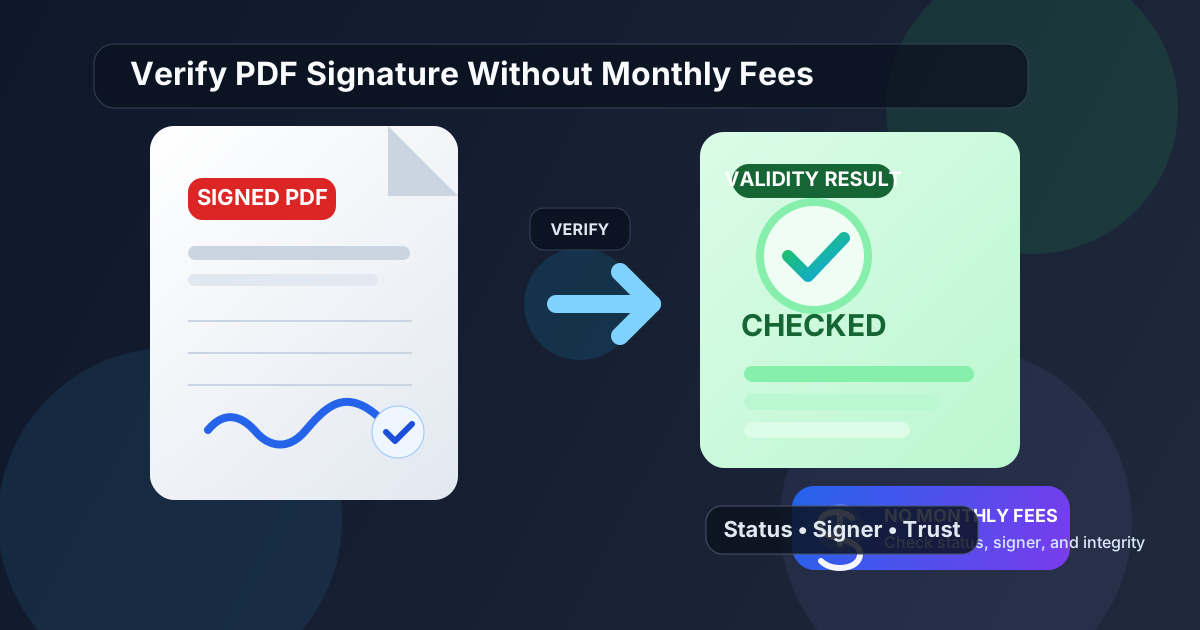
Table of contents
- Quick start: verify a signed PDF in 3 minutes
- Why "without monthly fees" matters for signature checks
- What PDF signature verification actually checks
- Step-by-step: verify PDF signature without monthly fees
- What valid, warning, and invalid usually mean
- Common signed-PDF workflows where this matters
- When to compare two copies of the same PDF
- Related LifetimePDF tools and guides
- FAQ (People Also Ask)
Quick start: verify a signed PDF in 3 minutes
If you only need the short version, use this order:
- Open Verify PDF Signature.
- Upload the original signed PDF, not a screenshot or printed-and-rescanned copy.
- Read the status result first: valid, warning, or invalid.
- Confirm the signer name, signing time, and certificate or trust details match the document context.
- If the result is anything other than cleanly valid, pause the workflow and compare versions or ask for a fresh signed file.
Why "without monthly fees" matters for signature checks
Signature verification is rarely one dramatic one-time task. It repeats. Teams keep receiving signed contracts, approval packets, policy acknowledgments, onboarding forms, purchase documents, and archived records that need one fast trust check before they move on. That is exactly the kind of job where a pay-once workflow makes more sense than another subscription.
Most people are not looking for a giant certificate-management platform when they search this phrase. They want a practical way to answer a few recurring questions: Did this file change after signing? Does the signer look right? Is this warning harmless or a real stop sign? If you can do that reliably in a browser without adding another monthly line item, that is the sensible workflow.
- Recurring work: approvals and signed PDFs keep coming back across legal, HR, finance, sales, procurement, and compliance.
- Short tasks: many checks take minutes, not hours, so another subscription often feels disproportionate.
- Better fit: a pay-once document workflow works well when verification sits alongside comparison, signing, and ordinary PDF cleanup.
- Lower friction: people are more likely to verify suspicious files when the process is simple and always available.
What PDF signature verification actually checks
Good signature verification is really a trust shortcut. It helps you answer whether the document stayed intact after signing and whether the signature belongs to someone or something that makes sense in context.
Integrity check
This is the most important question: did the PDF change after the signature was applied? If the content changed later, trust in that original signature drops fast even if the visible signature still looks normal.
Signer and certificate check
You also want the signer details to fit the real-world story. The signer name, organization, signing time, and certificate information should line up with the counterparty, employee, approver, or platform that was actually supposed to sign.
Warning interpretation
Not every warning means fraud, but no warning should be ignored automatically. Some come from trust-store or revocation lookup issues. Others point to post-signing edits or a certificate the workflow cannot trust. The point of verification is deciding which kind of warning you are looking at before you proceed.
Need the shortest possible review path? Check the status first, confirm the signer second, and only move into deeper certificate detail when the file raises warnings or the document context feels off.
Step-by-step: verify PDF signature without monthly fees
Here is the workflow most people actually need.
1. Start with the real signed PDF
Verification only works properly on the original digital file. If someone forwarded a screenshot of the signature page or a rescanned printout, you are no longer checking the same object that was signed. Ask for the real PDF first.
2. Upload it to the verification tool
Open Verify PDF Signature, upload the file, and let the tool inspect the signature layer. Do not decide based only on the visible signature appearance.
3. Read the status before the fine print
Start simple. Is the result valid, warning, or invalid? That first answer tells you how much caution the file deserves and stops you from getting lost in certificate jargon too early.
4. Check whether the signer details make sense
A technically present signature is not enough. Make sure the signer aligns with the actual workflow. If procurement expected a vendor signer and the certificate belongs to an unrelated identity, slow down before anyone approves or files the document.
5. Treat unexplained warnings as a pause point
Do not automatically reject a warning and do not automatically accept it either. If the warning is explainable, confirm that. If it is not, stop the workflow, compare the file against another copy, or ask for a clean resend.
What valid, warning, and invalid usually mean
Different tools use different wording, but the logic is usually similar.
| Status | What it often means | What to do next |
|---|---|---|
| Valid | The signature data checks out and the document does not appear to have changed after signing. | Continue, but still confirm the signer and document context make sense. |
| Warning | The signature exists, but trust, revocation lookup, certificate recognition, or document context needs review. | Inspect the warning details and do not treat the file as clean until the issue is understood. |
| Invalid | The signature failed validation, the document may have changed after signing, or the certificate cannot support trust. | Stop the workflow, compare versions if possible, and request a fresh signed PDF. |
The most expensive mistake is often social, not technical: a team keeps moving the document forward because it is urgent. If urgency matters, clean verification matters even more.
Common signed-PDF workflows where this matters
Signature verification is especially useful when the document is going to affect money, approvals, compliance, or the historical record.
Contracts and vendor agreements
Before storing or acting on a signed contract, verify that the signature is still valid and the file you received is the same one that was actually signed.
HR and onboarding documents
Offer letters, acknowledgments, policy signoffs, and onboarding packets often get forwarded between systems and people. Verification helps catch files that were altered, flattened oddly, or replaced with the wrong version.
Finance and procurement approvals
Signed approvals can affect payments, purchasing, audit trails, and internal controls. That is a bad place to assume a signature box means everything is fine.
Compliance and legal archives
Archived signed PDFs need to stay trustworthy over time. If a record is going to be revisited later, verifying it before filing gives you a cleaner chain of confidence.
Client-facing signoff workflows
If a client approval is being used to greenlight work, billing, or delivery, verification protects everyone from version confusion and signature assumptions.
When to compare two copies of the same PDF
Signature verification tells you whether the signed file holds together. Compare PDFs tells you what changed when two versions are competing for trust.
Comparison is especially useful when:
- one person says they signed version A, but you received version B
- the verification result is invalid and you need to see whether visible content changed
- a clause, amount, date, or page order seems slightly different from another copy
- the file passed through multiple inboxes, portals, or assistants before reaching you
If the document changed after signing, comparison helps you see whether the change was obvious, accidental, or something more serious. That is often the fastest way to turn a vague warning into a concrete next step.
Related LifetimePDF tools and guides
Signature verification usually sits inside a wider document workflow. These pages help when the job is bigger than a simple yes-or-no check:
- Verify PDF Signature for checking signature status, signer details, and trust signals.
- Compare PDFs when you need to inspect differences between two copies.
- Sign PDF when you need to send out a clean signed file yourself.
- Verify PDF Signature Online for a broader practical guide to status checks and trust warnings.
- Verify Digital Signature in PDF: Certificate Validation Guide for deeper background on certificates and chain-of-trust concepts.
- PDF Signature Invalid After Editing if the document was changed after signing and you need the safest repair workflow.
- Digital vs Electronic Signatures if you need to explain the difference to a colleague or client.
Need to check a signed PDF before you approve, file, or forward it?
Upload the real file, read the status first, and keep the workflow moving only when the signature result makes sense.
FAQ (People Also Ask)
How do I verify a PDF signature without monthly fees?
Use a pay-once or non-subscription verification workflow, upload the original signed PDF, read whether the result is valid, warning, or invalid, and then review signer and trust details before you accept the file.
What does a valid PDF signature result mean?
A valid result usually means the file has not changed since signing and the signature data matches a certificate chain the verification workflow can read and trust.
Why would a signed PDF show a warning instead of valid?
Warnings can come from trust-store issues, incomplete certificate lookups, unusual signing environments, or possible post-signing changes. A warning is a pause point that deserves explanation before the file is trusted.
Can I verify a rescanned signed PDF?
Usually not in the same way. Once the original signed PDF is printed and rescanned, the digital signature evidence is often lost. Ask for the real signed PDF if verification matters.
Why does a no-subscription signature workflow matter?
Because signed-PDF checks are recurring work across contracts, approvals, HR, finance, and compliance. A pay-once workflow fits repeated verification much better than paying another monthly fee just to confirm whether a file is trustworthy.