Verify PDF Signature Online Free: Check Signed PDFs Before You Trust, Approve, or File Them
To verify a PDF signature online free, upload the original signed PDF to a browser-based verification tool, check whether the status is valid, warning, or invalid, and confirm the signer details before you trust the file.
If the document is a screenshot, printout, or rescanned copy, you cannot meaningfully verify the original digital signature data, so ask for the real signed PDF first.
That is the fast answer, but the real value is knowing what to do with the result. Most people are not verifying signed PDFs for fun. They are trying to approve a contract, file a vendor form, accept an onboarding packet, review a compliance attachment, or decide whether an invoice approval is real. In those moments, the useful question is not just "does this page look signed?" It is "can I trust this exact file enough to move it forward?"
Fastest path: use the browser-based verifier, read the status first, then inspect the signer only as deeply as the situation requires.
In a hurry? Jump to Quick start: verify a signed PDF in 3 minutes.
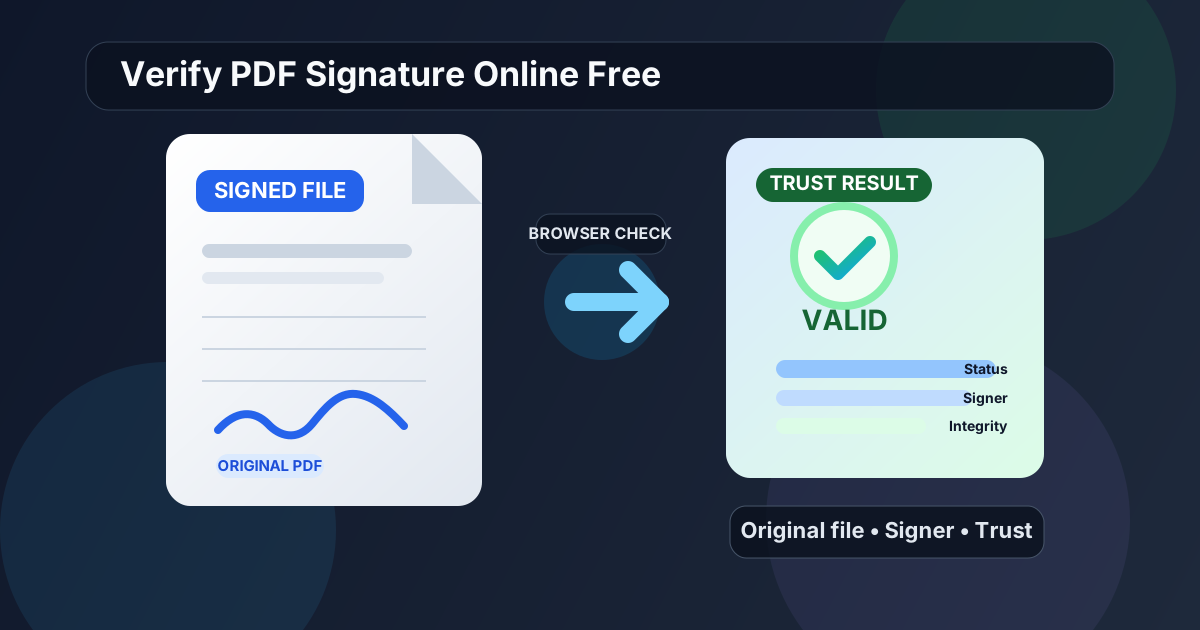
Table of contents
- Quick start: verify a signed PDF in 3 minutes
- What "online free" should actually help you do
- Step-by-step: how to verify a PDF signature online
- What valid, warning, and invalid usually mean
- Files that look signed but are not really verifiable
- When to compare versions or ask for a resend
- Common situations where fast verification matters
- Privacy and safer signed-document handling
- Related LifetimePDF tools and guides
- FAQ (People Also Ask)
Quick start: verify a signed PDF in 3 minutes
If you only need the practical workflow, use this order:
- Start with the actual signed PDF, not a screenshot, printout, or rescanned copy.
- Open Verify PDF Signature.
- Upload the file and read the status first: valid, warning, or invalid.
- Confirm the signer name, signing time, and certificate details make sense for the document in front of you.
- If anything feels off, stop there and compare versions or ask the sender for a fresh signed copy.
What "online free" should actually help you do
People searching for verify PDF signature online free are usually not asking for an advanced certificate-management course. They want a quick browser check before they approve, archive, upload, or forward a signed PDF. In practice, that means three things matter most:
- Fast access: open the file in a browser and get a useful answer quickly.
- Clear status: know whether the signature looks valid, questionable, or broken.
- Practical next steps: know when to keep going, when to compare versions, and when to ask for a resend.
The useful version of "free" is not endless jargon, endless clicks, or a result so vague it cannot guide a decision. It is a quick check that helps you avoid trusting the wrong file. That matters for contracts, approvals, policy acknowledgments, consent forms, procurement PDFs, HR packets, and any other signed document that may create work or risk later.
Step-by-step: how to verify a PDF signature online
Here is the browser workflow that works well for most real-world signed PDFs.
1) Use the original signed file
Verification only works properly on the original PDF that still contains the signature data. If someone sent you a screenshot of the signature page, a phone photo, a printed-and-rescanned copy, or a flattened export, you are no longer looking at the same digital object. Ask for the original signed PDF before you try to validate anything meaningful.
2) Upload it to a signature-checking workflow
Open Verify PDF Signature and let the tool inspect the signature layer. Start with the status result the tool gives you, not the appearance of the visible signature stamp or signature box.
3) Read the status before chasing technical detail
Many people make the process harder than it needs to be. They open certificate properties first, get buried in trust-chain language, and still do not know whether the file is safe to rely on. Start with the simplest question: does the tool see the signature as valid, warning, or invalid?
4) Check whether the signer fits the document context
A technically present signature can still feel wrong in context. Confirm the signer name, organization if shown, and signing time. A procurement approval should not be signed by the wrong employee. A lease should not show a timing mismatch that nobody can explain. The point of verification is not only technical truth, but useful trust.
5) Decide whether the result is enough or needs escalation
If the signature is valid and the context makes sense, you can usually continue. If warnings appear, if the file looks suspicious, or if you have another copy that seems different, slow down and compare versions before you approve, file, or forward the document.
Need the shortest possible review path? Check the status first, confirm the signer second, then go deeper only if the result or the context feels wrong.
What valid, warning, and invalid usually mean
Different PDF tools phrase the result differently, but the basic logic is usually the same.
| Status | What it often means | What to do next |
|---|---|---|
| Valid | The signature data checks out and the document does not appear to have changed after signing. | Continue, but still confirm the signer and the business context make sense. |
| Warning | The signature exists, but something needs review, such as certificate trust, incomplete checks, or an unusual signing environment. | Inspect the details and do not treat the file as clean until the warning is understood. |
| Invalid | The signature failed validation, the file may have changed after signing, or the certificate cannot support trust. | Stop the workflow and ask for clarification or a fresh signed copy. |
The most common mistake is treating a warning like a valid result because the PDF is urgent. If the document matters enough to sign, it matters enough to verify properly.
Files that look signed but are not really verifiable
A lot of confusion comes from documents that look signed but no longer carry the original data needed for proper verification.
Screenshot or phone photo of a signature page
This may be visually useful, but it does not preserve the embedded signature data from the original PDF. You can see that something looks signed, but you cannot meaningfully validate the digital signature itself.
Printed and rescanned copy
Once a signed PDF is printed and scanned again, the original integrity proof is usually gone. You are now looking at an image of a previously signed document, not the original signed digital file.
Visible signature image only
A handwritten-looking signature or image stamp on the page may be acceptable in some workflows, but it is not the same thing as a verifiable digital signature. If stronger proof matters, the verification result matters more than the decoration.
Edited copy saved after signing
If someone signed a PDF and then another person edited the text, page order, or form values afterward, the viewer may show warnings or invalid status. This is one of the clearest reasons to compare versions instead of trusting appearances.
When to compare versions or ask for a resend
Signature verification tells you whether the signed file holds together. Comparison helps when you think the contents may have changed, or when two copies are competing for trust.
Open Compare PDFs or request a resend when:
- the status is invalid and you have another version of the same document,
- the sender says they signed one file but you received a different-looking one,
- a clause, number, date, or page order feels wrong,
- the document passed through multiple inboxes, assistants, portals, or export steps before reaching you,
- the tool shows a warning that cannot be explained by local trust settings alone.
Asking for a fresh signed PDF is not overreacting. In many workflows it is the fastest way to clear up uncertainty. The cost of a resend is usually tiny compared with the cost of filing or approving the wrong version.
Need to check whether a signed PDF is trustworthy before it moves any further?
Verify the status first, compare versions if needed, and only then approve, file, or forward the document.
Common situations where fast verification matters
The exact keyword sounds technical, but the real use cases are ordinary and time-sensitive.
Contracts and agreements
Sales agreements, freelance contracts, NDAs, renewals, and client approvals often move quickly. A fast browser check helps you catch the wrong version before it enters storage, billing, or performance obligations.
HR and onboarding PDFs
Offer letters, policy acknowledgments, payroll forms, and onboarding documents often pass through multiple people. Verification helps confirm that the signed version is still the right version.
Vendor, procurement, and finance workflows
Purchase approvals, invoices, supplier confirmations, and internal sign-off PDFs are exactly the kind of files that can create expensive confusion when the wrong copy gets trusted.
Compliance, legal, and regulated paperwork
In these contexts, a warning should not be waved through casually. Even if the PDF looks fine at a glance, the integrity result may tell a different story.
Privacy and safer signed-document handling
Signed PDFs often include contracts, addresses, personal details, financial amounts, employee information, or legal language. So a good verification workflow should be fast, but not careless.
- Work from the real file: avoid screenshot chains when the original signed PDF is available.
- Compare before forwarding: if there is uncertainty, compare versions first instead of spreading the questionable file further.
- Protect final files when needed: use PDF Protect if the verified document contains sensitive information.
- Extract only the needed pages: use Extract Pages when only a signed section needs review or sharing.
- Keep the workflow deliberate: verify, compare if needed, then archive or send the correct copy.
This is not about paranoia. It is about keeping document trust and document handling aligned.
Related LifetimePDF tools and guides
Signature verification usually sits inside a larger signed-document workflow. These pages are the most useful next steps:
- Verify PDF Signature - check signature status, signer details, and document integrity.
- Compare PDFs - inspect whether two versions differ.
- Sign PDF - create a clean signed file when you are on the sending side.
- PDF Protect - secure sensitive signed files before wider sharing.
- Verify PDF Signature - broader guide to trust, signer checks, and validity.
- Verify PDF Signature Online - browser-focused workflow for quick checks.
- Verify PDF Signature Without Monthly Fees - pay-once angle for repeat workflows.
- Digital vs Electronic Signatures - useful when the team needs to understand the difference.
- PDF Signature Invalid After Editing - what usually breaks after a signed file is changed.
Ready to check the file in front of you?
Best practical sequence: use the original file → read the status → confirm the signer → compare versions if needed → then approve, file, or forward.
FAQ (People Also Ask)
How do I verify a PDF signature online for free?
Open a browser-based PDF signature verification tool, upload the original signed PDF, read whether the result is valid, warning, or invalid, then confirm the signer details before you trust the file.
Can I verify a PDF signature from a screenshot or rescanned copy?
No. A screenshot, printout, or rescanned copy usually loses the original signature data, so you need the real signed PDF if you want meaningful verification.
What does a warning on a signed PDF usually mean?
A warning means the signature needs review. It may come from trust-store issues, incomplete certificate checks, an unusual signing environment, or a document that changed after signing.
Can a PDF look signed and still be unsafe?
Yes. A visible signature box, stamp, or handwritten-looking mark does not prove authenticity by itself. You still need to verify signature status, signer details, and document integrity.
What should I do if the PDF signature shows invalid?
Stop using the file for approvals or filing, compare it against another version if available, confirm the source with the sender, and request a clean signed resend if the mismatch cannot be explained clearly.
Published by LifetimePDF - Pay once. Use forever.