Type Signature on PDF: Add a Clean eSignature Fast Without Printing or Scanning
To type a signature on a PDF, upload the file, choose the Type signature option, enter your name, select a clean style, place it on the signature line, and download the finished PDF.
If the document still needs dates, checkboxes, or typed text, finish those first so the signature lands on the final version instead of a half-complete draft.
That is the short answer. The useful part is knowing when typed signing is the right move, how to make it look professional instead of awkward, what to do with scanned or locked files, and how to avoid the small mistakes that make a signed PDF look sloppy.
Fastest practical path: fill the PDF if needed, switch to typed signing, place the signature carefully, review once, then protect the final file if the document is sensitive.
In a hurry? Jump to quick start: type a signature on a PDF in about 4 minutes.
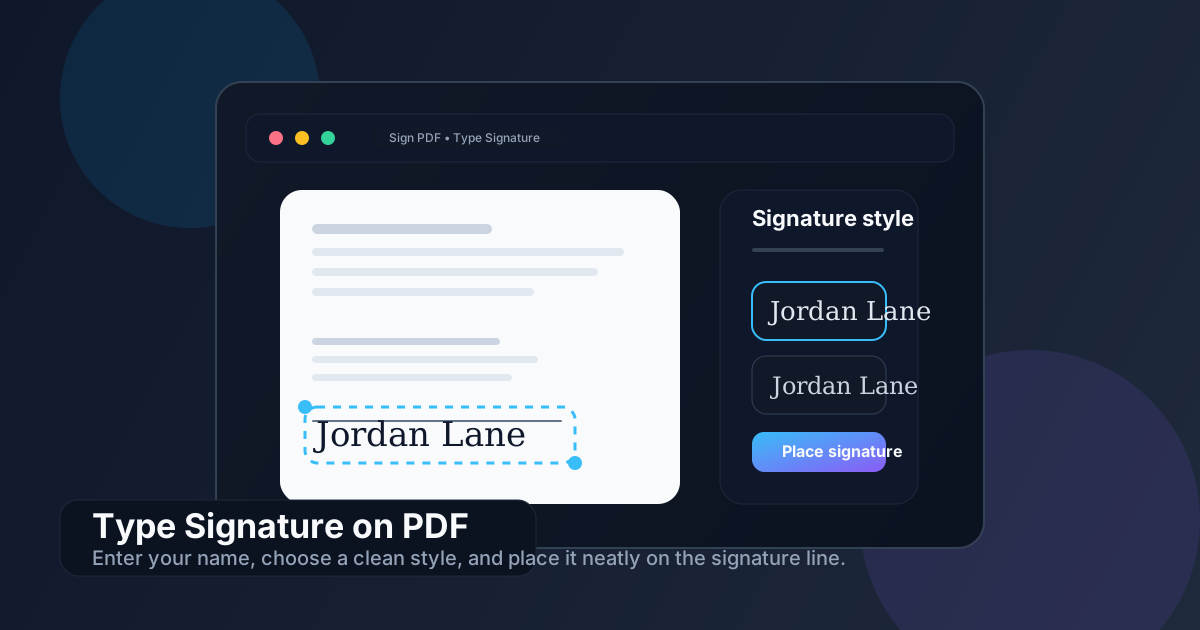
Table of contents
- Quick start: type a signature on a PDF in about 4 minutes
- When typing a signature is the right choice
- Step-by-step: type a signature on a PDF cleanly
- How to make a typed signature look professional
- Typed vs. drawn vs. uploaded signatures
- Forms, scanned PDFs, and awkward files
- What to do after you sign
- Related LifetimePDF tools and guides
- FAQ
Quick start: type a signature on a PDF in about 4 minutes
If the document is ready to sign now, this is the simplest workflow:
- Open Sign PDF.
- Upload the PDF you actually plan to send back.
- Select the Type option.
- Enter your name and choose the most natural-looking style.
- Place the signature on the right page and align it to the intended line.
- Review the page once, then download the signed copy.
When typing a signature is the right choice
Typed signatures are popular because they remove the fiddly part of digital signing. You do not need to print and scan, you do not need a stylus, and you do not have to draw your name five times with a laptop trackpad until it stops looking like a seismograph.
Typing is usually the right choice when your priority is speed, readability, and a clean result. It works especially well for approvals, simple contracts, HR forms, school paperwork, intake packets, reimbursement forms, and other everyday sign-and-return documents.
Typed signatures are strongest when:
- you want speed: get the document signed and returned without detouring through printer problems
- you are on a desktop or laptop: typed signing is often easier than drawing with a mouse
- the document needs to look tidy: typed signatures can feel more polished than shaky freehand input
- you are signing several PDFs: consistency matters when the same person signs a batch of files
- the document is routine: internal approvals and ordinary business paperwork rarely need a dramatic signing ritual
Step-by-step: type a signature on a PDF cleanly
1. Start with the actual final document
Before you sign anything, confirm the file is the right version. If you still need to edit text, check a box, add a date, or correct a page, do that first. Signing too early is one of the easiest ways to create duplicate files and confusion about which PDF is the real one.
2. Fill fields before placing the signature
If the PDF has blanks for names, dates, initials, addresses, or dropdown-style form content, use PDF Form Filler before you add the signature. That keeps the signature from landing on a page that still shifts or needs another pass.
3. Switch to typed signing
Open Sign PDF and choose the Type mode instead of Draw or Upload. This is the best option when you want the signature to look smooth and readable without wrestling with handwriting input.
4. Enter your name and choose the cleanest style
People often overestimate how fancy a typed signature should be. In practice, the best style is usually the one that looks believable at normal reading size. If the style is too decorative, it starts looking more like a logo than a signature.
5. Place it carefully and size it realistically
Put the signature where a person would naturally sign on paper. Keep it centered on the intended line or signature box, and avoid covering labels, dates, or nearby initials. Slightly smaller is usually better than oversized.
6. Review the page like a recipient would
Check the surrounding context, not just the signature itself. Is the right page signed? Did you miss a date field? Is the signature covering important text? This is the moment where thirty seconds of attention can save a resend request.
Short reliable workflow: fill the form, type the signature, place it cleanly, review once, then send the final PDF.
How to make a typed signature look professional
A typed signature does not need to fool anyone into thinking it came from a fountain pen. It just needs to look intentional, readable, and appropriately placed.
Choose readability over drama
Signature-style fonts can quickly become too ornate. If the reader has to squint to figure out the name, the style is doing too much. Cleaner always wins on contracts, approvals, invoices, and administrative forms.
Keep the scale believable
The most common visual mistake is making the signature too large. A typed signature that sprawls across half the page looks artificial immediately. Match it to the width of the line or signature area instead.
Respect the document layout
Good placement matters more than fancy styling. A simple typed signature on the correct line looks better than an elaborate one floating slightly too high, too low, or over a date box.
| Choice | Better move | Avoid |
|---|---|---|
| Style | Simple script or clean handwritten look | Overly decorative or hard-to-read styles |
| Size | Close to the signature line width | Huge signatures that dominate the page |
| Placement | Centered where someone would naturally sign | Covering labels, dates, or surrounding text |
| Workflow | Fill first, sign second, protect last | Signing an unfinished or sensitive draft |
Typed vs. drawn vs. uploaded signatures
Typing is not the only way to sign a PDF. It is just the most practical one for many people. The better choice depends on whether you care most about speed, personal feel, or visual consistency.
| Method | Best for | Main trade-off |
|---|---|---|
| Type | Fast clean signing on desktop or mobile | Less handwritten personality |
| Draw | More handwritten feel | Can look shaky on a mouse or trackpad |
| Upload | Most repeatable visual style | Requires a prepared signature image |
If you are unsure, typing is the best default. It is usually faster than drawing and less setup-heavy than uploading an existing signature file. If you want to compare approaches, see Draw Signature on PDF and Add Signature to PDF.
Forms, scanned PDFs, and awkward files
Real signing jobs are not always clean one-page contracts. Some PDFs are scans. Some are sideways. Some have fillable fields. Some include only one page that actually needs a signature. A better workflow usually means preparing the file first instead of forcing the signature step to do everything.
For fillable forms
Complete the text fields in PDF Form Filler, then sign. This prevents the signature from drifting into the wrong place if you later realize a date, checkbox, or initials field was still empty.
For scanned PDFs
You can still place a typed signature on a scanned page. If the scan is crooked, poorly cropped, or hard to read, clean it first with tools like Rotate PDF, Crop PDF, or OCR PDF. A better-prepared page usually produces a calmer final result.
For large packets
If only one or two pages need signing, isolate them first with Extract Pages. Smaller signing packets are easier to review, easier to return, and harder to sign in the wrong place by mistake.
For protected or restricted files
If the PDF resists editing and you are authorized to work with it, remove the restriction first using PDF Unlock. Sometimes the signing tool is fine and the real problem is the document permissions.
What to do after you sign
Once the signature is in place, the job may not be over. Many signed PDFs still need one final handling step.
- Need to send it securely? Use PDF Protect.
- Need a smaller file for email or a portal? Use Compress PDF.
- Need to combine signed pages with supporting files? Use Merge PDF.
- Need a finished non-editable record? Consider Flatten PDF Form Data after the workflow is complete.
If the document has legal or compliance weight, remember that a typed signature is usually an electronic-signature workflow, not the same thing as a certificate-based digital signature. For high-assurance documents, confirm the signature standard before you rely on the easiest method.
Need the full finish? Sign the PDF, protect the sensitive copy, and keep the final document small enough to share without friction.
Related LifetimePDF tools and guides
Useful tools
Want the simplest signing workflow? Complete the fields, type the signature, review once, then send a clean finished PDF instead of bouncing between print, pen, and scanner.
FAQ
How do I type a signature on a PDF quickly?
Upload the PDF into a signing tool, choose the Type option, enter your name, pick a readable style, place it on the correct line, and download the finished file after one quick review.
Is typing a signature on a PDF the same as a digital signature?
No. A typed signature is usually part of an electronic-signature workflow. A digital signature usually adds certificate-based identity and tamper-evidence.
Should I fill out the form before typing the signature?
Yes, in most cases. Finish names, dates, checkboxes, and other fields first so you do not have to move or redo the typed signature later.
Can I type a signature on a scanned PDF?
Yes. You can place a typed signature on a scanned PDF, and if the scan is sideways, cropped badly, or hard to work with, it helps to rotate, crop, or OCR the file before signing.
How do I make a typed signature look professional?
Choose a clean readable style, keep the size realistic, and align it carefully to the intended signature line. Good placement matters more than picking the fanciest signature font.
Published by LifetimePDF — Pay once. Use forever.