Translate PDF to Spanish Online Free: Fast Browser Workflow for Clean Results
Yes — you can translate a PDF to Spanish online free by uploading a text-based PDF to a browser translator, choosing Spanish, and exporting the translated result. If the file is scanned, run OCR first or the translation will be weaker than it should be.
The best workflow is not just “upload and hope.” It is knowing when the free route is enough, how to avoid messy scan output, and how to rebuild a clean Spanish PDF when the final document actually needs to look polished.
Most people searching for this do not want a giant localization platform. They want a practical answer for one report, one form, one contract draft, one instruction manual, or one school document. This guide covers the real-world path: direct translation for normal PDFs, OCR for scans, quick export options, readability tips, and the smartest pay-once follow-up workflow if the job turns into a repeat task.
Fastest path: translate the file in your browser first, then use LifetimePDF only for the extra step the document still needs.
In a hurry? Jump to Quick start: translate a PDF to Spanish in a few minutes.
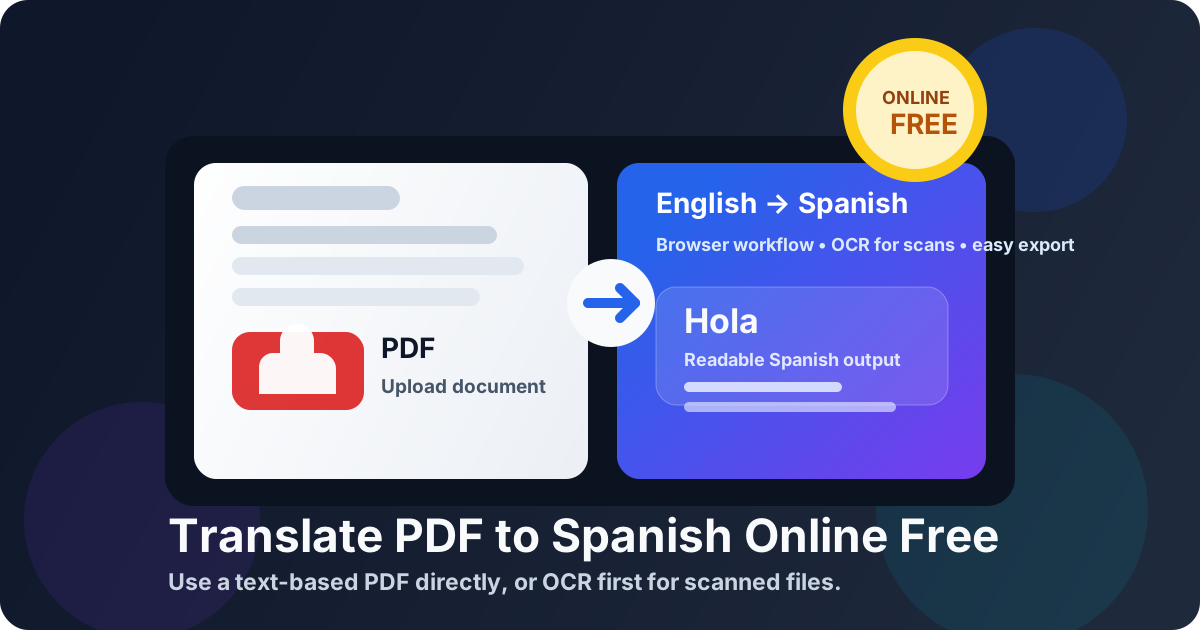
Table of contents
- Quick start: translate a PDF to Spanish in a few minutes
- What “online free” really means for this keyword
- Check whether your PDF is text-based or scanned
- Step-by-step: translate PDF to Spanish online free
- Scanned PDFs: OCR first, then translate
- How to keep the Spanish output readable
- Spanish review tips for contracts, forms, and reports
- Privacy and secure document handling
- When the free route is enough — and when a pay-once toolkit makes more sense
- Related tools and internal guides
- FAQ (People Also Ask)
Quick start: translate a PDF to Spanish in a few minutes
If the PDF already contains selectable text, the shortest useful workflow looks like this:
- Open Translate PDF.
- Select Spanish as the target language.
- Upload the PDF.
- Review the translated Spanish output once.
- Copy the text, download TXT, or rebuild a cleaner Spanish PDF if needed.
What “online free” really means for this keyword
People searching for translate PDF to Spanish online free usually want one of two things: either they need to understand a Spanish version quickly, or they need a Spanish document they can share with someone else. Those are related, but the right workflow is slightly different depending on the goal.
| Goal | Free browser workflow | Best next step |
|---|---|---|
| Understand the document fast | Translate the text and copy or export it | Review names, dates, totals, and important terms |
| Share a readable Spanish version | Translate first, then clean up the output | Rebuild the final PDF with Text to PDF, Word, or HTML |
| Handle scanned pages | Run OCR before translation | Fix rotation, borders, and bad scans before OCR |
The free route is great when the document is short, mostly text, and not something you need to process every day. The moment you start dealing with repeated client files, scan-heavy paperwork, or a full PDF workflow around the translation, a pay-once toolkit becomes much more useful than bouncing between limited free tools.
Check whether your PDF is text-based or scanned
This single check prevents most translation headaches. If the PDF already contains selectable text, Spanish translation is usually straightforward. If the file is really just page images, OCR has to happen first.
Quick test 1: try selecting a sentence
Open the PDF and drag across a line. If actual words highlight, the file is probably text-based and ready for direct translation.
Quick test 2: search for a visible word
Use Ctrl + F or Cmd + F and search for a word you can clearly see.
If nothing is found, the PDF is probably scanned or flattened.
What to do next
- Text-based PDF: translate it directly using Translate PDF.
- Scanned PDF: run OCR PDF first, then translate.
- Mixed PDF: split or extract the problem pages first so you can handle them separately.
Step-by-step: translate PDF to Spanish online free
1) Open the Translate PDF tool
Start here: Translate PDF. This is the clean browser route for converting readable PDF text into Spanish without adding unnecessary steps first.
2) Choose Spanish as the target language
Select Spanish before you upload the file. For most business, education, and general-use documents, neutral Spanish is the best default. If you later need region-specific vocabulary for Spain or Latin America, adjust that during review.
3) Upload only what you actually need
Large PDFs often contain appendices, repeated templates, cover pages, signatures, or old sections that do not need translation. Trimming the file first usually gives you cleaner Spanish output and a faster review process.
- Use Extract Pages if you only need a page range.
- Use Split PDF if the file is easier to review in smaller parts.
- Use Compress PDF if the upload is heavier than it needs to be.
4) Review the translated Spanish output once
Even when the translation is strong, this quick review matters. Check names, dates, amounts, product labels, headings, and any legal or technical wording that should not drift.
5) Export in the format that matches your next step
If the job is just comprehension, copied text or TXT may be enough. If the job is delivery, rebuild a cleaner Spanish PDF instead of assuming the original layout will survive automatically.
Good default: translate first, then make the workflow longer only if the finished Spanish file actually needs cleanup.
Scanned PDFs: OCR first, then translate
Scanned PDFs are where most “free translation” attempts go wrong. The issue is usually not the Spanish translation itself. The issue is that the tool is trying to interpret a picture of text rather than actual text.
- Run OCR PDF to make the scan readable.
- Translate the OCR-friendly file into Spanish using Translate PDF.
- Review the result for broken lines, numbers, names, and obvious OCR mistakes.
- Export the text or rebuild a clean Spanish PDF.
How to improve OCR before translation
- Rotate sideways pages: use Rotate PDF.
- Crop dark borders and wasted margins: use Crop PDF.
- Need proof the scan is readable? run PDF to Text after OCR to see whether the extracted text looks sane.
Better OCR produces better Spanish translation. That is still the biggest quality jump in the whole workflow.
How to keep the Spanish output readable
Translation changes sentence length, line breaks, and page flow. That is why the best Spanish result is often a clean rebuilt document rather than a fragile attempt to preserve every visual detail from the source PDF.
When copied text or TXT is enough
If your goal is understanding, internal review, or drafting a response, the translated Spanish text may already be the finished output. Fast is fine when the file does not need to impress anyone.
When to rebuild the final PDF
If you need to share the document with a client, teammate, student, vendor, or reviewer, readability matters more. That is where these follow-up tools help:
- Text to PDF for the fastest clean rebuild.
- Word to PDF when you want manual formatting control.
- HTML to PDF when you want stronger structure for longer or more technical documents.
Spanish review tips for contracts, forms, and reports
Translation is great for speed. Review is what makes the result trustworthy.
What to check before sharing
- Numbers: totals, dates, account references, invoice IDs, percentages, and deadlines.
- Names: people, companies, products, places, and addresses should usually remain exact.
- High-risk terms: liability, warranty, renewal, dosage, safety wording, compliance language, and termination clauses.
- Tables and field labels: these often need the quickest manual cleanup.
- Audience fit: if the reader is in Spain versus Latin America, adjust vocabulary only after the initial translation is done.
When review matters most
- Contracts and legal paperwork where one clause can change meaning.
- Manuals and support guides where step order matters.
- Invoices and financial records where totals and references must stay exact.
- School, HR, and compliance files where terminology consistency matters.
Privacy and secure document handling
PDF translation often involves internal documents, records, invoices, contracts, onboarding files, or private reports. Treat it like any other document-handling workflow, not like casual web browsing.
- Upload only the pages you need instead of the whole file.
- Redact sensitive details first with Redact PDF.
- Protect the final Spanish PDF using PDF Protect before sending it onward.
- Translate after cleanup so unnecessary confidential content never enters the workflow.
- Follow policy if a client or employer requires an offline process.
When the free route is enough — and when a pay-once toolkit makes more sense
The free route is honestly fine for occasional jobs. If you translate one document now and then, a browser translator plus a little cleanup may be all you need. The problem starts when translation becomes part of a real recurring workflow.
| Situation | Free browser route | Pay-once toolkit advantage |
|---|---|---|
| One short text-based PDF | Usually enough | Not always necessary |
| Scanned or messy source file | Often needs extra tools anyway | OCR, crop, rotate, and text checks live in one place |
| Need a polished Spanish PDF | May require multiple steps | Rebuild and protect the final file without tool-hopping |
| Repeated document work | Free limits become annoying fast | One-time payment, no monthly friction |
Want predictable costs? Use the free route when it is enough, and move to LifetimePDF when the workflow becomes repeat work instead of a one-off task.
Especially useful if your real sequence is extract → OCR → translate → rebuild → protect instead of just “translate once.”
Related tools and internal guides
Translating a PDF into Spanish is usually part of a bigger workflow. These tools and guides fit naturally around it:
- Translate PDF – translate PDF text into Spanish and other languages
- OCR PDF – extract text from scanned and image-only PDFs
- PDF to Text – verify the source text before translation
- Text to PDF – rebuild a clean Spanish PDF from translated text
- Extract Pages – isolate only the pages you need
- Compress PDF – reduce file size before upload or sharing
- Redact PDF – remove private information first
- PDF Protect – secure the final Spanish file
Related blog guides
- Translate PDF Online Free
- Translate PDF to Spanish Online
- Translate PDF to Spanish Without Monthly Fees
- Translate Scanned PDF Without Monthly Fees
- OCR PDF Without Monthly Fees
- PDF to Text Without Monthly Fees
FAQ (People Also Ask)
How do I translate a PDF to Spanish online for free?
Upload a text-based PDF to an online translator, choose Spanish, and export the result. If the file is scanned, run OCR first so the tool works with readable text instead of page images.
Can I translate a scanned PDF to Spanish online free?
Yes. The reliable workflow is OCR → Translate → Review. OCR turns the scan into searchable text, which gives the Spanish translation a much better starting point.
Will the translated Spanish PDF keep the same formatting?
Sometimes basic paragraph flow survives, but tables, forms, brochures, and multi-column layouts often need cleanup. Rebuilding a fresh Spanish PDF is usually the cleaner option.
What is the fastest way to create a clean Spanish PDF after translation?
Translate the content first, then paste the Spanish output into Text to PDF, Word, or HTML before exporting a new PDF. That usually looks better than forcing the original design to survive automatically.
Is it safe to translate confidential PDFs online?
It can be, especially if you extract only the required pages, redact sensitive details first, and protect the final file with PDF Protect before sharing it.
Ready to translate?
Best real-world flow: check the PDF type → OCR if needed → translate → review → rebuild only if the finished Spanish file actually needs polish.
Published by LifetimePDF — Pay once. Use forever.