Text to PDF Online: Fastest Way to Turn Plain Text Into a Clean, Shareable PDF
Yes — the easiest way to text to PDF online is to paste or upload plain text, convert it once, and review the PDF for line breaks, spacing, and page flow before sharing.
If the source is mostly notes, TXT, Markdown, logs, or lightweight exports, an online text-to-PDF workflow is usually faster than rebuilding the content in Word or HTML first.
That is why this keyword is useful in the first place. Most people are not trying to design a fancy brochure. They already have the words and need a format that opens reliably, looks consistent, prints cleanly, and can be sent without turning into a formatting side quest. A good browser-based text-to-PDF workflow keeps the job simple: clean the text, convert it, review it once, then add only the next step the file actually needs.
Fastest practical path: use LifetimePDF's Text to PDF tool for notes, TXT files, Markdown, logs, and simple exports, then switch to HTML to PDF only when layout control matters more than speed.
In a hurry? Jump to Quick start: convert text to PDF online in a few minutes.
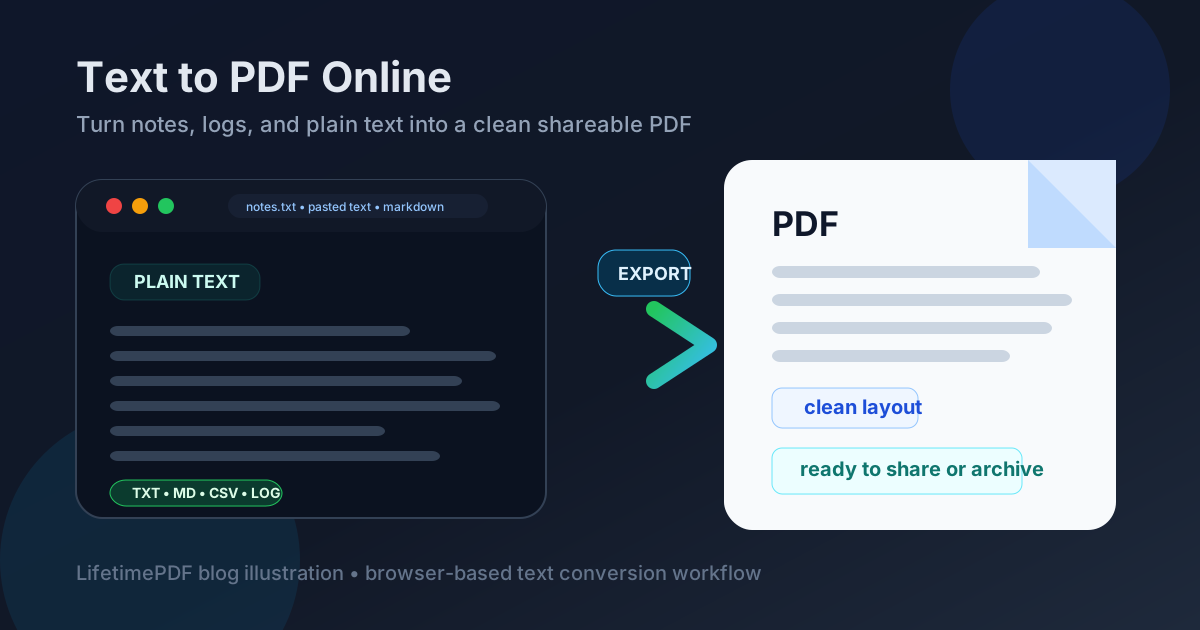
Table of contents
- Quick start: convert text to PDF online in a few minutes
- When Text to PDF online is the right tool
- Step-by-step: use LifetimePDF Text to PDF online
- How to format the source text so the PDF looks better
- Best use cases for text to PDF online
- Text to PDF online vs HTML to PDF vs Word to PDF
- Privacy and safe handling of notes, logs, and exports
- What to do after conversion
- Related LifetimePDF tools and guides
- FAQ (People Also Ask)
Quick start: convert text to PDF online in a few minutes
If your content is already written and you just need a dependable PDF fast, use this order:
- Open Text to PDF.
- Paste your text or upload a lightweight file such as
.txt,.md,.csv,.json, or.log. - Convert the file to PDF.
- Review the output once for spacing, line breaks, headings, and page flow.
- If the handoff needs it, compress or protect the finished PDF before sending it.
When Text to PDF online is the right tool
The reason people search for text to PDF online is usually practical, not technical. They have notes that need to be archived, a transcript that needs to be shared, a log file that belongs in a ticket, or a simple text export that should stop being an editable loose file. In those moments, speed and clarity matter more than decorative formatting.
| Source content | What you usually need | Best route |
|---|---|---|
| Meeting notes, outlines, rough drafts | A fixed version you can send, print, or archive | Text to PDF online |
| Logs, incident notes, support output | Readable packaging for tickets or handoff | Text to PDF online |
| Markdown or simple documentation | Fast export without layout micromanagement | Text to PDF online |
| Styled pages, branded reports, cleaner tables | Better control of visual layout | HTML to PDF or Word to PDF |
| Spreadsheet-heavy data | Readable columns and page fitting | Excel to PDF |
In other words, plain text conversion works best when you want the PDF to feel stable and readable, not heavily designed. That is a huge share of real-world PDF jobs.
Step-by-step: use LifetimePDF Text to PDF online
The cleanest workflow is short, but a few small decisions make the output noticeably better.
1) Start with the text you actually want to share
Remove scratch notes, duplicated headers, copied navigation elements, or private fragments that never belonged in the final file. A text-to-PDF tool will faithfully package what you give it, so a two-minute cleanup pass before conversion is worth it.
2) Choose the simplest source format that keeps the meaning clear
For many jobs, raw plain text is enough. If your content includes bullets, code-like indentation, timestamps, or short sections, that structure can carry over well into a readable PDF. If the content only makes sense because of rich styling, tables, or columns, that is your sign to use a richer workflow.
3) Convert the text to PDF
Open LifetimePDF Text to PDF, paste or upload the file, and create the PDF. This is the easy part. The more useful question is whether the resulting PDF is pleasant for another human to open.
4) Review page flow, not just whether the conversion finished
Check the first page, a middle page, and the last page. Make sure section breaks still make sense, long lines do not feel chaotic, and important lists did not turn into a dense wall of text. Good output is not just technically converted; it is easy to read.
5) Add only the next step the handoff needs
If the file is too large for an upload portal, compress it. If it contains internal notes, client data, or private system output, protect it. If the file should join a packet, merge it. Avoid the common mistake of over-processing a document that was already finished after the first clean conversion.
How to format the source text so the PDF looks better
Plain text conversion is simple on purpose, but you still control a lot of the final reading experience before you click convert.
Use clear section spacing
Leave breathing room between sections, headings, or list blocks. A PDF generated from packed text can feel cramped even if the content itself is good. One extra blank line between ideas often helps more than people expect.
Keep lists genuinely list-like
If you have action items, checklist steps, or bullet points, keep them visually distinct in the source. That structure is one of the main reasons a text-first PDF remains readable instead of collapsing into a paragraph soup.
Normalize pasted content
Text copied from chat tools, dashboards, or terminal windows often arrives with odd spacing, wrapped columns, or stray characters. Quick cleanup before export makes the final PDF feel intentional rather than accidental.
Know when structured data stops being plain text
CSV and JSON can convert fine when the audience mainly needs the raw information. But if people need to scan columns, compare rows, or read a formatted table, HTML to PDF or Excel to PDF will usually produce a friendlier result.
Best use cases for text to PDF online
This workflow shows up everywhere once you notice it.
Meeting notes and internal summaries
Teams often need a stable version of notes for approvals, handoff, or archiving. A PDF is easier to circulate than a loose text file that might be edited or reformatted later.
Support logs and incident documentation
Raw output from tools, systems, or command-line sessions is often most useful when preserved as-is. Converting it to PDF makes it easier to attach to tickets, store with incident history, or share with non-technical reviewers.
Draft transcripts and lightweight documentation
Sometimes you have a transcript, outline, README-style draft, or quick procedure note that needs distribution now, not after a design pass. Text to PDF online lets you package it cleanly without turning a simple task into a publishing project.
Exports that need a stable snapshot
If a text export will be referenced later, archived for compliance, or sent outside the original app, turning it into PDF gives you a stable point-in-time version with much less ambiguity.
Text to PDF online vs HTML to PDF vs Word to PDF
These workflows overlap, but they are not interchangeable. Picking the right one up front saves time and usually produces a better final file.
| If your priority is... | Best choice | Why |
|---|---|---|
| Speed with text-first content | Text to PDF online | Fastest path for notes, logs, transcripts, and simple exports. |
| Visual structure and styling | HTML to PDF | Better control over spacing, fonts, sections, tables, and page layout. |
| Traditional document editing | Word to PDF | Good when the source already lives in a word processor and needs richer formatting. |
If you are unsure, ask a simple question: is the content mainly about words and sequence, or about layout and presentation? If it is mostly words, text to PDF is often the best answer. If the presentation layer is doing real work, use a richer conversion path instead of fighting plain text.
Privacy and safe handling of notes, logs, and exports
Plain text sources can be deceptively sensitive. A quick note file may include personal phone numbers. A log may include account IDs, email addresses, tokens, or internal paths. A transcript may include names that were never meant to travel beyond a small audience.
- Review the source before conversion: remove anything that should not leave the original context.
- Share only what is necessary: if a smaller excerpt will do, do not package the whole file.
- Protect the final PDF when appropriate: use a password-protected handoff for sensitive materials.
- Store the output intentionally: archive it where the right people can find it, not where anyone can forward it casually.
What to do after conversion
Once the PDF exists, the next move depends on the job.
- Compress it if an upload limit, email attachment cap, or mobile workflow makes file size matter.
- Protect it if the document contains private notes, client information, or internal operational detail.
- Merge it if the text PDF is only one part of a larger packet.
- Leave it alone if the conversion already solved the problem.
That last option is underrated. A lot of people keep editing documents because the tools are there, not because the file needs more work. Good workflows stop when the output is already useful.
Related LifetimePDF tools and guides
If your text-first PDF needs one more step, these are the most natural follow-ups:
- Text to PDF for the fastest plain-text conversion workflow.
- HTML to PDF when you need stronger visual structure and cleaner styling.
- PDF Protect for password-protected sharing.
- Compress PDF if the final file needs to be lighter.
Helpful deeper reads: Text to PDF, HTML to PDF, Protect PDF, and Compress PDF.
Want the shortest path? Start with Text to PDF. If the output needs more polish, move one step at a time instead of rebuilding the whole document workflow.
FAQ (People Also Ask)
How do I convert text to PDF online?
Open a Text to PDF tool, paste your text or upload a plain-text file, convert it, and review the PDF once before sharing it. That is usually enough for notes, transcripts, logs, and simple exports.
What kinds of files work best in a text to PDF online workflow?
TXT, Markdown, logs, transcripts, lightweight notes, CSV exports, and JSON files work well when readability matters more than advanced page design.
Will formatting stay the same when I convert text to PDF online?
Basic spacing, line breaks, paragraphs, and indentation can carry over well, but plain-text conversion is intentionally simpler than HTML or Word-based layout. If layout matters more than speed, use a richer conversion route.
When should I use HTML to PDF instead?
Use HTML to PDF when you need tighter control over fonts, spacing, columns, tables, branding, or a more polished visual structure than plain text normally provides.
Is it safe to convert notes or logs to PDF online?
It can be, but review the source first. Notes and logs often contain account IDs, internal names, tokens, or personal information that should be removed or protected before sharing.