Split PDF into Single Pages Online: Create One PDF Per Page Without Losing Quality
If you need to split a PDF into single pages online, upload the file, select the pages, and use LifetimePDF's ZIP export to download one PDF per page without screenshots or print-to-PDF workarounds.
That is the fastest clean workflow when every page needs to stand on its own for sharing, filing, signing, or review.
This job comes up more often than people expect. A team needs separate invoice pages, a teacher wants one worksheet per file, an office needs each signed page isolated, or a long scanned packet needs to become page-by-page records. The task sounds tiny, but a bad workflow turns it into repetitive downloading, messy filenames, or quality loss. A better workflow keeps the original page quality intact and gets you to usable one-page PDFs in minutes.
Fastest path: open LifetimePDF's Split PDF tool, upload the file, select all pages you want separated, and use Download Each as ZIP to get one-page PDFs in one shot.
In a hurry? Jump to Quick start: create one-page PDFs in under 2 minutes.
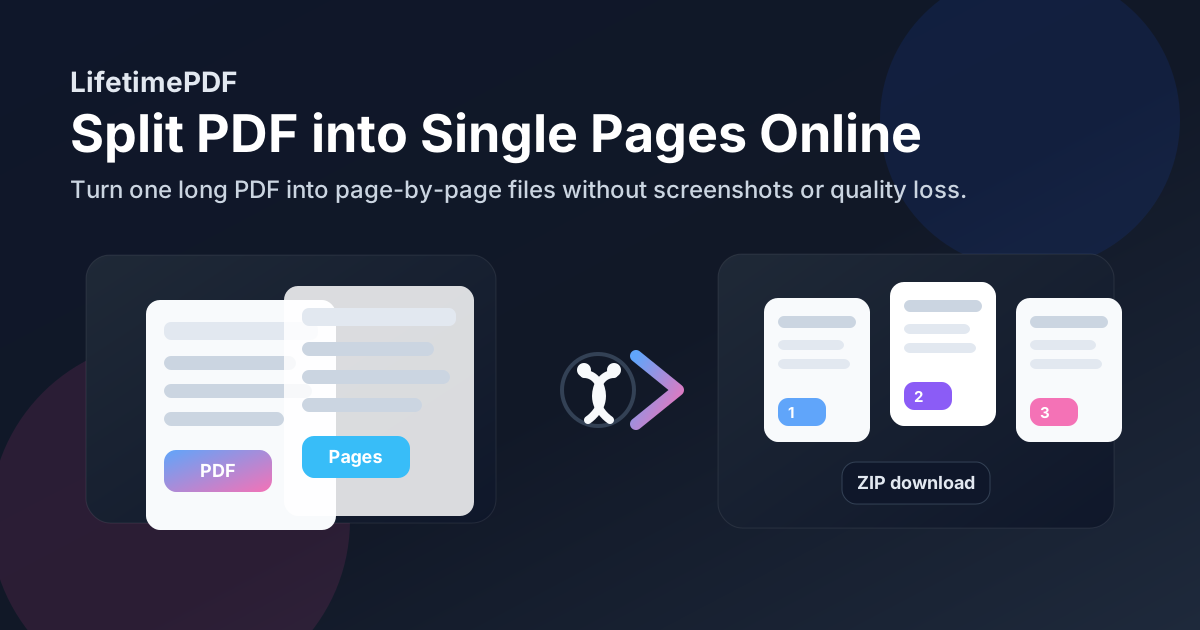
Table of contents
- Quick start: create one-page PDFs in under 2 minutes
- When splitting into single pages is the right move
- Step-by-step: use LifetimePDF to create one PDF per page
- How to name and organize the output files
- Quality, file size, and ZIP download tips
- Single-page splits vs page-range extraction
- Common real-world workflows
- Privacy and review habits
- Related LifetimePDF tools and guides
- FAQ (People Also Ask)
Quick start: create one-page PDFs in under 2 minutes
If your goal is simply turn this PDF into separate one-page files, this is the workflow most people need:
- Open Split PDF.
- Upload the original PDF and let the page previews load.
- Select all pages you want separated.
- Choose Download Each as ZIP to export one PDF per page.
- Open the ZIP, spot-check a few files, and rename them if the output needs clearer labels.
When splitting into single pages is the right move
Not every PDF should stay intact. Sometimes the page is the unit that matters, not the full document. In those cases, splitting into single pages is cleaner than emailing a long file and telling someone to "just look at page 14."
Good reasons to create one PDF per page
- Invoices and receipts: save each page as its own file for bookkeeping or uploads.
- Signed packets: isolate signature pages for legal, HR, or client records.
- Scanned paper archives: turn a stack scan into page-by-page files you can sort later.
- Education and training: separate worksheets, handouts, quizzes, or answer sheets.
- Claims and compliance: upload only the page a portal asks for instead of the whole bundle.
- Design and review: share specific pages for markup without sending the entire project file.
The value is not just neatness. Smaller page-level files are easier to upload, easier to rename, easier to archive, and less likely to expose unrelated content.
Step-by-step: use LifetimePDF to create one PDF per page
Step 1: Open the splitter
Go to LifetimePDF Split PDF. The tool lets you preview pages, select exactly what you want, download selected pages as one PDF, or export each selected page separately in a ZIP.
Step 2: Upload the original PDF
Start with the final version of the document whenever possible. If you still need to remove junk pages, do that first so you do not create extra one-page files you will delete later.
Step 3: Select the pages
If you want the entire document broken into individual page files, select all pages. If you only need part of the file, choose just those pages before exporting. This is especially useful when a 60-page PDF contains only 8 pages you actually need to process one by one.
Step 4: Export each page as its own PDF
Use Download Each as ZIP. That bundles the selected pages into a single ZIP archive while keeping each page as its own PDF inside the download. It is the cleanest option when you need a folder full of one-page documents instead of one smaller multi-page PDF.
Step 5: Review the result once
Open the ZIP and spot-check a few pages. Make sure the page order still makes sense, the correct pages were selected, and the output names are good enough for your next step.
Doing this right now? Split first, then use related tools only if you need cleanup afterward.
How to name and organize the output files
The split itself is the easy part. The mess usually starts after download, when the output folder is full of files with generic names and nobody remembers which page is which.
Simple naming patterns that work
invoice-01.pdf,invoice-02.pdf,invoice-03.pdfclaim-attachment-page-1.pdf,claim-attachment-page-2.pdfsigned-page.pdf,initials-page.pdf,appendix-page.pdfchapter-2-page-1.pdfif the pages need to stay grouped by section
Good names are worth the extra thirty seconds. They save time when someone uploads the files to a portal, searches for them later, or needs to send only two of the resulting pages to someone else.
Quality, file size, and ZIP download tips
In normal PDF workflows, splitting pages does not ruin quality. You are reorganizing existing PDF pages, not turning them into screenshots. That means text usually stays sharp and the layout usually stays intact.
What to expect after splitting
- Quality: usually preserved because the page remains a PDF page.
- File count: higher, because one long document becomes many smaller files.
- Total size: often similar overall, though the ZIP makes bulk download easier.
- Sharing: more flexible, because you can send only the page that matters.
If the resulting one-page PDFs still feel too heavy for upload limits, use Compress PDF after splitting. That gives you more control than compressing the whole document first and hoping every page still looks good.
Single-page splits vs page-range extraction
People often mix these tasks together, but the goal matters. If each page needs to stand alone, split into single pages. If several pages belong together, extraction is the cleaner move.
| Task | Best choice | Typical use case |
|---|---|---|
| Make one PDF per page | Split PDF | Receipts, forms, signature pages, page-by-page archives |
| Keep pages 8-14 together | Extract Pages | One chapter, one section, one appendix, one attachment set |
| Remove the cover or blank pages | Delete Pages | Clean up a document before sharing or splitting it |
| Shrink the final outputs | Compress PDF | Email limits, portal uploads, mobile sharing |
A good rule is simple: if the receiving person or system thinks in pages, split pages. If it thinks in sections, extract ranges.
Common real-world workflows
1) Split a scanned bundle after one big scan
Offices often scan ten or twenty loose sheets into one PDF because that is faster at the copier. Splitting that bundle back into one-page PDFs makes filing, OCR, and portal uploads much easier afterward.
2) Isolate each signed page from a contract packet
If several signatures appear on different pages, one-page PDFs make it easier to send each page to the right place without exposing the full contract every time.
3) Break receipts or invoices into upload-ready files
Some accounting and reimbursement systems want one attachment per receipt. A single ZIP full of one-page PDFs is much easier to manage than cropping screenshots out of a long export.
4) Prepare page-by-page training or review files
Teachers, reviewers, and editors sometimes want each sheet on its own so pages can be assigned, checked, or circulated independently.
5) Rebuild a cleaner archive later
Once pages are separated, you can rename them well, discard duplicates, run OCR where needed, and merge only the pages that should stay together.
Privacy and review habits
Splitting a PDF into single pages can improve privacy, but only if you review the result before sending anything out. The whole point is usually to share less.
- Check the selected pages twice before export if the document contains sensitive information.
- Redact first with Redact PDF if a page still includes information that should not leave the file.
- Protect the final page PDFs with PDF Protect when a page still contains private or regulated data.
- Compress only after review if upload size matters.
Related LifetimePDF tools and guides
Splitting into one-page PDFs is often one step in a bigger cleanup workflow. These tools pair naturally with it:
- Split PDF - create the one-page PDFs.
- Extract Pages - keep short page ranges together when one file per page is not the goal.
- Delete Pages - remove blanks, covers, or mistakes before splitting.
- Compress PDF - reduce upload size after splitting.
- OCR PDF - turn scanned text into selectable text after you isolate the pages you care about.
- Merge PDF - recombine only the pages that belong together later.
Useful related guides
- Split PDF Online Free
- Extract Pages From PDF Online Free
- Delete Pages From PDF Online Free
- Compress PDF Online Free
- Browse all LifetimePDF articles
FAQ (People Also Ask)
How do I split a PDF into single pages online?
Upload the document to Split PDF, select the pages you want, and use the ZIP download option to export each page as its own PDF. That is usually the fastest way to create page-by-page files without screenshotting or printing each page manually.
Will splitting a PDF into single pages reduce quality?
Usually no. Splitting reorganizes existing PDF pages instead of converting them to images, so text clarity and layout are normally preserved.
When should I split into single pages instead of extracting a page range?
Split into single pages when every page needs to stand alone, such as receipts, signature pages, worksheets, or upload-ready records. Extract a page range when several pages belong together as one smaller PDF.
Can I download each page as a ZIP file?
Yes. A ZIP archive is the easiest way to deliver a full set of one-page PDFs without downloading each file separately.
What is the best way to name one-page PDF files?
Use clear names based on order or purpose, such as invoice-01.pdf, receipt-02.pdf, or signature-page.pdf.
That small step makes sharing and archiving much easier later.