Scan to PDF: Best Way to Turn Paper Pages, Receipts, and Camera Photos Into One Clean Document
To scan to PDF, capture the pages with your phone, scanner, or camera, then combine them into one clean PDF and review the order before sharing.
If the finished file behaves like a picture instead of a document, run OCR so search, copy, and text selection work properly.
That is the direct answer, but the useful part is knowing where people usually lose quality: blurry first captures, pages out of order, giant files that will not upload, and scans that look readable but still are not searchable. The clean workflow is simple once you stop treating scanning as just “take a photo” and start treating it as “build a document someone can actually use.”
Fastest reliable path: capture the pages clearly, combine them into one PDF, fix order or rotation issues, then use OCR or compression only if the final file needs it.
In a hurry? Jump to quick start: scan to PDF in a few minutes.
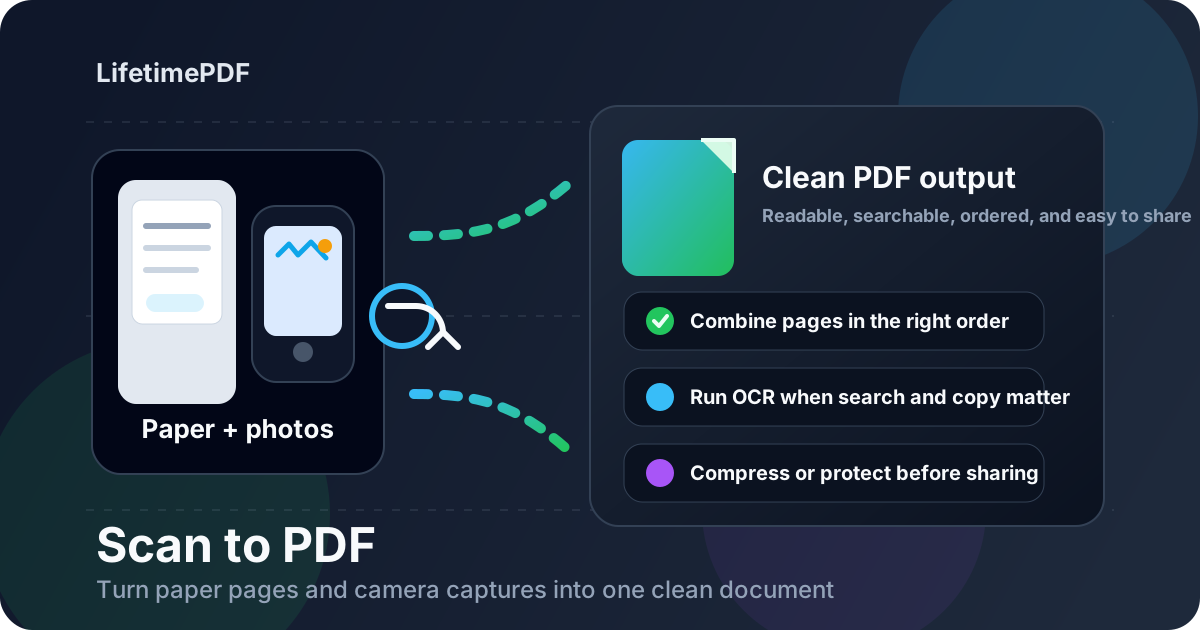
Table of contents
Quick start: scan to PDF in a few minutes
If you just want the dependable workflow, use this one:
- Capture the document pages with your phone camera, scanner app, or hardware scanner.
- If the output is separate images, open Images to PDF and combine them in the correct order.
- If the PDF already exists, review the page order, remove mistakes, and rotate any sideways pages.
- If you cannot search or copy text inside the document, run OCR PDF.
- If the file is too large for email, a school portal, a visa form, or a messaging app, use Compress PDF afterward.
What scan to PDF really means
A lot of people use the phrase scan to PDF to mean slightly different things. Sometimes they are scanning paper pages with a phone. Sometimes they are exporting from a copier. Sometimes they already have page photos and just need one proper PDF instead of a pile of images.
The shared goal is simple: turn loose page captures into a document that feels orderly, readable, and easy to send. That is why the best workflow is not only about capture. It is also about page order, orientation, searchability, file size, and whether the result looks trustworthy when someone else opens it.
| Starting point | Best next move | Why it helps |
|---|---|---|
| Phone camera photos | Combine them into one PDF | One document is easier to upload and review than scattered images |
| Scanner app export | Check order, rotation, and searchability | The PDF may already exist but still need cleanup |
| Office scanner or copier PDF | Review it, then OCR or compress if needed | Hardware scans are often image-only and sometimes oversized |
| Receipts, notes, IDs, forms | Capture clearly and keep the batch small | Smaller, cleaner PDFs are easier to share and archive |
Best ways to scan to PDF
The best method depends more on what is already in your hand than on the brand of app you use. For a quick one-page form, the phone camera may be enough. For a longer packet, a scanner app or hardware feeder is usually faster. For existing page images, the job is really an image-to-PDF workflow.
Phone camera captures
This is the most common real-world workflow because it is immediate. It is great for receipts, school pages, signed forms, handwritten notes, invoices, or a document you need to submit before a deadline. The key is making sure the text is readable and the page edges are not cut off.
Scanner app exports
Scanner apps can give you edge detection, quick contrast cleanup, and ready-made PDFs. Even then, it is smart to treat the result as a draft until you confirm that the pages are upright, complete, and in the right order.
Hardware scanners and office copiers
These are usually best for larger page batches, but they still create practical problems sometimes: upside-down pages, giant files, blank pages, or PDFs that look fine until you realize you cannot search inside them. Good scanning hardware saves time on capture, not necessarily on cleanup.
Best practical rule: use the fastest capture method available, then finish the document properly instead of assuming the first export is good enough.
Step-by-step: the clean workflow
1. Capture the pages clearly
Use even light, keep the page flat, and make sure the smallest important text is readable. It is much faster to retake one weak page immediately than rebuild the entire PDF and discover the problem later.
2. Build one proper PDF
If your scan workflow produced separate JPG, PNG, HEIC, or WEBP files, move them into Images to PDF and arrange them in human order. That turns a messy set of captures into one document someone can actually review from beginning to end.
3. Fix order, blanks, and sideways pages
A PDF is only as good as its reading flow. If page 4 comes before page 2, or one page is upside down, the file instantly feels unfinished. Use Organize PDF or Rotate PDF before you send the document anywhere important.
4. Run OCR only when it solves a real problem
If the PDF already has searchable text, you may not need OCR at all. But if the document behaves like an image, OCR is the step that turns it into a usable file for searching names, copying lines, extracting values, summarizing text, or keeping a searchable archive.
5. Compress or protect the finished version
Optimization works best after the document already makes sense. If the file is too large, use Compress PDF. If it contains sensitive records, use PDF Protect before sharing.
How to keep the PDF searchable and usable
Searchability is one of the biggest differences between a scan that merely exists and a scan that stays useful. A lot of PDFs look fine on screen but still behave like a photograph underneath. That becomes annoying the moment you need to find a name, copy an address, or extract text into email, Word, or notes.
The easiest test is simple: try selecting a sentence or use the document search function. If nothing highlights or the search fails on obvious words, the file probably needs OCR. Once OCR is applied, the document becomes much easier to archive, review, summarize, translate, and reuse.
- Use OCR when the file came from a camera, scanner, copier, or photographed paper page.
- Skip OCR when the PDF already contains clean searchable text.
- Check names, totals, dates, and IDs after OCR because those are the places where recognition mistakes hurt most.
- Keep the cleanest source possible because better input almost always means better OCR output.
If searchable text is the main goal, OCR PDF is usually the most valuable second step after scanning.
Common scan-to-PDF mistakes
Assuming the first export is finished
Plenty of scans are technically complete and still bad for real use. The PDF may open, but the order is wrong, the page is sideways, or the file is too large for the destination.
Keeping blurry pages because rescanning feels annoying
One retake is almost always cheaper than living with a weak document. This matters most for receipts, IDs, contracts, and any scan with small numbers or signatures.
Forgetting that scans are often image-only
If search, copy, or text selection fail, the problem is usually not "PDF" in general. It is that the file still needs OCR.
Sending giant files when a smaller PDF would work fine
Oversized PDFs slow down uploads, email delivery, and mobile sharing. Compress the finished file instead of sending a massive draft when the destination has limits.
| Problem | Likely cause | Best fix |
|---|---|---|
| PDF is not searchable | Image-only scan | Run OCR |
| Pages are out of order | Batch was combined too quickly | Organize the PDF before sharing |
| One page is sideways | Capture angle or scanner mistake | Rotate only the affected page |
| File is too large | Oversized images or long color batch | Compress the final PDF |
What to do after the scan is done
Once the PDF looks right, think about the next job rather than the scan itself. Different documents want different finishing steps.
- For searchable records: run OCR.
- For upload portals or email: compress the final file.
- For sensitive paperwork: protect the PDF before sending it out.
- For messy multi-page batches: organize the pages and remove anything extra.
- For long-term archives: keep the cleanest searchable copy, not just the first raw export.
This is the practical mindset that makes scan-to-PDF workflows feel much less chaotic. The goal is not only to create a PDF. The goal is to create the version you would actually trust yourself to send, upload, or reopen six months later.
Related LifetimePDF tools and guides
Scan to PDF usually fits into a bigger document workflow. These are the pages and tools that pair with it most naturally:
- Images to PDF — combine page photos or scanner exports into one clean PDF.
- OCR PDF — make image-only scans searchable.
- Organize PDF — fix page order, remove mistakes, and tidy the final document.
- Compress PDF — shrink large scans before sending them.
- PDF Protect — lock sensitive scans before sharing.
Helpful related guides
- Scan to PDF Online Free
- Scan to PDF Without Monthly Fees
- Scan to PDF on Android
- Scan to PDF on iPhone
- Scan to PDF on iPad
- Scan to PDF on Mac
- Scan to PDF on Windows
- Image to PDF Scanning Workflow
Ready to turn loose page captures into one PDF that actually feels finished?
Best simple sequence: capture clearly → build one PDF → fix order → OCR if needed → compress or protect only at the end.
FAQ (People Also Ask)
How do I scan to PDF?
Capture the pages with your phone, scanner, or camera, then combine them into one PDF and review the order before sharing. If the file is image-only, run OCR so search and copy work properly.
Can I scan to PDF without Adobe Acrobat?
Yes. You can capture pages with a camera, scanner app, or hardware scanner, then finish the file with browser-based tools for image-to-PDF conversion, organization, OCR, and compression.
Why is my scanned PDF not searchable?
Because most scans are image-only by default. OCR adds the text layer that makes search, highlight, and copy work inside the document.
What is the best way to turn photos into a PDF?
Use a workflow that combines the photos into one PDF, keeps the pages in the right order, and fixes any sideways pages before you export the final file.
What should I do after I scan to PDF?
Review the file, run OCR if you need searchable text, compress it if the file is too large, and protect it if it contains private or sensitive information.
Published by LifetimePDF — Pay once. Use forever.