Renumber PDF Pages: Fix Wrong Numbering, Restart at 1, and Continue After Merges
To renumber PDF pages, choose the physical page where numbering should begin, set the visible starting number readers should see, then export the corrected file.
This is the clean fix when a cover should stay blank, deleted pages broke the sequence, or a merged section needs to continue from page 37 instead of restarting at 1.
People usually search this when a document is almost finished but the numbering still feels wrong. The report reads awkwardly, the appendix restarts at the wrong number, or a clean cover suddenly shows a big page 1 it was never supposed to have. The good news is that renumbering is usually straightforward once you separate the file's physical page order from the visible page numbers readers expect to see.
Fastest path: finish the page order first, then use LifetimePDF's PDF Page Numbers tool to choose the real start page and the number that should appear there.
In a hurry? Jump to the quick answer and workflow.
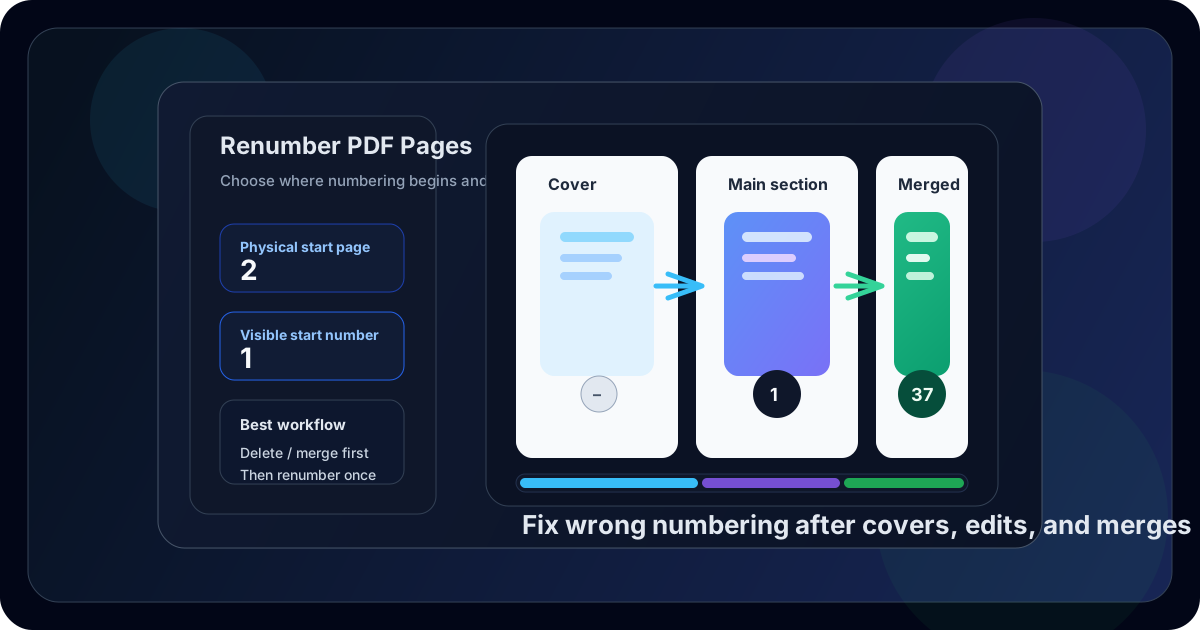
Table of contents
- Quick answer: the clean way to renumber PDF pages
- When renumbering is the right job
- Renumber PDF pages vs add page numbers vs Bates numbers
- Step-by-step: how to renumber a PDF
- Common scenarios that break PDF numbering
- How to avoid duplicate numbers and layout problems
- Best workflow order before you renumber
- Related tools and guides
- FAQ
Quick answer: the clean way to renumber PDF pages
If your PDF's visible numbering is wrong, start by fixing the document structure first. Remove unneeded pages, merge sections if necessary, and make sure the page order is final. Then open PDF Page Numbers, set the physical page where numbering should begin, choose the visible start number, and export the finished file.
For most people, the common win is simple: leave the cover unnumbered and make the next page show 1. For more complex packets, the real value is being able to continue numbering after a merge or restart the sequence cleanly after edits.
When renumbering is the right job
The phrase renumber PDF pages usually means one of a few very specific problems:
- The cover should stay clean, but page two should visibly become page 1.
- You deleted or extracted pages, and the visible sequence now feels broken.
- You merged multiple PDFs, and the next section should continue from a later number instead of restarting.
- You are preparing a report, handbook, appendix, or packet where page references need to make sense to another reader.
- You need a reader-friendly final file, not just a document with arbitrary digits in the footer.
That is what makes renumbering different from ordinary page-numbering. You are not simply asking, “Can I place numbers on the pages?” You are asking, “Can I make the numbering behave the way this document should read?”
| Situation | What is actually wrong | Best fix |
|---|---|---|
| Cover page + body | The file starts on page 1, but the visible numbering should start later | Start numbering on physical page 2 and set visible number 1 |
| Deleted pages | The content is right, but the visible sequence still reflects the old version | Renumber after the deletions are final |
| Merged appendix or packet | The next section should continue from a later number | Merge first, then set a later visible start number |
| Client or review draft | Page references need to be clear in emails, calls, or printouts | Use consistent numbering and review placement carefully |
| Already-numbered source PDF | Old printed numbers may clash with new ones | Edit, crop, or redact the old number area before renumbering |
Renumber PDF pages vs add page numbers vs Bates numbers
These phrases get mixed together, but they are not the same job. Choosing the right workflow up front saves time.
| Task | Best for | Typical example |
|---|---|---|
| Renumber PDF pages | Fixing where numbering starts or what number readers should see | Keep the cover blank, then make page 2 show 1 |
| Add page numbers to PDF | General numbering on a finished document | Place visible numbers on a report that currently has none |
| Bates numbering | Formal page-level references for production, review, or citation | Label every page of a legal or audit packet with a stable identifier |
If you mainly need the visible sequence to make sense after covers, edits, or merges, renumbering is the right workflow. If you are starting from a document with no numbers at all, a broader add page numbers to PDF guide may be a better starting point. If every page must carry a formal reference string, look at Bates numbering for PDFs instead.
Step-by-step: how to renumber a PDF
The clean workflow is short, but the order matters.
1. Finalize the page order first
If pages still need to be removed, extracted, or merged, do that now. Renumbering too early is the fastest way to do the same task twice. Use Delete Pages, Extract Pages, or Merge PDF if the structure still needs work.
2. Open the PDF Page Numbers tool
Go to LifetimePDF PDF Page Numbers and upload the version you actually plan to share, print, or archive.
3. Choose the physical page where numbering should begin
This setting refers to the file's actual page order, not what readers currently see. Common examples:
- Start on page 1 for a straightforward document
- Start on page 2 if the cover should stay blank
- Start on page 3 or later if title pages or dividers need to stay clean
4. Set the visible starting number
This tells the PDF what number should appear on the first numbered page.
It is often 1, but not always.
After a merge, you might need the first newly numbered page to show 25, 37, or 112.
Physical page 5 should visibly show page 37.
Set Start from Page = 5
Set Start Number = 37
5. Pick placement that does not fight the layout
Bottom-center works well for many reports and manuals. Bottom-right is common for business documents. Top-right is often safer when the footer already contains signatures, timestamps, or existing text. A number that overlaps important content is technically correct and still visually bad.
6. Export and review three spots
Before you send the file, check:
- the first numbered page
- a middle page
- the last numbered page
That quick review catches almost every real-world error: wrong start page, wrong visible start number, overlap with footer content, or a sequence that should have started later.
Best sequence: clean the packet, merge if needed, then renumber once at the end.
Common scenarios that break PDF numbering
The cover page should not show a number
This is probably the most common use case. The document needs a clean cover, but the first content page should visibly become page 1. That setup is common for proposals, handbooks, board packets, school submissions, and client deliverables.
You deleted pages and now the sequence feels wrong
Maybe you removed blank pages, duplicate scans, or an appendix the recipient does not need. The content is better now, but the visible numbering still reflects the old version. Renumbering fixes that mismatch.
You merged files and the second section restarts at 1
This is where merged packets become confusing fast. If section one ends on page 24, it is often cleaner for section two to begin on 25 rather than start over. Merge first, then renumber the combined PDF so the whole packet reads like one document.
The appendix or exhibit should continue from a later number
Audit files, legal packets, manuals, and internal reports often need the next section to continue from a specific number. The visible sequence might begin at 42, 118, or 203 depending on the broader packet. That is normal, and it is exactly what renumbering tools are for.
The PDF already has old printed numbers
This is the edge case that trips people up. If old numbers are already part of the page artwork, adding new numbers can create duplicates instead of fixing the document. In that case, crop the footer, redact the old number area, or regenerate the original file before applying the new sequence.
How to avoid duplicate numbers and layout problems
Do not confuse physical pages with visible numbering
This is the classic off-by-one problem. If the cover is physical page 1, the next page can still visibly show page 1. Make your settings based on the file's actual page order, not the number you wish you saw there already.
Do not renumber before the structure is final
Every later change can break the sequence again. If you still need to split, delete, merge, or reorder, do that first.
Watch for old numbering already baked into the PDF
A renumbering tool can place a new visible sequence, but it may not erase a number that already lives inside the original page design. If you see double numbering after export, the source file is usually the real culprit.
Choose placement with the page layout in mind
Footer space is not always empty. Some PDFs already use it for signatures, legal disclaimers, copyright text, timestamps, or scanner noise. Move the numbers to a corner or to the top if the default placement feels crowded.
Review landscape or unusual pages separately
Mixed-orientation files are where ugly numbering mistakes hide. A footer that looks fine on portrait pages can collide with content on a landscape spreadsheet or scanned attachment.
Best workflow order before you renumber
Renumbering works best as a finishing step inside a broader document workflow.
- Delete or extract pages the recipient does not need.
- Merge related sections into the final packet if necessary.
- Rotate or crop awkward pages so the layout is clean.
- Renumber the finished PDF once the page order is stable.
- Protect the final version if the file contains sensitive information.
That order matters because every structural change can shift the visible sequence. If you number too early, you often end up fixing the same document twice.
Recommended workflow: remove what does not belong, merge what does, then renumber the final file once.
Related tools and guides
Renumbering fits best inside a complete PDF toolkit. These are the most useful next clicks:
- PDF Page Numbers for restarting, correcting, or continuing visible numbering
- Delete Pages for removing blank, duplicate, or irrelevant sections first
- Extract Pages for isolating just the range you need
- Merge PDF for combining sections before the final numbering pass
- Crop PDF for fixing oversized margins or old footer areas
- Redact PDF for removing sensitive details before sharing
- Protect PDF for locking the finished numbered file
Helpful internal guides
- Renumber PDF Pages Online
- Renumber PDF Pages Without Monthly Fees
- Add Page Numbers to PDF
- Add Page Numbers to PDF Starting on Page 2
- Add Bates Numbers to PDF
- PDF Page Numbers Online Free
FAQ
How do I renumber PDF pages?
Finalize the page order, choose the physical page where numbering should begin, set the visible starting number, export the updated PDF, and review the result. That is the cleanest fix when covers, deleted pages, or merged sections make the sequence confusing.
Can I restart page numbering at 1 after a cover page?
Yes. Set the physical start page to 2 and the visible start number to 1 so the cover stays unnumbered while the next page visibly becomes page 1.
How do I continue numbering after merging PDFs?
Merge the files first, then renumber the combined PDF and set the first page of the new section to whatever number should come next, such as 25, 37, or 112.
What is the difference between renumbering and adding page numbers?
Adding page numbers is the general task of placing visible numbers on a PDF. Renumbering is the more specific job of correcting where numbering starts or what sequence readers should see after covers, edits, or merges.
Will renumbering remove old page numbers already printed inside the PDF?
Not always. If those numbers are part of the original page content, you may need to crop, redact, edit, or regenerate the source file before adding the corrected numbering.
Published by LifetimePDF — Pay once. Use forever.