Remove PDF Metadata: Clean Hidden Title, Author, Keywords, and Software Details Before You Share
To remove PDF metadata, open the final file in LifetimePDF's PDF Metadata Editor, clear or rewrite hidden fields such as title, author, subject, keywords, creator, and producer, then save the cleaned copy and verify the document properties before you share it.
If the PDF looks fine on the page but still carries an old client name, personal author tag, software fingerprint, or draft-era keywords behind the scenes, metadata cleanup is the right fix because renaming the file alone does not remove those hidden details.
This matters more often than people expect. A polished PDF can still reveal internal workflow baggage through preview titles, author names, creation tools, stale dates, or keyword clutter that nobody meant to publish. The good news is that metadata cleanup is usually quick once you know which fields deserve to disappear and which ones are worth keeping.
Fastest path: open the final PDF in PDF Metadata Editor, remove the hidden fields that do not belong, save the cleaned copy, then re-open it once and confirm the properties look right before you send it anywhere.
In a hurry? Jump to Quick start: remove PDF metadata in a few minutes.
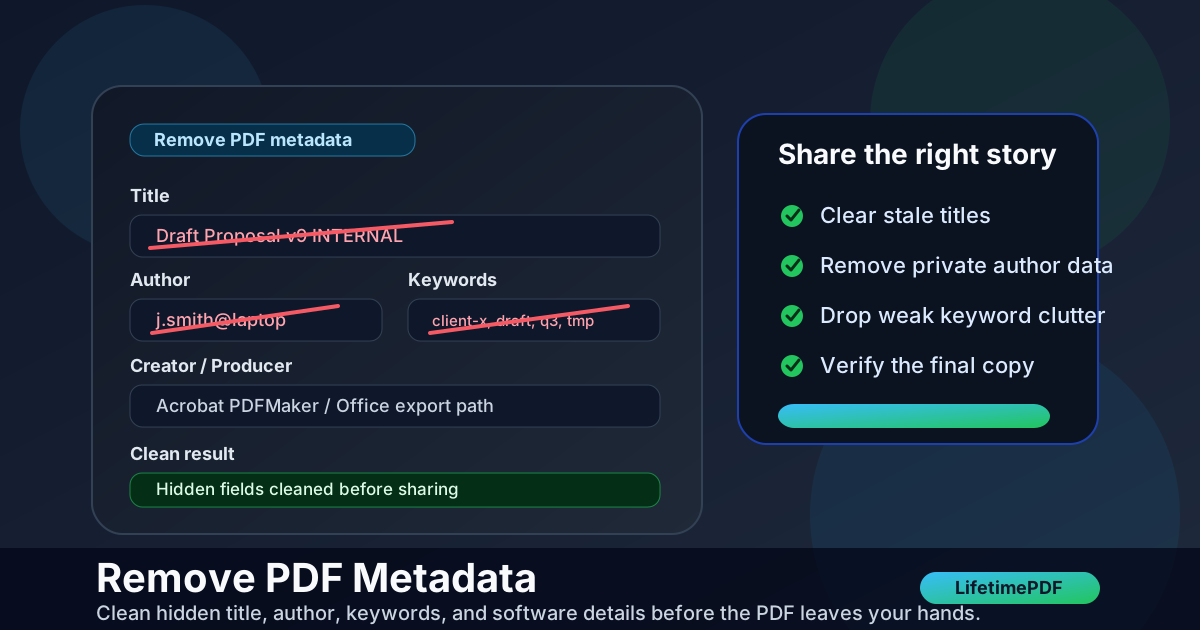
Table of contents
- Quick start: remove PDF metadata in a few minutes
- What counts as PDF metadata?
- Why remove PDF metadata at all?
- What should you remove versus rewrite?
- Step-by-step: remove PDF metadata with LifetimePDF
- When metadata cleanup is not enough
- Final checklist before sharing
- Common mistakes
- Related LifetimePDF tools and reading
- FAQ
Quick start: remove PDF metadata in a few minutes
If your goal is simply make this PDF stop exposing hidden details, this workflow is usually enough:
- Start with the exact final PDF you actually plan to upload, email, publish, or archive.
- Open PDF Metadata Editor.
- Review title, author, subject, keywords, creator, producer, and date-related fields before you touch anything else.
- Blank fields that are private, stale, or misleading, and rewrite only the ones that still help the file make sense.
- Save the cleaned copy and re-open it once to confirm the hidden details now match what you want to share.
For many people, that is the whole job. The extra value comes from knowing when to leave a field empty, when to replace it with something cleaner, and when the real problem is visible content that needs redaction rather than metadata cleanup.
What counts as PDF metadata?
PDF metadata is the hidden descriptive information stored inside the file. It often includes the document title, author, subject, keywords, creator app, producer app, creation date, modification date, and other internal properties. None of that has to be visible on the page for it to travel with the file.
In real workflows, metadata problems usually show up in one of these forms:
- An old embedded title keeps appearing in tabs, previews, or search results even after you renamed the file.
- A personal name or employee name remains in the author field when the file should be organization-owned.
- Keywords expose internal jargon, draft labels, client codenames, or messy filing habits.
- Creator and producer fields reveal the software or export path behind the document.
- Dates tell a confusing story because the file was copied, re-saved, scanned, or regenerated during a long workflow.
That is why PDF metadata deserves a quick review before a file leaves your control. It is not just technical trivia. It affects privacy, professionalism, and whether the document tells a clean, believable story.
Why remove PDF metadata at all?
Sometimes the best PDF is the one that says less. If hidden fields do not improve filing, retrieval, compliance, or trust, they can become needless baggage.
Privacy
Old author names, internal project labels, personal account details, or software fingerprints can leak more context than the visible pages ever do.
Professionalism
A clean title and sensible metadata make the file feel deliberate. Draft clutter and stale labels make it feel improvised.
Control
When you remove metadata on purpose, you decide what travels with the document instead of letting default export settings decide for you.
A practical example: imagine a proposal that looks perfect in the PDF itself, but the hidden title still says "Draft Proposal v8 internal" and the author still shows a personal laptop profile. Nothing is visibly broken, yet the file still broadcasts the wrong story. Removing or rewriting that metadata is the clean fix.
What should you remove versus rewrite?
Not every field needs to be emptied. Some metadata is genuinely useful. The goal is not to strip a PDF blindly. The goal is to keep only what still earns its place.
| Field or signal | Usually remove it when... | Usually rewrite or keep it when... |
|---|---|---|
| Title | It still says draft, final-final, scanner output, or an old client/project name. | The PDF should have a clean public-facing title that helps previews and archives. |
| Author | It exposes a personal name, former employee, or accidental workstation identity. | The document should clearly belong to a team, company, or named creator. |
| Keywords | They are stuffed, stale, private, duplicated, or meaningless outside your internal workflow. | The tags genuinely help records, search, or archive retrieval later. |
| Creator / Producer | You do not want to expose toolchain or software-path details unnecessarily. | A compliance or archival workflow benefits from preserving origin details. |
| Dates | The stored dates create a misleading story or no longer serve a useful purpose. | The dates still matter for filing, records, or trustworthy version history. |
My practical rule: if a field would confuse, embarrass, or quietly overshare if a recipient noticed it, clean it. If it genuinely helps the file stay understandable or well organized, rewrite it instead of deleting it blindly.
Step-by-step: remove PDF metadata with LifetimePDF
Here is a simple, low-friction workflow that fits most sharing, publishing, and handoff situations.
1) Start with the final working copy
Do not clean metadata on a preview, a browser tab, or a file that might not be the real outgoing version. Save the exact PDF you plan to send. This avoids the classic mistake where the metadata is cleaned correctly but on the wrong copy.
2) Open PDF Metadata Editor
Go to LifetimePDF's PDF Metadata Editor and upload the file. Review the high-signal fields first: title, author, subject, keywords, creator, producer, and dates.
3) Remove what does not belong
Blank the fields that add no value or expose private workflow details. This often includes stale titles, personal author names, internal keywords, or creator labels that should not travel with the PDF.
4) Rewrite the fields worth keeping
If the PDF benefits from a usable title or organization-level author value, replace the old content with the cleaner final version. A good example is changing a messy working title into a stable client-facing title instead of leaving the field empty.
5) Save the cleaned copy and verify once
Download the updated file, re-open it, and inspect the properties again. This final verification matters because cached previews, duplicate files, and last-minute uploads are where good metadata cleanup can still go wrong.
Important distinction
Removing metadata does not remove visible names, account numbers, signatures, comments, or highlighted text from the PDF pages themselves. If sensitive information appears on the page, use Redact PDF as a separate step.
When metadata cleanup is not enough
Metadata removal solves a hidden-properties problem. It does not solve every privacy or document-quality problem around a PDF.
- Visible secrets on the page still require redaction.
- Old pages, appendices, or attachments may need deletion or extraction.
- Open access after sharing may call for PDF Protect.
- Bloated files may still need compression before upload or email delivery.
In other words, metadata cleanup is one important finishing step. It works best inside a slightly broader final-review habit: visible content, hidden content, access controls, and one last verification pass.
Final checklist before sharing
If the file matters, spend one extra minute here. It is usually cheaper than sending the wrong version and trying to explain it afterward.
- Open the final copy, not a preview or a duplicate download.
- Check the visible pages for anything that still needs edits or redaction.
- Remove or rewrite hidden metadata so the title, author, keywords, and software details match the story you want the file to tell.
- Protect the PDF if needed before it goes out.
- Re-open the final saved version once and verify both the visible content and the properties.
Useful next steps: clean the hidden properties first, redact visible private content if needed, and protect the outgoing copy only after the PDF itself is tidy.
Common mistakes when you remove PDF metadata
- Renaming the file and assuming the metadata changed too — filenames and embedded metadata are separate.
- Cleaning an older draft instead of the outgoing PDF — the right fix on the wrong file still fails.
- Blanking everything without thinking — some titles or author fields should be rewritten, not erased.
- Confusing metadata cleanup with redaction — visible sensitive content still remains unless you remove it from the page.
- Skipping the final verification step — cached previews and duplicate downloads make this mistake common.
None of these problems are dramatic. They are just the kind that quietly create awkward shares, messy archives, or unnecessary privacy leaks. A two-minute review at the end of the workflow usually prevents them.
Related LifetimePDF tools and reading
FAQ
How do I remove metadata from a PDF?
Open the final PDF in a metadata editor, review the hidden fields, blank or rewrite the ones that no longer belong, save the cleaned copy, and verify the document properties before you share it.
Does removing PDF metadata change the visible pages?
No. Metadata cleanup changes hidden document properties, not the visible page content. If the page itself contains sensitive information, you still need proper redaction.
Should I remove all PDF metadata?
Not always. Remove what is stale, private, misleading, or unnecessary. Keep or rewrite the fields that still help the PDF stay understandable, professional, or archive-friendly.
Is removing metadata the same as redacting a PDF?
No. Metadata removal cleans hidden fields like title, author, and software details. Redaction removes visible text or images from the actual pages.
Why does the old PDF metadata still appear after I clean it?
You may have edited the wrong file, opened a cached preview, or looked at a viewer that shows the filename instead of the embedded title. Re-open the cleaned copy and inspect its properties directly.