PDF to PPT Online: Convert a PDF into Editable PowerPoint in Your Browser Without Rebuilding the Deck
Yes — the fastest way to handle PDF to PPT online is to upload a clean digital PDF, convert only the pages you need, and run OCR first if the file is scanned or image-only.
That browser-based workflow usually gets you an editable PowerPoint deck much faster than rebuilding the presentation from scratch.
Most people looking for this are under some kind of deadline. A client sent the deck as PDF. A teammate exported the wrong format. A training pack only survived as a static handout. Or you are on a Chromebook, a shared computer, or a locked-down work machine where installing desktop software is not the path of least resistance. In those moments, online conversion is useful because it removes setup friction and gets you back to editable slides quickly.
Fastest path: use LifetimePDF's PDF to PowerPoint tool for normal digital PDFs, and add OCR first only when the file behaves like page images instead of real text.
In a hurry? Jump to quick start: PDF to PPT online in a few minutes.
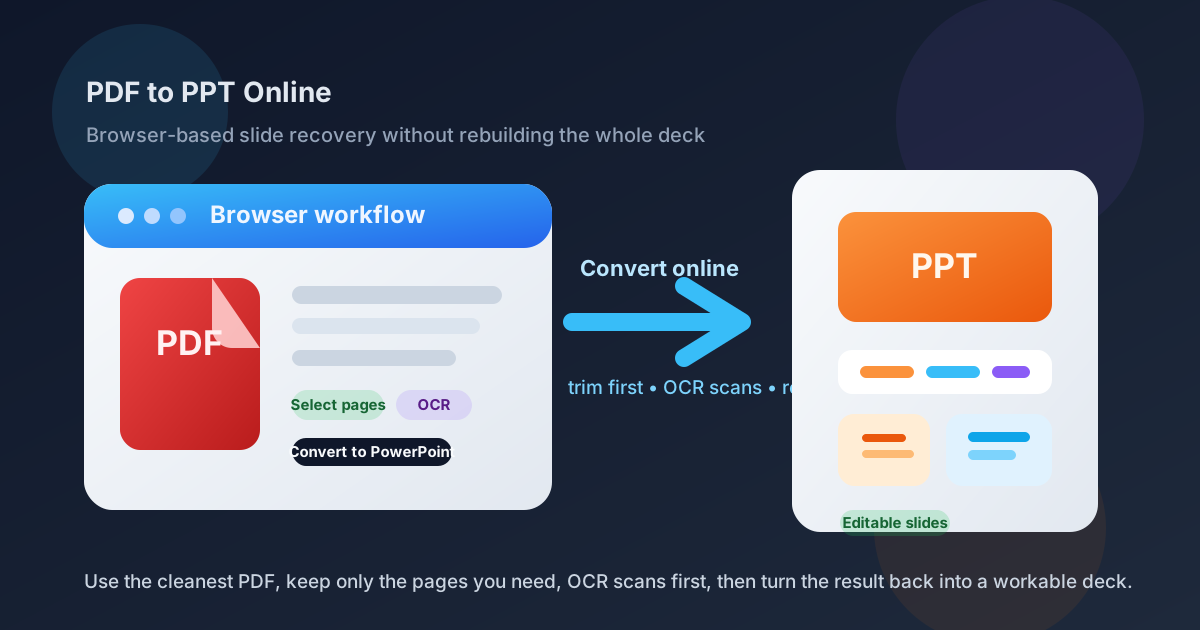
Table of contents
- Quick start: PDF to PPT online in a few minutes
- When online conversion is the right choice
- What to do before you upload the PDF
- Step-by-step: convert PDF to PPT online
- Scanned PDFs, OCR, and why screenshot-like slides happen
- What usually converts well online
- Common PDF to PPT online problems and fixes
- When PDF to Image is the smarter route
- Related LifetimePDF tools and useful reading
- FAQ (People Also Ask)
Quick start: PDF to PPT online in a few minutes
If your PDF already contains selectable text and mostly came from PowerPoint, Google Slides, Keynote, Word, or another office app, the online workflow is simple:
- Open PDF to PowerPoint.
- Upload the cleanest version of the PDF you have.
- If you only need part of the document, trim it first with Extract Pages.
- If the file is scanned and the text is not searchable, run OCR PDF before converting.
- Convert the file and download the slide deck.
- Open it in PowerPoint or another presentation editor and review the important slides once.
When online conversion is the right choice
The word online matters because it changes the kind of workflow people are looking for. They usually want something they can run immediately in a browser without installing extra software, asking IT for permission, or moving onto a different computer just to rescue a deck.
That makes PDF to PPT online a particularly good fit when the file conversion is a finish-line task rather than a full production project. You already have the content. You already know the slides you need. You just need the deck to become editable again.
| Situation | What you really need | Best route |
|---|---|---|
| Digital PDF of slides or a report | Editable presentation content in a browser workflow | Convert directly to PowerPoint online |
| Scanned or photographed PDF | Editable text boxes instead of flat page images | Run OCR first, then convert online |
| Only a few pages matter | Smaller, cleaner output deck | Extract pages before converting |
| Exact page appearance matters more than editability | Static visuals you can place into slides | Use PDF to Image instead |
Smart default: keep the input small, convert once in the browser, then polish only the slides a real audience will actually see.
What to do before you upload the PDF
The fastest quality gains usually happen before the converter even starts. Browser-based tools are convenient, but they still depend on the structure of the file you give them. Cleaner input usually means cleaner slides.
Three prep moves help the most
- Use the original digital PDF if you can. A clean export usually converts better than a scan, a print-to-PDF copy, or a file that has been re-saved several times.
- Trim out the pages nobody needs. Appendices, duplicate covers, routing sheets, and backup pages add clutter without helping the deck.
- Check whether the text is searchable. If you cannot highlight or search the text, OCR is probably the real first step.
Step-by-step: convert PDF to PPT online
1) Start with the cleanest PDF available
If you have the original exported PDF, use it. Digital text, cleaner vectors, and normal office-document structure give the converter far more to work with than a scan or a flattened screenshot-style copy.
2) Remove pages you do not need
Use Extract Pages or Split PDF if the source contains appendix sections, repeated title pages, or background material that should not become slides. Smaller files usually convert faster online and produce less cleanup later.
3) Convert the PDF in your browser
Open LifetimePDF's PDF to PowerPoint tool, upload the file, run the conversion, and download the output deck. For standard business PDFs, this is often enough to recover useful, editable slide content in one pass.
4) Review the slides in the editor you actually use
Open the result in PowerPoint, Google Slides, or another presentation editor and check what a real audience will notice first: title spacing, bullet alignment, chart labels, line breaks, image placement, and any slide that suddenly looks more crowded than it did in the PDF.
5) Fix only the slides that carry the message
Not every recovered slide deserves perfection. Tighten the headline slides, the discussion slides, and the pages that will actually be shown. If the rest are internal backup slides, usable is often enough.
Scanned PDFs, OCR, and why screenshot-like slides happen
When PDF to PPT online goes badly, the source file is often the reason. A scanned PDF may look readable to a person, but to the converter it can behave like a stack of page images. If there is no usable text layer, the result may become slide-sized screenshots instead of editable text boxes and reusable elements.
That is where OCR PDF matters. OCR adds a searchable text layer so the converter can rebuild headings, bullets, and paragraphs more intelligently instead of treating each page as one giant image.
Signs you should OCR first
- You cannot highlight the text in the PDF.
- Search inside the file returns nothing useful.
- The document came from a scanner, copier, or phone camera.
- Each page behaves like one flat image instead of selectable content.
Best workflow for scans: OCR first, confirm the text is searchable, then convert the cleaned PDF into slides online.
What usually converts well online
Browser-based conversion works best when the PDF already behaves like a normal digital document. That usually means the file started life in presentation software, a word processor, or a reporting tool rather than on a scanner bed.
Good candidates for PDF to PPT online
- Old decks that only survived as PDF: you need editable slides back quickly.
- Client proposals and training packs: you need a workable base version without rebuilding from nothing.
- Reports that need to become meeting slides: you want to reuse summaries, charts, and headline pages.
- Partial slide recovery jobs: you only need several pages from a larger PDF packet.
- Chromebook or shared-device workflows: you want a browser path instead of a desktop install detour.
What usually still needs cleanup
- Font substitutions: text can reflow when the original font is unavailable.
- Complex charts and layered graphics: the slide may be usable but not perfectly reconstructed.
- Animations and speaker notes: PDFs preserve final appearance much better than presentation logic.
- Master slide behavior: the recovered deck may act like ordinary slide content instead of a clean reusable master.
Common PDF to PPT online problems and fixes
The deck converted, but the slides feel crowded
That usually happens when the source PDF contains appendix pages, dense tables, or a layout that was fine on paper but too busy for an editable slide workflow. Trim the source file earlier next time, and in the current deck prioritize the titles, summary slides, and discussion slides first.
The output looks like screenshots instead of editable slides
That is usually a scan problem, not a PowerPoint problem. Run OCR on the PDF first and try the conversion again.
Charts or visuals shifted slightly
Complex objects often need a quick human pass. If the slide is central to the story, fix that one slide. If the chart is only supporting evidence, usable may be enough.
The file is too large to work with comfortably
Split the PDF or extract only the useful pages before converting. A smaller input usually means a faster browser workflow and a cleaner output deck.
You only need the visual appearance, not editability
Use PDF to Image instead. For highly designed layouts, static images often preserve appearance better than editable slide recovery.
When PDF to Image is the smarter route
Sometimes your real goal is not editability. It is visual fidelity. If a page is heavily designed, full of careful typography, or meant to look exactly the same in every meeting, PDF to Image can be the better route.
- Choose PDF to PPT online when you need editable text, movable objects, or a reusable deck.
- Choose PDF to Image when exact appearance matters more than editability.
In many practical presentation workflows, the best answer is hybrid: convert the text-heavy pages into editable slides, then keep the most fragile visual pages as images so they stay exactly the way you want them.
Related LifetimePDF tools and useful reading
PDF to PPT online works best as part of a wider slide and document workflow. These tools fit naturally around it:
- PDF to PowerPoint - convert PDFs into editable presentation slides
- OCR PDF - add a text layer before conversion when the source is scanned
- Extract Pages - isolate only the PDF pages you want in the deck
- Split PDF - break a long packet into smaller conversion jobs
- PDF to Image - preserve exact page visuals as static assets
- PPT to PDF - export the cleaned deck back into a shareable PDF
Suggested internal reading
- PDF to PPT
- Convert PDF to PowerPoint Online
- OCR PDF
- PDF to Image
- PPT to PDF
- Browse all LifetimePDF articles
Ready to turn a PDF into workable slides in your browser?
Best workflow: clean PDF → trim unnecessary pages → OCR only if needed → convert online → review the important slides once.
FAQ (People Also Ask)
How do I convert PDF to PPT online?
The cleanest workflow is to upload a digital PDF to a browser-based PDF to PowerPoint tool, convert only the pages you need, run OCR first if the file is scanned, and review the important slides once after download.
Can I convert a scanned PDF to PPT online?
Yes, but OCR is usually the important first step. Without OCR, the output often behaves like slide-sized screenshots instead of editable presentation content.
Is PDF to PPT online the same as PDF to PPTX?
Usually yes in practice. Most people mean they want an editable PowerPoint deck, and modern online tools commonly deliver PPTX output even when the search phrase says PPT.
Will PDF to PPT online preserve layout perfectly?
Not always. Simple digital PDFs usually convert well, but font substitutions, layered graphics, and highly designed pages can still need a short cleanup pass.
When should I use PDF to Image instead of PDF to PPT online?
Use PDF to Image when exact visual appearance matters more than editability, especially for brochure-like layouts, complex graphics, or pages you only need to place as static visuals in a deck.
Published by LifetimePDF - Pay once. Use forever.