Merge PDF and HTML Files Online: Combine Web Pages and PDFs in Your Browser
To merge PDF and HTML files online, the most reliable workflow is to convert the HTML or webpage to PDF first, then use Merge PDF in your browser to combine that new PDF with the rest of your documents.
That gives you one stable final PDF without broken page breaks, awkward screen-only layout, or a confusing pile of mixed file types.
Most people searching this phrase are not trying to do a clever file-format trick. They are trying to finish something practical: a report with a saved webpage appendix, a proposal with a pricing page, an onboarding packet with browser-based instructions, or a compliance bundle that includes one HTML source and several PDFs. The online part matters because you want a clean browser workflow, not a desktop software project.
Fastest dependable path: clean the webpage or HTML source, convert it to PDF, merge the PDFs online in reading order, then only compress or protect the final file if the actual handoff needs it.
Need the short version? Jump to Quick start: merge HTML and PDF files online in about 5 minutes.
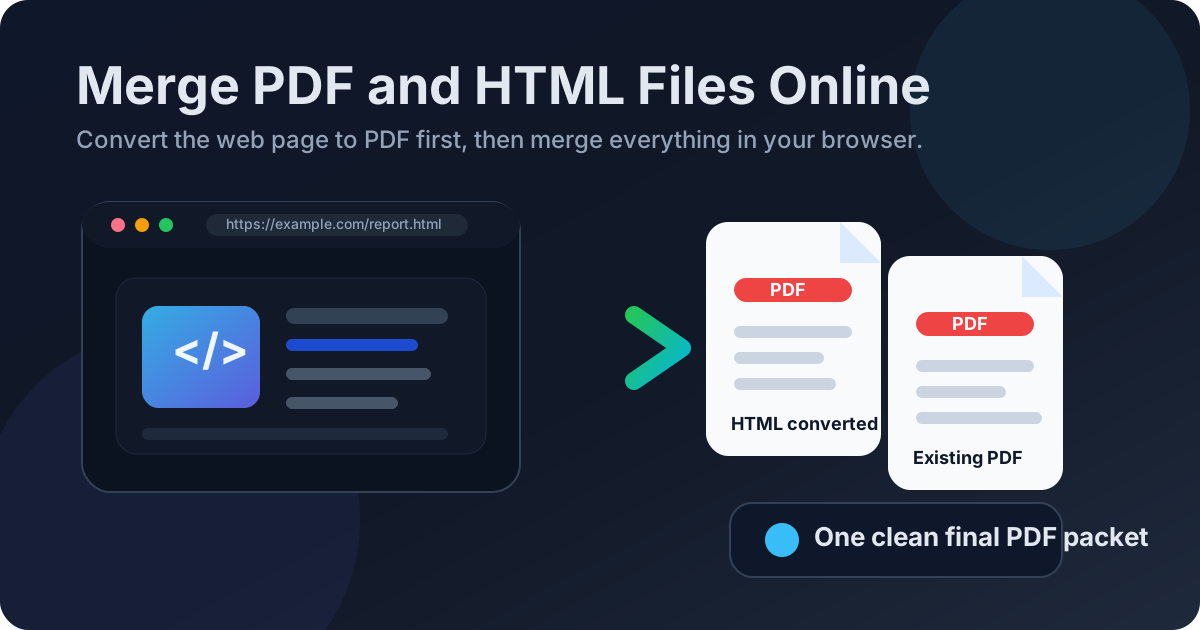
Table of contents
- Quick start: merge HTML and PDF files online in about 5 minutes
- What this workflow really means online
- Why HTML to PDF first is still the cleanest browser workflow
- Step-by-step: merge the files in your browser without wrecking layout
- How to make webpages print well before the merge
- When to use saved HTML vs a live webpage capture
- Common real-world use cases
- Troubleshooting missing assets, ugly page breaks, and big files
- Related LifetimePDF tools and companion guides
- FAQ (People Also Ask)
Quick start: merge HTML and PDF files online in about 5 minutes
If the content is already final and you just need one polished file, this is the workflow most people actually want:
- Open the final saved HTML file or the clean live webpage view you want to include.
- Remove clutter that does not belong in the document, such as sticky navigation, pop-ups, sidebars, or screen-only blocks.
- Open HTML to PDF.
- Convert the HTML or webpage into a PDF using the page size, margins, and orientation that fit the real use case.
- Open Merge PDF.
- Upload the new HTML-based PDF together with the reports, forms, contracts, appendices, or other PDFs that belong in the packet.
- Drag the files into the exact order the recipient should read them, merge them, and download the finished PDF.
- If the result is too large for email or an upload portal, use Compress PDF.
What this workflow really means online
A lot of people search for merge PDF and HTML files online as if one button should magically make mixed formats behave like a finished document. In practice, the online part simply means you want a browser-based workflow that lets you finish the job without installing heavyweight software. It does not change the logic of the task.
The real goal is not to force HTML and PDF to behave like twins. The real goal is to produce one final PDF another human can open, review, forward, print, upload, or archive without confusion. That could be a client, a manager, a school portal, a finance reviewer, or your future self six months from now.
| If your goal is... | The better workflow is usually... | Why |
|---|---|---|
| One clean shareable PDF | HTML → PDF → Merge PDF | You get stable pages, calmer page breaks, and a predictable final packet. |
| Just reviewing a live page for yourself | Keep it as HTML or use browser print | You may not need a merged PDF at all if nobody else is consuming it as a document. |
| Adding a webpage, report, or appendix behind another PDF | Convert first, then merge | The web content becomes a readable document section instead of an awkward extra file. |
Why HTML to PDF first is still the cleanest browser workflow
A webpage can look perfect while scrolling and still behave badly once you try to turn it into a formal document packet. Menus waste space. Long sections break in awkward places. Wide tables spill off the page. Images and fonts sometimes load differently when captured. That is why the safest workflow is pleasantly boring: make the page print-friendly, convert it to PDF once, then merge only PDFs.
In practice, merge PDF and HTML files online usually means create a browser-friendly HTML-based PDF first, then package it with the rest of the document set. That is how you keep the final result useful instead of merely technically combined.
| Workflow | Best when | Main tradeoff |
|---|---|---|
| Convert HTML to PDF, then merge online | Web appendices, dashboards, onboarding pages, invoice screens, knowledge-base exports, portal records | One extra step, but much better control over layout and page order |
| Try to combine mixed files immediately | Low-stakes internal sharing where presentation barely matters | More page-break surprises and less confidence in the finished file |
Step-by-step: merge the files in your browser without wrecking layout
The workflow is straightforward, but doing the steps in the right order prevents most of the usual browser-to-document headaches.
1) Start from the right HTML source
If you have a saved .html or .htm file, use the final version you actually want to share. If the content is a live webpage, make sure the page has fully loaded and that you are looking at the exact state you want captured. Small details matter here. A collapsed section, hidden table, expired session, or half-loaded dashboard can create a bad PDF before the merge even starts.
2) Clean the page for document use
Remove anything that belongs to browsing rather than reading. Sticky navigation, giant footers, promo banners, cookie notices, and sidebars often make perfect sense on screen and feel ridiculous inside a PDF packet. Decide early whether portrait or landscape will better fit wide tables, pricing blocks, or dashboard content.
3) Convert the HTML to PDF
Use HTML to PDF once the page looks clean. This is the step that stabilizes the layout. It freezes the webpage into real pages so you can sequence it with your other documents instead of hoping the browser view behaves perfectly at the last second.
4) Gather the supporting PDFs
These might include contracts, signed pages, reports, already polished appendices, forms, invoices, or exported screenshots. Putting all of the files in one place before the merge helps you catch missing pieces early and keeps the final assembly much calmer.
5) Merge in the final reading order
Open Merge PDF, upload the HTML-based PDF and the other PDFs, then drag them into the order a reader should actually follow. Reading order matters more than people expect because the recipient experiences the packet from top to bottom, not as a pile of source files.
6) Review once before sending or uploading
- Check the first page: does the packet open with the right cover, summary, or main document?
- Check one HTML-derived page: do margins, headings, tables, and page breaks still feel deliberate?
- Check transition points: do appendices, forms, or supporting pages start where you intended?
- Check file size: is the final PDF still reasonable for email or portal limits?
- Check the filename: does it make sense to the person receiving it?
Calmest sequence: clean the page, convert once, merge once, review once, then only compress or protect if the real handoff requires it.
How to make webpages print well before the merge
Most problems in this workflow are not really merge problems. They are page-layout problems that started inside the HTML. A merge usually preserves what it receives. If the HTML-derived PDF is noisy, clipped, or awkward before the merge, the final packet will simply preserve that awkwardness more officially.
Trim screen-only clutter
Website chrome is not the same thing as document content. Navigation bars, account menus, chat widgets, promo panels, and floating buttons rarely belong in a final PDF packet. The cleaner the source, the calmer the finished file.
Watch page breaks honestly
HTML scrolls forever. PDFs do not. Check whether headings, tables, screenshots, charts, and callout boxes are splitting in ugly places. If the converted PDF already feels annoying to read on its own, fix that before you merge anything else.
Be realistic about wide layouts
A full-width dashboard, pricing grid, or data table may look fine on a monitor and become unreadable on a portrait PDF page. Landscape orientation, better spacing, or reducing low-value columns usually gives a more honest result than squeezing everything tiny just to make it fit.
Make sure assets actually load
Missing images, icon fonts, or CSS can make a converted HTML page look unfinished. If the PDF depends on the page looking polished, preview the HTML-based PDF by itself before you package it with the rest.
| If the HTML problem is... | The better fix is usually... |
|---|---|
| The page looks noisy | Remove navigation, floating controls, and screen-only extras before conversion. |
| Tables or sections split badly | Adjust layout, print settings, spacing, or orientation before making the final PDF. |
| Content is too small to read | Use landscape, simplify the layout, or break the content into cleaner sections. |
| Images or fonts look wrong | Check asset paths and preview the converted PDF before you merge it with anything else. |
When to use saved HTML vs a live webpage capture
People often mean two different things when they say HTML. Sometimes they have a saved HTML file from a system export. Other times they really mean a live webpage they want to include behind another PDF. The basic workflow is the same, but the source choice affects how much control you have.
Use a saved HTML file when you want a steadier source
Saved HTML is useful when the content should stay fixed while you review it carefully. This is often better for invoice screens, archived web pages, exported reports, or anything you may need to reproduce later.
Use a live webpage when the browser view is already the final truth
A live page makes sense when the exact on-screen version is the thing you need to preserve. That might be an internal dashboard view, a current account summary, a portal record, or a support article that is easiest to capture directly in the browser.
Common real-world use cases
This keyword exists because HTML-plus-PDF packets are normal work, not edge cases. Here are the situations where the workflow shows up most often.
Reports with web-based appendices
A polished PDF report may need a browser page, dashboard export, or knowledge-base article attached behind it. One merged PDF is easier to review than a loose mix of links and files.
Invoices and order pages
Billing details often start life as HTML while approvals, forms, or signed records already exist as PDFs. Converting the web page first makes the packet cleaner for finance, clients, or internal records.
Client and onboarding packets
Teams frequently combine web-generated instructions, setup pages, and existing PDF forms into one handoff. A merged packet keeps the next person from chasing browser tabs and attachments.
Compliance and evidence bundles
Sometimes a webpage needs to be preserved beside contracts, screenshots, or signed records. Converting it to PDF and merging it into the packet creates a more stable archive trail.
In each case, the value is not just convenience. It is clarity. One well-ordered PDF reduces confusion, missed attachments, and the annoying back-and-forth of asking which file someone was supposed to open next.
If the packet is headed to an inbox or portal: merge first, then compress if needed so you are optimizing the real finished file instead of guessing too early.
Troubleshooting missing assets, ugly page breaks, and big files
Most problems in this workflow are fixable without starting over.
The HTML-derived pages look messy
Go back to the source layout. Remove clutter, check margins, and make sure the page was prepared for print instead of copied directly from a busy browser view. The merge is rarely the actual culprit.
Images or fonts are missing
That usually means the HTML depended on assets that did not load correctly during conversion. Fix the source or capture a cleaner self-contained view, then export the PDF again before merging.
The merged file is too large
Finish the merge first, then run Compress PDF on the combined result. That gives you a size fix based on the real packet instead of separate guesses.
The order feels wrong after download
Reopen the merge step and resequence the files by reading flow, not by creation time. This is especially common when the HTML-based appendix was uploaded first even though it belongs later in the packet.
The packet contains sensitive information
After merging, consider using PDF Protect before sharing it. Protection does not replace judgment, but it can help when the handoff genuinely needs an extra layer of control.
Related LifetimePDF tools and companion guides
This workflow works best as part of a small document toolkit rather than one heroic button. These are the most useful next steps and nearby guides:
- HTML to PDF - turn the webpage or HTML file into a stable PDF before the merge.
- Merge PDF - combine the HTML-based PDF with reports, forms, contracts, or appendices.
- Compress PDF - reduce the final packet for email or upload limits.
- PDF Protect - add a password if the finished packet contains sensitive pages.
- Merge PDF and HTML Files - companion guide for the broader file-format workflow without the browser emphasis.
- HTML to PDF - useful when you need to focus on clean conversion before you think about the merge.
- Merge PDF and Word Files - helpful when a memo or narrative document sits in front of the web appendix.
- Merge PDF and Images - useful for packaging screenshots and visual support pages into the same final file.
- Best Way to Combine Multiple PDFs Into One File - broader guidance on page order and clean packet assembly.
Bottom line: the smartest way to merge PDF and HTML files online is not to force mixed formats together at the last second. Turn the web content into a stable PDF first, then merge the pages in the order a real person should read them.
FAQ (People Also Ask)
1) How do I merge PDF and HTML files online?
The cleanest method is to convert the HTML or webpage to PDF first, then merge that new PDF with your other PDF files online. That keeps the final packet far easier to read, review, and share.
2) Can I combine a webpage and a PDF into one final PDF online?
Yes. Save or convert the webpage to PDF first, then merge it with the rest of your PDF files. That gives you one finished document instead of a confusing mix of browser content and fixed pages.
3) Why should I convert HTML to PDF before merging?
Because HTML is flexible and screen-based while PDF is fixed and paged. Converting first lets you stabilize margins, page breaks, and layout before the content becomes part of a larger packet.
4) Should I use a saved HTML file or a live webpage?
Use a saved HTML file when you want a steadier source you can review carefully. Use a live webpage when the browser view is already the exact version you want to capture. In either case, convert it to PDF before merging.
5) What should I do if the merged file is too large?
Finish the merge first, then use Compress PDF on the final packet. That gives you a size reduction based on the real finished file instead of on scattered parts.
Ready to build one clean browser-to-PDF packet?
Best workflow: Open the right page - Clean the layout - Convert to PDF - Merge in order - Review once - Then compress or protect only if needed.
Published by LifetimePDF - Pay once. Use forever.