Merge PDF and CSV Files: Turn Raw Spreadsheet Exports Into One Clean Shareable PDF Packet
To merge PDF and CSV files, the most reliable workflow is to open the CSV in a spreadsheet view, export it to PDF first, then use Merge PDF to combine that new PDF with the rest of your documents in the right order.
That keeps columns readable, reduces delimiter and layout surprises, and gives you one final PDF that is easier to share, print, upload, or archive.
Most people searching this phrase are not trying to do something clever with file formats. They are trying to finish a real packet. Maybe it is a sales export that belongs behind a proposal, a finance CSV that supports a board memo, a product catalog dump that should sit beside a report, or a transaction log that needs to travel with signed pages. The tricky part is that CSV is not really a page format at all. It is structured data. PDF is the form you use when the file should feel finished.
Fastest dependable path: open the CSV, make it readable, export it to PDF, merge the PDFs in the right order, then only compress or protect the finished packet if the real handoff needs it.
Need the short version? Jump to Quick start: merge CSV and PDF files in about 5 minutes.
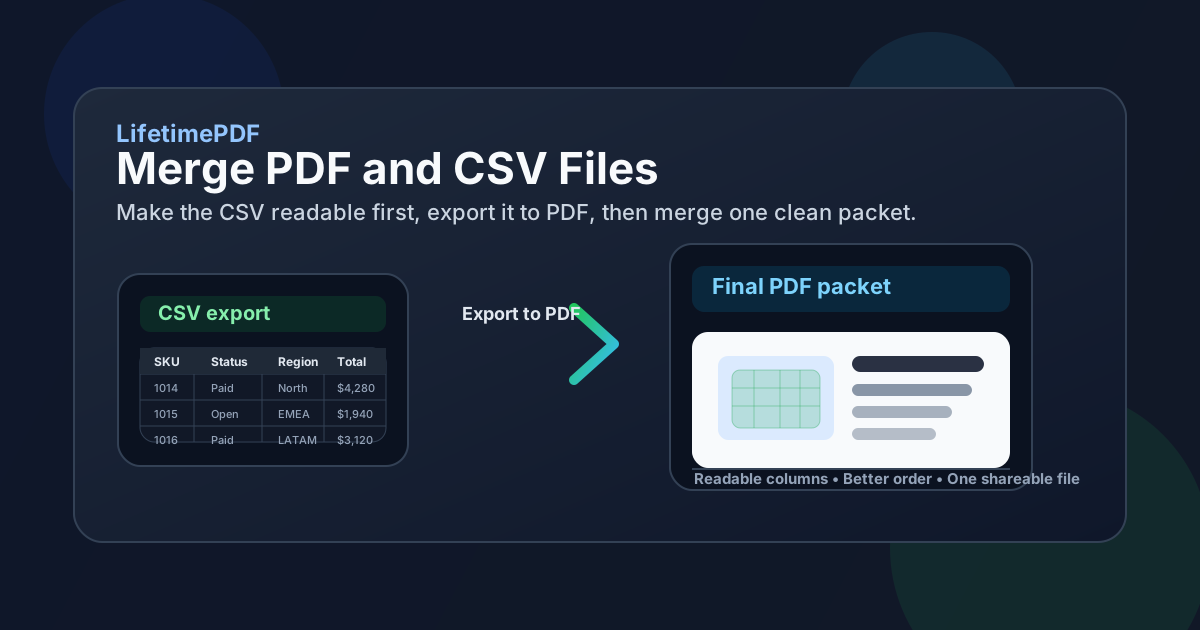
Table of contents
- Quick start: merge CSV and PDF files in about 5 minutes
- Why CSV to PDF first is the cleanest workflow
- Step-by-step: merge the files without creating a messy packet
- How to keep CSV data readable after export
- When to save CSV as XLSX before you make the PDF
- How to order the final packet so it makes sense
- Common real-world use cases
- Troubleshooting broken columns, giant files, and awkward page flow
- Related LifetimePDF tools and companion guides
- FAQ (People Also Ask)
Quick start: merge CSV and PDF files in about 5 minutes
If the data export is already final and you just need one clean file, this is the workflow most people actually want:
- Open the CSV in Excel, Google Sheets, or LibreOffice Calc.
- Confirm the separator, encoding, dates, currency, and columns imported correctly.
- Resize columns, wrap long cells, and remove anything that should not appear in the final report.
- Export that spreadsheet view as PDF with deliberate page settings.
- Open Merge PDF.
- Upload the new CSV-based PDF together with the other PDF pages, appendices, signed sheets, or reports.
- Drag the files into the exact reading order you want, merge them, and download the final packet.
- If the result is too large for email or a portal upload, use Compress PDF.
Why CSV to PDF first is the cleanest workflow
A search like merge PDF and CSV files sounds simple, but there are really two different goals hiding inside it. One goal is technical convenience: push unlike file types together and hope the result behaves. The other goal is communication: build one final packet another human can open, understand, and forward without confusion. The second goal is the one that matters.
| Workflow | Best when | Main tradeoff |
|---|---|---|
| Open CSV, export to PDF, then merge | Sales exports, transaction logs, data appendices, reports, finance packets, operations handoffs | One extra step, but much better readability and page control |
| Try to combine mixed files immediately | Very casual internal sharing where presentation barely matters | Less predictable imports, columns, and page flow |
In practice, merge PDF and CSV files usually means turn the data export into a readable PDF, then package everything together. That is how you keep the final result usable instead of merely technically combined.
Step-by-step: merge the files without creating a messy packet
The workflow is straightforward, but doing each step in the right order prevents most of the usual CSV problems.
1) Open the CSV in a real spreadsheet view first
Do not judge the file by how it looks in a text editor or by how a browser guesses at it. Open it in Excel, Google Sheets, or LibreOffice Calc and make sure the separator, encoding, dates, decimals, and currency symbols were interpreted correctly. A CSV that imports badly will export badly too.
2) Clean the layout before export
Resize columns, wrap long values, freeze or repeat header rows if useful, and remove empty columns or helper fields that do not belong in the final packet. A quick cleanup pass does more for readability than almost any later PDF trick.
3) Export the CSV view to PDF once
Use Excel to PDF once the spreadsheet view looks right. This step turns the CSV into stable pages so the merge becomes packaging, not improvisation.
4) Gather the supporting PDFs
These might include a proposal, signed pages, a cover memo, invoices, charts, an appendix, or a formal report already living in PDF. Putting everything in one folder first makes the merge feel calmer and reduces accidental omissions.
5) Merge in the final reading order
Open Merge PDF, upload the converted CSV-based PDF and the rest of the PDFs, then drag them into the sequence the recipient should actually read. Reading order matters more than people expect because the packet will be experienced from top to bottom, not as a list of source files.
6) Review the merged packet once before sharing
- Check the first page: does the packet open with the right summary, cover page, or core document?
- Check one dense table page: are the CSV-derived pages comfortable to read, or do they need better spacing or scaling?
- Check transition points: do appendices, logs, or pricing pages begin where you intended?
- Check file size: is the packet reasonable for email, upload limits, or case files?
- Check naming: does the final filename make sense to the person receiving it?
Calmest sequence: import the CSV correctly, clean it once, export once, merge once, review once, then only compress or protect the final packet if the workflow actually needs it.
How to keep CSV data readable after export
Most problems in this workflow are not really merge problems. They are readability problems that started inside the CSV import itself. A merge normally preserves what it receives. If the export was messy before the merge, the final packet will preserve that mess more officially.
Fix wrong separators and broken columns early
If commas, semicolons, tabs, quotes, or encodings are interpreted badly, every later step gets worse. The time to solve that is before the PDF exists, not after it has been inserted into a packet.
Do not crush every column onto one heroic page
Many CSVs look terrible because someone tries to force 18 columns onto one portrait sheet. Landscape orientation, fit-to-width settings, logical column trimming, or splitting the export into sections usually produces a much more useful result.
Keep headers visible and labels human
Raw export fields often have internal names that make sense to systems but not to people. If the packet is going to a client, manager, teacher, or reviewer, clear headers and repeated row labels make the CSV-derived pages much easier to interpret.
Review the CSV-based PDF by itself first
Before you merge, open the exported PDF alone. If it already feels cramped, confusing, or clipped there, the merge step will not magically fix it.
| If the CSV problem is... | The better fix is usually... |
|---|---|
| Columns are split or shifted | Reimport with the correct delimiter and check encoding before export |
| Text is tiny | Use landscape, fit to width carefully, or split the data into cleaner sections |
| The page looks cluttered | Remove helper columns, empty fields, and low-value raw export noise |
| Rows become hard to follow | Repeat header rows and improve spacing before the PDF export |
When to save CSV as XLSX before you make the PDF
CSV is wonderfully simple, but that simplicity is exactly why it can become awkward in a polished document workflow. If the file needs deliberate page setup, styled headers, better wrapping, multiple tabs, formulas, or more predictable print behavior, saving it as XLSX first is often the calmer move.
Use straight CSV export when the data is already clean
If the file is a short ledger, a neat contact list, a compact inventory sheet, or a simple appendix, a quick import and export to PDF may be all you need.
Use XLSX first when the file needs presentation control
If the CSV has long descriptions, wide tables, strange line breaks, or several sections that need cleaner pagination, save it as XLSX and then use Excel to PDF more intentionally. That gives you better layout control before the merge.
How to order the final packet so it makes sense
The technical merge is easy. The order is where the quality shows up. Plenty of merged files are not broken, just badly sequenced.
| If you are sending... | A strong page order is usually... |
|---|---|
| Proposal with supporting data | Main proposal, summary note, CSV-derived pricing or export pages, appendices, signed pages |
| Finance or operations packet | Cover memo, main report, CSV-based tables, exceptions, supporting PDFs |
| Audit or evidence file | Summary page, narrative report, transaction export, proof pages, appendix |
| Product or catalog handoff | Overview, curated pages, raw export appendix, reference material, confirmations |
If the packet has one clear main document, put that first. CSV-derived pages usually work best as evidence, appendix, support table, or detail layer unless they are the actual core deliverable.
Common real-world use cases
This keyword exists because mixed-format document packets are ordinary work, not edge cases.
Sales exports behind a proposal or quote
A PDF proposal may need SKU tables, usage exports, or pricing data that started life as CSV. Turning those exports into readable PDF pages and merging them behind the proposal creates a cleaner handoff than sending separate attachments.
Finance logs and reconciliations
Transaction CSVs, payout exports, or exception tables often support a memo, board pack, or audit note. One organized PDF is easier to review and archive than a loose mixture of spreadsheets and PDFs.
Operations and support records
Teams often need to attach exports, ticket summaries, or reporting extracts to incident reports and process documents. A merged PDF saves the next person from chasing separate files and guessing which attachment matters most.
Catalogs, lists, and data appendices
Sometimes the CSV itself is not the story. It is the appendix behind the story. That is exactly where a CSV-derived PDF fits best: readable enough to inspect, but packaged behind the human-facing explanation.
If the packet is headed to a portal or inbox: merge first, then compress if needed so you are optimizing the real final file instead of guessing too early.
Troubleshooting broken columns, giant files, and awkward page flow
Most problems in this workflow are fixable without starting over.
The CSV-derived pages look broken
Go back to the import step. Check delimiters, encoding, decimal formats, quoted values, and date parsing. The merge is rarely the real culprit.
The exported pages are readable but ugly
That usually means the file wants to be treated like a spreadsheet, not like raw delimited text. Save it as XLSX, clean the layout more deliberately, and export again.
The merged file is too large
Finish the merge first, then run Compress PDF on the combined result. That gives you a size fix based on the real packet instead of separate guesses.
The order feels wrong after download
Reopen the merge step and resequence the files by reading flow, not export time. This is especially common when the CSV-derived appendix was uploaded first even though it belongs later in the packet.
The packet contains sensitive data exports
After merging, consider using PDF Protect before sharing it. Protection does not replace judgment, but it can help when the handoff genuinely requires extra caution.
Related LifetimePDF tools and companion guides
This workflow works best as part of a small document toolkit rather than one heroic button. These are the most useful next steps and nearby guides:
- Excel to PDF - export the CSV from a spreadsheet view into stable PDF pages before the merge.
- Merge PDF - combine the CSV-based PDF with reports, forms, signed pages, or supporting documents.
- Compress PDF - reduce the final packet for email or upload limits.
- PDF Protect - add a password if the merged file contains sensitive exports.
- PDF to CSV - extract data the other way when a PDF table needs to become spreadsheet-ready again.
For related reading around the same topic, these guides fit naturally next: CSV to PDF Online, Merge PDF and Excel Files, Excel to PDF Without Cutting Off Columns, Merge PDF and Word Files, and Best Way to Combine Multiple PDFs Into One File.
Bottom line: the smartest way to merge PDF and CSV files is pleasantly boring - make the CSV readable first, export it to PDF, merge in order, and hand off one final packet that reads like a finished document instead of a raw data dump plus a pile of attachments.
FAQ (People Also Ask)
1) How do I merge PDF and CSV files?
The cleanest method is to open the CSV in a spreadsheet app, export it to PDF, then use a PDF merger to combine that new PDF with your other PDF files. That keeps the final packet much easier to read, review, and share.
2) Can I combine a CSV file and a PDF into one final PDF?
Yes. Convert the CSV into a readable PDF, then merge it with the other PDF. That gives you one finished document instead of a mixed-format handoff.
3) Why should I export the CSV before merging?
Because CSV is source data, not final page layout. Exporting first lets you stabilize the columns, spacing, and page breaks before you combine it with the rest of the packet.
4) When should I save CSV as XLSX first?
If the file needs cleaner spacing, better print setup, repeated headers, or more deliberate pagination, save it as XLSX first. That usually gives you a calmer workflow and a much better-looking PDF.
5) What should I do if the merged file is too large?
Finish the merge first, then use Compress PDF on the final packet. That gives you a size reduction based on the real finished file rather than on scattered parts.
Ready to build one clean final packet?
Best workflow: Import CSV correctly - Clean the layout - Export to PDF - Merge in order - Review once - Then compress or protect only if needed.
Published by LifetimePDF - Pay once. Use forever.