Google Slides to PDF: Export Presentations Cleanly, Keep Slides Readable, and Share the Final Deck Without Extra Friction
Yes — the fastest way to turn Google Slides to PDF is to open the deck, choose File → Download → PDF Document (.pdf), and save the export directly from Google Slides.
If the PDF needs a cleaner handoff after that, review it once and use LifetimePDF only for the one follow-up step it still needs, like compression, protection, or merging.
That is the real answer most people need. They are usually not hunting for a mysterious converter. They just want a presentation they can email, upload, print, archive, or share with someone who does not need the live Google Slides file. In practice, the native export is often enough. The useful part is knowing when to stop there and when to add exactly one more step.
Fastest practical path: export from Google Slides first, then use LifetimePDF only for the final step the PDF still needs.
In a hurry? Jump to Quick start: save a Google Slides deck as PDF in under 2 minutes.
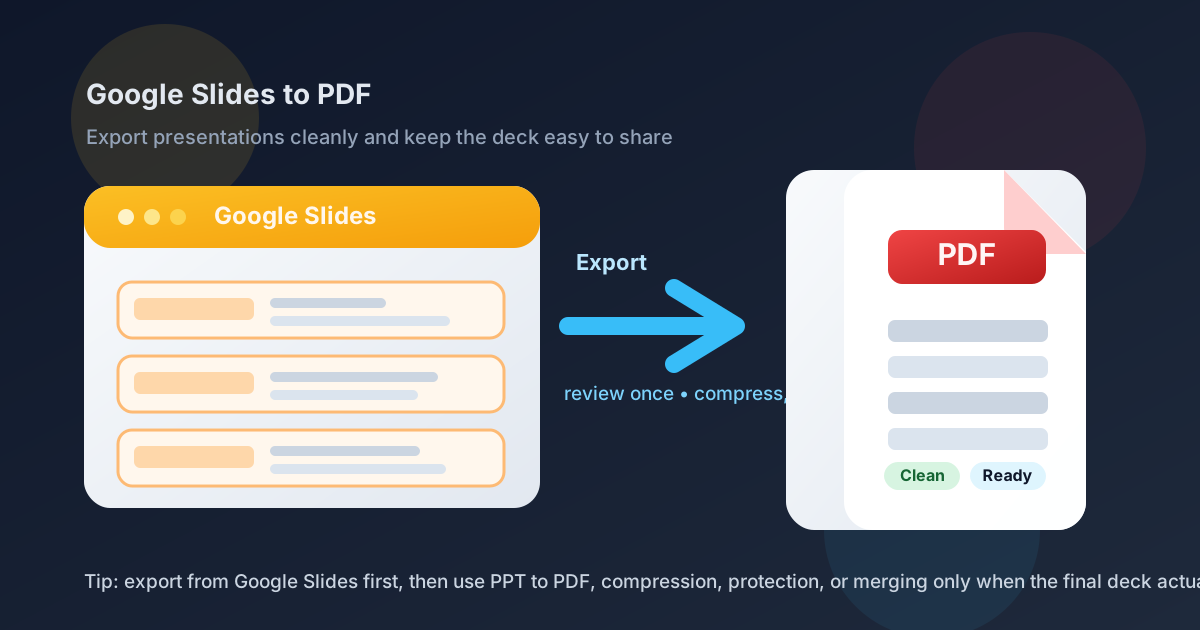
Table of contents
- Quick start: save a Google Slides deck as PDF in under 2 minutes
- Which route is best: direct PDF export or PPTX first?
- Step-by-step: Google Slides to PDF
- How to handle notes, handouts, and final layout choices
- How to keep slides readable after export
- Common Google Slides to PDF problems and fixes
- What to do after the PDF is created
- Related LifetimePDF tools and guides
- FAQ
Quick start: save a Google Slides deck as PDF in under 2 minutes
If the presentation is already finished, this is the shortest reliable path:
- Open the deck in Google Slides.
- Choose File → Download → PDF Document (.pdf).
- Open the exported PDF once and review titles, charts, screenshots, and the final slides.
- If the file is larger than you want, use Compress PDF.
- If the deck includes sensitive information, use PDF Protect before sharing it.
- If the deck belongs inside a larger packet, combine it later with Merge PDF.
Which route is best: direct PDF export or PPTX first?
The phrase Google Slides to PDF sounds like one job, but there are really two sensible routes. One is fast and native. The other is useful when you want a second conversion path or more control over the final handoff.
| Route | Best when | Why it works |
|---|---|---|
| Export directly from Google Slides | You want a PDF quickly and the deck already looks good | Fastest option, no extra conversion step, and usually enough for everyday sharing |
| Download as PPTX, then use PPT to PDF | You want a second route or expect more PDF cleanup afterward | Useful when the presentation will immediately be compressed, protected, merged, or reshaped into a final packet |
In other words, direct export is the default. The PPTX route is the backup plan when you want another way through the same job.
Step-by-step: Google Slides to PDF
A clean export usually comes from doing a few small things on purpose rather than clicking download and hoping for the best.
1. Finish the deck before you export it
This sounds obvious, but it matters. Presentation PDFs tend to get shared more widely than live decks. That means unfinished speaker notes, placeholder text, duplicate appendix slides, or old screenshots are more likely to become permanent than you expect.
Before exporting, review:
- the title slide and subtitle
- the last three slides
- any financial or performance charts
- slides with dense screenshots
- hidden or backup slides that should not travel
2. Download the presentation as PDF
Once the deck is ready, use File → Download → PDF Document (.pdf). For most decks, this is all you need. It is quick, native, and usually keeps the presentation structure intact.
3. Review the PDF like a recipient would
Do not just confirm that the file opened. Scroll it the way a client, manager, teacher, or teammate would. Ask whether the deck still works when someone is viewing one static page after another instead of clicking through a live presentation.
Pay attention to:
- tiny body text that looked acceptable in slideshow mode
- screenshots that become hard to read on paper or laptop screens
- charts with labels that now feel cramped
- dark-theme slides that may print poorly
- links that should still be obvious even if nobody clicks them
4. Use the PPTX route only when it solves a real problem
If the direct export looks off, or you know you want another browser-based conversion path, download the file as PowerPoint and use PPT to PDF. That can be useful when the deck is moving into a broader PDF workflow anyway.
5. Add only one finishing step
A lot of presentation workflows become messy because people keep converting the same file over and over. A calmer approach is better. Export once, review once, then do only the one thing the PDF still needs.
How to handle notes, handouts, and final layout choices
The biggest mismatch between a live presentation and a presentation PDF is that they are not consumed the same way. A slideshow is paced by a presenter. A PDF is often scanned quickly, printed, or forwarded without context.
That is why you should decide what the PDF is supposed to be:
- A simple slide deck copy: direct export is usually enough.
- A leave-behind document: you may need clearer section titles, stronger labels, or fewer visual-only slides.
- A packet with supporting files: create the PDF first, then merge it with agendas, appendices, contracts, or reports.
- A handout or note-heavy version: use a route that gives you more layout control before the final PDF is locked.
This is also the point where the PPTX route becomes more useful. If you know the final PDF must behave more like a handout than a slideshow, a second conversion path can be worth it.
How to keep slides readable after export
The most common Google Slides to PDF mistake is assuming a deck that looks good on a projector will automatically look good as a static document. That is not always true.
Use larger text than you think you need
Slide text that feels acceptable in presentation mode can feel cramped in a PDF, especially on laptops or phones. If a slide is dense, simplify it before exporting.
Watch image-heavy slides
Full-slide screenshots, dashboards, or product mockups often survive export technically but lose clarity practically. If a screenshot matters, crop it tightly and give it visual breathing room.
Do not rely on motion
A PDF will not preserve the storytelling effect of animations, click reveals, or transitions. If a slide only makes sense because elements appear one by one during a live talk, it may need to be reworked before you export.
Make the appendix intentional
Many decks become bloated because every backup slide gets exported too. If the PDF is being shared externally, ask whether the appendix belongs in the same file at all.
Common Google Slides to PDF problems and fixes
The PDF is huge
That usually means the deck contains high-resolution images, screenshots, or too many supporting slides. The easiest fix is to use Compress PDF after export. If the file is still large, reduce image weight or cut appendix material from the shared version.
The slides feel hard to read
This often comes from trying to keep too much presentation-style density in a format that will now be read like a document. Reduce clutter, enlarge text, and give charts more breathing room.
The PDF is fine, but I need a safer share version
If the deck includes pricing, legal terms, internal roadmaps, or private client material, add password protection with PDF Protect before you send it.
I need the deck inside a larger document packet
Do not rebuild the whole file from scratch. Export the presentation first, then combine it with the supporting PDFs using Merge PDF.
The direct export seems slightly off
That is when the PPTX backup route becomes sensible. Download the presentation as PowerPoint, then use PPT to PDF to see whether the second path gives you a cleaner result.
What to do after the PDF is created
Once the deck exists as a PDF, most people only need one of these next steps:
| If you need to... | Use this next | Why |
|---|---|---|
| reduce file size | Compress PDF | Useful for email limits, portals, and faster sharing |
| restrict access | PDF Protect | Helpful when slides include sensitive information |
| combine the deck with other documents | Merge PDF | Creates one cleaner packet instead of scattered attachments |
| try a second presentation conversion route | PPT to PDF | Useful when you want another path after downloading the deck as PPTX |
Most of the time, that is enough. Google Slides to PDF should stay simple. The best workflow is usually the one that gets you to a clean final file with the fewest unnecessary steps.
Need the next step right now? Open the tool that matches the one problem your PDF still has.
Related LifetimePDF tools and guides
- PPT to PDF for a second presentation conversion route
- Compress PDF when the exported deck is too large
- PDF Protect when the deck includes private information
- Merge PDF when the presentation belongs in a larger packet
- Google Docs to PDF if your workflow also includes written documents
- Google Sheets to PDF if your handoff includes spreadsheet pages or reports
FAQ
How do I save Google Slides as PDF?
Open the presentation in Google Slides, choose File and then Download, select PDF Document, and save the file. That is the fastest path for most people.
Does Google Slides to PDF keep formatting?
Usually yes, especially when the deck already uses readable fonts, sensible spacing, and intentional image sizing. Problems usually come from crowded slides rather than the export button itself.
How do I include speaker notes or handouts?
If you need more than a straightforward slide export, use a route that gives you more layout control before creating the final PDF. That is one of the best reasons to try a PPTX-based workflow.
What should I do if the Google Slides PDF is too large?
Compress it after export. If it is still large, check for heavy screenshots, full-resolution photos, or slides that do not belong in the share version.
Should I export directly or download PPTX first?
Export directly first because it is faster and usually good enough. Download PPTX first only when you want a second conversion route or more control over the final workflow.
Bottom line: Google Slides to PDF should not be a complicated job. Export directly from Google Slides when the deck is already solid, review the result once, and use LifetimePDF only for the one final step the file still needs.