Google Sheets to PDF: Export Clean Reports, Tables, and Spreadsheet Pages Without Fighting the Layout
Yes — the cleanest way to turn Google Sheets to PDF is to open the sheet, choose File → Print, export only the sheet or range you actually need, and review the layout before you download.
If the PDF still feels awkward after export, the smartest next move is usually to fix the print setup, or download XLSX and use LifetimePDF's Excel to PDF workflow, then compress or protect the final file only if it still needs that extra step.
That is the real answer most people need. The hard part is rarely “how do I make a PDF?” The hard part is getting a spreadsheet that stays readable after it becomes a PDF. Columns get clipped, charts land on bad page breaks, totals disappear off the right edge, or the whole export shrinks until it looks technically correct but practically useless. A calmer workflow fixes that: choose the right print range, set the layout on purpose, export once, review once, and only add one follow-up PDF step if the handoff still needs it.
Fastest practical path: export directly from Google Sheets first, then use LifetimePDF only for the one finishing step the final PDF still needs.
In a hurry? Jump to Quick start: save a Google Sheet as PDF in a few minutes.
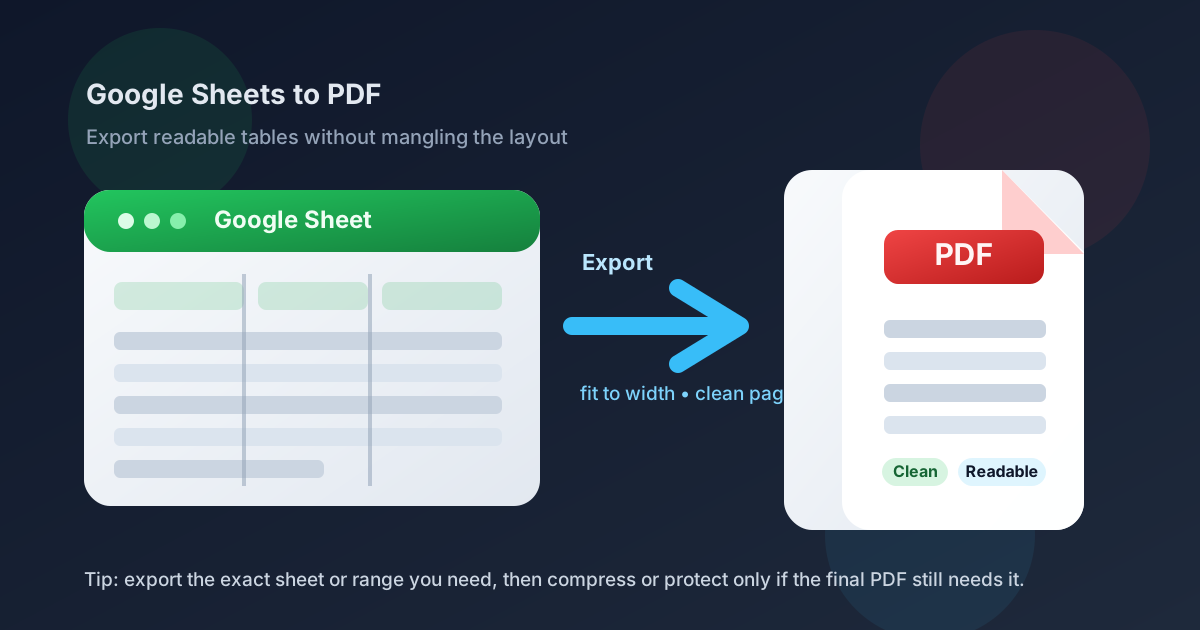
Table of contents
- Quick start: save a Google Sheet as PDF in a few minutes
- What should you export: one sheet, selected cells, or the whole workbook?
- Step-by-step: Google Sheets to PDF
- How to keep columns readable without shrinking everything to dust
- When XLSX plus Excel to PDF is the better route
- Common Google Sheets to PDF problems and fixes
- What to do after the PDF is created
- Related LifetimePDF tools and guides
- FAQ (People Also Ask)
Quick start: save a Google Sheet as PDF in a few minutes
If you want the short version, use this order:
- Open the finished spreadsheet in Google Sheets.
- Decide whether the recipient needs the current sheet, a selected range, or the whole workbook.
- Choose File → Print.
- Set orientation, scale, margins, and page breaks so the content stays readable.
- Export the PDF and review it once before you send it anywhere.
- If the result is too large, use Compress PDF. If it contains private data, use PDF Protect.
What should you export: one sheet, selected cells, or the whole workbook?
The phrase Google Sheets to PDF sounds simple, but the output changes dramatically depending on what you include. A single invoice tab, a print-friendly summary range, and a 14-tab workbook are not the same document. A lot of messy PDFs are really scope problems disguised as conversion problems.
| Export scope | Best when | Why it works |
|---|---|---|
| Current sheet | You need one tab as a report, invoice, schedule, tracker, or statement | Keeps the PDF focused and avoids burying the useful page inside extra tabs |
| Selected cells | You only need a summary block, printable table, or a polished section of the sheet | Usually the cleanest route when the full tab contains scratch columns or working data |
| Workbook | You need one packet that preserves several related tabs together | Useful for formal handoffs, but only when every tab belongs in the final PDF |
This decision matters more than most people expect. If the final PDF only needs a pricing table, a monthly summary, or one dashboard tab, exporting the whole workbook often creates a file that is larger, harder to review, and more awkward to share.
Need a cleaner spreadsheet-to-PDF handoff? Keep the export narrow first, then improve the final PDF only if it still needs help.
Step-by-step: Google Sheets to PDF
If you want the cleanest workflow, use this sequence.
1) Finish the sheet before you export
Hide or remove helper columns, rough notes, scratch tabs, and anything that should not appear in the final document. If a spreadsheet is still in workbench mode, the PDF usually inherits that chaos.
2) Choose the exact export range on purpose
Ask what another person actually needs to read. That could be one tab, a filtered report, a selected table, or a compact dashboard area. Focus helps both readability and file size.
3) Open the print view and do the real layout work there
Use File → Print and pay attention to orientation, scale, page breaks, margins, repeated headers, and blank space. This is where most quality problems are either prevented or created.
4) Export the PDF and review it once like a recipient would
Open the finished PDF and scroll through it normally. Look for clipped columns, giant blank areas, tiny text, broken charts, awkward last pages, or totals that are harder to spot than they were inside the sheet.
5) Add only the one follow-up step the file still needs
If it is too large, compress it. If it contains sensitive financial or internal data, protect it. If it belongs with supporting files, merge it after export. If the direct export still feels wrong, try the XLSX route instead of guessing through five more print settings.
How to keep columns readable without shrinking everything to dust
This is the part that frustrates people most. The goal is not to force every column onto one page at any cost. The goal is to create a PDF someone can comfortably read without zooming in like they are defusing a bomb.
Start with landscape for wider sheets
Wide reports, budget tables, inventory lists, and dashboard exports often behave much better in landscape. Portrait is still useful for narrow sheets, but it is usually the wrong default for anything with many columns.
Fit to width is usually better than fit everything to one page
If the sheet has a lot of rows, forcing the entire thing onto one page tends to make the text microscopic. A better compromise is often to fit the page width and allow more than one page vertically.
Trim the export range
Extra empty columns, helper calculations, and hidden admin sections make the PDF worse more often than they make it better. If those cells do not help the reader, they probably should not travel in the export.
Watch headers, totals, and chart placement
If later pages lose their context, the PDF becomes hard to trust. Repeated headers, stable chart placement, and obvious summary totals make a spreadsheet export feel finished instead of accidental.
| Problem | Usually happening because | Best practical fix |
|---|---|---|
| Columns are cut off | The sheet is wider than the page layout allows | Switch to landscape and fit to width |
| Text is tiny | Everything was squeezed onto one page | Allow more pages tall and reduce the print range |
| Charts land awkwardly | The chart crosses a page break | Move or resize the chart before export |
| Too much blank space | The exported range is larger than the real content | Export the specific cells or sheet that matter |
Need a smaller or cleaner final file? Keep the readable export first, then optimize the PDF after it exists.
When XLSX plus Excel to PDF is the better route
Direct export from Google Sheets should be the first move most of the time. But there are cases where downloading XLSX and using Excel to PDF is the calmer option.
- You want a second conversion path: sometimes a spreadsheet behaves better when you export it another way instead of fighting the same print settings repeatedly.
- The PDF is moving into a broader document workflow: for example, you know it will be compressed, protected, merged, or archived immediately.
- The direct export is serviceable but still not polished: a second route can be a cleaner fix than over-tweaking the original sheet.
- You already need an offline deliverable: if the final handoff is meant to leave Google anyway, XLSX plus PDF may be a more deliberate finish.
The key idea is not to make every workflow longer. Start with the built-in export. Reach for the XLSX route only when the first export gives you a real reason.
Common Google Sheets to PDF problems and fixes
The PDF cuts off columns on the right
That almost always points back to layout. Try landscape orientation, fit-to-width scaling, and a tighter print range.
The PDF technically fits, but the text is miserable to read
That usually means the sheet was forced onto one page. Let it spread across more pages and keep the font readable. The whole point of the PDF is clarity.
The workbook is too large to upload or email
Export only the section that matters first. If the PDF is still heavy, use Compress PDF after export instead of rebuilding the same file over and over.
The sheet contains private numbers or internal notes
Make sure those notes are not in the export range. Then use PDF Protect if the final file should not circulate freely.
The spreadsheet PDF belongs inside a larger packet
If it needs to travel with terms, appendices, signed pages, or supporting PDFs, use Merge PDF after export instead of trying to cram everything back into one spreadsheet workflow.
What to do after the PDF is created
Exporting the PDF is usually the middle of the job, not the end. The better question is what the file needs next.
- Need a smaller upload? Use Compress PDF.
- Need a second spreadsheet-to-PDF route? Download XLSX and use Excel to PDF.
- Need to secure a sensitive report? Use PDF Protect.
- Need one final packet? Use Merge PDF.
For most real workflows, the clean sequence is this: finish the sheet → export once → review once → add only the one PDF step the file truly needs. That keeps the process useful instead of turning it into spreadsheet theater.
Most useful real-world sequence: export with intention, then polish only if the final handoff demands it.
Related LifetimePDF tools and guides
Google Sheets to PDF works best when the export does not stop at “saved.” These tools and articles pair naturally with the same workflow:
- Excel to PDF guide — useful when you download the sheet as XLSX and want a second spreadsheet-to-PDF route.
- Compress PDF — shrink larger spreadsheet exports for email or upload limits.
- PDF Protect — secure reports that contain pricing, finance, HR, or internal business data.
- Merge PDF — combine the spreadsheet PDF with support documents, cover pages, or appendices.
Related blog guides
- Google Sheets to PDF Online
- Google Forms to PDF
- Google Docs to PDF Online
- Convert PDF to Google Sheets Online
- Excel to PDF Online Free
- How to Reduce PDF File Size for Email
FAQ (People Also Ask)
How do I save Google Sheets as PDF?
Open the sheet in Google Sheets, choose File → Print, set the layout so the content stays readable, and export the result as a PDF. The quality usually depends more on print setup than on the final download click.
How do I fit Google Sheets columns into a readable PDF?
Start with landscape for wider sheets and fit the content to page width rather than forcing everything onto one page. A two-page PDF with normal-sized text is usually much better than a one-page PDF that nobody wants to zoom into.
Should I export directly from Google Sheets or use XLSX first?
Export directly first because it is faster and often good enough. Use XLSX plus Excel to PDF when you want a second conversion route or already know the file is moving into a bigger PDF workflow.
Why does my Google Sheets PDF look tiny or cut off?
That is usually a page-setup problem. The range may be too wide, the orientation may be wrong, or the sheet may have been squeezed onto one page when it should have flowed across more than one.
What should I do after exporting a Google Sheets PDF?
Review it once, then use only the next step the file actually needs: compress it for size limits, protect it for private sharing, or merge it with supporting PDFs if the handoff belongs in one packet.
Ready to turn a spreadsheet into a cleaner final PDF?
Best practical flow: choose the right range → export to PDF → review once → compress, protect, or reconvert only if the final handoff needs it.
Published by LifetimePDF — Pay once. Use forever.