Google Docs to PDF: Export Clean Documents, Keep Formatting Stable, and Share the Final File Without Extra Friction
Yes — the fastest way to turn Google Docs to PDF is to open the file, choose File → Download → PDF Document (.pdf), and save the export directly from Google Docs.
If the PDF needs a cleaner handoff after that, review it once and use LifetimePDF only for the one follow-up step it still needs, like compression, protection, signing, or merging.
That is the real answer most people need. They are not looking for a magical converter so much as a calm workflow that creates a PDF which looks right, opens everywhere, and does not become annoying the second it needs to be emailed, uploaded, printed, archived, or approved. In practice, direct export from Google Docs is usually enough. The trick is knowing when to stop there and when to add exactly one more step.
Fastest practical path: export from Google Docs first, then use LifetimePDF only for the final step the PDF still needs.
In a hurry? Jump to Quick start: save a Google Doc as PDF in under 2 minutes.
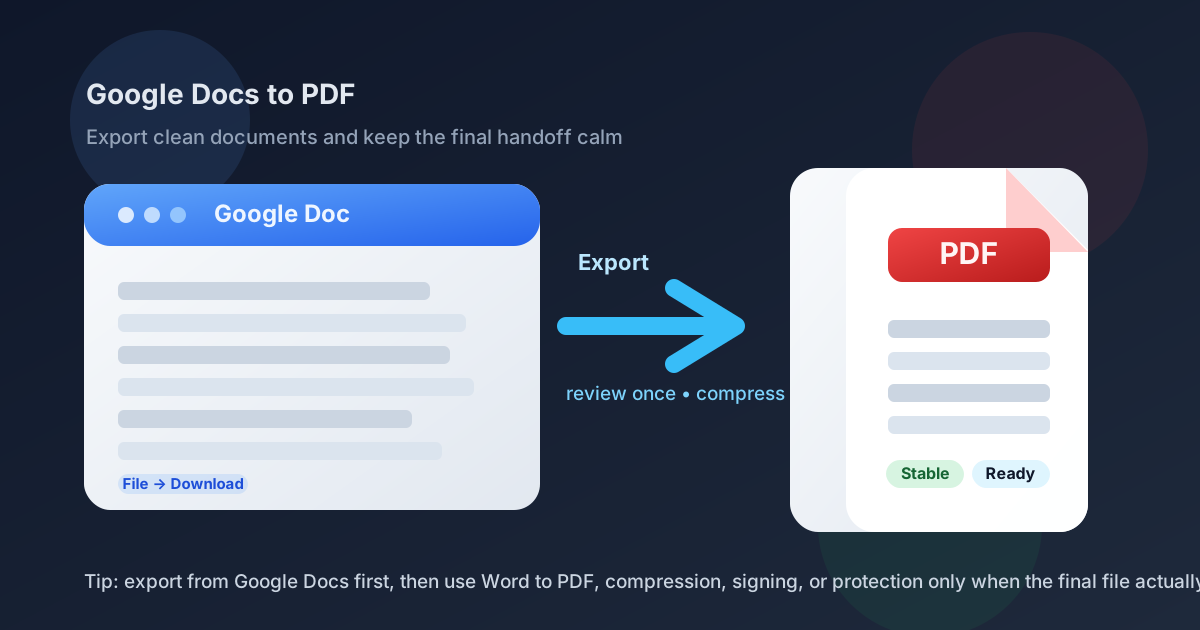
Table of contents
- Quick start: save a Google Doc as PDF in under 2 minutes
- Which route is best: direct PDF export or DOCX first?
- Step-by-step: Google Docs to PDF
- When DOCX plus Word to PDF is the better route
- How to avoid formatting surprises
- Common Google Docs to PDF problems and fixes
- What to do after the PDF is created
- Related LifetimePDF tools and guides
- FAQ (People Also Ask)
Quick start: save a Google Doc as PDF in under 2 minutes
If your document is already finished, this is the shortest useful sequence:
- Open the final version of the document in Google Docs.
- Choose File → Download → PDF Document (.pdf).
- Open the exported PDF once and review headings, page breaks, tables, images, links, and the last page.
- If the file is larger than you want, use Compress PDF.
- If the document contains sensitive details, use PDF Protect.
- If the final version needs approval or signing, move to Sign PDF after the layout is final.
Which route is best: direct PDF export or DOCX first?
The phrase Google Docs to PDF sounds like one job, but there are really two sensible routes. One is fast and native. The other is useful when you want a second conversion path or the file is already moving into a broader PDF workflow.
| Route | Best when | Why it works |
|---|---|---|
| Export directly from Google Docs | You need a clean PDF quickly and the document already looks right | Fastest option, no extra conversion step, and usually all most people need |
| Download DOCX, then use Word to PDF | You want a second browser-based conversion path or know the file will need more PDF work right away | Useful when the handoff is already headed toward compression, protection, signatures, or combined packets |
In practice, direct export should be your first move almost every time. DOCX first is not automatically better. It is simply the smarter backup route when the direct export does not quite land or when the PDF is about to enter a more deliberate document workflow.
Need a second conversion route after downloading DOCX?
Step-by-step: Google Docs to PDF
If you want the low-friction version, use this order.
1) Finish the document first
PDF is usually the point where the document stops being something you are still shaping and becomes something you are ready to hand to another person. If the doc is still moving, the PDF will inherit that uncertainty.
2) Export straight from Google Docs
Use File → Download → PDF Document (.pdf). That is the clean default because it is quick, native, and already built for the job most people have in mind. On Chromebooks and browser-first workflows, it is usually the smoothest route by far.
3) Review the exported PDF with a handoff mindset
Do not reread every sentence. Check the things that make a PDF feel broken in real life: page breaks, heading spacing, tables that run too wide, images that push content around, links that should still be visible, and whether the last page looks intentional.
4) Decide whether the file needs a finishing step
Many PDFs are done at this point. If the file is just a little too large, compress it. If it contains private information, protect it. If it needs approval, sign it. If it belongs with appendices or cover pages, merge it. Useful workflows stay short unless the document gives you a reason to add another step.
When DOCX plus Word to PDF is the better route
The DOCX route makes sense when you want a calmer browser-based handoff around the PDF itself rather than around Google Docs. It is not the default, but it is a very useful fallback.
Use DOCX plus Word to PDF when you want a second conversion path
If the direct Google Docs export looks slightly off, a second route is often more useful than repeatedly exporting the same file and hoping it behaves differently. Download the document as DOCX and run it through Word to PDF instead.
Use it when the PDF is already heading into a bigger workflow
Some documents are not just being shared. They are being compressed for upload limits, protected before client delivery, sent for signatures, or merged into one formal packet. In those cases, it can be helpful to move the file into a PDF-focused workflow on purpose.
Use it when the document is part of a broader Office-style handoff
If a team is mixing Google Docs, Word files, appendices, and supporting PDFs, the DOCX route can be the more predictable bridge between those formats. The point is not to make the process more complicated. The point is to use the route that fits the real handoff.
Need the DOCX route? Download from Google Docs, then finish the handoff here.
How to avoid formatting surprises
People usually search for Google Docs to PDF when the real question underneath is simpler: Will it still look right? Usually yes, but a few habits matter.
Use real structure inside the document
Heading styles, intentional page breaks, consistent paragraph spacing, and tables that actually fit the page all travel much better to PDF than improvised formatting tricks. If the doc only looks correct because of extra blank lines and tiny layout hacks, the PDF will often reveal that.
Be careful with wide tables and oversized images
These are the two most common reasons a Google Docs PDF feels awkward. If a table already feels cramped in the source document, it will not magically become elegant after export. Oversized images can do the same thing by creating strange page flow or unexpected file size bloat.
Review the last page on purpose
A lonely heading, half a table, or one signature line stranded at the end can make an otherwise good PDF feel unfinished instantly. The final page deserves a quick intentional look.
| Problem | Usually happening because | Best practical fix |
|---|---|---|
| Table runs off the page | The source layout is wider than the PDF page can handle | Simplify the table, reduce unnecessary columns, or move to a different layout before export |
| Images create awkward spacing | The visuals are too large or break the page flow | Resize or reposition the images in the source doc before downloading the PDF |
| Last page looks accidental | A heading, signature line, or short section got pushed too far down | Adjust spacing or page breaks in the document before export |
| PDF is heavier than expected | The file contains large images or more pages than needed | Compress the finished PDF and trim unnecessary content if it still feels oversized |
Common Google Docs to PDF problems and fixes
The PDF is larger than expected
Export first, then use Compress PDF. That is usually faster than repeatedly redownloading the same document and hoping the size changes by itself.
Page breaks feel awkward
Go back to the source document and fix the structure there. PDFs are happiest when the source document is doing the real layout work instead of leaving the cleanup for later.
The file needs protection before sharing
Use PDF Protect if the document includes private details, financial terms, internal notes, or personal information that should not travel casually.
The PDF is ready, but now it needs approval
Move to Sign PDF after the layout is final. That way the signed copy matches the exact file everyone reviewed.
You need one combined packet
If the Google Doc is only one part of the deliverable, use Merge PDF to combine it with supporting PDFs, appendices, or cover pages after export.
What to do after the PDF is created
The conversion itself is often not the end of the job. The better question is what the file needs next.
- Need a second conversion path? Download DOCX and use Word to PDF.
- Need a smaller upload? Use Compress PDF.
- Need to lock it down? Use PDF Protect.
- Need signatures? Use Sign PDF.
- Need to join it with other files? Use Merge PDF.
For most real workflows, the clean sequence is this: finish the Google Doc → export to PDF → review once → add only the one extra PDF step the file truly needs. That keeps the process useful instead of turning a basic handoff into a weird little document factory.
Most useful real-world sequence: export once, review once, then polish only if the job actually calls for it.
Related LifetimePDF tools and guides
Google Docs to PDF works best when the final document does not stop at export. These tools and guides pair naturally with that workflow:
- Word to PDF — useful when you download the Google Doc as DOCX and want a second conversion path.
- Compress PDF — shrink larger exports for email, forms, and upload limits.
- PDF Protect — password-protect sensitive files before sharing.
- Sign PDF — collect signatures after the layout is final.
- Merge PDF — combine the exported document with appendices or supporting PDFs.
Related blog guides
- Google Docs to PDF Online
- Google Sheets to PDF
- Google Forms to PDF
- Word to PDF Online
- How to Reduce PDF File Size for Email
- Password Protect PDF for Email Online
FAQ (People Also Ask)
How do I save Google Docs as PDF?
Open the file in Google Docs, choose File → Download → PDF Document, and save the export. That is the fastest route for most people.
Does Google Docs to PDF keep formatting?
Usually yes, especially when the document uses clean structure, reasonable tables, and sensible image sizes. A quick review after export is still smart because wide tables and oversized visuals are the most common trouble spots.
When should I use DOCX plus Word to PDF instead?
Use the DOCX route when you want a second conversion path, the direct export looks slightly off, or the file is immediately moving into a broader PDF workflow like compression, protection, signatures, or merging.
What should I do if my Google Docs PDF is too large?
Use Compress PDF after export instead of repeatedly downloading the same file. If it is still too large, check image size and whether the document includes unnecessary pages.
What is the best way to share a Google Docs PDF safely?
Review the exported file once so you know exactly what it includes, then use PDF Protect if it contains sensitive information and Sign PDF only after the layout is final.
Ready to turn a Google Doc into a cleaner final PDF?
Best practical flow: finish the doc → export to PDF → review once → compress, protect, sign, or merge only if the job truly calls for it.
Published by LifetimePDF — Pay once. Use forever.