Fill PDF Online: Fastest Way to Complete Forms, Add Text, and Save From Your Browser
Yes — you can fill a PDF online by opening the file in a browser-based form filler, typing into the existing fields or placing text manually, and downloading the completed copy once it looks right.
The cleanest workflow is to fill the form first, fix alignment second, add a signature only if needed, and protect or compress the file at the very end.
That order matters more than people expect. It keeps the form readable. It prevents awkward text placement. It reduces the chance of signing the wrong version. And it makes life easier whether the document is a job application, HR packet, school form, medical intake PDF, vendor form, or client approval sheet.
Fastest path: upload the original PDF, fill the required fields, clean up spacing, then sign or protect the document only after the content is finished.
In a hurry? Jump to Quick start: fill a PDF online in a few minutes.
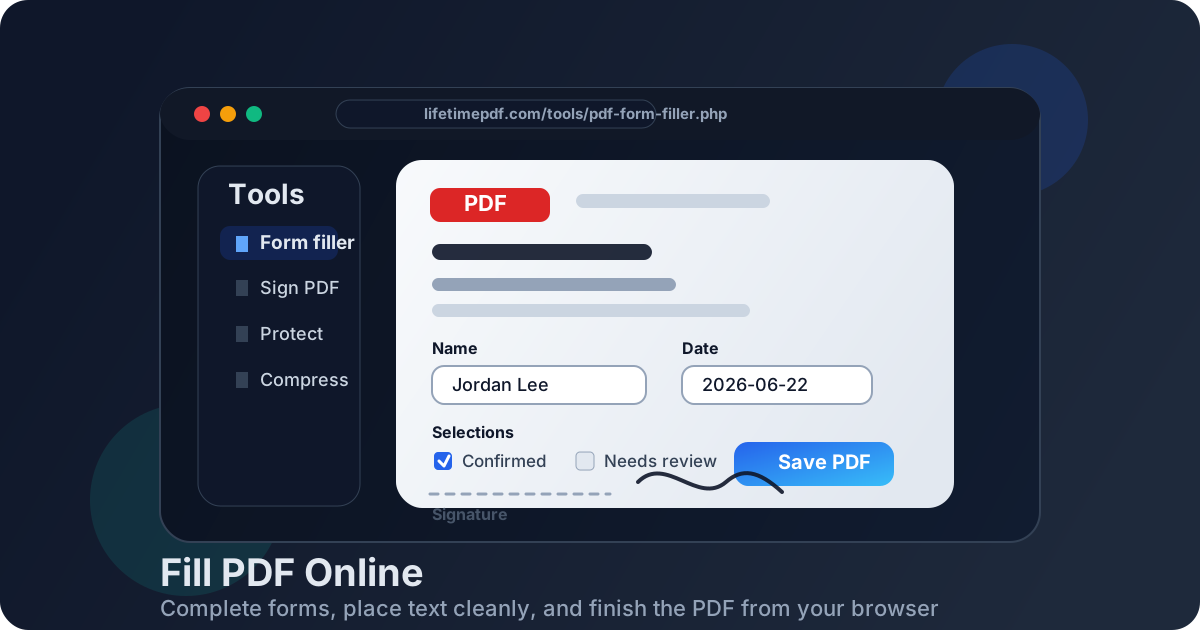
Table of contents
- Quick start: fill a PDF online in a few minutes
- What “fill PDF online” usually means in real life
- Fillable vs scanned vs locked PDFs
- Step-by-step: the cleanest browser workflow
- How to make a filled PDF look neat and submission-ready
- When to sign, protect, compress, or unlock the file
- Common problems and the fastest fixes
- Related LifetimePDF tools and internal guides
- FAQ (People Also Ask)
Quick start: fill a PDF online in a few minutes
For most forms, this sequence is the safest and fastest:
- Open PDF Form Filler.
- Upload the original PDF instead of an already-annotated copy if you still have it.
- Type into the fields, or place text manually if the form is scanned or flattened.
- Zoom in and review spacing, dates, checkmarks, and every required page.
- Add a signature only if the form truly needs one.
- Download the finished file, then protect or compress it based on how you plan to send it.
What “fill PDF online” usually means in real life
People search for “fill PDF online” when they need to get a real document out the door quickly. Usually that means a form has to be completed today, sent to someone else, and still look professional when it arrives.
The request can mean several slightly different jobs: typing into a true fillable form, placing text on a scanned government form, adding initials or checkmarks, signing the last page, or making the finished PDF small enough for an upload portal. The tool may be one product, but the workflow changes depending on what kind of file you received.
| Document type | What usually needs to happen | Best move first |
|---|---|---|
| Job or HR forms | Type personal details, dates, checkboxes, and signatures clearly | Fill the content before signing |
| School or enrollment forms | Complete many small fields without shifting the layout | Zoom in and review each page carefully |
| Medical or intake PDFs | Keep handwriting-style chaos out of the final copy | Use typed text and protect the finished file if needed |
| Scanned government or vendor forms | Place text on top of the page because there are no live fields | Check alignment before you download |
That is why a browser workflow is so useful. You do not need to print the form. You do not need to bounce between random apps. And you can keep the document digital from start to finish.
Fillable vs scanned vs locked PDFs
Before you start typing, identify what kind of PDF you have. This explains most form-filling frustration.
Fillable PDFs
These already contain interactive fields. You click into the boxes and type directly. They are usually the easiest to finish online because the spacing is already defined by the form itself.
Scanned or flattened PDFs
These look like forms, but the page is really just an image or a fixed layout. There may be blank lines on the screen, yet nothing happens when you click them. In this case, you need a filler that lets you place text, dates, initials, and checkmarks manually on top of the page.
Locked or restricted PDFs
Sometimes the PDF refuses edits because it is protected. If you have permission to modify it, unlock the file first with Unlock PDF, then return to the filling step. If you do not have permission, ask the sender for an editable copy rather than fighting the restriction.
Step-by-step: the cleanest browser workflow
This workflow keeps the finished document readable and cuts down on rework.
1. Start with the blank original whenever possible
If someone emailed you a half-completed copy, ask yourself whether that version is really the final starting point. Working from the clean original is safer when the document includes sensitive data, duplicate pages, or outdated fields.
2. Fill the required content before worrying about signatures
Complete names, dates, addresses, checkboxes, totals, notes, and reference numbers first. That lets you review the real form content before you place a signature on top of it. If the file needs edits later, you have not already committed a signed copy too early.
3. Place manual text carefully on scanned forms
When the PDF is not truly fillable, zoom in. Use short entries where possible. Check whether the text is sitting on the baseline rather than floating high or low. Small alignment fixes make a finished form look far more credible.
4. Add dates, initials, and checkmarks once the layout is stable
These details are easy to overlook during the first pass. A quick review page by page usually catches missing boxes, missed signature dates, and fields that are technically completed but visually messy.
5. Sign near the end
If the form needs a signature, add it after the main content is final. Use Sign PDF if the workflow needs a dedicated signature step. That keeps the form sequence clean: fill first, verify second, sign last.
6. Save and review the finished copy once
Open the completed PDF and read it like the recipient will. Check page order, spacing, cut-off text, signature placement, and any upload-size requirements. One final pass usually catches the only mistakes that actually matter.
Shortest reliable workflow: open the PDF, fill the form content, review every page, sign only if needed, then export the finished copy.
How to make a filled PDF look neat and submission-ready
A form can be technically complete and still look sloppy. That usually happens because the layout was never reviewed at real reading size.
- Zoom in before you trust alignment: small overlaps are easier to catch at 125% or 150%.
- Keep entries concise where possible: long text blocks are more likely to collide with lines or labels.
- Use consistent placement: dates, initials, and checkmarks should feel deliberate instead of scattered.
- Check every required page: some forms hide one forgotten signature line near the end.
- Rename the final file clearly: a useful filename helps both you and the recipient later.
If the PDF will be uploaded to a portal, test the finished copy before the deadline. If it will be emailed, think about whether the form contains anything sensitive enough to deserve password protection.
When to sign, protect, compress, or unlock the file
These extra steps belong at different points in the workflow. Doing them in the wrong order causes most avoidable problems.
- Unlock first: if the PDF is restricted and you have permission to edit it, use Unlock PDF before filling anything in.
- Sign near the end: use Sign PDF after the form content is complete.
- Protect after approval: if the document includes private or regulated information, use PDF Protect once the final version is ready to send.
- Compress last: if the portal or email system has a file-size limit, run Compress PDF on the final copy so you do not have to repeat the step after more edits.
Common problems and the fastest fixes
- "I can't type into the form": the PDF is probably scanned, flattened, or restricted. Use manual text placement or unlock it if you are allowed.
- "The text looks crooked": zoom in and reposition it before exporting. Small misalignment becomes obvious when a real person reviews the file.
- "My signature ended up on the wrong version": sign later in the workflow, not at the beginning.
- "The portal rejects the file size": compress the finished copy after all edits are complete.
- "The form feels messy even though it's filled": do one clean page-by-page review instead of assuming every field landed correctly.
Most PDF filling problems are not dramatic technical failures. They are order-of-operations problems. Once you use a consistent sequence, the whole job becomes faster and calmer.
Related LifetimePDF tools and internal guides
Filling a PDF online often sits in the middle of a larger document workflow. These tools and guides pair naturally with the same task:
- PDF Form Filler - fill interactive and scanned forms directly in your browser.
- Sign PDF - add signatures once the form content is complete.
- PDF Protect - secure sensitive forms before sharing.
- Compress PDF - reduce file size for portals and email attachments.
- Fill PDF - broader guidance on completing forms, adding text, and saving polished final copies.
- PDF Form Filler Online Free - a related guide focused on browser-based form completion.
- Sign PDF Online - useful when the document needs a signature after the form itself is done.
Ready to finish the form without printing it? Fill the PDF first, make the layout clean, then secure the final copy only after it is truly done.
Best workflow: open the original PDF → fill the content → review the layout → sign if needed → protect or compress the final copy.
Published by LifetimePDF - Pay once. Use forever.
FAQ (People Also Ask)
How do I fill a PDF online?
Open an online PDF form filler, upload the file, complete the fields or place text manually on the page, review the layout, and download the finished copy once it looks right.
Can I fill a scanned PDF online?
Yes. If the document is scanned or flattened, you can place text, dates, checkmarks, and signatures on top of the page even when there are no interactive form fields.
Why can't I type into my PDF form?
Usually the PDF is scanned, flattened, or restricted. That means you either need manual text placement or an unlocked copy if you have permission to edit it.
Should I sign the PDF before or after filling it?
Usually after. Complete the form content and confirm the layout first so you are not placing a signature on a version that still needs edits.
How can I protect a filled PDF before sending it?
Once the form is final, you can password-protect it for safer sharing and compress it if the recipient or portal has a file-size limit.