Extract Tables from PDF to CSV: Create Cleaner Rows, Headers, and Import-Ready Data
To extract tables from PDF to CSV, isolate the table pages, run OCR if the PDF is scanned, then convert the cleanest possible source and review the output for headers, row breaks, and numeric columns before import.
If the table is simple, direct CSV export can be enough. If the layout is dense or messy, an Excel-first review step usually saves more time than trying to debug a broken CSV afterward.
That is the short answer. The useful part is knowing when to trust a direct PDF-to-CSV conversion, when to slow down and inspect the table in a spreadsheet first, and how to avoid the classic problems: repeated headers, descriptions that spill into extra rows, totals mixed with transaction lines, and scans that still behave like images.
Fastest practical path: keep only the table pages, OCR scans, convert once, then validate the rows before you import the CSV anywhere important.
In a hurry? Jump to Quick start: extract a cleaner CSV in about 6 minutes.
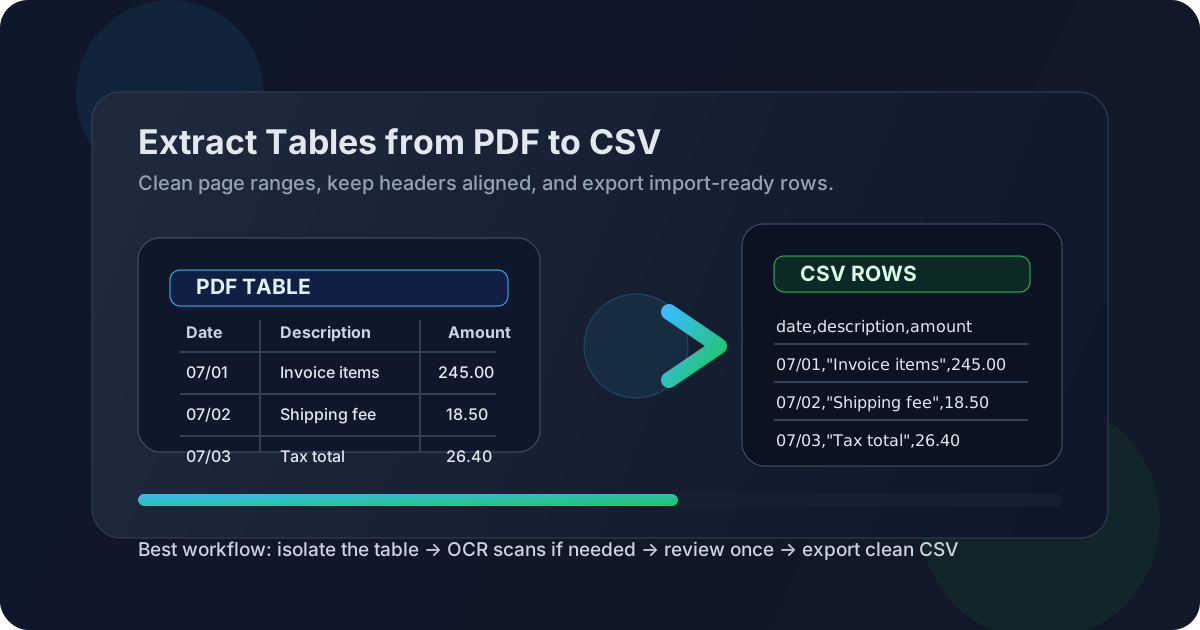
Table of contents
- Quick start: extract a cleaner CSV in about 6 minutes
- What people usually mean by “extract tables from PDF to CSV”
- Direct PDF to CSV vs Excel-first review
- Step-by-step: extract tables from PDF to CSV
- Scanned PDFs, OCR, and image-only reports
- CSV cleanup checklist before import
- Common failure patterns and how to fix them
- When CSV is the right output and when another format is better
- Related LifetimePDF tools and guides
- FAQ
Quick start: extract a cleaner CSV in about 6 minutes
If you mainly want a CSV that will import cleanly, this is the workflow that usually wastes the least time:
- Use Extract Pages if the table sits inside a longer report, statement, appendix, or mixed-layout PDF.
- Keep only the pages that contain the table you actually need.
- If you cannot highlight or search the text, run OCR PDF first.
- For cleaner, simpler tables, open PDF to CSV.
- For more complex tables, convert to PDF to Excel first, inspect the structure, then save the cleaned result as CSV.
- Before import, spot-check the header row, a couple of middle rows, and the last few rows near the page break.
What people usually mean by “extract tables from PDF to CSV”
This keyword sounds simple, but the intent is usually practical and a little unforgiving. Most people are not trying to create a prettier file. They are trying to move table data out of a PDF and into something a spreadsheet, database, CRM, ERP, accounting tool, or reporting pipeline can actually use.
In real life, that usually means one of these situations:
- Finance: invoices, statements, expense summaries, or ledger-style reports that need structured rows.
- Operations: inventory sheets, shipping logs, schedules, or procurement tables that should be sortable again.
- Analytics: KPI exports, tabular dashboard reports, or benchmark tables that need filtering or import elsewhere.
- Research and admin work: tables buried in appendices, rosters, results sheets, or recurring reports that are painful to retype.
CSV is valuable precisely because it is plain. It keeps the rows and columns without carrying extra workbook formatting. The downside is that CSV is brutally honest. If a PDF row breaks into three lines, or a total slips into the wrong column, the CSV will expose it immediately.
| Goal | Best first route | Why |
|---|---|---|
| Simple import-ready table | Direct PDF to CSV | Fastest path when the source table is already clean and structured. |
| Complex or multi-page table | Excel-first review | You can fix headers, wrapped rows, and shifted columns before final CSV export. |
| Scanned statement or photographed report | OCR, then convert | The converter needs searchable text before it can preserve row structure well. |
| Long report with one useful appendix table | Extract pages first | Smaller source files usually produce cleaner table detection. |
Direct PDF to CSV vs Excel-first review
One of the biggest mistakes is assuming there is a single “correct” path for every PDF table. There is not. The best route depends on how much structural cleanup the table is likely to need.
Use direct PDF to CSV when the table is already disciplined
- you can highlight the text in the PDF,
- the columns are obvious and consistent,
- there are few or no repeated headers or footers,
- the goal is a quick import into another tool rather than human review.
Use Excel-first review when the table looks clean but behaves messy
- multi-line descriptions can split rows,
- subtotals or footnotes sit close to the data,
- the table spans several pages,
- the file includes scans, sideways pages, or odd spacing,
- you need confidence before importing the CSV into something strict.
The reason Excel-first often wins is simple: spreadsheets make structural mistakes easier to see. A CSV is a final plain-text outcome. An editable worksheet is a better inspection surface.
Step-by-step: extract tables from PDF to CSV
This workflow balances speed with the kind of quality checks that prevent annoying downstream imports.
1) Start with the smallest useful page range
If the table lives on pages 12 to 14 of a larger file, isolate those pages before you convert anything. Use Extract Pages or Split PDF so the converter is not trying to interpret covers, footers, signature pages, charts, or narrative sections that are irrelevant to the table.
2) Test whether the PDF is text-based or image-only
- Highlight test: can you select text in the table?
- Search test: can you search for a value that is clearly visible?
- Visual clue: does the page look like a scan or photo with shadows, blur, or skew?
If the answer points to a scan, use OCR PDF first. Without OCR, the software is often guessing from an image instead of reading actual text.
3) Choose the conversion route on purpose
Open PDF to CSV if the source table is already tidy and you want the fastest export. Choose PDF to Excel first if you expect to fix headers, row splits, or formatting noise before saving the final CSV.
4) Review the failure points first
Do not start with “the file opened, so it must be fine.” Start with the areas that most often break:
- repeated header rows from each PDF page,
- descriptions wrapped into extra rows,
- numeric fields shifted one column left or right,
- totals and subtotals mixed into transactional data,
- page numbers, confidentiality footers, or section labels hiding inside the export.
5) Export the final CSV only after the structure is stable
Once the rows, headers, and numeric columns look right, save or export the cleaned result as CSV. Then compare a few rows against the original PDF before importing the file anywhere that could reject bad formatting or silently accept wrong data.
Clean sequence: isolate the table → OCR if needed → convert → review the structure → export final CSV.
Scanned PDFs, OCR, and image-only reports
Scanned PDFs are where a lot of PDF-to-CSV frustration starts. A page can look obviously tabular to you while still being a flat image to the converter. That is why OCR is not an optional flourish here. It is often the step that turns a hopeless-looking export into something you can actually repair quickly.
Signs OCR should come first
- You cannot highlight any of the text.
- The file came from a scanner, phone camera, or photocopier.
- Numbers look fuzzy or inconsistent.
- Search cannot find values that you can clearly read on screen.
If the scan is sideways, rotated, or padded with heavy margins, clean that first with Rotate PDF or Crop PDF. Then run OCR. A cleaner scan produces a better text layer, and a better text layer usually produces a better CSV.
- straight pages with readable contrast
- machine-generated reports and statements
- simple tables with clear columns
- pages without handwriting or heavy stamps
- phone photos with perspective distortion
- faint print, blur, or dark shadows
- dense financial tables with merged notes
- pages combining signatures, stamps, and data rows
CSV cleanup checklist before import
A short cleanup pass is usually what separates “technically exported” from “actually usable.”
- Keep one canonical header row: remove repeated headers from later PDF pages.
- Check row count at page breaks: that is where wrapped descriptions and split rows often hide.
- Verify numeric columns: amounts, quantities, dates, and IDs should each stay in their own column.
- Remove page junk: footers, page numbers, repeated report titles, and section labels do not belong in imports.
- Watch subtotals carefully: they are helpful to humans but often harmful inside transactional CSV imports.
- Validate a few rows against the PDF: first row, middle row, and last row is a good fast pattern.
| Problem | Common cause | Fastest fix |
|---|---|---|
| Every page starts with another header row | Multi-page report tables | Delete duplicate headers and keep one clean master header |
| One data row became two or three CSV rows | Wrapped descriptions or loose PDF spacing | Review in a spreadsheet and merge the broken lines |
| Amounts no longer line up with the right description | Shifted columns or OCR mistakes | Check the surrounding rows and re-align before import |
| Totals or notes are mixed into the dataset | Page summaries copied as data rows | Remove summary lines unless the destination system expects them |
Common failure patterns and how to fix them
Problem: the CSV looks fine until the second page
This usually means repeated headers, footers, or page-specific spacing changed the structure at the page break. Extracting only the table pages and reviewing those transition points usually solves the mystery faster than rerunning the full PDF again and again.
Problem: direct CSV export flattened the table badly
That is a good sign to switch routes, not a sign to give up. Send the same cleaned PDF to PDF to Excel, repair the structure there, and export the final CSV after review.
Problem: OCR read similar characters incorrectly
Check high-risk values such as dates, invoice numbers, account IDs, quantities, decimal amounts, and totals. Similar characters like 0 and O or 1 and I can look fine at a glance while quietly damaging the dataset.
Problem: the PDF table is visually clean but structurally fake
Some PDFs only look like tables. They may really be text blocks aligned with spaces, tabs, or visual positioning rather than true table structure. When that happens, a text-first route using PDF to Text can be more honest and easier to normalize than pretending the file contains clean cell boundaries.
When CSV is the right output and when another format is better
CSV is great when the destination system wants simple rows and columns without formulas, styling, or multiple sheets. But not every extraction job should end in CSV immediately.
Choose CSV when:
- you need plain structured data for import,
- the destination system does not care about formatting,
- the table is stable enough that extra workbook features are unnecessary.
Choose Excel first when:
- a person still needs to inspect the data,
- the table spans many pages or contains subtle column breaks,
- you want filters, comments, formulas, or easier cleanup before final export.
Choose another structure when the data is not really tabular
If the output is better treated as plain extracted text, use PDF to Text. If you need a spreadsheet-style working file before CSV, use PDF to Excel. Matching the output to the actual data shape is what keeps the cleanup reasonable.
Related LifetimePDF tools and guides
Table extraction usually works best as a short workflow rather than one lonely click. These pages fit naturally around this keyword:
- PDF to CSV — direct export for cleaner structured tables.
- PDF to Excel — better review surface before final CSV export.
- Extract Pages — isolate only the useful table pages.
- OCR PDF — essential for scanned reports, statements, and photographed pages.
- Rotate PDF — fix sideways tables before conversion.
- Crop PDF — reduce wasted margins and page clutter.
- PDF to Text — useful when the PDF only mimics a table visually.
Related reading on LifetimePDF: Extract Tables from PDF to CSV Online, Extract Tables from PDF to Excel, Convert PDF to CSV Online, Convert PDF to JSON Online, and PDF to Excel Data Extraction.
Bottom line: a good CSV export is not the one that finishes fastest. It is the one that imports cleanly without forcing you to chase quiet structural mistakes later.
FAQ
How do I extract tables from PDF to CSV?
Reduce the PDF to the table pages, run OCR if the file is scanned, convert the cleaned source with a PDF-to-CSV tool, and review the output for repeated headers, broken rows, and shifted numeric columns before import.
Should I convert directly to CSV or use Excel first?
Go directly to CSV for simple, well-structured tables. Use Excel first when you expect wrapped descriptions, multi-page headers, shifted columns, or any cleanup that is easier to see in a worksheet before final export.
Can scanned PDF tables be turned into CSV?
Yes, but OCR should come first. Without OCR, the table is often still just an image, which makes row and column detection much weaker.
Why do PDF tables break into messy CSV rows?
Common causes include wrapped descriptions, repeated page headers, footers, narrow spacing, merged cells, sideways pages, and scan quality problems. A smaller page range and one calm review pass usually improve the final CSV a lot.
What should I check before importing the CSV?
Check the header row, row count, date and amount columns, totals, repeated junk from page breaks, and a few sample rows against the original PDF before you trust the import.
Published by LifetimePDF — Pay once. Use forever.