Extract Pages from PDF Online: Save Only the Pages You Need in Your Browser
To extract pages from PDF online, upload the file to an extract-pages tool in your browser, enter the page numbers or ranges you want to keep, and download a new PDF containing only those pages.
If you do not know the page numbers yet, use a thumbnail-based page picker instead of counting manually, then save the selected pages as one smaller PDF.
That is the short answer. The useful part is knowing when a simple range like 3-9 is enough, when you should switch to visual thumbnails, and how to avoid sending a 70-page file when the other person only asked for two pages. A browser-based workflow is usually the fastest option because it keeps the job simple: choose the source file, keep the pages that matter, and download a cleaner share-ready copy.
Fastest path: open LifetimePDF's Extract Pages tool, enter the pages you want to keep, download the smaller PDF, then compress or protect it only if the final file still needs cleanup.
In a hurry? Jump to Quick start: extract PDF pages online in 2 minutes.
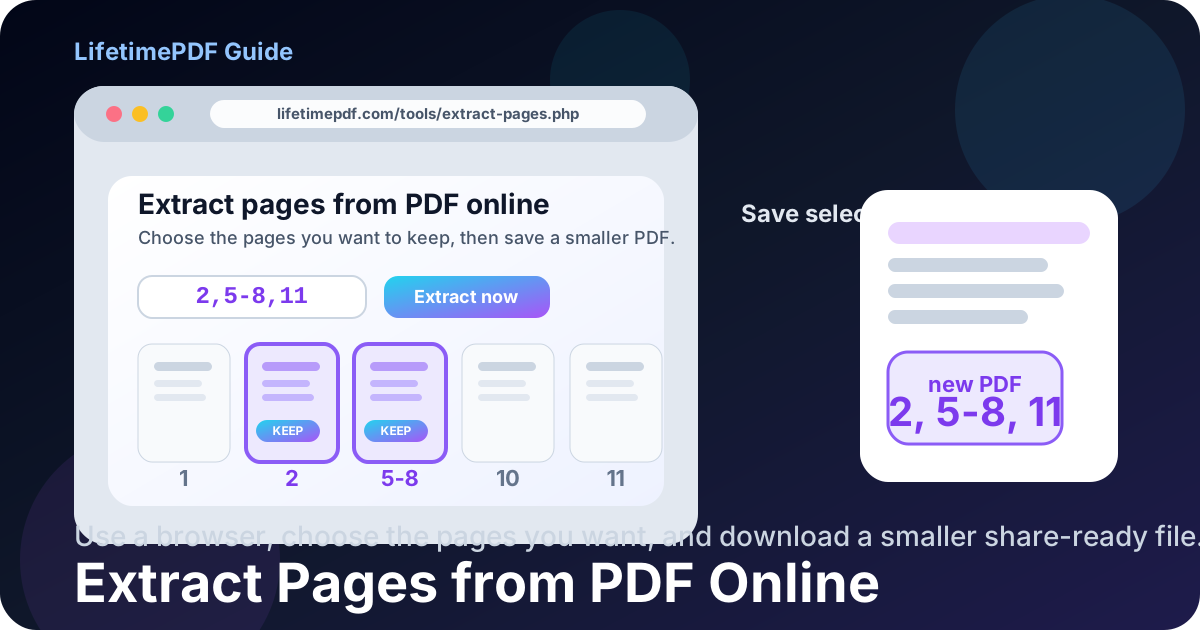
Table of contents
- Quick start: extract PDF pages online in 2 minutes
- Why an online workflow is often the easiest way to extract pages
- Step-by-step: how to extract pages from PDF online
- Page-range examples that save time
- Extract pages vs split PDF online
- Real situations where extracting pages online is the right move
- Common online extraction mistakes and quick fixes
- Privacy, file size, and what to do after extraction
- Related LifetimePDF tools and guides
- FAQ (People Also Ask)
Quick start: extract PDF pages online in 2 minutes
If you already know which pages you need, the browser workflow is simple:
- Open Extract Pages.
- Upload your PDF.
- Enter the pages you want to keep, such as
4-8or2,6,10-12. - Run the extraction.
- Download the new PDF and review it once before you send or upload it.
Why an online workflow is often the easiest way to extract pages
The phrase extract pages from PDF online usually comes from a practical moment, not an advanced editing project. Someone needs only the signature page, the invoice section, the transcript pages, the appendix, or the pages a portal specifically requested. The rest of the PDF is just baggage.
A browser workflow helps because it removes friction. You do not need to open a heavyweight editor, figure out a desktop export path, or keep a subscription around for a basic task that should take two minutes. You upload the file, keep the needed pages, save the result, and move on.
| Situation | Best move | Why it helps |
|---|---|---|
| You only need one section from a long PDF | Extract pages online | Creates a smaller focused file fast |
| You know the exact page numbers already | Type the range | Faster than clicking thumbnails one by one |
| You do not know the page numbers | Use visual thumbnails | Reduces counting mistakes on long or messy PDFs |
| The final file still feels too large | Compress after extraction | You shrink only the pages that matter |
Step-by-step: how to extract pages from PDF online
1) Start with the PDF you actually want to share or file
If you have multiple versions of the document, choose the real source file first. A lot of confusion comes from extracting pages from one copy and later uploading a different copy from Downloads, email attachments, or cloud storage.
2) Open the browser-based Extract Pages tool
Open LifetimePDF Extract Pages in your browser. This gives you a direct path from full PDF to a smaller selected-page PDF without extra software or desktop cleanup.
3) Upload the PDF
Add the source file from your device. Before you continue, ask yourself one question: do I already know the page numbers? If the answer is yes, extraction by range is usually fastest. If the answer is no, a thumbnail-based workflow is often calmer.
4) Enter the pages you want to keep
This is the key step. Tell the tool which pages belong in the new file, using single numbers, ranges, or mixed lists. A few common examples:
7for a single page5-12for a continuous range2,4,9for scattered pages1,3-6,11for a mixed selection
5) Extract and download the smaller PDF
Run the extraction and download the new file. The result should be a clean PDF containing only the pages you selected, in the same order they appeared in the original.
6) Review it once before sending
This final check takes a few seconds and prevents the most common mistake: sharing the wrong range or forgetting that the title page changed the real page order. Open the extracted file once, confirm the right pages are present, and only then upload or send it.
Ready to make a smaller PDF right now?
Page-range examples that save time
Most extraction problems are really page-range problems. Once you understand the common patterns, the workflow becomes much easier.
| You want to keep | What to enter | What happens |
|---|---|---|
| Only page 3 | 3 |
Creates a one-page PDF |
| Pages 6 through 14 | 6-14 |
Keeps one continuous section |
| Pages 2, 5, and 11 | 2,5,11 |
Keeps separate pages in one new file |
| Pages 1 to 4 plus page 9 | 1-4,9 |
Builds one PDF from mixed selections |
If you do not know the page numbers, stop guessing. Use Split PDF to see visual page thumbnails and select the pages you want by sight. That is often better for scans, appendices, and long reports where printed page numbers do not match the actual PDF positions.
Extract pages vs split PDF online
These tasks overlap, but they are not the same. Picking the right one makes the workflow much faster.
| Your goal | Best tool | Why |
|---|---|---|
| I know which page numbers I want to keep | Extract Pages | Fastest when you can type the range directly |
| I want to select pages visually | Split PDF | Better when page numbers are unclear or the file is messy |
| I want to remove a few pages and keep almost everything else | Delete Pages | More natural than extracting the entire remaining document |
Real situations where extracting pages online is the right move
Job applications and admissions portals
Portals often ask for only the certificate pages, only the transcript section, or only the signature page. Extracting those pages first helps you avoid oversized uploads and accidental oversharing.
Client approvals and contracts
If a client only needs the approval page, scope appendix, or signed section, send a focused file instead of the entire packet. It is easier for them to review and safer for you when the rest of the PDF includes internal details.
Phone scans and mixed paperwork
Mobile scans often contain blank pages, duplicate pages, or pages captured "just in case." A useful sequence is often: rotate what is sideways, extract the useful pages, then compress the result for email or uploads.
Invoices, statements, and supporting documents
If someone requested only the receipt pages or only the invoice summary section, extraction keeps the file smaller and more relevant. That matters especially when upload portals reject bulky documents or when several people need different parts of the same PDF.
Research, textbooks, and manuals
If you only need one chapter, one appendix, or one section of a long reference PDF, extract that portion into its own file. It is easier to store, share, and revisit later than carrying around the full original every time.
Common online extraction mistakes and quick fixes
I used the printed page numbers, not the real PDF page positions
This happens a lot when a document starts with a cover page, title page, or front matter. If the output looks wrong, switch to thumbnail view with Split PDF and choose the pages visually.
I extracted the right pages, but I reopened the wrong file later
Save the output with a clear filename such as contract-signature-pages.pdf or transcript-pages-2-5.pdf. That tiny habit prevents a surprising amount of confusion.
The extracted file is still too large
That usually means the selected pages contain heavy scans or large images. Use Compress PDF after extraction instead of compressing the full original first.
I actually needed to keep most of the document
If only one or two pages should be removed, Delete Pages may be a better fit. Extraction is best when the new file should contain only a limited subset.
I need a custom selection, but counting pages is annoying
That is exactly when a visual selection workflow helps. Open Split PDF, click the thumbnails you want, then save the selected pages as one cleaner file.
Privacy, file size, and what to do after extraction
Smaller PDFs are often safer PDFs. When you extract only the necessary pages, you reduce both file size and unnecessary exposure. That matters for contracts, HR files, invoices, student records, IDs, and any document where the unused pages contain information the recipient does not need.
- Share the minimum: keep only the pages the recipient actually needs.
- Compress after extraction: use Compress PDF if the new file is still too large.
- Protect sensitive extracts: use PDF Protect if the output should be password-protected.
- Redact if needed: if a page still contains sensitive information that should not be shared, use Redact PDF before sending it out.
- Keep the full original: the extracted file is usually the share copy, not the master copy.
Practical sequence: extract the pages you need, review the result once, then compress, protect, or merge only if the final file still needs more work.
Related LifetimePDF tools and guides
- Extract Pages for building a new PDF from only the pages you want
- Split PDF for visual thumbnail selection when page numbers are unclear
- Delete Pages when you want to remove a few pages and keep the rest
- Merge PDF for combining extracted sections into one final packet
- Compress PDF for shrinking the final file for uploads or email
- Extract Pages from PDF for the exact-match guide
- Extract Pages from PDF Online Free for the free-focused variant
- Extract Pages from PDF Without Monthly Fees for the subscription-fatigue angle
FAQ
How do I extract pages from PDF online?
Upload your PDF to an extract-pages tool in your browser, enter the page numbers or ranges you want to keep, run the extraction, and download the new PDF. A quick option is LifetimePDF Extract Pages.
Can I extract non-consecutive pages from a PDF online?
Yes.
Most online tools support mixed selections like 1,3,7-10,14, which lets you keep scattered pages in one smaller PDF.
Should I use extract pages or split PDF online?
Use extract pages when you already know the page numbers or ranges. Use Split PDF when visual thumbnails are easier than typing ranges, especially for scans, rotated pages, or confusing numbering.
Does extracting pages from PDF online reduce quality?
Usually no. Extraction normally preserves the original page quality because the selected pages are copied into a new PDF instead of being recreated as low-resolution images.
What if I need the extracted PDF to be smaller for email or uploads?
Extract the pages first, then run the output through Compress PDF if needed. That is usually cleaner than compressing the full original file before you know which pages matter.