Convert Work Order PDF to Excel: Extract Job Numbers, Labor, Parts, and Totals Faster
To convert work order PDF to Excel, upload the work order to LifetimePDF's PDF to Excel tool, export the XLSX, and review the job number, customer or site, asset details, labor, parts, dates, status, and total before trusting the sheet.
If the work order is scanned, handwritten, or bundled with photos and service reports, keep only the actual work-order pages and run OCR first so the spreadsheet comes out much cleaner.
Most people searching this phrase are not trying to admire a file conversion. They are trying to stop retyping operational data by hand. They need a spreadsheet they can filter, reconcile, compare with dispatch or invoicing records, or hand to finance without turning one work order into a cleanup project.
Fastest path: use LifetimePDF's PDF to Excel tool, and run OCR first if the work order came from a scan, a phone photo, or an image-only export from older field-service software.
In a hurry? Jump to Quick start: convert work order PDF to Excel in about 5 minutes.
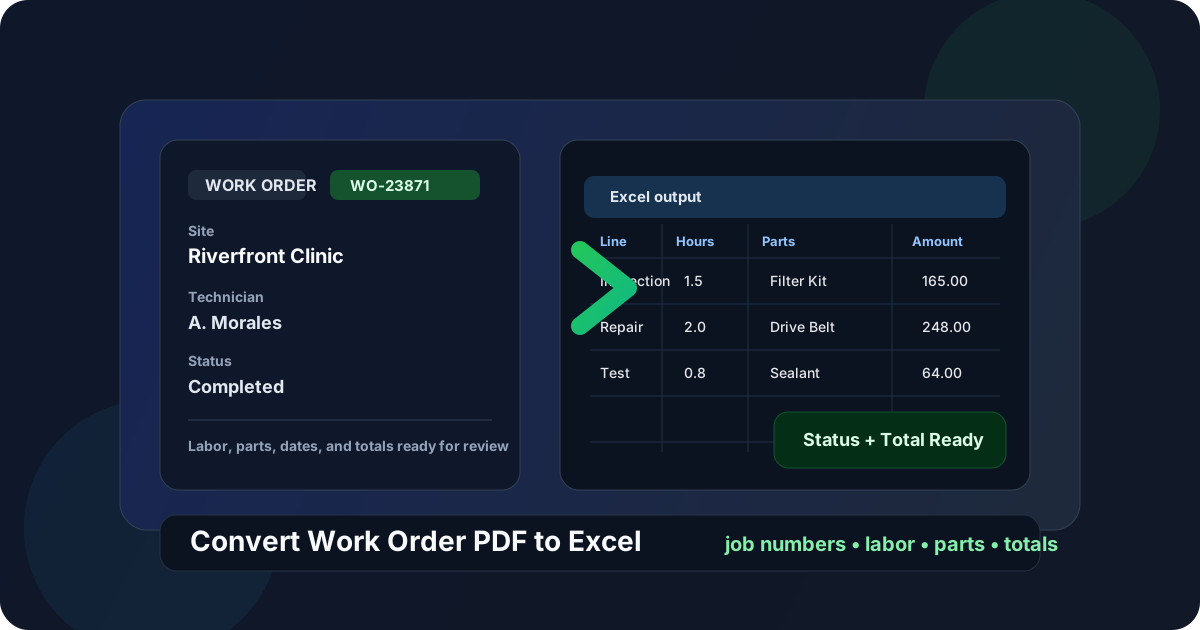
Table of contents
- Quick start: convert work order PDF to Excel in about 5 minutes
- Why teams need work order PDFs in Excel
- Which work order fields matter most
- What converts cleanly and what usually breaks
- Step-by-step: extract work order data with LifetimePDF
- Review checklist before you trust the spreadsheet
- Excel vs CSV for work order workflows
- Privacy and document-handling tips
- Related LifetimePDF tools and companion guides
- FAQ (People Also Ask)
Quick start: convert work order PDF to Excel in about 5 minutes
If the work order PDF already contains selectable text and a reasonably consistent layout, this is the simplest route:
- Open PDF to Excel.
- Upload the work order PDF you want to extract.
- If the file is scanned or image-only, run OCR first so job numbers, labor rows, and parts fields are easier to recognize.
- Export the file as XLSX.
- Review the work order number, customer or site, technician, labor hours, parts, status, and total before you reuse the data.
Why teams need work order PDFs in Excel
Work orders often sit in the middle of a bigger workflow. A dispatcher needs to see job status, a service manager needs labor and parts totals, accounting needs billable amounts, and operations wants to compare turnaround times or recurring failures. PDF is fine for reading a single job. It is much worse when you need to compare dozens or hundreds of them.
Excel matters because it turns one locked page layout into structured rows that can be filtered, totaled, grouped, and checked. Instead of opening each work order one by one, you can line up job numbers, sites, technicians, parts usage, and total charges side by side and actually work with the data.
Common reasons people convert work order PDFs
- Track labor and parts across many jobs
- Prepare billing support or invoice reconciliation
- Compare technician, asset, or site history
- Move job data into ERP, CMMS, or reporting workflows
- Audit repeat issues, delays, or warranty work
Why PDF alone becomes a bottleneck
- Labor and parts are hard to compare across jobs
- Notes, signatures, and status labels clutter the layout
- Scanned copies hide data inside image-only pages
- Mixed packets bury the actual job details
- Manual re-entry creates new mistakes while trying to fix old ones
In other words, the goal is not simply to change file formats. The goal is to turn operational paperwork into working data without making someone babysit every row by hand.
Which work order fields matter most
Work order layouts vary by platform and trade, but the same practical checks keep showing up. These are the fields worth reviewing before you trust the spreadsheet:
| Field | Why it matters | What often goes wrong |
|---|---|---|
| Work order number | Links the spreadsheet back to the exact job record | Digits merge, split, or lose prefixes like WO or WRK |
| Customer or site name | Shows who the work was for and where it happened | Mailing and service addresses blend together |
| Asset or equipment ID | Important for maintenance history and repeat-failure analysis | Serial numbers and model references wrap or lose characters |
| Scheduled, arrival, or completion dates | Supports dispatch review, SLA checks, and payroll or billing timing | Different date fields land in the same column |
| Status and priority | Helps separate open, complete, urgent, and follow-up jobs | Labels detach from the job header or shift into notes |
| Labor hours | Drives utilization, costing, and invoice support | Hours split across multiple rows or merge with rate fields |
| Parts and quantities | Needed for inventory, warranty, and reimbursement workflows | Wrapped descriptions break rows or shift quantity columns |
| Unit prices, tax, and totals | Critical for billable work and job-cost review | Subtotal, tax, and grand total get mixed together |
| Technician or team | Useful for staffing review and follow-up routing | Names appear in notes instead of dedicated fields |
| Problem description or resolution notes | Adds context when the spreadsheet supports audits or claims | Long text wraps across multiple cells and disrupts nearby data |
What converts cleanly and what usually breaks
Some work order PDFs convert almost effortlessly. Others need cleanup before the export becomes useful. The difference usually comes from how the work order was created.
- Digital exports from field-service, CMMS, or ERP systems
- Forms with stable labels for job number, labor, and parts
- Multi-page orders that keep the same table structure
- Files with selectable text instead of screenshots
- Scanned paper forms or mobile photo PDFs
- Jobs with long technician notes and wrapped parts descriptions
- Packets that combine work orders with photos, approvals, or invoices
- Files with signatures, stamps, or low-contrast print quality
The good news is that you usually do not need a perfect source file. You mostly need a disciplined workflow: isolate the useful pages, run OCR when needed, convert, then review the handful of fields that drive billing, dispatch, or reporting.
Step-by-step: extract work order data with LifetimePDF
A practical work-order extraction workflow looks like this:
- Start with the actual work-order pages. Remove estimate pages, email printouts, service photos, or invoice copies if they are not needed for the spreadsheet.
- Run OCR if the file is scanned. Image-only forms convert better after OCR because numbers, labels, and row text become selectable.
- Convert the PDF to Excel. Upload the work order to PDF to Excel and export the XLSX file.
- Review the fields that drive the next decision. The spreadsheet is only useful if the important job data landed in the right columns.
- Save the reviewed version clearly. Use a filename that distinguishes the checked spreadsheet from the raw export so the wrong copy does not keep circulating.
Useful workflow: Extract Pages → OCR PDF → PDF to Excel. That sequence is usually cleaner than throwing a mixed packet straight into conversion and hoping the labor and parts rows survive.
Review checklist before you trust the spreadsheet
Once the work order is in Excel, review the fields that would actually hurt if they were wrong:
- Work order number and customer or site name
- Asset ID, equipment name, or service location
- Scheduled, arrival, and completion dates if they matter
- Technician or team assignment
- Labor hours, rates, and billable status
- Parts, quantities, unit prices, and tax
- Overall job status and total charge
If you only need a quick job-cost or status overview, validate the work order number, site, status, labor, parts, and total first.
Be more demanding when the spreadsheet will support invoicing, warranty claims, payroll, customer disputes, compliance records, or system imports. Those workflows punish small row shifts later.
Excel vs CSV for work order workflows
Both formats can be useful, but they serve different next steps.
| If your next step is... | Better format | Why |
|---|---|---|
| Human review, cleanup, or exception handling | Excel | It is easier to scan, comment on, filter, and hand off |
| Importing plain rows into another operational system | CSV | CSV is lighter when you only need raw structured data |
| Billing support, audit trails, or warranty reviews | Excel | Extra visibility helps when labor, parts, and totals must be checked carefully |
For most searches around this keyword, Excel is the better immediate output because the next task is usually review, not blind import. People want to inspect the job data before they trust it.
Privacy and document-handling tips
Work orders often contain customer names, site addresses, phone numbers, asset identifiers, pricing details, technician notes, and signature blocks. That makes them routine operational documents, but still sensitive documents.
- Only upload the pages you actually need for the task.
- Remove unrelated photos, emails, or attachments before forwarding the export internally.
- If the document includes information that should not move further downstream, use Redact PDF before sharing it elsewhere.
- Do not assume the converted spreadsheet should automatically go to everyone who can open the original PDF.
- Name the final spreadsheet clearly so the reviewed copy is easy to distinguish from the raw export.
Related LifetimePDF tools and companion guides
Work-order extraction usually works best as part of a small workflow instead of one magical click. These tools and guides pair well with it:
When the packet includes photos, invoices, or approval pages, isolate only the useful work-order pages first.
Extract PagesOCR helps when work orders come from scans, photos, or old image-based exports.
OCR PDFUseful adjacent reading for nearby operations and order-extraction workflows.
Without Monthly FeesSales Order Guide
More related guides
- Convert Purchase Order PDF to Excel
- Convert Sales Order PDF to Excel
- Convert Proof of Delivery PDF to Excel
- Convert Service Report PDF to Excel
Need the shortest route? Keep only the work-order pages, OCR the file if needed, convert it to Excel, then review the job number, site, labor, parts, status, and total before sharing or importing the sheet.
FAQ (People Also Ask)
How do I convert a work order PDF to Excel?
Upload the work order PDF to a PDF to Excel converter, export the XLSX file, and review the job number, customer or site details, labor rows, parts, dates, status, and totals before using the spreadsheet. If the file is scanned, OCR first usually improves the result.
Can I convert a scanned work order PDF to Excel?
Usually yes. Scanned work orders convert better when you run OCR first and isolate only the pages that actually contain the job data. Cleaner scans, straighter pages, and fewer extra attachments usually improve field recognition.
Why do work order PDFs often create messy spreadsheets?
Because many work orders combine customer blocks, site details, labor rows, parts tables, technician notes, signatures, and footer text on the same pages. Mixed packets and low-quality scans make extraction harder too.
Is Excel better than CSV for work order extraction?
Usually yes if a person still needs to review the result. Excel makes it easier to filter labor and parts, compare job totals, check status or dates, and hand the file to dispatch, operations, accounting, or service managers before importing data elsewhere.
What should I verify after converting work order data?
Check the work order number, customer or site name, asset ID, scheduled or completion date, status, labor hours, parts quantities, unit prices, tax, and grand total. Those are the fields most likely to create downstream billing or reporting mistakes if one row shifts during extraction.