Convert Proof of Delivery PDF to Excel: Match Delivered Orders, Signatures, and Exception Notes Faster
To convert proof of delivery PDF to Excel, upload the POD to LifetimePDF's PDF to Excel tool, export the XLSX, and review the POD number, order reference, delivery date, received quantities, receiver details, and exception notes before using the sheet.
If the proof of delivery is scanned, signed, stamped, or bundled with route summaries and delivery photos, isolate only the POD pages and run OCR first so tables and field labels stay much cleaner.
Most people searching this phrase are not trying to admire a file conversion. They are trying to stop retyping delivery confirmations, match completed stops against orders, resolve shortages faster, and get a spreadsheet they can sort, reconcile, share, or import without turning one POD packet into a cleanup project.
Fastest path: use LifetimePDF's PDF to Excel tool, and OCR the POD first if it came from a scan, mobile photo, handwritten delivery form, or image-only export.
In a hurry? Jump to Quick start: convert proof of delivery PDF to Excel in about 5 minutes.
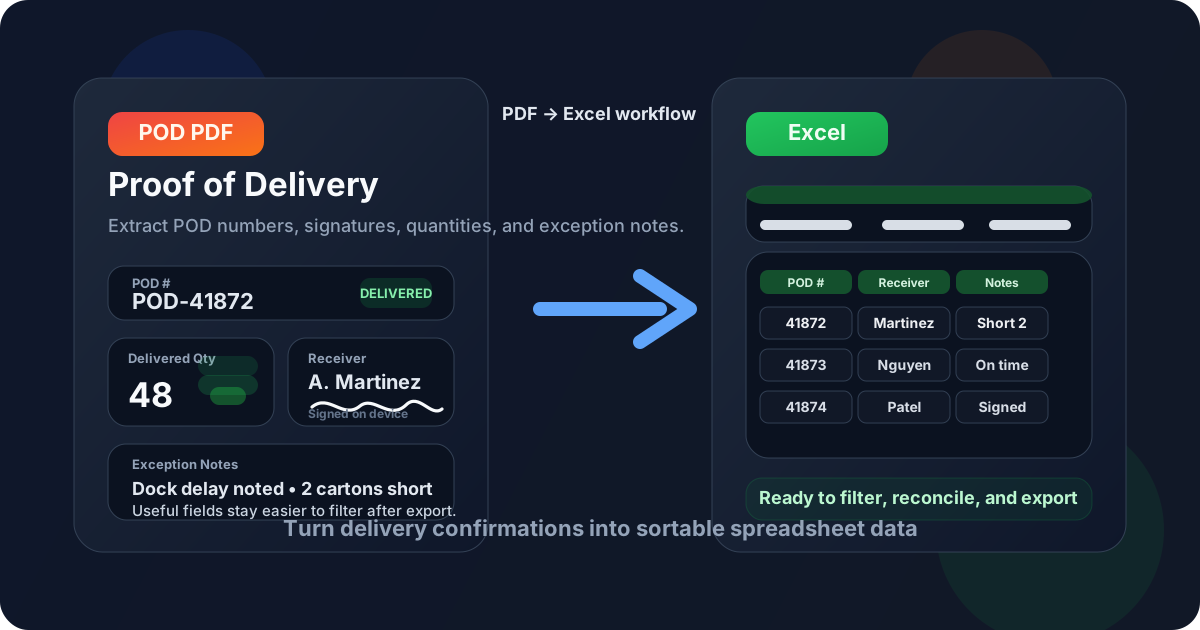
Table of contents
- Quick start: convert proof of delivery PDF to Excel in about 5 minutes
- Why teams need proof of delivery PDFs in Excel
- Which POD fields matter most
- What converts cleanly and what usually breaks
- Step-by-step: extract proof of delivery data with LifetimePDF
- Review checklist before you trust the spreadsheet
- Excel vs CSV for POD workflows
- Privacy and document-handling tips
- Related LifetimePDF tools and companion guides
- FAQ (People Also Ask)
Quick start: convert proof of delivery PDF to Excel in about 5 minutes
If the proof of delivery PDF already contains selectable text and mostly consistent fields, this is the simplest route:
- Open PDF to Excel.
- Upload the POD PDF you want to extract.
- If the file is scanned, run OCR first so field labels and row text are easier to recognize.
- Export the file as XLSX.
- Review the POD number, order or shipment reference, receiver name, delivery date, quantities delivered, and exception notes before you reuse the data.
Why teams need proof of delivery PDFs in Excel
Proof of delivery is usually where the real-world mess shows up. The order may have looked clean in the system, but the POD is where someone signs, writes a note, marks a shortage, records a delivery time, rejects a carton, or confirms what actually reached the dock. If that information stays trapped in PDF, each follow-up becomes slower.
Excel matters because it gives operations, customer-service, billing, claims, and warehouse teams a format they can sort, filter, compare, and annotate. Instead of opening one PDF at a time, they can line up POD numbers against invoices, scan for exceptions, spot repeated shortage patterns, and isolate the deliveries that actually need human attention.
Common reasons people convert POD PDFs
- Match completed deliveries against open orders
- Reconcile delivered quantities before invoicing
- Track signatures and receiver names for disputes
- Review shortage, refusal, damage, or late-delivery notes
- Prepare delivery data for a TMS, ERP, WMS, or claims log
Why PDF alone becomes a bottleneck
- Field values are hard to compare across many stops
- Scanned signatures and handwritten notes slow review
- Mixed route packets hide the one page you actually need
- Manual retyping creates delays and new errors
- Shortage or damage issues are easy to miss in long packets
In other words, the goal is not merely to change a file format. The goal is to turn delivery evidence into working data without making the team babysit every page.
Which POD fields matter most
Different carriers, distributors, and warehouse systems label proof of delivery fields differently, but the same practical checks keep showing up. These are the fields worth reviewing before you trust the spreadsheet:
| Field | Why it matters | What often goes wrong |
|---|---|---|
| POD number | Links the delivery confirmation back to the shipment or stop record | Digits merge, split, or lose leading zeros |
| Order or shipment reference | Helps match the POD to orders, invoices, and claims | Reference labels vary or shift into neighboring columns |
| Receiver or consignee name | Confirms who accepted the delivery | Names break across lines or mix with address text |
| Delivery date and time | Important for service checks, disputes, and aging reports | Date formats change or time stamps detach from the right row |
| Delivered quantity | Needed for billing, warehouse reconciliation, and shortage review | Numbers are read as text or shifted under the wrong item |
| Item, carton, or pallet counts | Confirms what physically arrived | Multi-line item descriptions confuse the layout |
| Signature status | Helps prove delivery and resolve customer disputes | Signature blocks turn into noise or blank cells |
| Exception notes | Captures shortages, damages, refusals, access issues, or delays | Handwritten notes OCR poorly or land in the wrong row |
| Driver or carrier details | Useful when tracing route issues or follow-up questions | Footer text gets mistaken for field values |
| Photo or attachment references | Shows whether the POD packet includes evidence beyond the signature | Image pages and labels clutter the extraction |
What converts cleanly and what usually breaks
Some proof of delivery PDFs convert almost effortlessly. Others need cleanup before the export will be useful. The difference usually comes from how the PDF was created.
- Digitally generated delivery confirmations from a carrier, ERP, or TMS
- Consistent templates with predictable labels and table positions
- Single-purpose POD pages with minimal extra content
- Files with selectable text rather than image-only scans
- Scanned paper PODs or phone-camera photos saved as PDFs
- Pages with signatures, stamps, barcodes, and handwritten notes on top of printed fields
- Packets that combine proof of delivery with route summaries, labels, and photos
- Low-contrast files with skewed pages, creases, or shadows
This is why page isolation matters so much. If the converter sees only the pages that contain the actual delivery confirmation, it has a much better chance of keeping the useful structure. If it also sees thumbnails, route instructions, and unrelated paperwork, the spreadsheet usually gets noisier fast.
Step-by-step: extract proof of delivery data with LifetimePDF
Here is the workflow that tends to save the most time in real delivery-reconciliation work:
- Keep only the POD pages. If the file bundle also includes route manifests, commercial invoices, photo sheets, or customer email printouts, use Extract Pages to keep only the delivery-confirmation pages.
- OCR the file if it is scanned or image-only. Open OCR PDF when the POD came from paper scans, mobile captures, or stamped archives. That step can make the difference between a usable sheet and a pile of broken columns.
- Convert the file to Excel. Upload the cleaned PDF into PDF to Excel and export the result as an editable XLSX workbook.
- Review the high-risk fields first. Before you do anything else, check the POD number, order or shipment reference, receiver name, delivery date, delivered quantity, and exception notes.
- Clean only what affects the decision. If a few spacing issues do not affect reconciliation, ignore them. Fix the cells that impact billing, claims, proof, or imports.
Best order for harder PODs: keep only the delivery pages, OCR the file, convert to Excel, then review shortage, refusal, signature, and quantity fields before anyone relies on the sheet.
Review checklist before you trust the spreadsheet
A converted file is still a draft until someone checks the fields that matter. For proof of delivery work, this short review catches most of the expensive mistakes:
- Confirm the POD number is complete and matches the expected record.
- Check the delivery date and time against the stop or order timeline.
- Verify the receiver name or consignee block did not merge with address text.
- Check delivered quantities against ordered quantities or the source PDF totals.
- Review shortage, refusal, damage, or late-delivery notes separately from the clean rows.
- Note whether a signature exists even if the signature image itself does not convert cleanly.
- Remove obviously unrelated rows created by page headers, route summaries, or photo captions.
The file is usually usable once the core identifiers, quantities, and exception notes are reliable. Perfect formatting is nice, but operational trust matters more than pretty cells.
Be more demanding when the spreadsheet will feed billing, claims, customer disputes, audits, or system imports. Those workflows punish small field mistakes later.
Excel vs CSV for POD workflows
Both formats can be useful, but they serve different next steps.
| If your next step is... | Better format | Why |
|---|---|---|
| Human review, cleanup, filtering, or exception handling | Excel | It is easier to scan, filter, color-code, comment on, and hand off |
| Importing plain rows into a system | CSV | CSV is lighter when you only need structured row data |
| Claims, audits, or customer-service follow-up | Excel | Extra visibility helps when notes, quantities, and references must be checked carefully |
For most proof-of-delivery searches, Excel is the better immediate output because the next task is usually review, not blind import. People want to inspect the exceptions before they trust the data.
Privacy and document-handling tips
PODs often contain names, addresses, phone numbers, signatures, timestamps, and notes about delivery issues. That means they are operational documents, but also sensitive documents.
- Only upload the pages you actually need for the task.
- Remove unrelated photo pages, labels, or customer notes before sharing the file internally.
- If the document includes information that should not move further downstream, use Redact PDF before sending it elsewhere.
- Do not assume a converted spreadsheet should automatically go to everyone who can open the original PDF.
- Name the final spreadsheet clearly so the reviewed copy is easy to distinguish from the raw export.
Related LifetimePDF tools and companion guides
Proof-of-delivery extraction usually works best as part of a small workflow instead of one magical click. These tools and guides pair well with it:
When the PDF packet includes extra pages, isolate only the useful delivery pages first.
Extract PagesOCR helps when signatures, stamps, or image-only pages make the text hard to interpret.
OCR PDFUseful adjacent reading for nearby logistics extraction workflows.
Shipping Manifest GuideWithout Monthly Fees
More related guides
- Convert Bill of Lading PDF to Excel
- Convert Shipping Manifest PDF to Excel
- Convert Packing List PDF to Excel
- Convert Commercial Invoice PDF to Excel
Need the shortest route? Keep only the proof-of-delivery pages, OCR the file if needed, convert it to Excel, then review POD numbers, quantities, signatures, and exception notes before sharing or importing the sheet.
FAQ (People Also Ask)
How do I convert a proof of delivery PDF to Excel?
Upload the proof of delivery PDF to a PDF to Excel converter, export the XLSX file, and review the POD number, order reference, receiver details, delivery date, delivered quantities, signature status, and exception notes before using the spreadsheet. If the file is scanned, OCR first usually improves the result.
Can I convert a scanned proof of delivery PDF to Excel?
Usually yes. Scanned proof of delivery PDFs work better when you run OCR first and isolate only the pages that actually contain POD data. Cleaner scans, straighter pages, and fewer bundled attachments usually improve row and field recognition.
Why do proof of delivery PDFs often create messy spreadsheets?
Because many PODs combine delivery headers, stop details, item rows, timestamps, signatures, barcodes, handwritten notes, photo references, and repeated footer text on the same pages. Mixed route packets and low-quality scans make extraction harder too.
Is Excel better than CSV for proof of delivery extraction?
Usually yes if a person still needs to review the result. Excel makes it easier to filter, check quantities, flag exceptions, and hand the file to logistics, billing, claims, or customer-service teams before importing data elsewhere.
What should I verify after converting proof of delivery data?
Check the POD number, order or shipment reference, receiver name, delivery date and time, delivered quantities, signature status, and any shortage, refusal, or damage notes. Those are the fields most likely to create downstream billing or claims problems if one row shifts during extraction.