Convert Bill of Lading PDF to Excel: Extract Shipment Data, Container Numbers, and Routing Fields Faster
To convert bill of lading PDF to Excel, upload the B/L to LifetimePDF's PDF to Excel tool, export the XLSX, and review the bill of lading number, shipper, consignee, ports, container numbers, seals, package counts, and gross weight before using the sheet.
If the bill of lading is scanned, stamped, or bundled with invoices and packing lists, isolate only the B/L pages and run OCR first so routing fields and container rows stay much cleaner.
Most people searching this phrase are not trying to admire a file conversion. They are trying to stop retyping shipment data, check what is moving where, and get a spreadsheet they can sort, reconcile, share, or import into another logistics workflow without turning one PDF into a half-hour cleanup job.
Fastest path: use LifetimePDF's PDF to Excel tool, and OCR the bill of lading first if it came from a scan, fax, phone photo, or image-only export.
In a hurry? Jump to Quick start: convert bill of lading PDF to Excel in about 5 minutes.
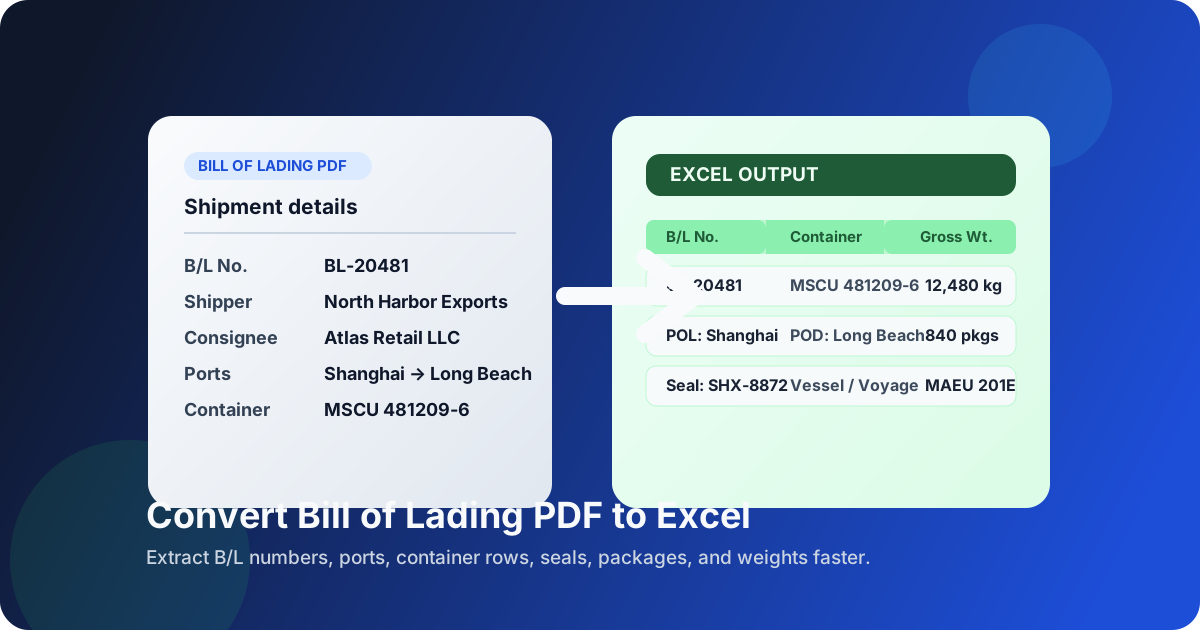
Table of contents
- Quick start: convert bill of lading PDF to Excel in about 5 minutes
- Why teams need bill of lading PDFs in Excel
- Which B/L fields matter most
- What converts cleanly and what usually breaks
- Step-by-step: extract bill of lading data with LifetimePDF
- Review checklist before you trust the spreadsheet
- Excel vs CSV for shipping workflows
- Privacy and document-handling tips
- Related LifetimePDF tools and companion guides
- FAQ (People Also Ask)
Quick start: convert bill of lading PDF to Excel in about 5 minutes
If the bill of lading already contains selectable text and the layout is reasonably clean, this workflow is usually enough:
- Open PDF to Excel.
- Upload the bill of lading PDF you want to extract.
- If the file also contains commercial invoices, packing lists, manifests, delivery notes, or email printouts, first isolate only the B/L pages with Extract Pages.
- If the B/L is scanned, faxed, or image-only, run OCR PDF before converting.
- Export the spreadsheet and review the bill of lading number, shipper, consignee, ports, container numbers, seal numbers, package counts, and gross weight.
Why teams need bill of lading PDFs in Excel
A bill of lading PDF is fine when you only need to read it once. It becomes frustrating when you need to compare container rows, check seal numbers, confirm package counts, reconcile ports and voyage details, or reuse the shipment data in a spreadsheet, TMS, ERP, or operations tracker. That is where Excel becomes much more useful than the original PDF.
- Freight audit and shipment reconciliation
- Container tracking and follow-up work
- ERP, WMS, or TMS data entry reduction
- Port, route, and handoff reporting
- Ops review across multiple shipments
- B/L number stays intact
- Shipper and consignee details land sensibly
- Ports and vessel information stay readable
- Container and seal numbers stay aligned
- Package counts and weights are easy to verify
The point is not to get a perfect spreadsheet from every logistics document without any review. The point is to get close enough that cleanup takes a minute or two instead of forcing someone to retype the shipment by hand. For freight teams, customs coordinators, shipping clerks, and operations staff, that time savings adds up fast.
Why bills of lading feel harder than ordinary tables
Bills of lading often mix header-level routing information with line-level cargo details. One page can include shipper and consignee blocks, notify-party text, vessel and voyage data, port fields, container numbers, seal numbers, package counts, gross weight, marks and numbers, signatures, and stamps all at once. Humans separate that visually without much effort. Converters have to infer structure from spacing and alignment, which is why page isolation and OCR matter so much here.
Which B/L fields matter most
Not every field matters equally. If you know which data you actually need, you can review the spreadsheet much faster and catch the errors that create real downstream problems.
- Bill of lading number
- Shipper name
- Consignee name
- Port of loading and port of discharge
- Container number and seal number
- Package count
- Gross weight
- Notify party
- Vessel name and voyage number
- Marks and numbers
- Commodity description
- Container type or size
- Freight terms and issue date
If the spreadsheet gets those fields right, it is usually useful. If it loses the B/L number, shifts container numbers into the wrong rows, or merges routing text into cargo lines, you may still save time compared with manual typing, but only if you catch the bad rows early.
Rows and sections that deserve extra attention
- Container tables: when a B/L lists several containers, one shifted row can break the rest of the sheet.
- Seal numbers: these are short, easy to misread, and surprisingly important downstream.
- Port fields: nearby routing labels can blend together when the layout is tight.
- Weights and package counts: units and numeric formatting can drift if the source PDF is noisy.
- Notify-party and signature blocks: these often become junk rows if the page is stamped or scanned poorly.
What converts cleanly and what usually breaks
B/L extraction gets easier when the PDF is already digital, text-based, and consistent across pages. It gets harder when the document is scanned, photographed, faxed, or bundled with other shipping paperwork.
- Digital exports from carrier, ERP, or forwarding systems
- Files with selectable text
- Clean routing blocks and readable container rows
- Standalone B/L PDFs without unrelated pages
- Scanned paper copies or phone photos
- Documents with stamps or handwriting over key fields
- Packets mixed with invoices, manifests, or emails
- Dense layouts with tiny fonts, repeated headers, or crowded tables
The phrase convert bill of lading PDF to Excel sounds simple, but the quality of the input still decides how clean the output can be. A good converter saves time. A good workflow saves even more time because it gives the converter a cleaner file to work with in the first place.
Why page isolation helps more than people expect
If your file includes commercial invoices, packing lists, manifests, insurance certificates, delivery notes, or broker emails, separate those before converting. A converter cannot know that a signature page or forwarding note is irrelevant to your spreadsheet. Removing the clutter first often improves field detection much more than people expect.
Step-by-step: extract bill of lading data with LifetimePDF
Here is the practical workflow that works best when you want a spreadsheet that is useful fast instead of technically converted but annoying to trust.
1) Start with the right pages
If the file includes invoices, packing lists, manifests, internal emails, or other shipment paperwork, remove those first. Use Extract Pages to keep only the bill of lading pages you actually need.
2) OCR first if the B/L is scanned
Image-only PDFs make everything harder. Before converting, run the file through OCR PDF so B/L numbers, ports, vessel details, container numbers, seal numbers, package counts, and weights are easier to recognize as text. This matters most for emailed scans, stamped printouts, and phone-camera captures from the warehouse or port side.
3) Fix sideways or noisy pages before extraction
If a page is rotated, tilted, or padded with large borders, clean it up first. Rotate PDF helps with orientation problems, and Crop PDF helps when margins, stamps, or footer clutter are overwhelming the useful table area.
4) Convert the bill of lading to Excel
Open PDF to Excel, upload the cleaned B/L PDF, and export the XLSX file. At this point, the goal is not perfection. The goal is a structured sheet that already has most fields in the right place.
5) Review the high-risk fields first
Check the bill of lading number, shipper, consignee, vessel or voyage, ports, container numbers, seal numbers, package counts, and gross weight. If those look good, the rest of the spreadsheet is usually much easier to clean.
Review checklist before you trust the spreadsheet
A short review catches most of the errors that matter. You do not need to audit every row equally. You need to focus on the fields most likely to break when shipping PDFs become spreadsheets.
- Confirm the B/L number and issue date: those are often the first fields someone else will search for later.
- Check the routing block: verify vessel or voyage, port of loading, and port of discharge still read correctly.
- Review the first few container rows: confirm container number, seal number, package count, and weight stay aligned.
- Check one row from the middle or end: repeated headers and page breaks often show up later in the file.
- Verify shipper and consignee fields: these sometimes land outside the expected table structure.
- Look for junk rows: signatures, stamps, printed labels, and footer notes should not live inside the shipment table.
- Compare total packages or total weight once: a one-line total check catches a surprising number of spreadsheet problems.
Common cleanup moves after conversion
- Delete repeated header rows that appear once per page
- Keep container and seal codes as text when leading zeros matter
- Separate routing fields from line-level cargo rows if they landed together
- Standardize numeric formats for package counts and weights
- Remove signature-block or stamp text that drifted into the useful data area
Excel vs CSV for shipping workflows
Both formats can be useful. The better choice depends on what happens after extraction.
- You still need to review and clean the output
- You want filters, formulas, notes, or highlighting
- You are handing the file to logistics, customs, or operations staff
- You want a working spreadsheet, not just raw rows
- You only need plain rows and columns for import
- The downstream system already expects CSV
- You do not need formulas, tabs, or workbook formatting
- You want the simplest possible export after cleanup
For most bill of lading workflows, Excel is the better first stop because it gives you room to review and fix the extraction. Once the structure looks right, you can always save a CSV afterward if another system requires it.
Privacy and document-handling tips
Bills of lading are not harmless filler documents. Even when they look routine, they still reveal suppliers, consignees, shipment routes, ports, cargo descriptions, container IDs, package counts, weights, and other operational details. That means the workflow should stay deliberate.
- Upload only the pages you need instead of the full shipment packet.
- Redact when appropriate if the document contains extra identifiers or information that should not travel further.
- Use OCR and cleanup tools first so you do not share more pages than necessary just to get a better extraction.
- Protect final documents when needed if cleaned files are going out by email or to outside parties.
- Keep the source and the reviewed spreadsheet traceable so corrections are easy to audit later.
If the original PDF needs cleanup before or after extraction, pair this workflow with Redact PDF, Delete Pages, or PDF Protect depending on what the file needs next.
Related LifetimePDF tools and companion guides
Converting the B/L is often only one step in the overall workflow. These related tools and guides help when the raw PDF needs cleanup before or after extraction.
PDF to Excel
Convert shipping tables and routing fields into an editable workbook.
Open PDF to ExcelCompanion guides
Useful adjacent reading for nearby trade and logistics extraction workflows.
Commercial Invoice GuideWithout Monthly Fees
More related guides
- Convert Packing List PDF to Excel Online Without Monthly Fees
- Convert Shipping Manifest PDF to Excel Online Without Monthly Fees
- Convert Proforma Invoice PDF to Excel Online Without Monthly Fees
- Extract Tables from PDF to Excel Online Without Monthly Fees
Need the shortest route? Keep only the bill-of-lading pages, OCR the file if needed, convert it to Excel, then review routing fields and container rows before sharing or importing the sheet.
FAQ (People Also Ask)
How do I convert a bill of lading PDF to Excel?
Upload the bill of lading PDF to a PDF to Excel converter, export the XLSX file, and review the B/L number, shipper, consignee, ports, container numbers, seal numbers, package counts, and weights before using the spreadsheet. If the file is scanned, OCR first usually improves the result.
Can I convert a scanned bill of lading PDF to Excel?
Usually yes. Scanned B/Ls work better when you run OCR first and isolate only the pages that actually contain bill-of-lading data. Cleaner scans and straighter pages usually improve row and field recognition.
Why do bill of lading PDFs often create messy spreadsheets?
Because many bills of lading combine routing fields, shipper and consignee blocks, vessel details, container rows, package counts, weights, stamps, signatures, and repeated headers on the same pages. Scanned images and mixed shipment packets also make extraction harder.
Is Excel better than CSV for bill of lading extraction?
Usually yes if a person still needs to review the result. Excel makes it easier to filter, check totals, fix shifted rows, and hand the file to logistics, customs, or operations before importing the data elsewhere.
What should I verify after converting bill of lading data?
Check the bill of lading number, shipper, consignee, vessel or voyage, port of loading, port of discharge, container number, seal number, package count, and gross weight. Those are the fields most likely to create downstream problems if one row shifts during extraction.