Convert Scanned PDF to Excel Online Free: OCR Tables Into Editable XLSX Faster
To convert scanned PDF to Excel online free, run OCR first so the file becomes searchable text, then export the OCRed PDF as XLSX and review the rows, dates, and totals before you trust the sheet.
If you skip OCR, most scanned tables turn into merged columns, broken line items, or blank cells because the converter is trying to read pictures instead of structured data.
That is the fast answer, but the useful part is knowing how to get a spreadsheet that is good enough to work with without turning a five-minute job into a two-hour cleanup session. Most people searching for this keyword are not building a perfect finance model from day one. They are trying to rescue statement data, invoice rows, archived reports, printed logs, or photographed paperwork and move on with their day.
Fastest path: clean the scan just enough to help OCR, then export the searchable PDF with LifetimePDF's Excel converter and verify the handful of values that actually matter.
In a hurry? Jump to Quick start: scanned PDF to Excel in about 5 minutes.
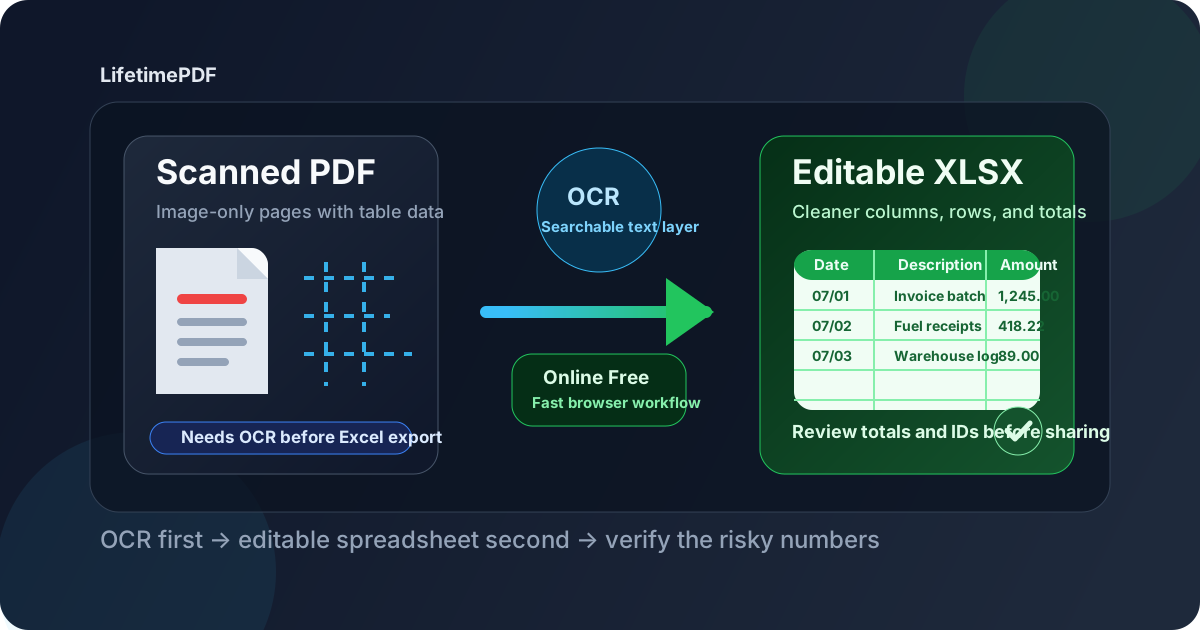
Table of contents
- Quick start: scanned PDF to Excel in about 5 minutes
- What “online free” should actually help you do
- Step-by-step: convert scanned PDF to Excel online free
- How to get cleaner rows, columns, and totals
- Common scanned PDF to Excel problems and fixes
- Best use cases for this workflow
- Privacy and safer document handling
- Related LifetimePDF tools and guides
- FAQ (People Also Ask)
Quick start: scanned PDF to Excel in about 5 minutes
If the PDF is clearly a scan and you mainly need workable spreadsheet data, this is the shortest dependable workflow:
- Open OCR PDF.
- Upload the scanned or photographed PDF.
- Rotate or crop first if the page is sideways or surrounded by scanner noise.
- Run OCR so the file becomes searchable and selectable.
- Open PDF to Excel.
- Upload the OCRed file and export it as XLSX.
- Review the values that matter most: dates, amounts, IDs, and repeated header rows.
What “online free” should actually help you do
People searching for convert scanned PDF to Excel online free usually want one of two things. Either they have a one-off document they do not want to type by hand, or they are testing whether a browser workflow can recover the data before they commit more time. In both cases, “free” is only useful if it saves effort instead of creating more cleanup than the original problem.
- It should get you to usable data quickly, not trap you in repeated failed exports.
- It should make OCR easy, because scans almost always need it.
- It should help you rescue the important rows, even if a few cosmetic fixes still happen later in Excel or Google Sheets.
The best expectation is not perfection. It is leverage. If the workflow turns a two-hour retyping task into ten minutes of checking and light cleanup, it already did its job.
Step-by-step: convert scanned PDF to Excel online free
1) Confirm that the PDF is really a scan
Some PDFs look like scans but still contain a usable text layer. Before you do anything else, try three quick checks:
- highlight one sentence or one amount,
- search for a visible invoice number or date,
- copy one row into a text editor and see whether it stays readable.
If all three fail, treat the file as image-only and move straight to OCR.
2) Clean the easiest scan problems before OCR
OCR works better when the source is not fighting it. That means fixing obvious issues first instead of hoping the converter will guess correctly later.
- Use Rotate PDF for sideways statements, landscape reports, or turned receipts.
- Use Crop PDF to remove dark borders, shadows, and giant margins.
- Use Extract Pages when only part of the document contains the table you care about.
These small prep steps often improve the final spreadsheet more than people expect.
3) OCR the scanned PDF first
Open OCR PDF and let the file become searchable. This is the critical step because OCR turns the page image into real characters the converter can work with. Without it, the Excel export is mostly guessing where rows begin and where columns end.
4) Convert the OCRed file to Excel
Once the PDF has a text layer, send it to PDF to Excel and export as XLSX. XLSX is usually the safest choice because it preserves structure more clearly and makes review easier before you sort, filter, or share the data.
5) Review the sheet in the right order
Start with the fields that could actually cause trouble if they are wrong:
- dates and date order,
- amounts, currencies, and decimal points,
- invoice numbers, account IDs, or item codes,
- negative values and subtotals,
- repeated headers that interrupt the data range.
Cosmetic formatting can wait. Trustworthy values come first.
Best practical sequence: check the source, fix the page, OCR it, export it, then validate only the columns that would matter in a real decision.
How to get cleaner rows, columns, and totals
Better input usually beats bigger cleanup. If you want an export that feels less chaotic, these habits matter most.
| Problem | Best fix | Why it helps |
|---|---|---|
| Sideways pages | Rotate before OCR | Improves reading order and column recovery |
| Black edges or shadows | Crop before OCR | Reduces false characters and false column breaks |
| Mixed layouts across pages | Convert smaller page ranges | Keeps one table structure per export |
| Critical totals and IDs | Verify after OCR and after XLSX export | Catches expensive mistakes before the data spreads |
Keep the page upright and obvious
OCR performs much better when the reading order is clear. One sideways page can be enough to scramble rows, especially in table-heavy statements or reports.
Reduce visual noise around the table
Thick scanner borders, copier shadows, stamps, and huge margins create fake structure. Cropping the page lets the OCR engine focus on the content instead of the clutter.
Split mixed-format documents into smaller jobs
A large report may contain title pages, charts, notes, and tables with different layouts. Converting the whole thing at once often makes the spreadsheet worse. Smaller, consistent page ranges usually produce cleaner results.
Expect some post-export cleanup on complex tables
Merged cells, nested headings, handwritten notes, and repeated subtotals can still need a human pass. That does not mean the workflow failed. It means the source document was never truly structured in the first place.
Common scanned PDF to Excel problems and fixes
The spreadsheet comes out mostly blank
That usually means the scan never got OCRed properly. Go back, create a searchable text layer first, then export again.
Everything lands in one giant column
This often happens when the source table is blurry, skewed, or inconsistent across pages. Crop the page more tightly, rotate it if needed, and convert smaller page ranges instead of the full document.
Dates or totals look almost right but not fully right
That is classic OCR risk. A decimal point, slash, or digit can drift just enough to create a bad financial result. Always verify totals, dates, and IDs manually if they matter downstream.
Header rows repeat over and over
Multi-page statements and reports often print the same column headers on every page. Delete those repeated rows early so your sheet becomes one usable table.
Wrapped descriptions split into extra rows
This usually happens when a long description spans more than one visual line in the PDF. The easiest fix is often a quick merge or cleanup in Excel, not a full reconversion of the whole file.
Best use cases for this workflow
The free online OCR-to-Excel workflow is most useful when the data is trapped in a scan but still worth recovering.
Bank and transaction statements
These often need sorting, filtering, reconciliation, or spend review. OCR plus Excel export is far faster than typing every line item by hand.
Vendor invoices and AP paperwork
If invoices arrive as scans, turning them into spreadsheets makes it easier to review line items, taxes, quantities, and payment batches.
Old archived reports
Historical reports, warehouse logs, field records, or printed dashboards are common candidates because the original spreadsheet is long gone but the data still matters.
Receipts, expense packs, and photographed documents
Not every photographed page converts beautifully, but a clean OCR pass can still rescue enough information to make categorizing or summarizing much easier.
For one-off jobs, this free browser workflow is often enough. For recurring document work, the advantage of a wider toolkit is that the next step is already there when a file needs rotation, cropping, extraction, redaction, or protection.
Need to rescue table data from a scan without retyping it all?
Start with OCR, export to Excel, and validate the risky fields before the spreadsheet goes anywhere else.
Privacy and safer document handling
Scanned PDFs often contain sensitive information: bank data, payroll figures, tax amounts, supplier records, addresses, or customer details. So this is not only a conversion task. It is also a document-handling decision.
- Upload only what you need: isolate the relevant pages first with Extract Pages.
- Remove confidential details before wider sharing: use Redact PDF if names, IDs, or account information should not travel further.
- Protect cleaned outputs when needed: use PDF Protect before sending a final deliverable onward.
- Do not trust OCR blindly: always verify any field that could affect money, compliance, or a real-world decision.
A tidy spreadsheet is not the same thing as a verified spreadsheet. The review step still matters.
Related LifetimePDF tools and guides
Converting a scanned PDF to Excel works best when it is part of a broader cleanup workflow. These tools and related guides fit naturally around this job:
- OCR PDF - turn scanned pages into searchable text before conversion.
- PDF to Excel - export the OCRed file as editable XLSX.
- Rotate PDF - fix sideways tables before OCR.
- Crop PDF - remove scanner noise and wasted margins.
- Extract Pages - keep only the pages with useful data.
- Split PDF - break mixed-format files into smaller conversion jobs.
Related blog guides
- Convert Scanned PDF to Excel
- Convert Scanned PDF to Excel Online
- Convert Scanned PDF to Excel Without Monthly Fees
- OCR PDF Online Free
- Make PDF Searchable Online Free
- Extract Text from Scanned PDF Online Free
- Browse all LifetimePDF articles
Ready to get spreadsheet data out of a messy scan?
Best simple workflow: rotate or crop if needed → OCR → export to XLSX → remove repeated headers → verify totals and IDs.
FAQ (People Also Ask)
How do I convert scanned PDF to Excel online free?
Use an OCR-first browser workflow. Upload the scanned PDF to an OCR tool, make the text searchable, then upload the OCRed file to a PDF to Excel converter and export it as XLSX.
Why does a scanned PDF convert badly to Excel?
A scanned PDF is usually a picture of a page, not a real text document. Without OCR, the converter is guessing where the rows and columns should be, which leads to messy output.
Do I need OCR before converting a scanned PDF to Excel?
In most cases, yes. OCR creates the text layer that gives the Excel converter real characters and numbers to work with instead of a flat image.
What should I review after export?
Start with dates, totals, decimal points, negative values, invoice or account IDs, and repeated headers. Those are the fields most likely to create real problems if one OCR error slips through.
Is a free online workflow good enough for statements or invoices?
Yes, especially for occasional jobs and one-off documents. Just make sure you OCR first and review the important values before you rely on the spreadsheet for reporting, reconciliation, or filing.
Published by LifetimePDF — Pay once. Use forever.