Convert PDF to XML: Pull Structured Data Out of Flat Documents Without Losing the Parts That Matter
Yes — you can convert PDF to XML by starting with the cleanest PDF you have, running OCR first when the file is scanned, then reviewing headings, fields, tables, and repeated page noise before you use the output downstream.
The best results usually come from PDFs with selectable text, but even messy documents can often produce useful XML if you narrow the page range and choose the right supporting tools.
Most people looking for this are not trying to collect another file extension. They are trying to get something reusable out of a stubborn document: invoice fields into an automation workflow, report sections into a CMS, application data into a parser, or old archives into something a machine can actually understand. XML is valuable because it helps move content from page-shaped PDFs into structured data that can be searched, mapped, validated, and reused.
Fastest practical path: use LifetimePDF's PDF to XML tool for clean text PDFs, and use OCR first whenever the source behaves like images instead of real text.
In a hurry? Jump to the quick answer and workflow.
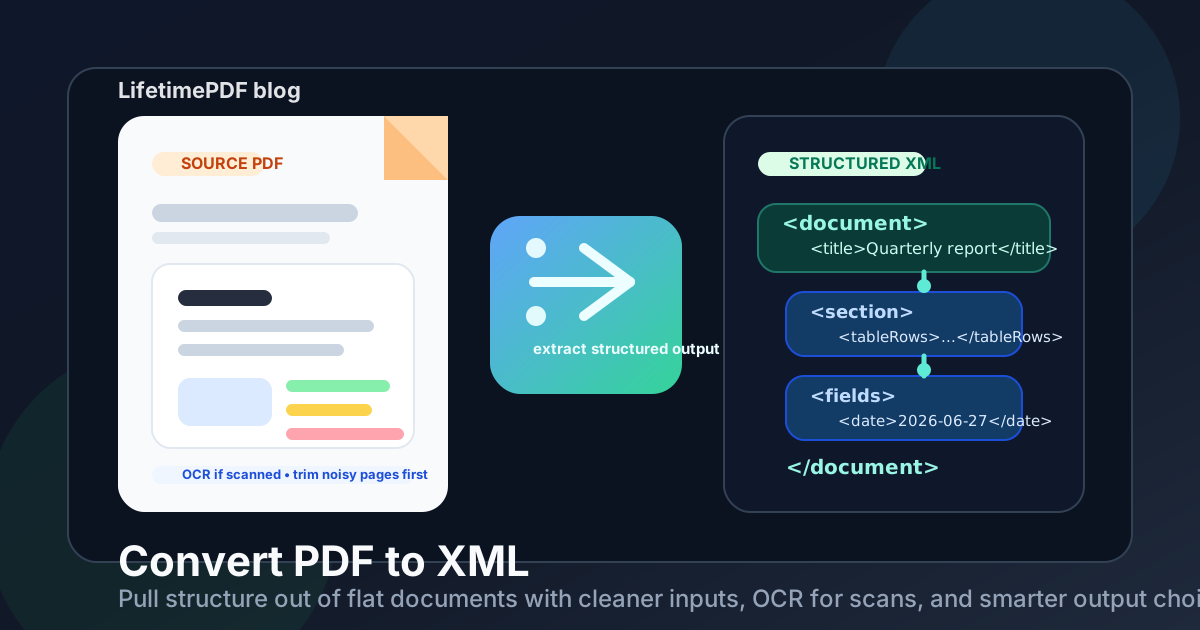
Table of contents
- Quick answer: the cleanest way to convert PDF to XML
- When PDF to XML is the right move
- What XML preserves well and what it does not
- Step-by-step: convert PDF to XML with less cleanup
- Best workflow by document type
- OCR, scans, and why page cleanup matters
- Common mistakes that wreck XML output
- When PDF to HTML, Text, or Excel is smarter
- Related LifetimePDF tools and useful reading
- FAQ (People Also Ask)
Quick answer: the cleanest way to convert PDF to XML
If the PDF already contains selectable text, the simple workflow looks like this:
- Open PDF to XML.
- Upload the cleanest version of the PDF you have.
- If you only need part of the document, use Extract Pages first.
- If the PDF is scanned or image-only, run OCR PDF before converting.
- Convert the file and review the output for headings, fields, dates, totals, table rows, and repeated headers or footers.
When PDF to XML is the right move
PDF to XML is useful when the real destination is another system, not another human reading the page. A PDF is great for preserving appearance. XML is better when you need content that can be parsed, categorized, validated, transformed, or imported elsewhere.
Common situations where converting PDF to XML makes sense
- Data extraction workflows: you need fields, labels, and values for an internal system.
- Content migration: sections from reports or manuals need to move into a CMS or knowledge base.
- Archive normalization: older PDFs need to become more machine-readable for future use.
- Structured reporting: invoice packets, statements, or application forms need to feed downstream automation.
- Schema mapping projects: you do not need the page to look the same; you need the information to land in predictable places.
Best default habit: convert only the part of the PDF that your workflow actually needs. Cleaner scope usually beats brute force.
What XML preserves well and what it does not
XML is strongest when you care about structure. It can help preserve the idea that something is a heading, a section, a field, a row, or a value. It is much less useful when your only goal is to preserve the exact look of a brochure, poster, form background, or carefully designed print layout.
| Usually preserved better | Usually preserved worse | Best expectation |
|---|---|---|
| Headings, sections, fields, values, lists | Exact fonts, spacing, page geometry | Use XML for meaning and structure |
| Simple tables and repeated data blocks | Highly styled charts or design-heavy layouts | Review the rows and labels after conversion |
| Machine-readable content | Visual polish for human presentation | Think downstream system, not printed page |
| Plain document hierarchy | Complex overlapping page elements | Trim noisy pages whenever possible |
If your team keeps judging XML by whether it visually resembles the original PDF, they are using the wrong yardstick. Judge it by whether the important information lands in useful, consistent places.
Step-by-step: convert PDF to XML with less cleanup
1) Start with the cleanest PDF you can get
The original exported PDF is usually better than a screenshot, scan, print-to-PDF copy, or version that has been repeatedly resaved through multiple systems. Cleaner text layers and cleaner hierarchy give the converter more to work with.
2) Reduce the page range before converting
Do not force a converter through cover pages, legal boilerplate, indexes, appendices, and unrelated sections if your actual workflow only needs a handful of pages. Use Extract Pages or Split PDF first.
3) OCR first if the file behaves like an image
If you cannot highlight text naturally inside the PDF, conversion quality usually improves after OCR PDF. XML built from readable text has a much better chance of preserving fields and sections than XML built from page snapshots.
4) Convert the PDF to XML
Open LifetimePDF's PDF to XML tool, upload the prepared file, run the conversion, and download the result. For many office-style PDFs, this captures enough structure to save a lot of manual extraction time.
5) Review the output where errors actually matter
Do not waste time reading every line if your real risk sits in a few fields. Review the headings, dates, totals, names, table headers, and any values that would break a downstream workflow if they were misplaced.
Best workflow by document type
| Document type | What usually happens | Best first move |
|---|---|---|
| Digital reports and manuals | Often produce workable section and heading structure | Convert directly to XML |
| Invoices, statements, and forms | Can work well if fields are clear and page noise is limited | Trim to the relevant pages first |
| Scanned paper archives | Usually messy without a readable text layer | Run OCR before conversion |
| Table-heavy exports | Rows may convert, but structure can get noisy | Consider PDF to Excel as an intermediate format |
| Brochures and design-led PDFs | Visual layout often matters more than structured extraction | Consider PDF to HTML or PDF to Image instead |
That last point matters. If a PDF is mainly visual communication, XML may not be the best destination at all. Force-fitting the wrong output format is one of the easiest ways to waste time.
OCR, scans, and why page cleanup matters
Scanned PDFs are where expectations usually go sideways. People assume the XML tool failed when the real issue is the source document. A scan is often just an image of text. If the converter cannot see actual characters, it has to guess structure from pixels.
Signs you should OCR first
- You cannot highlight the words inside the PDF.
- Search inside the PDF does not work properly.
- The file came from a copier, scanner, or phone camera.
- The whole page behaves like one flat image.
OCR does not make every bad scan perfect, but it gives the converter a text layer to work from. That often means better headings, better field detection, and less garbage output in the final XML.
Best sequence for scans: OCR first, confirm the text is searchable, then convert the cleaned PDF to XML.
Common mistakes that wreck XML output
Converting the entire PDF when only one section matters
Long files create long noise. If you only need the financial appendix or the application section, extract that range first and keep the XML smaller and cleaner.
Skipping OCR on scanned files
This is the classic cause of ugly XML. If the file is image-only, direct conversion often produces weak structure and unreliable text.
Expecting XML to preserve visual design
XML is not supposed to behave like a screenshot. If you need design fidelity, choose a visual format. If you need reusable data and document structure, XML is the better target.
Ignoring repeated headers, footers, and legal clutter
Repeated page furniture can pollute XML fast. Even a strong converter can end up repeating the same labels or boilerplate if the source file itself is noisy.
Forcing direct XML when an intermediate format would be cleaner
Sometimes the smartest route is PDF to Excel for table extraction, PDF to Text for simple text pipelines, or PDF to HTML for web structure. The cleanest final XML may come from a better intermediate step rather than a one-click all-purpose conversion.
When PDF to HTML, Text, or Excel is smarter
XML is powerful, but it is not automatically the best answer for every PDF workflow. A better question is: what will happen to the output next?
- Use PDF to XML when a downstream system expects structured markup, nested content, or machine-readable fields.
- Use PDF to HTML when content hierarchy and web publishing matter more than schema-like data mapping.
- Use PDF to Text when you mostly need the words for indexing, searching, or lightweight automation.
- Use PDF to Excel when tables are the whole point and row-column clarity matters most.
The best workflow is often the one that produces the least cleanup in the next step, not the one that sounds the most sophisticated on paper.
Related LifetimePDF tools and useful reading
PDF to XML works best as part of a broader cleanup, extraction, and conversion workflow. These tools pair naturally with it:
- PDF to XML - convert PDFs into structured XML-ready output
- OCR PDF - recover searchable text from scans before conversion
- Extract Pages - isolate only the pages your XML workflow needs
- PDF to Text - useful when words matter more than markup
- PDF to HTML - better for web-style document structure
- PDF to Excel - better for table-heavy extraction jobs
Suggested internal reading
- Convert PDF to XML Online
- Convert PDF to XML Online Free
- Convert PDF to XML Online Without Monthly Fees
- Convert PDF to XML Without Monthly Fees
- PDF to HTML for Web Publishing
- PDF to Excel Data Extraction
- Make PDF Searchable: OCR Guide
- Browse all LifetimePDF articles
Ready to pull structure out of a PDF?
Best workflow: clean source PDF - trim irrelevant pages - OCR only if needed - convert - review the fields and structure that matter.
FAQ (People Also Ask)
How do I convert PDF to XML?
Use a PDF to XML converter on the cleanest version of the file you have, OCR the PDF first if it is scanned, then review the output for headings, fields, tables, and repeated page elements before using the XML downstream.
Can I convert a scanned PDF to XML?
Yes, but scanned PDFs usually need OCR first. Without OCR, the converter is working from page images instead of actual text, which often produces messy or incomplete XML.
Will XML preserve the original PDF layout exactly?
No. XML is meant to preserve structure and reusable content, not the exact visual design of the original page. It is better for fields, headings, sections, and data relationships than for fonts and page appearance.
What if my PDF tables do not convert cleanly to XML?
Try extracting only the relevant table pages first, then consider PDF to Excel or PDF to Text as an intermediate step. Table-heavy PDFs often clean up faster when you reduce page noise before mapping the data into XML.
When should I use PDF to HTML or PDF to Text instead?
Use PDF to HTML when hierarchy and web-ready structure matter, PDF to Text when you mainly need the words, and PDF to XML when the destination system expects structured fields, nested content, or machine-readable markup.
Published by LifetimePDF - Pay once. Use forever.