Convert PDF to XML Online Without Monthly Fees: Clean Browser Workflow for Structured Data
Yes — you can convert PDF to XML online without monthly fees by using a browser-based converter for text PDFs and by running OCR first when the file is scanned.
For the cleanest result, isolate only the pages you need, review tables and repeated headers, and use HTML, text, or Excel only as fallback formats when direct XML needs a little help.
This search usually comes from a practical problem, not curiosity. Maybe you need invoice data for automation, a report turned into a structured archive, a long PDF prepared for a CMS import, or cleaner machine-readable content for downstream parsing. The good news is that you do not need a heavyweight desktop suite or another recurring subscription just to get usable XML out of a PDF.
Fastest path: use LifetimePDF's PDF to XML tool for clean text PDFs, run OCR first for scans, and extract only the relevant pages before converting if the source document is cluttered.
In a hurry? Jump to Quick start: convert PDF to XML online in a few minutes.
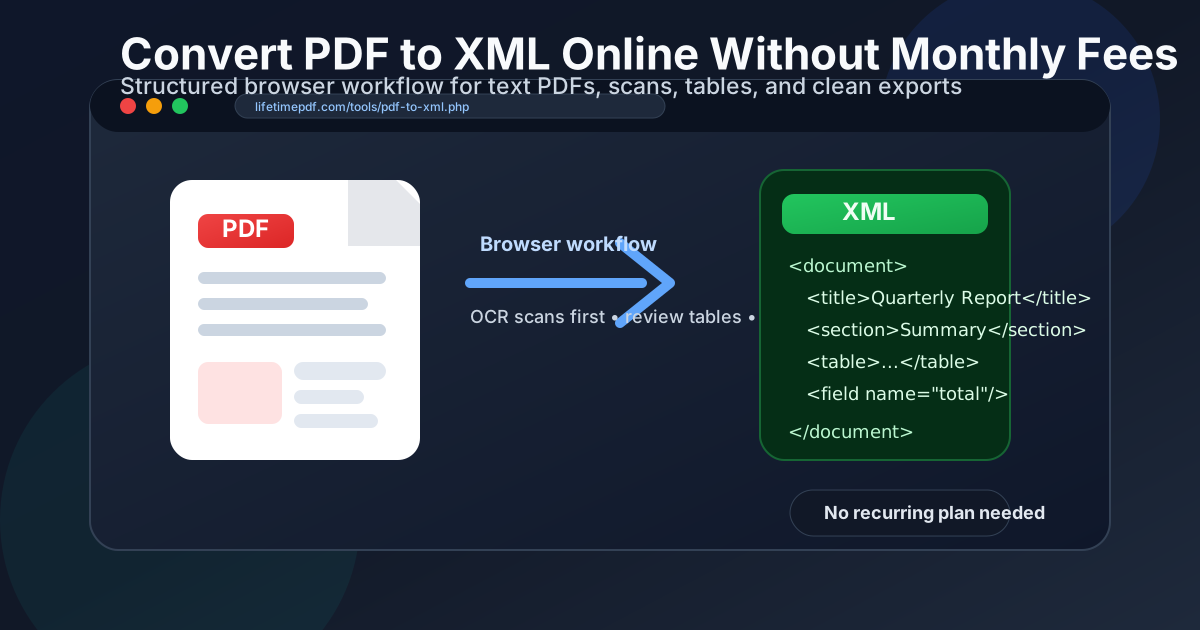
Table of contents
- Quick start: convert PDF to XML online in a few minutes
- When direct PDF-to-XML works best
- Step-by-step browser workflow
- How to handle scanned PDFs before conversion
- Tables, invoices, and structured fields
- When HTML, text, or Excel is a better intermediate step
- Why a no-subscription workflow matters for repeat document work
- Common PDF-to-XML mistakes that create messy output
- Related LifetimePDF tools and guides
- FAQ (People Also Ask)
Quick start: convert PDF to XML online in a few minutes
If your PDF already contains selectable text, this is the cleanest order:
- Open PDF to XML.
- Upload the PDF you want to convert.
- If the file is long or noisy, first trim it with Extract Pages so you only convert the useful section.
- Run the conversion and download the XML output.
- Review headings, dates, totals, fields, and tables before sending the XML into a CMS, parser, or automation workflow.
When direct PDF-to-XML works best
Direct conversion is strongest when the original file already has real text and a fairly logical structure. Clean exports from Word, Google Docs, reporting tools, or form systems usually behave much better than phone-camera scans, photo-heavy brochures, or heavily designed layouts with lots of floating elements.
| PDF type | How well direct XML usually works | Best move first |
|---|---|---|
| Text PDF from Word or Docs | Usually very good | Convert directly to XML |
| Scanned contract or paper form | Poor until OCR is done | Run OCR first |
| Invoice or statement with tables | Mixed | Test direct XML, then use Excel if the table structure gets messy |
| Long report with repeated headers and appendices | Good after cleanup | Extract only the pages you need before converting |
| Highly designed brochure or catalog | Variable | Expect some manual cleanup or use HTML first |
XML is useful because it is structured, not because it looks like the original PDF. If your downstream system wants sections, fields, line items, or paragraph blocks, XML is often a much better landing spot than a raw copy-paste workflow.
Step-by-step browser workflow
A lot of messy PDF-to-XML jobs can be fixed by changing the order of operations rather than changing tools. This sequence works well for most real-world files:
1) Check whether the PDF contains real text
Try highlighting a sentence and searching for a word you can clearly see on the page. If the file responds normally, direct conversion is more likely to preserve useful structure. If nothing is selectable, you are probably looking at an image-only PDF.
2) Reduce noise before you convert
If you only need pages 4 through 9, convert pages 4 through 9 instead of the full 80-page file. Removing blank pages, covers, indexes, and appendices often improves the XML more than people expect because fewer repeated elements get carried into the output.
3) Convert with the target use case in mind
If the XML is going to feed a content repository, you care about headings and paragraph order. If it is heading into finance or operations, you probably care more about fields, totals, dates, and tables. Review the output through that lens instead of judging it by how closely it resembles the original page design.
4) Review only the high-value parts first
Start with section titles, dates, amounts, IDs, invoice numbers, names, and table rows. Those are the pieces that break workflows when they are wrong. Minor spacing quirks matter far less in XML than they do in a visual PDF review.
How to handle scanned PDFs before conversion
Scanned PDFs are the main reason people think PDF-to-XML conversion is unreliable. The real issue is not XML. It is that a scan is often just a collection of page images until OCR turns those images into readable text.
The safer workflow is straightforward:
- Run OCR PDF.
- Skim the OCR result for obvious recognition problems in names, totals, IDs, or headings.
- Extract only the relevant pages if the full document includes noise.
- Convert the OCR-processed version to XML.
This matters even more for old paper files, signed forms, contracts that were printed and re-scanned, or photo-based PDFs coming from mobile capture apps. Without OCR, the conversion is starting from the wrong kind of input.
Tables, invoices, and structured fields
Table-heavy PDFs can still work well, but they deserve special attention. An invoice, statement, shipping manifest, or report often looks simple on screen while hiding merged cells, repeated headers, and line wraps that can complicate structured output.
| Document pattern | What to check in the XML | Fallback if needed |
|---|---|---|
| Invoices and receipts | Vendor name, line items, tax, totals, dates | PDF to Excel |
| Reports with chapter structure | Heading order, sections, figure captions, appendices | PDF to HTML |
| Forms and applications | Labels, field values, repeated blocks, page order | PDF to Text for sanity checks |
| Archives of old paper documents | OCR quality, dates, names, titles, page breaks | OCR first, then convert |
The point is not that XML is always the only correct destination. The point is to choose the cleanest route into the structure your next system actually needs.
When HTML, text, or Excel is a better intermediate step
Some PDFs are easier to transform into XML after one intermediate step. That is not failure. It is just choosing the format that exposes the right structure more clearly.
Use HTML first when document structure matters
If your priority is headings, paragraphs, lists, and content hierarchy, PDF to HTML often gives you a cleaner structural base before you map that content into XML.
Use text first when you mainly need the words
If you only care about the raw written content, PDF to Text can be the fastest sanity check. It makes it easier to spot scrambled reading order, OCR problems, or repetitive page clutter before you build final XML around it.
Use Excel first when the PDF is table-heavy
For rows, columns, totals, and itemized records, PDF to Excel is often more predictable than forcing a direct XML export on a complicated table layout. Once the data is clean in rows and columns, transforming it into XML is usually much easier.
Why a no-subscription workflow matters for repeat document work
The search for “without monthly fees” is usually a signal that this is not a one-off job. It means the workflow keeps coming back: invoices every week, reports every month, archive batches every quarter, or recurring client files that always need structured export.
That is exactly when subscription fatigue becomes annoying. You are not buying a creative suite to learn for six months. You are trying to get a recurring document task done reliably. A browser workflow with a pay-once toolset makes a lot more sense than renting the same conversion capability every month when the task itself is simple and repeatable.
Common PDF-to-XML mistakes that create messy output
- Converting a scan without OCR first. This is the easiest way to get unusable structure.
- Feeding the full file when only a section is needed. Covers, indexes, legal notices, and appendices add noise.
- Judging XML like a visual format. XML is about structure and data, not matching the exact page layout.
- Ignoring table quality. A broken table can quietly ruin totals, quantities, and record counts downstream.
- Skipping a quick review. Names, dates, totals, headings, and IDs should be checked before the output hits a parser or automation workflow.
Most conversion problems are not mysterious. They come from bad input, too much noise, or the wrong intermediate format. Fix those first and the XML usually gets cleaner very quickly.
Related LifetimePDF tools and guides
Useful tools
Want the fastest repeatable setup? Keep PDF to XML for direct exports, OCR for scanned files, and Extract Pages for cleanup. That three-step stack covers most real-world conversion jobs without unnecessary complexity.
FAQ (People Also Ask)
How do I convert PDF to XML online without monthly fees?
Use a browser-based PDF to XML converter, upload a text PDF or OCR a scanned file first, convert it, and then review the XML for structure, tables, dates, totals, and repeated page noise before using it downstream.
Can I convert a scanned PDF to XML online?
Yes, but the best workflow is OCR first, XML second. Once the scan has a real text layer, the conversion becomes much more usable.
Will XML keep the same layout as the original PDF?
Not exactly. XML is meant to preserve structure and data, not recreate the same visual design, spacing, or page geometry.
What if my PDF contains tables or invoices?
Check the line items, totals, and row structure carefully. If the direct XML is messy, exporting the table data to Excel first is often the cleaner route.
When is PDF to HTML or PDF to Text better than direct XML?
Use HTML when you want heading and paragraph structure, text when you mainly need the words, and Excel when rows and columns matter most. Direct XML is best when your next system already expects structured content or fields.