Convert PDF to XLS: Export Tables into Editable Excel Files for Legacy Workflows
To convert a PDF to XLS, upload the file to LifetimePDF's PDF to Excel tool, download the editable spreadsheet result, and save it as legacy .xls only if an older system specifically requires that format.
If the PDF is scanned or the tables are trapped inside images, run OCR first so the rows and columns have a much better chance of coming through cleanly.
That is the short answer. The real work is deciding whether you truly need old XLS, how to improve table extraction before you convert, and how to avoid the classic spreadsheet mess: split columns, repeated headers, broken dates, and totals that no longer behave like numbers. Most people searching for this are dealing with invoices, statements, reports, exports, or legacy imports where speed matters but accuracy matters even more.
Fastest path: isolate the table pages, convert the PDF into an editable spreadsheet, review the output, then save as XLS only if your receiving workflow truly needs the older format.
In a hurry? Jump to the quick answer and workflow.
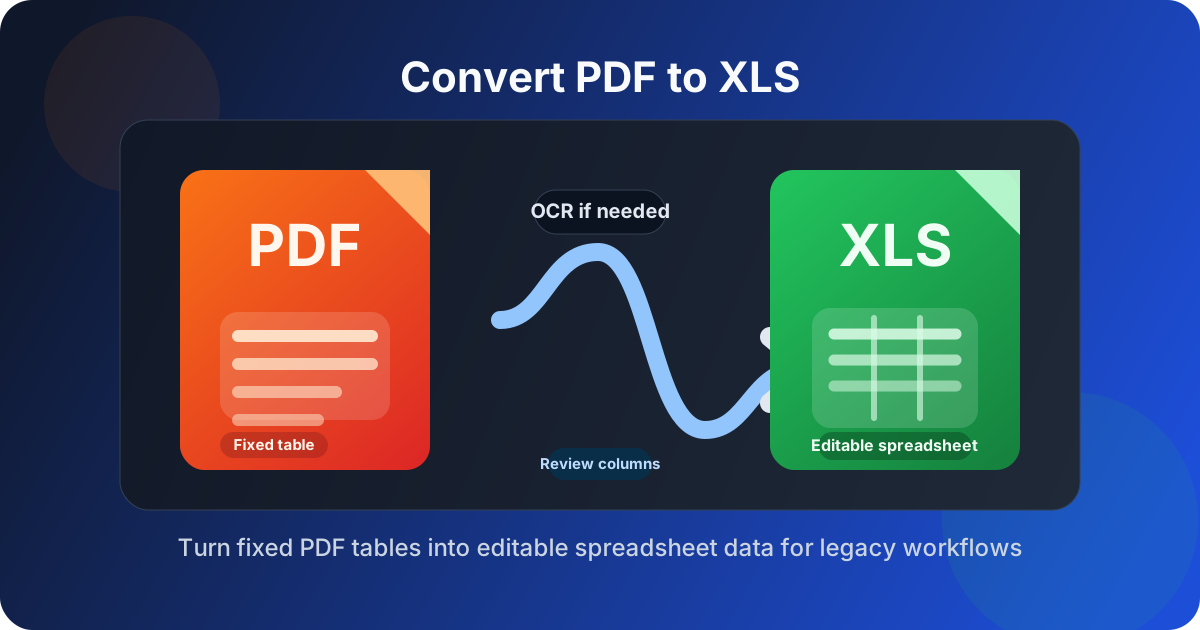
Table of contents
- Quick answer: the fastest way to convert PDF to XLS
- What “PDF to XLS” usually means now
- When old XLS still matters
- Step-by-step workflow with LifetimePDF
- How to get cleaner table extraction
- Scanned PDFs, OCR, and image-only tables
- XLS vs XLSX: what actually changes
- Common PDF to XLS problems and fixes
- Privacy and safer document handling
- Related LifetimePDF tools and guides
- FAQ
Quick answer: the fastest way to convert PDF to XLS
If your PDF already contains selectable text and the table is reasonably clean, the short workflow is straightforward:
- Open PDF to Excel.
- Upload only the pages that contain the table, invoice, statement, or report you need.
- Download the editable spreadsheet output.
- Review headers, columns, totals, and dates before you share or import it anywhere.
- If a legacy system truly requires .xls, open the spreadsheet in Excel and choose Save As → Excel 97-2003 Workbook (.xls).
What “PDF to XLS” usually means now
Search intent and file-format reality are not always the same thing. Plenty of people type PDF to XLS when what they really mean is: “give me an editable spreadsheet I can sort, filter, total, and import today.” That matters because modern conversion workflows often create XLSX first, not old binary XLS.
In practice, that is usually a good thing. XLSX is easier to clean up, easier to open in current spreadsheet software, and better for formulas, filters, and normal review work. The reason the keyword XLS still survives is simple: a lot of real-world workflows are older than the keyword trends suggest.
- Accounting teams may inherit old imports that only accept XLS.
- Internal office systems may still use legacy spreadsheet templates.
- Client handoff requirements may specify XLS because that is what their process documentation still says.
- Users themselves may say “XLS” when they really mean “editable Excel file.”
So the cleanest mental model is this: convert the PDF into usable spreadsheet data first, then decide whether the last step needs to be legacy XLS or whether a modern workbook already solves the job.
When old XLS still matters
Old XLS is not dead. It is just narrower than it used to be. If you are exporting data from a PDF for one of the workflows below, the exact keyword makes sense.
1) Legacy accounting or ERP imports
Some older systems still expect Excel 97-2003 workbook format. If your receiving software rejects XLSX or only documents XLS imports, saving the final file as XLS can be the difference between a smooth upload and a frustrating dead end.
2) Older office environments
Not every machine on every team is modern. Shared desktops, archived processes, and older office installs still show up in legal, finance, procurement, education, and public-sector environments.
3) Vendor or client requirements
Sometimes the destination system is not yours to modernize. If a customer, vendor, or portal says “send XLS,” the practical move is to work in a modern editable spreadsheet during cleanup, then export the final version as legacy XLS at the end.
Step-by-step workflow with LifetimePDF
If you want the least annoying path from fixed-layout PDF to workable spreadsheet output, use this order.
Step 1: Keep only the pages with data
Long PDFs often include title pages, charts, commentary, signatures, or appendices that have nothing to do with the table you need. Use Extract Pages first if you only need a few pages. Converters usually behave better when they are not trying to interpret unrelated layouts.
Step 2: Check whether the text is real or image-based
Try selecting a number or searching for a word inside the PDF. If the page acts like one flat image, use OCR PDF before conversion. OCR does not guarantee a perfect table, but it usually gives the converter a far better starting point.
Step 3: Convert the PDF into an editable spreadsheet
Open PDF to Excel, upload the cleaned or isolated file, and download the result. Do not judge the output only by the first visible rows. Skim the middle and bottom of the sheet too, because that is where repeated headers, shifted columns, and page-break artifacts often show up.
Step 4: Review structure before you trust the numbers
Check the column headers, date fields, currency cells, negative numbers, and totals. A converted spreadsheet can look fine at a glance while still hiding small structural mistakes that ruin imports or reports later.
Step 5: Save as XLS only if the final workflow needs it
If the destination system truly requires old XLS, open the converted spreadsheet in Excel or LibreOffice and export the final copy as legacy XLS. That keeps the cleanup process simpler while still giving the receiving workflow the format it expects.
How to get cleaner table extraction
Better results usually come from better preparation, not repeated random retries. If a PDF to XLS conversion looks messy, these are the first things worth fixing.
Isolate only the useful pages
A single clean table page converts more reliably than a mixed PDF full of charts, cover pages, and side notes. Smaller, more focused input often produces better spreadsheet structure.
Straighten and crop scanned pages
Crooked scans, dark borders, and extra white margins can confuse OCR and table detection. If needed, use tools like Compress PDF or page-specific cleanup steps before you convert.
Keep repeated headers in mind
Multipage statements often repeat the same column headings on every page. That is useful for humans but annoying for spreadsheets. Expect to remove duplicated header rows after conversion.
Watch merged cells and wrapped labels
PDFs are made for appearance, not structured data. If the original table uses merged labels, stacked text, or notes inside cells, some manual cleanup after conversion is normal.
| Source issue | What usually happens | Best fix |
|---|---|---|
| Scanned image-only pages | Rows and columns break or fail to map cleanly | Run OCR first |
| Cover pages or narrative sections mixed in | Converter guesses at non-table layouts | Extract only the table pages |
| Repeated headers across pages | Header rows appear multiple times in the sheet | Delete duplicate headers after conversion |
| Merged cells and uneven spacing | Shifted columns or split values | Review the sheet before importing |
Scanned PDFs, OCR, and image-only tables
This is where many conversions succeed or fail. If your PDF is really a scan, the converter is not reading table data directly. It is trying to recognize characters first, then reconstruct structure from what it finds.
That means scan quality matters a lot. Sharp, straight, high-contrast scans usually convert better than skewed phone photos, dark photocopies, or documents with background shadows. If the numbers are hard for your eyes to read, they are usually hard for OCR too.
Before converting a scanned statement or invoice to XLS, it helps to:
- rotate pages correctly,
- crop extra borders or scanner noise,
- separate irrelevant pages, and
- run OCR before spreadsheet conversion.
XLS vs XLSX: what actually changes
It helps to separate the search term from the working file. The keyword may be XLS, but your best editing format may still be XLSX until the final export step.
| Format | Best fit | Why you would choose it |
|---|---|---|
| XLS | Legacy imports and older office workflows | Use it when a destination system explicitly requires Excel 97-2003 Workbook format. |
| XLSX | Modern editing and cleanup | Better for current spreadsheet apps, filtering, formulas, and routine review work. |
The smart workflow is often: convert → review → clean up → export to XLS if needed. That gives you the flexibility of a modern spreadsheet while still satisfying a legacy handoff requirement.
Common PDF to XLS problems and fixes
Broken columns
Usually caused by uneven spacing, merged cells, or scans. Extract fewer pages, OCR first if needed, and review the output before importing it into another system.
Dates turned into text
This is common after conversion. Check whether dates sort correctly and convert text-formatted dates into real date cells before you rely on filtering or pivoting.
Currency values not totaling properly
If totals do not calculate, some values may have been imported as text or split across columns. Spot-check a few rows instead of assuming the bottom-line total is trustworthy.
Repeated page headers inside the data
Multipage statements and reports often reinsert headers on every page. Delete the duplicates before sorting or importing, or they can silently distort the sheet.
Blank rows or chopped line items
Long descriptions, wrapped text, and page breaks can split one logical row into two physical spreadsheet rows. Review any rows that look unusually short or incomplete.
Privacy and safer document handling
A lot of PDFs that get converted to spreadsheets contain real-world sensitive information: invoices, vendor payments, financial statements, customer details, employee data, or internal reports. So speed matters, but handling matters too.
- Only upload the pages you actually need.
- Remove irrelevant personal data before conversion when policy requires it.
- Review the output before forwarding it to anyone else.
- Keep an eye on hidden spreadsheet cleanup issues, especially if the file will be imported into a live system.
A clean spreadsheet is useful. A clean spreadsheet with the wrong customer data or a broken total is still a problem.
Related LifetimePDF tools and guides
If this workflow is close to what you need but not exactly it, these pages are usually the next best stop:
- PDF to Excel for editable spreadsheet conversion.
- Extract Pages if only a few PDF pages contain the table you need.
- OCR PDF for scanned or image-only documents.
- Convert PDF to Excel if your real goal is editable spreadsheet output regardless of extension.
- Convert PDF to XLS Online for a browser-first workflow.
- Convert PDF to XLS Without Monthly Fees if subscription friction is part of the problem.
Ready to do it now? Start with the spreadsheet conversion, then export to legacy XLS only if the destination actually requires it.
FAQ
How do I convert PDF to XLS?
Upload the PDF to a PDF to Excel converter, download the editable spreadsheet output, and save it as .xls only if your older workflow specifically requires that legacy format. If the PDF is scanned, OCR should come first.
Will a PDF to XLS tool give me XLS or XLSX?
Most modern tools create XLSX first because it is easier to edit and more compatible with current spreadsheet software. If your final destination truly needs .xls, you can usually export to that format afterward.
Can I convert a scanned PDF to XLS?
Yes, but the result depends heavily on OCR quality. A sharp, straight scan usually converts far better than a dark, skewed image or poor phone photo.
Why do columns break when I convert PDF to XLS?
Broken columns usually come from merged cells, uneven spacing, repeated headers, page breaks, or scan artifacts. Cleaning the source pages and isolating the relevant table pages usually improves the output more than repeated retries.
When should I choose XLS instead of XLSX?
Choose XLS when a legacy accounting system, ERP import, archive workflow, or older client requirement explicitly asks for Excel 97-2003 Workbook format. For most editing and cleanup work, XLSX is still the better working file.