Convert PDF to TXT: Best Workflow for Clean Plain-Text Output
To convert PDF to TXT, upload a text-based PDF to a PDF-to-Text tool and export the result as a plain .txt file; if the document is scanned, run OCR first so the text becomes readable before extraction.
TXT is the right destination when you want clean reusable words for notes, search, AI workflows, scripts, or lightweight archives and do not need the original page layout.
That distinction matters because many people do not actually want an “editable PDF.” They want the content liberated from the page. They need to quote a contract clause, search an old report, move manual pages into a knowledge base, feed a document into an AI workflow, or keep a tiny plain-text archive that opens anywhere. When that is the real job, TXT is often the simplest and fastest output format on purpose.
Fastest practical path: start with PDF to Text for normal digital PDFs, trim the page range first if the document is noisy, and use OCR before TXT extraction when the source is a scan.
Need the short version? Jump to Quick start: convert PDF to TXT in a few minutes.
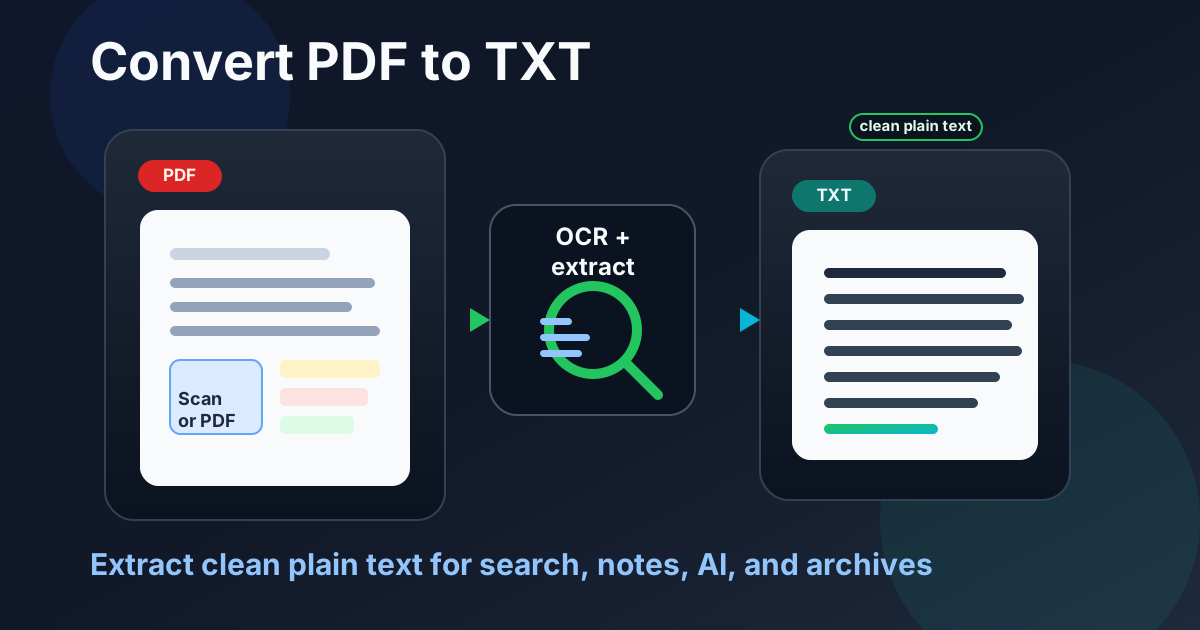
Table of contents
- Quick start: convert PDF to TXT in a few minutes
- What TXT keeps and what it drops
- When PDF to TXT is the best choice
- Step-by-step: a cleaner PDF-to-TXT workflow
- How to get cleaner plain-text output
- Scanned PDFs: OCR before TXT extraction
- TXT vs Word vs HTML vs Excel
- Best real-world uses for PDF to TXT
- Useful LifetimePDF tools and related guides
- FAQ
Quick start: convert PDF to TXT in a few minutes
If the PDF already contains selectable text, the short workflow is simple:
- Open PDF to Text.
- Upload the PDF you want to process.
- Export or copy the extracted text as TXT.
- Review the output for line order, repeated headers, or table noise.
- Reuse the plain text in notes, search, AI, scripts, email, or another editor.
If the PDF behaves like a stack of page images instead of real text, add one step at the front: run OCR PDF, then return to the TXT export.
What TXT keeps and what it drops
TXT is one of the oldest and most useful output formats precisely because it is so plain. It keeps the words and strips away almost everything decorative. That can feel limiting if you expected a polished document. It can feel perfect if you only wanted the content.
| TXT usually keeps | TXT usually drops |
|---|---|
| Paragraph text, headings, bullet wording, basic reading content | Fonts, exact spacing, page design, colors, images, signatures, and most layout cues |
| Searchable words you can paste anywhere | Structured tables, perfect reading order for columns, and visual hierarchy |
| Lightweight files for archives, scripts, and AI workflows | Anything that depends on the look of the page more than the words themselves |
This is why TXT is a strong destination for search, quoting, summarizing, translation prep, and automation. It is not the best destination when your real goal is preserving a brochure, a complex spreadsheet, or a report whose meaning depends on tables and layout.
When PDF to TXT is the best choice
PDF to TXT works best when you care more about the wording than the formatting. In practice, that covers a lot of useful work.
- Search and reference: pull the text out of manuals, reports, agreements, or policies so you can search them instantly.
- Notes and knowledge bases: move content from PDFs into internal docs, research notes, or CRM records without retyping everything.
- AI workflows: plain text is easier to summarize, index, chunk, and question than a visually busy PDF.
- Automation and scripts: TXT is simpler to parse, transform, and feed into downstream systems.
- Lightweight archives: if you need the words more than the design, TXT is tiny and future-proof.
A lot of people think they need “PDF editing” when they really need “PDF extraction.” If the document is already finished and all you need is the language inside it, TXT is often the cleaner answer.
Step-by-step: a cleaner PDF-to-TXT workflow
The quality of your TXT result usually depends more on the input and the page range than on heroic cleanup afterward. A calmer workflow produces better output.
1) Start with the best source PDF available
Original exported PDFs usually convert more cleanly than screenshots, rescans, or print-to-PDF copies. If you have a choice, use the most direct digital original.
2) Keep only the pages that actually matter
If you need one section from a long file, isolate it first with Extract Pages or Delete Pages. Smaller inputs are easier to process and easier to review.
3) Export the text
Use PDF to Text to extract the content. If the file already contains searchable text, this step is usually fast.
4) Review the output once with intent
Check headings, line breaks, repeated footers, names, dates, totals, and any sections that look like tables. You do not need to obsess over every paragraph. You do need to confirm that the parts you care about survived accurately.
5) Move the TXT into the real next step
That next step may be search, note-taking, an AI summary, a translation task, a support ticket, an internal wiki, or a script. TXT is rarely the end goal. It is the bridge that makes the next tool easier to use.
Need a practical stack for difficult files?
How to get cleaner plain-text output
Most PDF-to-TXT frustration comes from a few predictable layout problems. The fix is usually not “find a magical converter.” The fix is preparing the input more intelligently.
Remove junk pages first
Cover sheets, blank pages, legal boilerplate, repeated appendices, and scan artifacts all add noise. Strip them out before conversion when possible.
Fix rotation and margins before OCR
Sideways pages and giant scan borders make recognition worse. Use Rotate PDF or Crop PDF before OCR if the scan looks sloppy.
Expect columns and tables to need judgment
Multi-column layouts and data tables are where TXT often looks messy. If the meaning of the document depends on those structures, consider a different output format instead of over-cleaning plain text.
Convert less when possible
If you only need pages 14 through 18, do not convert all 130 pages. Shorter inputs usually mean better extraction and less review time.
Use TXT as an intermediate format when that is enough
Sometimes you do not need the final destination to be TXT forever. You may only need a clean text step before AI, search, translation, editing, or a rebuilt document. That is still a valid win.
Scanned PDFs: OCR before TXT extraction
Scanned PDFs are the most common reason a PDF-to-TXT workflow seems broken. The problem is not that the text extractor failed. The problem is that a scan often contains page images, not actual text.
OCR fixes that by recognizing the letters and creating a searchable text layer. Once that layer exists, TXT extraction becomes much more useful.
- Open OCR PDF.
- Upload the scanned or photographed file.
- Review the OCR result for obvious recognition issues.
- Then run PDF to Text to export plain text.
TXT vs Word vs HTML vs Excel
Choosing the right destination format matters more than squeezing perfection out of the wrong one. Here is the simple decision framework.
| Goal | Best format or tool | Why |
|---|---|---|
| Get the words fast | PDF to Text | Best when content matters more than design |
| Keep editable formatting | PDF to Word | Better for paragraphs, headings, and revision workflows |
| Keep web-friendly structure | PDF to HTML | Useful when section structure matters more than a bare text dump |
| Extract rows and columns | PDF to Excel | Better than TXT when tables are the real target |
| Handle scans first | OCR PDF | Creates readable text before any normal conversion step |
The easiest way to avoid disappointment is to ask one question early: Do I need the words, or do I need the structure? If the answer is “the words,” TXT is often right. If the answer is “the structure,” move to Word, HTML, or Excel instead.
Best real-world uses for PDF to TXT
Plain text feels humble, but it is quietly excellent for everyday work.
- Contracts and policies: search clauses, quote exact wording, and compare language faster.
- Reports and manuals: move content into documentation, wikis, or internal support notes.
- Research workflows: extract useful passages for reference, annotation, and note apps.
- AI processing: feed cleaner text into PDF Summarizer or ask follow-up questions with AI PDF Q&A.
- Translation prep: reduce a dense PDF to text before wider multilingual workflows.
- Automation: store the output in scripts, ETL pipelines, parsers, or internal processing jobs.
That is why PDF to TXT survives even when newer document formats exist. It is portable, lightweight, and incredibly easy to reuse once the text is clean.
Useful LifetimePDF tools and related guides
PDF to TXT becomes even more useful when it sits inside a small practical toolkit rather than acting alone.
- PDF to Text for the direct extraction step
- OCR PDF for scanned or image-only files
- Extract Pages for isolating the exact section you need
- Delete Pages for removing junk before export
- PDF to Word when editability matters more than plain text
- PDF to Excel when the source is really tabular data
- Text to PDF if you later want to rebuild a simple document from the cleaned text
Related reading: PDF to Text, Convert PDF to TXT Online Free, Convert PDF to TXT Online Without Monthly Fees, Convert PDF to TXT Without Monthly Fees, and OCR PDF.
Bottom line: use TXT when you want the words quickly, OCR scans before extraction, and switch formats early when layout or tables matter more than raw text.
FAQ
How do I convert PDF to TXT?
Upload a normal text-based PDF to a PDF-to-Text tool and export the result as a TXT file. If the file is scanned or image-only, run OCR first so the text becomes readable before extraction.
Will PDF to TXT keep the original formatting?
No. TXT is plain text, so it keeps the words but not fonts, layout, images, exact spacing, or most table structure. It is best when you care about content more than design.
Can I convert a scanned PDF to TXT?
Yes, but OCR usually needs to happen first. Scanned PDFs behave like page images until OCR creates a text layer that a TXT exporter can read.
Why does PDF to TXT sometimes look out of order?
PDFs preserve page layout rather than natural reading order. Columns, tables, headers, footers, and sidebars can all cause awkward or scrambled plain-text output.
When should I use Word, HTML, or Excel instead of TXT?
Use TXT when you mostly need the words. Use Word when editing structure matters, HTML when you need web-friendly structure, and Excel when the real target is rows and columns from tables.