Convert PDF to JSON: Extract Structured Data from Forms, Invoices, and Reports
To convert PDF to JSON, extract readable text or tables from the PDF first, then map the cleaned output into JSON objects or arrays.
If the PDF is scanned, run OCR first or the JSON will usually come out incomplete, noisy, or unreliable.
That is the short answer. The useful part is knowing which extraction path makes sense for the document in front of you. A contract, invoice, intake form, shipping manifest, and scanned receipt do not all behave the same. PDF is built to preserve appearance. JSON is built to preserve structure. A good workflow respects that difference instead of expecting one magical button to turn page layout into perfect machine-ready data.
Fastest path: check whether the PDF has selectable text, OCR it if needed, extract text or tables with LifetimePDF, then validate the important fields before you trust the JSON downstream.
Need the quick version? Jump to Quick start: convert PDF to JSON in about 5 minutes.
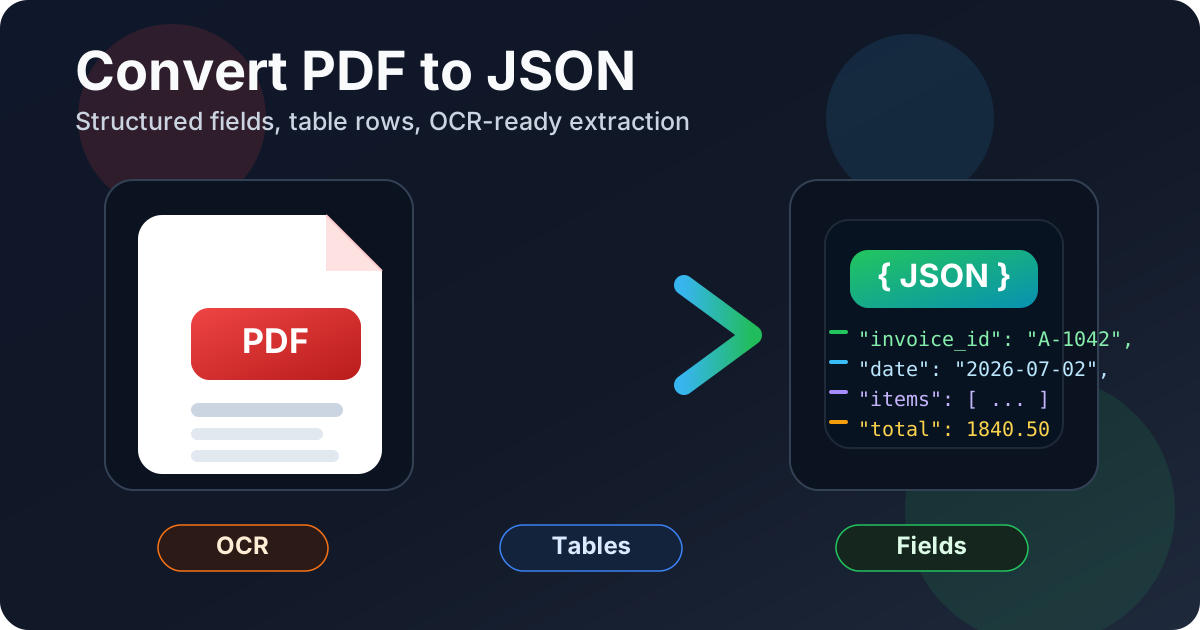
Table of contents
- Quick start: convert PDF to JSON in about 5 minutes
- What convert PDF to JSON actually means
- Choose the right extraction path: text, tables, or mixed documents
- Step-by-step: the cleanest PDF-to-JSON workflow
- Scanned PDFs: OCR first or the data falls apart
- How to handle forms, invoices, reports, and other common PDFs
- Common PDF-to-JSON problems and practical fixes
- Validate the output before you automate anything important
- Related tools and companion guides
- FAQ
Quick start: convert PDF to JSON in about 5 minutes
If the PDF already contains selectable text, this is the workflow most people actually need:
- Open PDF to Text if the file is mostly labels, paragraphs, or field-value pairs.
- Open PDF to Excel if the real target is a table, ledger, or line-item grid.
- Upload the PDF and extract the content.
- Clean repeated headers, page numbers, line breaks, and obvious junk.
- Map the cleaned content into JSON keys, objects, and arrays.
- Check dates, totals, names, and critical identifiers against the original PDF once before using the output anywhere important.
If the file is scanned, photographed, fax-like, or image-only, add one step before everything else:
- Run OCR PDF.
- Then extract the searchable result into text or tables.
What convert PDF to JSON actually means
People often talk about PDF-to-JSON as if it were one exact conversion type, like JPG to PNG. It usually is not. In practice, you are translating document content into a structure a script, database, automation platform, or app can understand.
Sometimes that means turning a simple form into key-value pairs. Sometimes it means turning a table into an array of rows. Sometimes it means breaking a multi-page report into sections, totals, and repeated objects. The cleaner the source PDF and the clearer your target structure, the better the JSON result will be.
- Preserving page layout
- Keeping documents stable for viewing or printing
- Bundling text, images, and tables into one shareable file
- Acting like a finished document snapshot
- Representing fields, arrays, and nested objects
- Powering automations, APIs, dashboards, and imports
- Separating data from page design
- Making machine-readable structure easier to reuse
That difference is why the best PDF-to-JSON workflow often uses an intermediate step. You extract the content in the format that makes the most sense, clean it, then shape it into JSON. That is more reliable than pretending every PDF already behaves like a neat database export.
Choose the right extraction path: text, tables, or mixed documents
The biggest mistake in this workflow is choosing the wrong starting point. If you send a table-heavy invoice through a pure text path, you get a wall of values with weak structure. If you send a narrative report through a spreadsheet-first path, you may create more cleanup than you save.
| PDF type | Best first step | Why it helps |
|---|---|---|
| Forms and field-value documents | PDF to Text | Labels and values usually survive better as readable text pairs |
| Invoices, statements, and line-item tables | PDF to Excel | Rows and columns are easier to turn into JSON arrays |
| Scanned PDFs | OCR PDF first | Without OCR, there often is no usable text structure to extract |
| Long reports with headings and sections | PDF to Text | Section names, paragraphs, and repeated headings are easier to parse from text |
| Mixed packets with only a few relevant pages | Extract Pages first | Smaller, cleaner input usually produces cleaner JSON |
You do not have to over-engineer this. Just ask one practical question: what part of this PDF do I actually need to reuse? If the answer is rows, use a table-friendly path. If the answer is labels, clauses, notes, or sections, use a text-friendly path.
Step-by-step: the cleanest PDF-to-JSON workflow
1) Decide whether the PDF is digital or scanned
Try to highlight a sentence or search for a word inside the PDF. If that works, you have a better starting point. If it does not, the file is probably a scan, a photo-based export, or a flattened image document that needs OCR before anything else.
2) Isolate only the useful pages when possible
If you only need pages 2 through 5, the invoice section, one appendix, or the filled-out part of a larger packet, isolate it first with Extract Pages or Split PDF. Smaller input usually means less cleanup, fewer duplicate headers, and fewer chances for unrelated pages to pollute the JSON.
3) Extract the right kind of content
Use PDF to Text when structure lives in labels, paragraphs, headings, and field-value patterns. Use PDF to Excel when the structure lives in rows, columns, amounts, item codes, or repeating table layouts.
4) Clean the extracted output before building JSON
The raw extraction is rarely the final answer. Remove repeated page headers, footer noise, blank rows, broken line wraps, and values that were split awkwardly across lines. This is the step that decides whether your JSON feels professional or improvised.
5) Map the cleaned content into keys, arrays, and nested objects
At this point, think about the destination. A contact form may become a simple object. An invoice may become one header object plus an array of line items. A report may become sections with titles, dates, summaries, and extracted metrics. The best JSON shape is the one that makes downstream use easy, not the one that copies the page visually.
6) Validate what matters before trusting the file
Do not just spot-check whether the output "looks fine." Compare the fields that matter: totals, dates, names, IDs, quantities, and legal or financial values. Clean-looking JSON is still dangerous if one decimal moved or one field label drifted into the wrong record.
Practical sequence: OCR if needed, isolate the right pages, extract text or tables, clean the result, then build JSON from the cleaned content instead of from the raw PDF.
Scanned PDFs: OCR first or the data falls apart
Scanned PDFs are where people lose time. A scan may look readable to you, but that does not mean the document contains machine-readable text. If the page is really just an image, JSON extraction has nothing dependable to build from yet.
Run OCR PDF before extraction whenever you see any of these signs:
- You cannot highlight text.
- Search inside the PDF returns nothing obvious.
- The file came from a scanner, copier, camera, or old archive.
- The PDF looks visually fine but behaves like a photo.
The cleaner move is to fix the scan first, then extract. That one decision avoids a lot of confusing cleanup later when fields merge, rows shift, or labels disappear.
How to handle forms, invoices, reports, and other common PDFs
Forms and applications
Forms usually work best when you preserve label-value relationships. If the document says Name, Date of Birth, Policy Number, or Status, your JSON should reflect those pairs clearly instead of flattening everything into one generic text blob.
Invoices, receipts, and statements
These documents usually have a mix of top-level fields and repeated line items. That means you often need one object for the header data and one array for the table content. PDF to Excel is often the cleaner first step when the rows matter as much as the totals.
Reports and summaries
Reports often contain headings, paragraphs, totals, dates, and small tables all at once. Here the challenge is deciding what needs to survive. If you only need sections, dates, conclusions, and a handful of metrics, a text-first path is often better than trying to preserve every decorative layout choice.
Large mixed packets
Multi-document packets are where page isolation matters most. If one PDF includes a cover page, an appendix, a blank scan, a contract, and a two-page form, do not extract the whole thing blindly. Break it into the useful parts first.
| Document type | What to preserve | Better first move |
|---|---|---|
| Fillable or fixed forms | Field names and values | Text extraction, then map to keys |
| Invoices and statements | Header data plus line items | Excel extraction for rows, text for labels if needed |
| Operational reports | Sections, dates, totals, metrics | Text extraction with manual cleanup |
| Archived scans | Anything readable at all | OCR before every other step |
Common PDF-to-JSON problems and practical fixes
The JSON contains duplicated text
That usually means page headers, footers, or recurring labels were extracted on every page. Remove repeated patterns before you structure the final output.
The rows came out scrambled
This is common in table-heavy PDFs, especially when columns are tight or scans are imperfect. Try a table-first extraction path instead of plain text, or reduce the input to just the pages containing the table you need.
The fields are missing or mislabeled
Forms and scans are sensitive to weak OCR, odd spacing, and low contrast. Re-run OCR on a cleaner version, or isolate the page first so the extraction has less noise to interpret.
The output is technically valid JSON but still not useful
That is often a structure problem rather than a syntax problem. A flat pile of values may still be valid JSON, but it is not good JSON if it is hard to query, import, or trust. Rebuild it around the way the destination system expects the data to behave.
The PDF is too big or too messy for a clean first pass
Split it up. Use Extract Pages or Split PDF so each extraction job is smaller and easier to validate.
Validate the output before you automate anything important
It is tempting to stop as soon as the JSON is syntactically valid. Do not. If the data will be used for operations, finance, legal review, reporting, or customer records, validation matters more than finishing fast.
- Check critical values: totals, dates, IDs, addresses, quantities, and names.
- Review repeated rows: line items are where column drift often hides.
- Compare a sample against the source PDF: especially on scans and low-quality originals.
- Keep the original file: JSON is the reusable data layer, but the PDF is still the visual source of truth.
Privacy matters here too. If the PDF contains sensitive information, extract only the pages you need, avoid casual oversharing of raw exports, and store the cleaned result with the same care you would give the original document.
Best final habit: trust the JSON only after you validate the fields that would actually hurt if they were wrong.
Related tools and companion guides
If this JSON workflow is part of a bigger document-processing job, these are the most useful next steps:
- PDF to Text for label-value extraction and text-first workflows
- PDF to Excel when rows and columns are the real target
- OCR PDF for scanned or image-only files
- Extract Pages to reduce noise before extraction
- Split PDF when one large packet should become smaller jobs
- Convert PDF to JSON Online for the browser-first companion angle
- Convert PDF to JSON Without Monthly Fees for the pricing-angle companion page
- PDF to CSV when flatter tabular export is enough
- PDF to Text for the broader text-extraction workflow
FAQ
How do I convert PDF to JSON?
Extract readable text or tables from the PDF first, clean the output, then map the result into JSON objects or arrays. If the PDF is scanned, OCR should happen before you try to structure the data.
Can I convert a scanned PDF to JSON?
Yes, but only reliably after OCR creates a usable text layer. Without OCR, a scanned PDF often behaves like a stack of images rather than a document with reusable data.
Should I use text or Excel before JSON?
Use text when labels, paragraphs, and field-value pairs matter most. Use Excel when the PDF is really about tables, rows, amounts, inventory, or repeated line items.
Will PDF to JSON preserve the exact layout?
No, not in the visual sense. JSON is meant to preserve structure and values, not fonts, spacing, or the printed appearance of the page.
Why does my PDF-to-JSON output look messy?
Usually because the source PDF is scanned, poorly structured, table-heavy, multi-column, or full of repeated headers and footer noise. OCR, page isolation, and a better intermediate extraction format usually improve the result.
Published by LifetimePDF — Pay once. Use forever.