Convert PDF to Audio: The Practical Way to Turn Documents into Clear, Listenable MP3s
To convert PDF to audio, first make sure the file contains real text, run OCR if it is scanned, extract and clean the text, and then send that cleaner version into a text-to-speech workflow.
In other words, the best PDF-to-audio result usually comes from better document prep, not from blindly forcing a messy file into a one-click converter.
That is the direct answer. The useful part is knowing how to tell whether a PDF is ready for audio, how to stop page numbers and broken columns from being read out loud like nonsense, and how to build a listening workflow that actually helps when you are commuting, studying, reviewing reports, or reducing screen fatigue.
Fastest practical path: check for selectable text, OCR scans, extract only the pages you need, clean obvious junk, then create the audio version from the cleaned text.
In a hurry? Jump to quick start: convert PDF to audio in about 7 minutes.
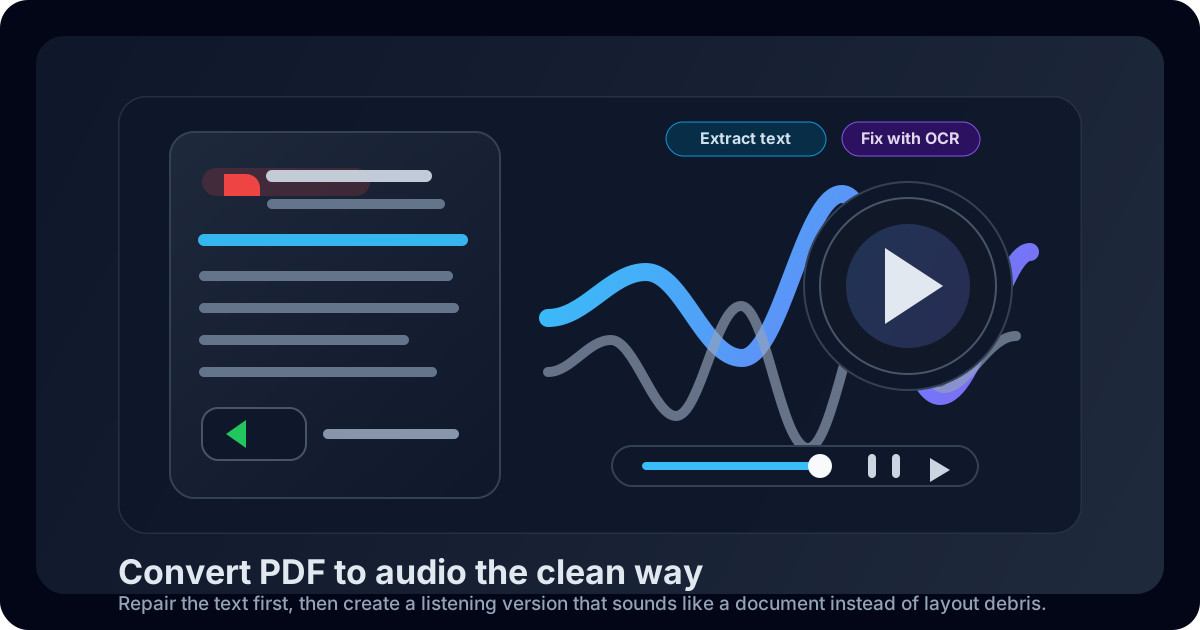
Table of contents
- Quick start: convert PDF to audio in about 7 minutes
- What converting PDF to audio really means
- The best workflow before you trust the spoken output
- Step-by-step: how to convert PDF to audio cleanly
- Scanned PDFs: why OCR decides whether the audio is usable
- How to make PDF audio sound less robotic and less chaotic
- Best output formats and listening habits
- Common PDF-to-audio mistakes
- Related LifetimePDF tools and guides
- FAQ
Quick start: convert PDF to audio in about 7 minutes
If you only want the shortest useful workflow, do this:
- Open the PDF and check whether you can select or search visible text.
- If the file behaves like an image, run OCR PDF first.
- If the document is long, isolate the useful section with Extract Pages or Split PDF.
- Use PDF to Text to pull the content into editable text.
- Delete page numbers, repeated headers, broken line wraps, and stray OCR junk.
- Send the cleaned text into your preferred text-to-speech path and save it as MP3 if you want the most portable result.
What converting PDF to audio really means
The phrase sounds as if one magic button should do everything. In practice, the job is usually document cleanup plus speech generation. That distinction matters because PDFs are often messy under the surface. A file can look tidy on screen while hiding broken reading order, repeated footers, scanned pages, and layout fragments that sound terrible when spoken.
Text-based PDF
Usually the easiest case. Extract the text, clean minor formatting noise, and move on to audio quickly.
Scanned PDF
Looks readable to humans but acts like an image to software. OCR is the bridge that makes audio possible.
Complex layout PDF
Tables, columns, sidebars, and footnotes may need selective extraction or cleanup before the audio becomes pleasant.
This is why the cleanest workflow starts by respecting the document as a document. Once you repair the text layer and remove the obvious junk, the audio part becomes much easier.
The best workflow before you trust the spoken output
A lot of frustration comes from treating every PDF as if it were ready for speech. It rarely is. The better mindset is to ask a sequence of simple questions.
| Question | What the answer tells you | Best next move |
|---|---|---|
| Can I select visible text? | The PDF probably has a usable text layer | Go straight to PDF to Text |
| Does search fail on obvious words? | The PDF may be scanned or weakly exported | Run OCR first |
| Does the file contain lots of irrelevant pages? | You risk cluttering the audio with appendices and junk | Extract or split only the pages you need |
| Does copied text come out scrambled? | Columns or layout structure may be interfering | Clean the output and consider smaller page ranges |
| Is the document sensitive? | Privacy matters as much as convenience | Redact unnecessary data and process only what you need |
Reliable sequence: confirm text → OCR scans → isolate the right pages → extract text → clean lightly → generate audio.
Step-by-step: how to convert PDF to audio cleanly
1) Check the real file, not a random preview
Start with the exact PDF you plan to use. People often test one preview in email or cloud storage, then later process another copy from Downloads. If the document matters, save one final version first so your extraction, cleanup, and audio all come from the same source.
2) Decide whether the PDF already has usable text
Try a quick search for a visible word or select one sentence. If the text is selectable, you are probably ready to extract it. If not, the PDF is likely scanned, flattened, or image-heavy, which means speech will fail or sound bizarre until OCR creates a usable text layer.
3) Keep only the pages worth hearing
Audio is much more usable when it focuses on the relevant part of the document. If a 70-page PDF contains one section you actually need, do not force the whole thing into speech. Use Extract Pages for a precise range or Split PDF when you want the file broken into smaller listening units.
4) Extract the text before you make audio
Use PDF to Text to see what the audio engine will actually be reading. This is the most practical quality-control step in the whole workflow. If the extracted text looks messy, the spoken result will probably sound worse.
5) Clean only the parts that will obviously sound bad
You do not need literary editing. Usually the biggest improvements come from removing things that do not belong in speech:
- page numbers and repeated headers,
- broken line endings that interrupt normal sentence flow,
- duplicate text caused by OCR or copy layers,
- table fragments that read like nonsense outside the layout.
6) Create the listening version from the cleaned text
Once the content reads smoothly as plain text, send it into your preferred text-to-speech workflow and save the result as MP3 or another format that suits your device. The better your text preparation, the less likely you are to blame the voice for a problem that started inside the PDF.
Scanned PDFs: why OCR decides whether the audio is usable
Scanned PDFs are the main reason people think PDF-to-audio is unreliable. The real problem is not the audio step. It is that the document is still a picture of text.
Signs the file needs OCR
- You cannot select any words even though the page is clearly readable to your eyes.
- Search misses obvious text that should be easy to find.
- The page behaves like a photo instead of a document with real text underneath.
What to do first
- Rotate sideways pages if needed.
- Crop unnecessary borders when the scan is ugly or off-center.
- Run OCR PDF.
- Then extract text and check whether the result reads naturally enough for speech.
How to make PDF audio sound less robotic and less chaotic
Better PDF audio does not usually come from hunting for a magical voice. It comes from feeding the voice cleaner input.
Remove visual clutter
Delete headers, footers, and page numbers so the spoken flow sounds like a document, not a filing system.
Break long files apart
Smaller audio sections are easier to replay, skim, and remember than one giant two-hour slab.
Simplify complex tables
Dense tables and side-by-side layouts often need a plain-language cleanup before they become listenable.
Test a short sample
A one-minute test tells you whether the extraction is clean before you waste time on the whole document.
If the real value is understanding the document fast rather than hearing every line, a companion workflow like AI PDF Q&A or PDF Summarizer may also help before or after the audio version. Listening is useful, but sometimes a sharper summary or targeted question is the better outcome.
Best output formats and listening habits
When you convert PDF to audio, the simplest output format is usually MP3. It is portable, small enough for phones, and easy to play almost anywhere.
| Format | Best for | Why it works |
|---|---|---|
| MP3 | Most users | Easy playback on phones, laptops, cars, and cloud storage |
| WAV | Editing or high-fidelity workflows | Larger files, but useful if you plan to process the audio further |
| OGG or other formats | Niche ecosystems | Fine when supported, but less universal than MP3 |
A few listening habits make the result more useful:
- Keep chapters separate if the document is long.
- Use speed controls for repetitive or familiar material.
- Name files clearly so you can find the right section later.
- Protect sensitive source PDFs if the audio workflow starts from private documents.
Good prep beats clever playback: a clean text layer, relevant page range, and small amount of cleanup usually matter more than the difference between one player and another.
Common PDF-to-audio mistakes
Most bad outcomes come from a few repeatable mistakes.
- Skipping OCR on scans and expecting speech to fix an image-only file.
- Processing the whole document blindly instead of isolating the pages that matter.
- Trusting a pretty PDF preview without checking whether the text layer is real.
- Ignoring messy extraction and blaming the audio voice later.
- Forgetting privacy when the PDF contains HR, legal, financial, or client material.
If you avoid those five problems, PDF-to-audio becomes much more predictable. The process stops feeling like a gimmick and starts feeling like a practical document workflow.
Need a smoother PDF listening workflow without subscription sprawl? LifetimePDF gives you the prep tools that make PDF audio more useful in the first place.
FAQ
How do I convert PDF to audio?
Check whether the PDF has real text, run OCR first if it is scanned, extract the text, clean obvious layout junk, and then create the spoken version from that cleaned text. That workflow is usually more reliable than forcing a messy PDF into speech directly.
Can a scanned PDF be converted to audio?
Yes, but scanned PDFs usually need OCR first. Until the file has a usable text layer, the audio step is trying to read a picture rather than a document.
What is the best format when I convert PDF to audio?
For most people, MP3 is the safest choice because it plays on phones, laptops, cloud storage players, and car systems without much friction.
Why does PDF audio sound messy or robotic?
Usually because the input text is messy. Repeated headers, page numbers, broken columns, OCR errors, and table fragments all make spoken output sound worse. Cleaning the text helps more than people expect.
Do I need a one-click PDF-to-audio converter?
Not necessarily. In many real-world cases, extracting and reviewing the text first gives you much better control and a much better listening result.
Published by LifetimePDF — Pay once. Use forever.