Summarize a Scanned PDF: OCR First for Better, Faster Document Summaries
To summarize a scanned PDF, run OCR first so the file becomes searchable text, then upload the cleaner version to a PDF summarizer and choose the summary depth you need.
If the scan is blurry, sideways, or mixed with unrelated pages, fix that before summarizing or the result will stay vague longer than it needs to.
That is the short answer. The more useful answer is that scanned PDFs often behave like page images, not normal text documents, so the summary step only becomes dependable after the text layer is readable enough to search, copy, and inspect. Once you treat the job as OCR first, summary second, long reports, contracts, manuals, invoices, research papers, and old paper archives become much easier to review quickly without pretending the first output is perfect.
Fastest path: OCR the scan, test whether the recovered text looks usable, isolate the right pages if the packet is messy, then generate the summary from the cleaner file.
In a hurry? Jump to Quick start: summarize a scanned PDF in a few minutes.
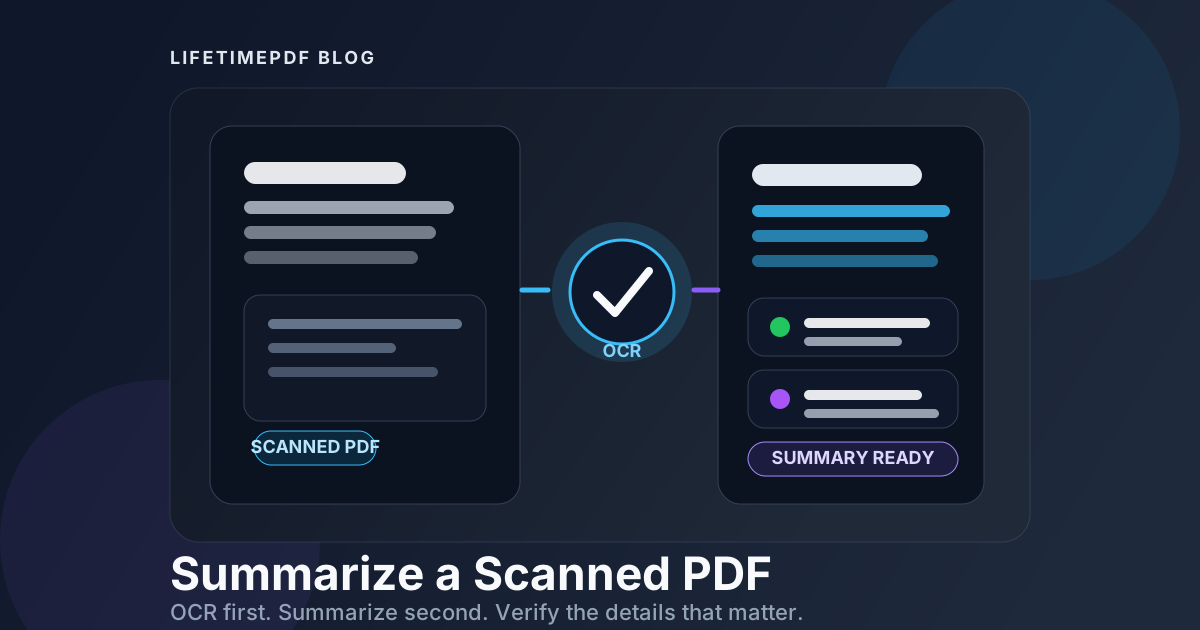
Table of contents
- Quick start: summarize a scanned PDF in a few minutes
- Why scanned PDFs need a different summary workflow
- Why OCR should usually happen first
- Step-by-step: the best way to summarize a scanned PDF
- Choosing the right summary format for the document
- How to handle messy scans and mixed document packets
- How to judge summary quality without fooling yourself
- Privacy and sensitive-document handling
- Related LifetimePDF tools and guides
- FAQ
Quick start: summarize a scanned PDF in a few minutes
If the PDF came from a scanner, copier, or phone camera, this is the shortest reliable workflow:
- Open OCR PDF.
- Upload the scanned file and create a searchable version.
- Test the result quickly by selecting text or checking it with PDF to Text.
- If the document is long or mixed, isolate the relevant section with Extract Pages.
- Upload the cleaner file to PDF Summarizer.
- Choose the summary depth that fits the job: overview, key points, or a more detailed breakdown.
- Verify names, dates, totals, deadlines, and quoted language in the source PDF before you rely on the summary.
Why scanned PDFs need a different summary workflow
A normal exported PDF usually contains a real text layer. A scanned PDF often does not. Even when the page looks readable to your eyes, software may still see it as an image. That difference is what makes scanned summaries weaker than expected: the summarizer is not struggling with your topic first. It is struggling to read the page at all.
This shows up in predictable ways. A summary may skip names, flatten section boundaries, mix up numbers, miss tables, or produce a vague paragraph that feels technically plausible but not actually dependable. The problem is often not that summarization is impossible. The problem is that the document is still half invisible to the tool.
Once the scan has a usable text layer, the quality usually improves fast. Search works. Copy-paste works. Page extraction becomes more purposeful. And summarization can finally focus on meaning instead of trying to guess the letters on the page.
Why OCR should usually happen first
OCR, or optical character recognition, converts the visible letters in a scan into machine-readable text. For scanned summaries, that is usually the step that changes the whole workflow from frustrating to practical.
You do not need to overthink the test. Open the file and try three fast checks:
- Can you highlight a sentence?
- Can you search for a visible word?
- Does copied text stay readable instead of turning into gibberish or broken fragments?
If those checks fail, use OCR PDF first. If you want a stronger verification, run the file through PDF to Text and inspect a short sample. That is often enough to tell whether the summary will have a fair chance.
Step-by-step: the best way to summarize a scanned PDF
The most dependable approach is not just "upload and hope." It is a short sequence that removes the common failure points before they waste your time.
1. Check whether the scan is already searchable
Some scanned PDFs already contain OCR from the copier, scanner, or archive system that created them. Others only look searchable until you test them. A thirty-second check now prevents a much longer cleanup later.
2. Run OCR if the text layer is missing or weak
Use LifetimePDF's OCR PDF to recover a usable text layer. If the file contains sideways pages, photographed pages, or mixed-quality scans, do not be surprised if some parts still need a quick sanity check afterward.
3. Inspect one short section before you summarize the whole thing
This is where people save themselves from bad summaries. Copy one paragraph, test search, or preview the extracted text. If headings are shredded, sentences are missing, or numbers are clearly broken, fix the scan quality first instead of blaming the summary result later.
4. Narrow the document when the packet is too broad
Many scanned PDFs are not one document. They are a packet: cover pages, forms, scanned inserts, exhibits, appendices, duplicate copies, or unrelated attachments. Use Extract Pages to isolate the section you actually want summarized. That usually makes the output sharper immediately.
5. Generate the summary at the right level
Open PDF Summarizer and choose a summary depth that matches the job. If you only need orientation, ask for a short overview. If you need handoff notes, key points may be better. If you are reviewing a report or contract before a deeper read, a more detailed summary makes more sense.
6. Verify the risky details in the original PDF
A summary is a speed tool, not a license to stop checking. Confirm dates, payment amounts, deadlines, names, quoted language, section references, and anything that could create legal, financial, or operational risk if it is wrong.
Choosing the right summary format for the document
Different scanned documents benefit from different summary styles. Matching the format to the document usually matters more than making the summary longer.
Scanned contracts and agreements
Start with a structured summary that surfaces the parties, scope, dates, payment terms, obligations, renewals, and anything that looks unusual. Then open the original file and verify the exact clauses before you rely on that summary in a negotiation or approval flow.
Reports, audits, and board packets
A key-points summary often works best. You usually want main findings, trends, action items, risks, and conclusions without dragging every appendix into the result.
Research papers and technical PDFs
A layered approach is better than one giant paragraph. First get the overview. Then, if the paper matters, summarize the methodology, findings, limitations, and conclusion sections separately.
Invoices, statements, and document packets
These often need extraction or page isolation first. If the goal is really to find totals, dates, payees, or line-item patterns, a targeted workflow can be more useful than asking for a broad narrative summary.
Manuals and scanned reference material
Use a summary to get oriented, then switch to AI PDF Q&A if you need answers about one procedure, warning, or part number. Manuals are often better for question-based follow-ups than for one single universal summary.
How to handle messy scans and mixed document packets
The biggest summary problems usually come from document mess, not from summarization itself. Here are the common trouble spots:
Sideways or upside-down pages
Fix orientation before OCR whenever possible. If the text is rotated, recognition quality can drop and the summary may miss whole lines or sections.
Dark borders, shadows, and photographed pages
Old archives and phone-camera scans often include black borders, warped pages, or uneven lighting. The file may still be readable, but OCR quality can fall enough to weaken the summary. A cleaner scan usually pays for itself.
Mixed packets with searchable and non-searchable pages
These are extremely common. One section may summarize well while another behaves like an image stack. Clean or isolate the weak section first so the summary does not blend good pages with bad ones.
Long packets with covers, exhibits, or appendices
Summaries become more useful when the input is intentional. If you only care about the executive summary, findings section, or one exhibit, extract that range before you summarize. More input is not always better input.
How to judge summary quality without fooling yourself
A summary can sound polished and still be weak. That is especially true with scanned documents because OCR errors can hide behind fluent wording.
A good summary of a scanned PDF usually does three things well:
- It identifies the real topic and purpose of the document quickly.
- It preserves key facts such as names, dates, totals, deadlines, and section intent.
- It makes it obvious what still needs checking in the original file.
A weak summary tends to do the opposite. It gets vague, collapses distinctions between sections, misses numbers, or sounds overconfident about details you cannot easily verify.
A practical habit is to compare the summary against three or four visible anchors in the PDF: a heading, a date, a total, and one sentence with distinctive wording. If those anchors survive cleanly, the rest of the result is usually on firmer ground.
Privacy and sensitive-document handling
Scanned PDFs often contain the documents people worry about most: signed agreements, HR files, medical forms, invoices, identity records, archived legal packets, and internal reports. That means the convenience of summarization should not override basic caution.
Before you summarize, decide whether the whole file needs to be included. If only one section matters, extract that portion first. If sensitive information is irrelevant to the task, consider whether the document should be cleaned, split, or reviewed with more care before you upload it anywhere.
When the summary matters for a real decision, keep the original PDF nearby and verify the risky details directly. Fast does not have to mean careless.
Related LifetimePDF tools and guides
A better scanned-PDF summary usually comes from using the right small sequence of tools rather than forcing everything through one step.
- OCR PDF for turning image-only pages into searchable text
- PDF Summarizer for overview, key-point, or deeper summary output
- PDF to Text for checking whether the text layer is actually usable
- Extract Pages for isolating the pages that deserve the summary
- AI PDF Q&A when you move from summary to follow-up questions
- How to Check If a PDF Is Searchable for quick pre-summary checks
- Ask Questions About a Scanned PDF for the next step after the summary
FAQ
Can I summarize a scanned PDF without OCR?
Sometimes, but the result is usually weaker if the file is image-only or the text layer is broken. OCR is what makes the content readable enough for a summary to stay specific instead of generic.
What is the fastest way to summarize a scanned PDF?
OCR the scan, test whether the text is searchable, narrow the page range if the packet is long, and then run the cleaned file through a PDF summarizer. That is usually faster than retrying several bad summaries from the raw scan.
Why does my scanned PDF summary miss names or numbers?
OCR quality is often the cause. Blurry scans, dark borders, rotated pages, and mixed packets can make important details harder to read correctly. Test the extracted text before you summarize.
Should I summarize the whole scanned packet or only part of it?
Only include the part that matters when you can. Extracting the relevant pages often gives you a cleaner, more useful summary and reduces noise from covers, appendices, or unrelated inserts.
What should I verify after I get the summary?
Check names, dates, payment amounts, deadlines, obligations, and quoted language in the original PDF. A summary is excellent for orientation, but the final check still belongs to the source document.