Ask Questions About a Scanned PDF: How to Get More Accurate Answers from Image-Only Files
Yes, you can ask questions about a scanned PDF, but the answers usually get much better after OCR turns the scan into searchable text. If the file is image-only, blurry, or mixed with photographed pages, the reliable workflow is to clean it up first, then ask narrower questions and verify the important answers in the source PDF.
That matters because a scanned PDF is often not a normal text document at all. It may behave like a stack of page images, which makes dates, totals, clause references, and quoted lines harder to extract correctly. Once you treat the job as OCR first, then document Q&A, the whole process becomes much more dependable for contracts, reports, invoices, manuals, case files, and old archives.
Fastest path: OCR the scan, check whether the text looks usable, then upload the cleaner file to LifetimePDF's AI PDF Q&A tool and start with one broad orientation question.
In a hurry? Jump to Quick start: ask a scanned PDF better questions in a few minutes.
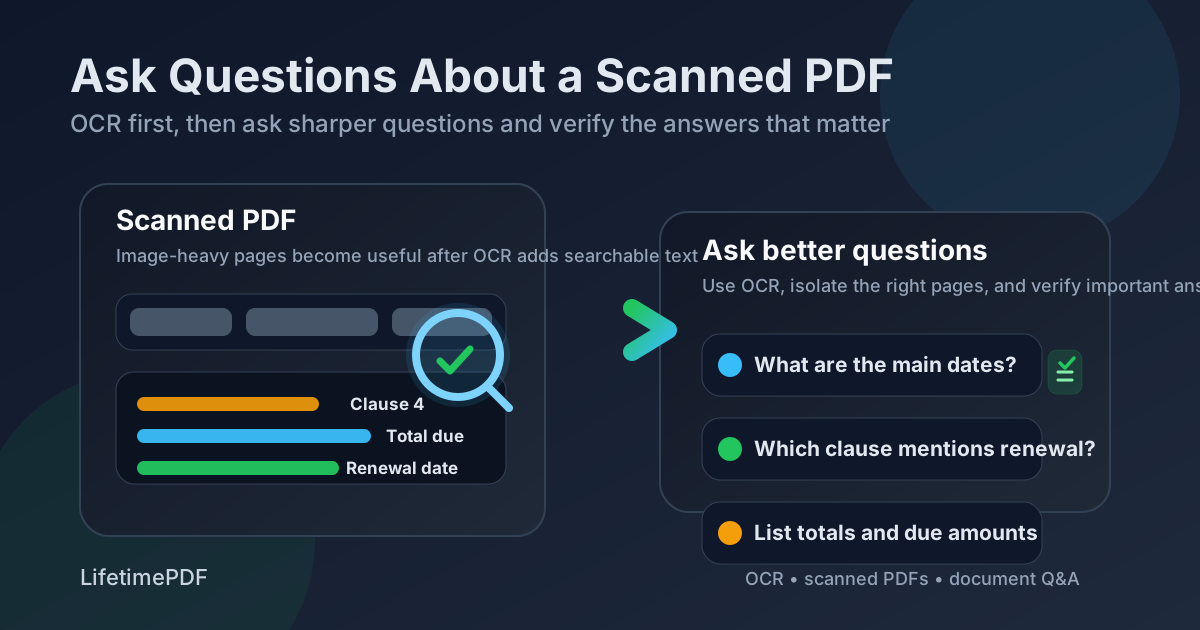
Table of contents
- Quick start: ask a scanned PDF better questions in a few minutes
- Why scanned PDFs need a different workflow
- Why OCR should usually happen first
- Step-by-step: the best way to ask questions about a scanned PDF
- Best prompts for contracts, invoices, reports, and manuals
- How to handle mixed document packets and messy scans
- How to verify the answers before relying on them
- Safer handling for sensitive scanned documents
- Related LifetimePDF tools for a smoother workflow
- FAQ
Quick start: ask a scanned PDF better questions in a few minutes
If the PDF came from a scanner, copier, or phone camera, this is the most reliable sequence:
- Open OCR PDF.
- Upload the scanned file and create a searchable version.
- Test the result by selecting text or checking it with PDF to Text.
- If the document is long, isolate the relevant section with Extract Pages.
- Upload the cleaned file to AI PDF Q&A.
- Start with one broad question such as “What is this document about?”, then move into narrower questions for dates, totals, obligations, names, or quoted language.
- Verify anything important in the source PDF before you act on it.
Why scanned PDFs need a different workflow
A normal exported PDF usually contains a real text layer. A scanned PDF often does not. Even when the pages look readable to your eyes, the file may still behave like a collection of images. That is why document Q&A can struggle with scanned reports, contracts, receipts, and archived records.
The gap shows up in very practical ways. Dates may be missed. Line items may blur together. Headings may get merged into body text. Tables may lose structure. Small footnotes, stamps, or handwritten notes can confuse extraction even more. The result is not always an obviously wrong answer. Sometimes the answer sounds polished while quietly skipping the detail you actually needed.
| Document type | What it behaves like | What usually helps |
|---|---|---|
| Normal exported PDF | Searchable text with cleaner structure | Upload directly, then verify important answers |
| Image-only scan | A stack of page pictures with little or no searchable text | Run OCR before asking questions |
| Mixed document packet | Some pages have text, others are scans, sideways inserts, or photos | Extract the relevant pages, OCR the weak section, then ask questions on that smaller subset |
| Low-quality archive | Blur, skew, shadows, stamps, and uneven contrast | Expect extra verification and narrower prompts |
Why OCR should usually happen first
OCR, or optical character recognition, is what turns the page image into something software can search, copy, and analyze more intelligently. It does not make every scan perfect, but it usually makes question-answer workflows far more useful.
OCR helps because it can:
- Create searchable text from image-only pages
- Improve section detection for headings, clauses, totals, and dates
- Make follow-up questions more precise because the underlying text is clearer
- Let you inspect the extraction before you trust the answers
OCR still has limits
Blurry scans, tiny fonts, shadows, handwriting, crooked pages, dense tables, and poor contrast can still produce weak text. That is why the best workflow is not simply run OCR and trust everything. The better workflow is OCR, spot-check the extracted text, ask more focused questions, then verify the high-stakes answers in the source PDF.
Best starting sequence for scans: OCR first → test the text → extract the relevant pages if needed → ask targeted questions → verify dates, money, and quoted wording.
Step-by-step: the best way to ask questions about a scanned PDF
1. Check whether the document is actually searchable
Before you ask anything, try searching for a word you can clearly see on the page. Then try selecting a line of text and copying it. If the copied result is empty or full of nonsense, you have your answer: the scan needs OCR or better preparation first.
2. OCR the file before you ask detailed questions
Use OCR PDF to create a searchable version. For many files, that one step is the difference between generic summaries and answers that can actually surface the right clause, line item, or reference.
3. Shrink the problem if the PDF is long
Many real-world PDFs are packets, not single documents. You may have an invoice packet, a long operations manual, an archive bundle, or a report with appendices. If you only need pages 18 to 27, extract those pages first. Smaller context usually produces cleaner answers and less noise.
4. Start with one orientation question
Do not open with a hyper-specific question unless you already know the file was read correctly. Start with something like What is this document about?, Summarize the sections on these pages, or List the main dates, totals, and named parties. That gives you a quick quality check before you rely on narrower follow-ups.
5. Move from broad to narrow questions
Once the orientation answer looks sane, ask specific follow-ups:
- Contracts: Which clause covers renewal, termination, notice, or payment timing?
- Invoices: What is the total due, due date, invoice number, and tax amount?
- Reports: Which pages mention the main findings, risks, or recommendations?
- Manuals: What steps are required to reset, configure, or troubleshoot the device?
6. Verify the answer where risk lives
If the answer affects money, deadlines, legal wording, or personal information, verify it directly in the PDF. Good document Q&A speeds up review. It should not replace judgment on the parts that can actually cause trouble.
Best prompts for contracts, invoices, reports, and manuals
Better prompts tend to be concrete. They name the kind of detail you need and keep the request tied to the document instead of asking for vague interpretation.
| Use case | Prompt that usually works well | Why it helps |
|---|---|---|
| Contract review | List the renewal date, notice period, payment terms, and any clause that limits liability. | Targets the details most likely to matter in a contract scan |
| Invoice check | Extract the vendor name, invoice number, due date, subtotal, tax, and final amount. | Pulls structured details instead of a generic summary |
| Report review | Summarize the main findings and list any deadlines, risks, or recommended next steps. | Gives you both orientation and action items |
| Manual or SOP | Which pages explain setup, reset, maintenance, or troubleshooting steps for this device? | Helps you find operational instructions faster |
How to handle mixed document packets and messy scans
Some scanned PDFs are not uniformly bad. They are uneven. One page may be crisp. The next is sideways. Then comes a photographed receipt, then a typed page, then a faded form. In those cases, the answer quality depends on how much noise you leave in the workflow.
What usually helps most
- Extract the relevant section instead of uploading the entire packet every time
- OCR the weak pages before you ask detailed questions
- Use PDF to Text as a sanity check to see whether names, totals, and headings survived extraction
- Ask narrower questions when the scan quality is inconsistent
This matters even more for archival records and older paper files. A long scanned archive may still be very useful, but you often get better results by working section by section instead of expecting one upload to understand the whole stack perfectly.
For long packets: isolate the pages that matter before you ask the document questions.
How to verify the answers before relying on them
Verification is what keeps scanned-PDF Q&A useful instead of risky. The point is not to distrust every answer. The point is to double-check the answers that would actually matter if they were wrong.
Always verify these first
- Dates and deadlines
- Totals, balances, taxes, and payment terms
- Quoted legal or policy language
- Names, addresses, and account identifiers
- Anything from a faint, tiny, or skewed section of the scan
One easy habit is to ask the question, then manually locate the answer in the PDF. If the answer says the due date is the 14th, jump to the invoice area and confirm it. If the answer says a contract renews automatically, confirm the clause wording yourself. That still saves time because you are verifying a guided answer instead of hunting blind.
Safer handling for sensitive scanned documents
Scanned PDFs often contain the exact documents people worry about most: IDs, signed forms, invoices, medical records, client paperwork, contracts, and case files. Before sharing or routing those files, think about whether the whole document really needs to move through the workflow unchanged.
- Remove irrelevant pages when only a section matters.
- Redact information that should not be exposed outside the review need.
- Keep the verification step close to the source document when handling high-stakes records.
If you need to blank out personal or confidential information before sending the file onward, use Redact PDF first.
Related LifetimePDF tools for a smoother workflow
Asking questions about a scanned PDF usually works best as part of a small workflow rather than a single one-click action.
| Tool | Best use |
|---|---|
| OCR PDF | Turn scanned pages into searchable text before asking questions |
| AI PDF Q&A | Ask broad and narrow questions once the document is readable |
| PDF to Text | Spot-check whether OCR produced clean enough text |
| Extract Pages | Focus the question workflow on the relevant section only |
| Redact PDF | Hide confidential information before sharing a scanned file |
Most dependable scanned-PDF sequence: OCR → text check → extract pages if needed → ask questions → verify the answer in the source PDF.
FAQ
Can I ask questions about a scanned PDF without converting it first?
Sometimes, but the answer quality is usually worse if the scan is image-only. OCR gives the workflow a readable text layer, which makes extracted details and follow-up questions much more reliable.
What is the best first question to ask a scanned PDF?
Start broad: ask what the document is about, what sections it contains, or which dates and totals appear. If that answer looks reasonable, then move into narrower questions for clauses, names, or exact fields.
How do I handle a scanned PDF that mixes typed pages and photos?
Work section by section. Extract the relevant pages, OCR the weak or photographed pages, and ask questions on the smaller cleaned subset instead of the entire packet.
What details should I always verify manually?
Verify dates, totals, payment terms, legal wording, names, and identifiers directly in the source PDF. Those are the details where a small OCR mistake can matter most.
Which LifetimePDF tools should I use together for scanned document questions?
The most practical stack is OCR PDF to create searchable text, PDF to Text to inspect the extraction, Extract Pages to isolate the relevant section, and AI PDF Q&A for the actual question workflow.