Convert Material Requisition PDF to Excel Online Without Monthly Fees: Track Site and Store Requests Faster
If you need to convert a material requisition PDF to Excel online, use a PDF to Excel converter, export the spreadsheet, and review requisition number, material code, description, site, store, requested quantity, issued quantity, unit, and cost-code fields right away.
If the requisition is scanned or bundled with issue slips, stock summaries, or approval pages, isolate the useful pages or run OCR first so the spreadsheet comes out much easier to sort, reconcile, and reuse.
Material requisitions sit right in the middle of real operations work. They show what a site needs, what a store can issue, what maintenance asked for, what a project consumed, and where stock is about to go next. The problem is that a PDF is great for viewing and signing, but not great for filtering by material code, comparing requested versus issued quantities, grouping by site, or checking which cost code keeps consuming the same items. This guide walks through a practical workflow for pulling useful material-requisition data into Excel without getting stuck in another monthly PDF subscription.
Fastest path: Use LifetimePDF's PDF to Excel tool to turn material requisition PDFs into editable Excel sheets.
In a hurry? Jump to Quick start: convert material requisition PDF to Excel in 4 minutes.
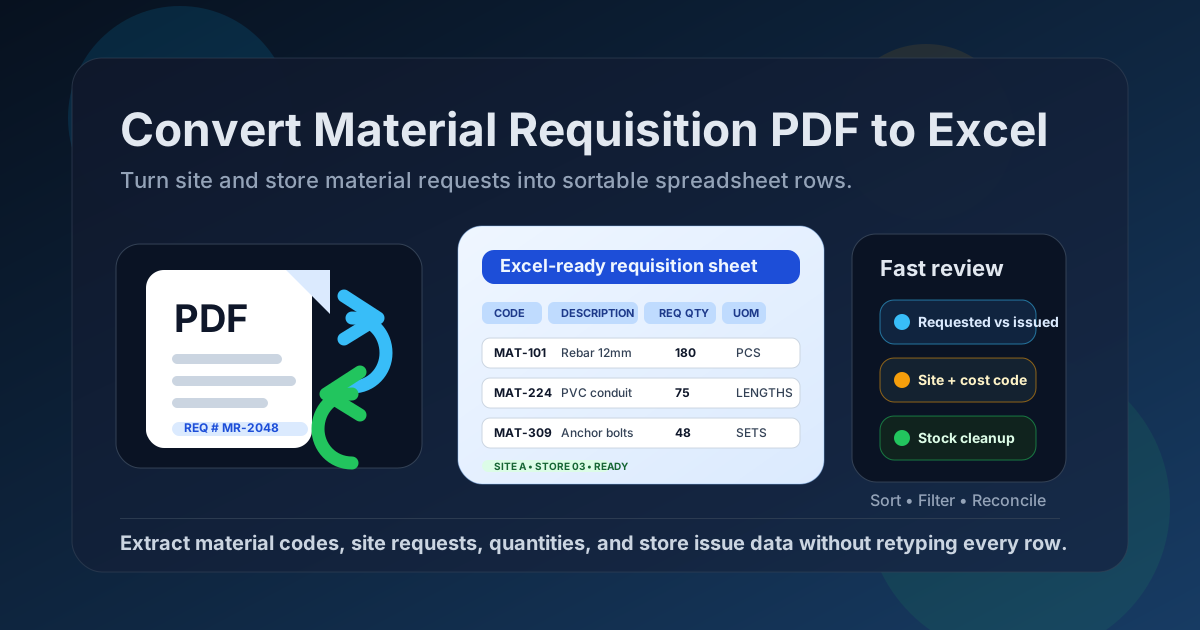
Table of contents
- Quick start: convert material requisition PDF to Excel in 4 minutes
- What a material requisition is and why teams extract it into Excel
- Why material requisition PDFs are harder than they look
- Best use cases: site issue tracking, stock control, cost coding, maintenance planning, audit prep
- Step-by-step: use LifetimePDF's PDF to Excel tool
- How to improve material requisition extraction accuracy before converting
- Scanned material requisitions and OCR: what to do when the PDF is image-only
- Excel cleanup checklist for requisition data
- Material requisition vs purchase requisition: what changes in Excel?
- Privacy and secure stock-document handling
- Subscription vs lifetime: why recurring fees get old fast
- Related LifetimePDF tools for the full materials workflow
- FAQ (People Also Ask)
Quick start: convert material requisition PDF to Excel in 4 minutes
If the material requisition PDF already contains selectable text and a reasonably clean item table, the fast workflow is simple:
- Open PDF to Excel.
- Upload the material requisition PDF you want to extract.
- Run the conversion and download the generated XLSX file.
- Open the spreadsheet and review requisition number, site, store, material code, item description, requested quantity, issued quantity, unit, and status.
What a material requisition is and why teams extract it into Excel
A material requisition is usually an internal request for stock, consumables, spare parts, construction materials, tools, or MRO items. A site engineer may request cement, conduit, anchors, or fasteners from the store. A maintenance planner may request bearings, lubricants, valves, or filters for a shutdown. A warehouse team may use requisitions to record what was asked for, what was actually issued, and which project, department, machine, or cost code should carry the usage. Humans can read all of that inside a PDF because we understand the layout. The trouble starts when someone needs to sort it, summarize it, or compare it against other records.
Once a material requisition becomes spreadsheet data, you can filter by site, store, project, item code, issue date, requester, or cost center. You can compare requested quantity against issued quantity, spot repeated emergency requests, group material usage by project zone, or prepare a structured import for ERP or stock-control cleanup. That is why the keyword convert material requisition PDF to Excel online maps to real work. People searching it usually do not want a prettier PDF. They want an editable worksheet that reduces retyping and makes operational data usable.
- Requisition number, request date, and issue date
- Site, department, work order, or project reference
- Material code, SKU, or stock number
- Item description, size, grade, or specification
- Requested quantity, issued quantity, balance, and unit of measure
- Store location, cost code, requester, approver, or remarks
- Sort requests by site, item code, or store location
- Compare requested and issued quantities faster
- Track material consumption by project or department
- Prepare audit logs, shortage checks, and stock summaries
- Reuse the data for reports, pivots, and imports
Why material requisition PDFs are harder than they look
Material requisitions often look simple on screen, but they are structurally awkward. One document may include a header block with site and store details, a table of requested materials, a separate issued-quantity area, handwritten adjustments, an approval section, and a signature panel on the same page. Another may span multiple pages with repeated headings and short item codes that must stay exact. Excel wants consistent rows and columns. A PDF preserves appearance, not data structure.
- Digitally generated ERP, CMMS, or store-system exports
- Files with one clear item table and consistent columns
- Standardized site or maintenance templates
- PDFs with selectable text instead of images
- Scanned paper forms or phone photos saved as PDF
- Forms with handwritten issue quantities or corrections
- Files bundled with issue slips, stock ledgers, or approvals
- Dense layouts with tiny material codes, stamps, or wrapped descriptions
This is why material-requisition extraction is not really about one-click perfection. The real win is getting a worksheet that is close enough to verify in a few minutes instead of retyping every item line, quantity, unit, and site reference by hand.
Best use cases: site issue tracking, stock control, cost coding, maintenance planning, audit prep
Here are the situations where converting material requisition PDFs into Excel spreadsheets saves the most time.
1) Site issue tracking
Construction, fabrication, and field teams often need to know what each site requested versus what the store actually released. In Excel, it becomes much easier to group requisitions by project, compare repeated requests, and spot urgent or abnormal consumption patterns.
2) Store and warehouse stock control
Material requisitions help explain where stock went. Once the data is in a spreadsheet, store teams can filter by item code, store bin, issue date, or requester, then compare those rows against inventory balances or stock-count reports.
3) Project cost coding and usage reporting
When the requisition includes project references or cost codes, Excel makes it easier to summarize material usage by area, activity, or team. That is useful for job costing, variance analysis, and simply understanding where materials are being consumed fastest.
4) Maintenance shutdown and MRO planning
Maintenance groups often work with repeated requests for consumables, spare parts, and emergency replacement items. Spreadsheet data is much easier to sort by asset, maintenance work order, shutdown window, or critical spares list.
5) Audit prep and internal reconciliation
Audits move faster when requisition PDFs become rows you can sort and compare. Instead of opening one PDF after another, you can build a clean requisition log and reconcile it against goods issue notes, stock reports, purchase records, or monthly usage summaries.
Step-by-step: use LifetimePDF's PDF to Excel tool
1) Open the converter
Go to LifetimePDF PDF to Excel. This is the main tool for turning material requisition PDFs into editable spreadsheets.
2) Upload the material requisition PDF
Drag and drop the file or choose it manually. If the packet includes supporting pages such as store notes, issue slips, stock cards, or approval attachments, isolate only the requisition pages first with Extract Pages or Delete Pages.
3) Run the conversion
Start the conversion and let the tool generate an editable XLSX file. For clean digital requisitions, this may already capture most of the usable item data.
4) Review the extracted spreadsheet immediately
Do a quick quality check before you trust the output:
- Did the requisition number and date stay intact?
- Did material code, description, quantity, and unit land in sensible columns?
- Did requested quantity and issued quantity remain separate?
- Did site, store, or cost-code fields drift into the item table?
- Did signatures, approval blocks, or footer notes become junk rows?
How to improve material requisition extraction accuracy before converting
If the first output looks rough, the PDF itself is usually the problem. These are the highest-impact ways to improve material-requisition extraction before exporting to Excel.
Fix 1: Convert only the requisition pages, not the whole packet
If the PDF bundle includes a material requisition, a goods issue note, an internal approval sheet, and a stock balance printout, do not feed all of it into one conversion if you only need the requisition lines. Use Extract Pages or Split PDF so the converter can focus on the structured data.
Fix 2: Correct page rotation before extraction
Sideways scans and rotated exports can break column detection. If the requisition was scanned or saved in the wrong orientation, fix it first using Rotate PDF.
Fix 3: Crop out wide margins, stamps, and visual noise
Large borders, oversized stamps, side notes, and footer disclaimers can create junk rows in the spreadsheet. Use Crop PDF if the useful item table is surrounded by clutter.
Fix 4: Separate header data from line-item extraction mentally
Many material requisitions really contain two kinds of information: header data such as requisition number, site, store, and requester, plus repeated item rows such as material code, quantity, and unit. Even when the conversion works well, you may still need to place some header fields into dedicated columns manually. That is normal. The biggest time savings usually come from recovering the repeated line items accurately.
Fix 5: Use OCR when the requisition is image-only
If you cannot highlight text in the PDF, it is probably scanned. Run OCR PDF first so the converter has real text to work with.
Fix 6: Validate the fields that matter most
For material requisitions, the most important fields are usually requisition number, site or department, material code, description, requested quantity, issued quantity, unit, and cost code. Check those first. If an approval comment is slightly messy but the stock-driving fields are correct, you may already have a very usable spreadsheet.
Scanned material requisitions and OCR: what to do when the PDF is image-only
A fast test: try to highlight a material code or item description in the requisition PDF. If you cannot select text, the file is probably scanned or image-based. That means the converter has to recognize characters before it can organize them into spreadsheet columns. This is where OCR becomes important.
- Printed requisitions scanned clearly
- Standard site-store forms with readable labels
- High-contrast PDFs with straight alignment
- Rows that stay in predictable columns
- Blurry phone photos or low-resolution scans
- Heavy handwriting over printed quantities
- Crooked pages, dark stamps, or shadowed folds
- Tiny item codes mixed with dense remarks or signatures
Recommended LifetimePDF workflow for scanned material requisitions
- Fix orientation with Rotate PDF.
- Trim unnecessary borders using Crop PDF.
- Run OCR PDF to recover readable text.
- Then convert the cleaned file with PDF to Excel.
Excel cleanup checklist for requisition data
Even a strong conversion may produce a spreadsheet that is almost right rather than fully polished. These are the fastest cleanup moves once the XLSX is open.
1) Standardize the core columns first
Decide on a clean structure such as:
Req # | Date | Site | Store | Material Code | Description | Req Qty | Issued Qty | UOM | Cost Code | Requester | Status.
If the extracted sheet uses inconsistent labels, rename them before you start filtering or reconciling.
2) Convert numbers stored as text
If requested quantities or issued quantities will not sort or calculate correctly, the values may have landed as text. Use Excel's Convert to Number option where appropriate.
3) Watch for split rows caused by wrapped descriptions
Long material descriptions, size specifications, or remarks often wrap across lines. That can turn one item into two spreadsheet rows. Scan for rows where the material code or quantity is blank but the description obviously continues.
4) Remove repeated headers, stamps, and signature blocks
Multi-page requisitions often repeat table headings or include approval sections at the bottom of each page. Delete those rows before analysis or import.
5) Preserve material codes and leading zeros
Stock numbers, bin codes, and internal item references may need to remain text. If Excel strips leading zeros or reformats codes, set those columns to Text.
6) Validate requested and issued quantities against the source PDF
Before you share the spreadsheet or import it somewhere else, compare the key material lines against the original PDF. That small habit prevents avoidable stock and costing mistakes later.
| Problem | Common cause | Fastest fix |
|---|---|---|
| Material code and description land in one column | Tight spacing or merged cells in the PDF | Split the column manually after conversion |
| Requested quantity and issued quantity look wrong | Numbers imported as text or rows broken across lines | Rejoin the item row and convert numeric fields properly |
| Extra junk rows appear | Repeated headers, stamps, footers, or signatures | Delete the noise rows before filtering or pivoting |
| Item references lose zeros | Spreadsheet auto-formatting | Set the column to Text and preserve the original code format |
Material requisition vs purchase requisition: what changes in Excel?
These terms are related, but they are not the same thing. Understanding the difference helps you build better spreadsheet columns after conversion.
| Document type | Usually means | Excel fields that matter most |
|---|---|---|
| Material requisition | Internal request to issue stock or materials from a store, warehouse, or site inventory | Material code, requested qty, issued qty, UOM, site, store, cost code, issue status |
| Purchase requisition | Internal request to buy goods or services from an outside supplier | Requester, department, item description, needed-by date, estimated amount, budget code, approval status |
That difference matters because a material requisition spreadsheet is usually used for stock movement, issue control, and consumption tracking, while a purchase requisition spreadsheet is usually used for approval flow, sourcing, and spend control.
Privacy and secure stock-document handling
Material requisitions may look routine, but they often contain internal stock positions, project names, site references, cost codes, equipment details, and operational notes. If you are using an online workflow, treat them like business records, not casual attachments.
- Upload only what you need: isolate the requisition pages instead of sending the full packet.
- Redact when appropriate: if the PDF contains internal notes or unrelated data, remove it first.
- Protect the final deliverable: if you share a cleaned PDF later, password-protect it.
- Follow company policy: for regulated or sensitive operations, use the approved document process.
Subscription vs lifetime: why recurring fees get old fast
Material-requisition cleanup is exactly the kind of task that keeps coming back. One day it is a site request. The next day it is a store issue log, a maintenance material list, a goods receipt note, or a stock reconciliation packet. That is why recurring subscription friction feels especially annoying in this category.
| Model | How it feels in real life | Best for |
|---|---|---|
| Monthly subscription | Looks manageable at first, then keeps charging for a workflow that shows up every week or every month. | Short bursts of heavy extraction work if you really cancel immediately |
| Lifetime / pay once | You stop thinking about quotas and just use the tools whenever requisitions, issue notes, stock records, or scans show up. | Stores teams, project admins, maintenance planners, operations staff, and anyone tired of subscription fatigue |
LifetimePDF is built around a simpler promise: pay once, use forever. That matters because materials workflows rarely happen alone. One day you need PDF to Excel. The next day you need OCR for a scan, page extraction for a mixed packet, or Excel to PDF after cleanup. A broader pay-once toolkit often fits reality better than another recurring software bill.
Simple math: if another PDF tool costs around $10/month, you pass $49 in about five months. For recurring stores and site-admin work, a pay-once workflow usually wins quickly.
Related LifetimePDF tools for the full materials workflow
Material-requisition extraction is often only one step in a larger store, maintenance, or project process. These tools pair well with PDF to Excel:
- OCR PDF - recover text from scanned requisition forms.
- Extract Pages - isolate only the requisition pages you need.
- Delete Pages - remove stock summaries, memos, or approval appendices.
- Split PDF - break mixed warehouse or project packets into cleaner sections.
- Rotate PDF - fix sideways scans before OCR or conversion.
- Crop PDF - remove margins and visual noise.
- PDF to Text - extract readable text if you do not need full spreadsheet structure.
- Compare PDFs - check differences between two requisition versions.
- Excel to PDF - re-export a cleaned worksheet into a polished PDF.
Suggested internal blog links
- Convert Purchase Requisition PDF to Excel Online Without Monthly Fees
- Convert Goods Issue Note PDF to Excel Online Without Monthly Fees
- Convert Goods Receipt Note PDF to Excel Online Without Monthly Fees
- Convert Inventory List PDF to Excel Online Without Monthly Fees
- Extract Tables from PDF to Excel Online Without Monthly Fees
- OCR PDF Online Without Monthly Fees
FAQ (People Also Ask)
How do I convert a material requisition PDF to Excel online?
Use PDF to Excel, upload the material requisition PDF, export the XLSX file, and then review requisition number, material code, site, requested quantity, issued quantity, unit, store, and cost-code fields. If the requisition is scanned, run OCR PDF first for better results.
Can I convert a scanned material requisition PDF to Excel?
Yes, often. OCR usually improves extraction by turning image-based text into machine-readable text before conversion. Clean, straight scans with readable tables usually produce the best results.
Why are my material requisition columns broken after PDF to Excel conversion?
Common causes include mixed header blocks and line-item tables, handwritten issue quantities, low-quality scans, wrapped descriptions, repeated headers, and signature sections. Converting a smaller, cleaner page range usually improves output more than retrying the same messy packet.
What is the difference between a material requisition and a purchase requisition?
A material requisition is usually an internal request to issue stock or materials from a store, warehouse, or site inventory. A purchase requisition is usually a request to buy goods or services from an outside supplier. One is mainly about stock movement; the other is mainly about buying approval.
Should I convert a material requisition PDF to Excel or CSV?
Use Excel when you want a worksheet you can inspect, clean, filter, and hand off. Use CSV when you only need raw structured data for import into another system and do not need worksheet features.
Is a pay-once PDF workflow better than a subscription for stores and site admin?
For many teams, yes. Material requisition work keeps coming back, so a one-time purchase often removes more friction than a subscription that keeps reintroducing quotas, upgrade prompts, or recurring billing for the same kind of document task.
Published by LifetimePDF - Pay once. Use forever.