Convert Inventory List PDF to Excel: Extract SKUs, Quantities, Bin Locations, and Stock Values Faster
To convert inventory list PDF to Excel, upload the stock report to LifetimePDF's PDF to Excel tool, export the XLSX, and review the SKU, item description, quantity, location, reorder point, and stock value before using the spreadsheet.
If the inventory list is scanned, image-only, or buried inside a larger warehouse packet, keep only the real stock pages and run OCR first so the sheet comes out cleaner and needs less repair.
People searching this phrase usually are not chasing a novelty conversion. They are trying to stop retyping stock rows, compare counted quantities against system quantities, clean up an ERP import, or hand operations and purchasing a sheet they can actually filter without rebuilding the document by hand.
Fastest path: use LifetimePDF's PDF to Excel tool, and OCR the inventory list first if it came from a scan, photocopy, or image-only archive.
In a hurry? Jump to Quick start: convert inventory list PDF to Excel in about 5 minutes.
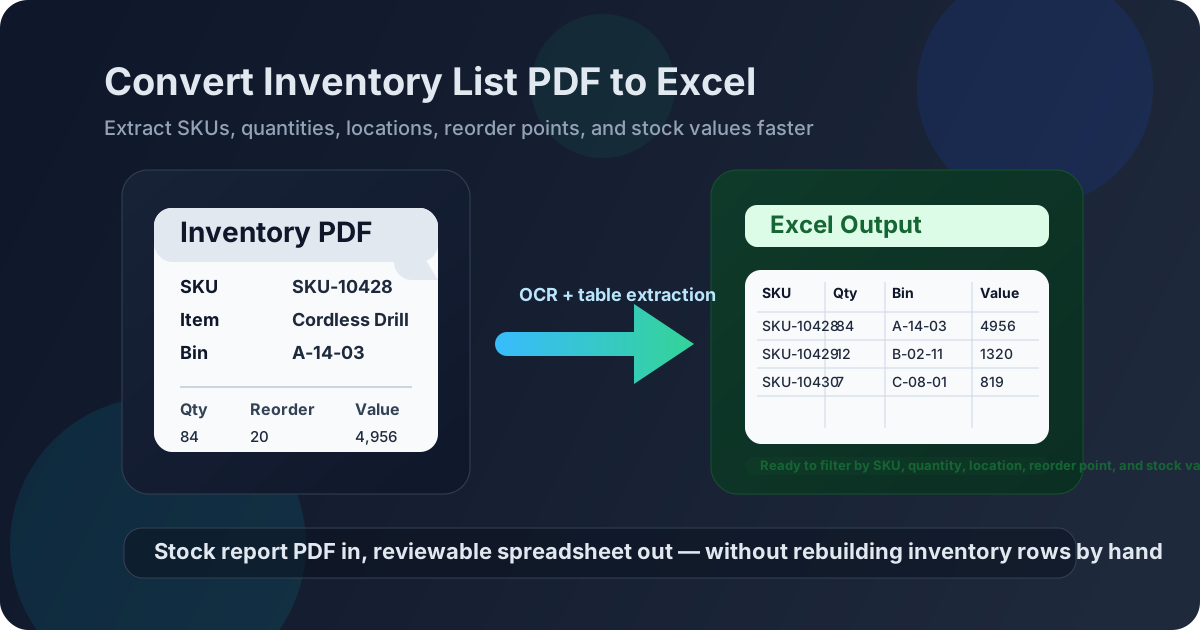
Table of contents
- Quick start: convert inventory list PDF to Excel in about 5 minutes
- Why teams need inventory list PDFs in Excel
- Why inventory list PDFs often break into messy columns
- Where inventory spreadsheets help most in real workflows
- Step-by-step: convert an inventory list PDF to Excel
- The fields worth verifying before you trust the output
- Scanned inventory lists and OCR: what changes
- Excel vs CSV for inventory extraction
- A cleanup checklist that saves time later
- Privacy and stock-document hygiene
- Related LifetimePDF tools and companion guides
- FAQ (People Also Ask)
Quick start: convert inventory list PDF to Excel in about 5 minutes
If the inventory list already contains selectable text and the table layout is reasonably clean, the fast workflow is simple:
- Open PDF to Excel.
- Upload the inventory list PDF you want to extract.
- If the file is scanned or image-only, run OCR PDF first.
- Download the generated XLSX file.
- Review the SKU, item description, quantity, unit, location, reorder point, and stock value before using the sheet for stock counts, replenishment, or imports.
Why teams need inventory list PDFs in Excel
An inventory list records what a business currently holds, counts, moves, buys, or audits. Depending on the workflow, it can include the SKU, product name, variant, unit of measure, quantity on hand, reserved quantity, warehouse or bin location, reorder threshold, unit cost, and stock value. Humans can read that on screen because we instantly understand which fields belong to each row. A PDF keeps the information frozen in layout form. Excel makes it reusable.
Once an inventory list becomes spreadsheet data, teams can filter by SKU, warehouse, aisle, bin, supplier, category, or stock level. That is the real value behind searching convert inventory list PDF to Excel. People usually do not want a prettier file. They want an editable worksheet they can compare, reconcile, sort, and reuse without copying every stock row one field at a time.
- SKU, item code, barcode, or product ID
- Item name, variant, size, or color
- Warehouse, aisle, shelf, or bin location
- Quantity on hand, reserved quantity, or counted quantity
- Reorder point, supplier code, or lead-time note
- Unit cost, selling price, or total stock value
- Sort and filter items by location, category, or stock level
- Compare counted stock against expected stock faster
- Highlight low-stock, overstocked, or duplicated items
- Prepare imports for ERP, WMS, POS, or e-commerce systems
- Build summaries for warehouse, purchasing, or finance teams
Why inventory list PDFs often break into messy columns
Inventory list PDFs look structured to humans because we visually understand headers, tables, barcode text, notes, and totals. A converter has to infer rows and columns from spacing and alignment. One stock report may contain warehouse headings, product rows, category breaks, valuation notes, signatures, and footer timestamps on the same page. Excel wants clean rows and columns. Many inventory PDFs were never built for that.
- Digitally generated PDFs exported from ERP, WMS, or POS systems
- Files with consistent labels and stable table spacing
- Reports that keep each item on one logical row
- PDFs with selectable text instead of image-only scans
- Scanned stocktake sheets or phone-made PDFs
- Documents with handwritten count marks or approvals
- Files bundled with instructions, appendices, or summary pages
- Dense layouts with tiny fonts, wrapped descriptions, or rotated pages
The goal is not magical perfection. The real win is getting a spreadsheet that is close enough to verify quickly instead of retyping every SKU, description, quantity, and location by hand.
Where inventory spreadsheets help most in real workflows
Inventory data becomes much more useful the moment it is no longer trapped in PDF form. A few real workflows come up repeatedly:
Teams can compare counted quantities against system quantities without opening one PDF after another.
Excel makes it easier to isolate items below reorder point, group products by supplier, and prepare restock decisions.
Editable sheets help normalize location codes, spot duplicated SKUs, and prepare transfer or variance reports.
Structured rows are easier to import, reconcile, or hand to finance and auditors than static stock-report PDFs.
Step-by-step: convert an inventory list PDF to Excel
The most reliable workflow is intentionally boring. That is good. Boring workflows are the ones warehouse, operations, and finance teams can repeat without surprises.
- Keep only the pages that contain inventory rows. If the packet includes instructions, signatures, valuation notes, or other attachments, isolate the actual inventory pages first.
- Open LifetimePDF's PDF to Excel tool. Upload the file you want to extract and let the converter focus on the stock table itself.
- Run OCR when needed. If the file came from a scan or image-only archive, OCR first usually improves recognition of SKUs, quantities, and location codes.
- Download the XLSX output. Keep the original PDF nearby while you review the extracted sheet.
- Check the high-risk fields. Do not assume the sheet is correct just because it opened cleanly.
- Use filters and light cleanup. Once the core data looks right, Excel becomes the easier place to compare, sort, and reuse it.
Useful tool stack: PDF to Excel for extraction, Extract Pages for page isolation, and OCR PDF for scanned inventory sheets.
The fields worth verifying before you trust the output
Most extraction mistakes are small but annoying. A shifted SKU, missing quantity, or broken location code can travel surprisingly far before someone notices. Review the output with a checklist instead of a quick glance.
- SKU, barcode, or item code
- Item name, variant, or product description
- Warehouse, aisle, shelf, or bin location
- Supplier or category field if present
- Unit of measure
- Quantity on hand, reserved quantity, or counted quantity
- Reorder point or min/max stock level
- Unit cost or unit price
- Total stock value
- Repeated headers accidentally captured as data rows
If the extracted file will be imported anywhere else, this review matters even more. It is much easier to correct a few shifted cells now than to explain a broken stock count or valuation later.
Scanned inventory lists and OCR: what changes
Scanned stock sheets are still workable, but they need a little more respect. OCR helps convert image-only text into something the spreadsheet extraction step can read. It does not magically fix every layout problem, but it usually makes SKUs, quantities, locations, and reorder fields much easier to capture.
- the inventory list was scanned from paper,
- the PDF came from a phone photo or dark photocopy,
- the text is not selectable,
- handwritten marks or stamps overlap key fields, or
- the file is part of a mixed warehouse packet with inconsistent page quality.
Even after OCR, keep expectations realistic. Dense tables, handwritten adjustments, barcode legends, and repeated headers still need a human review. OCR improves the odds of a cleaner sheet. It does not replace checking the result.
Excel vs CSV for inventory extraction
Both formats have a place, but they solve slightly different problems.
- a person still needs to review the output,
- you want filters, formulas, or quick fixes,
- you are reconciling stock data against another report,
- another team will read the sheet before import.
- you only need plain rows and columns,
- the next step is a structured system import,
- formatting does not matter,
- someone else already defined the final schema.
For most real inventory workflows, Excel is the safer first stop because it gives you one more chance to catch broken rows before the data travels.
A cleanup checklist that saves time later
A small amount of cleanup early often prevents a larger headache downstream.
- Delete non-stock pages before converting if they are still mixed into the file.
- Freeze the header row so field checks are easier.
- Filter for blanks in SKU, quantity, location, or stock-value columns.
- Check whether repeated page headers were captured as data rows.
- Confirm that quantity and value columns did not slide into neighboring fields.
- Preserve leading zeros in SKU, barcode, or location fields that should remain text.
- Spot-check a few high-value or low-stock items against the original PDF.
Privacy and stock-document hygiene
Inventory lists often carry more sensitive detail than people expect. They can reveal SKU catalogs, warehouse layouts, supplier references, stock positions, costs, and valuation logic. Treat them as real business records, not throwaway attachments.
- Upload only the pages you actually need.
- Redact anything unrelated before wider sharing.
- Remove supplier or valuation pages if the next reviewer does not need them.
- Protect the final file if it will move outside the core team.
- Follow your organization's inventory, purchasing, and retention policies before sending converted output onward.
Being selective up front saves time twice: once during conversion and again when you do not have to explain why unrelated stock detail ended up in a spreadsheet that moved too far.
Related LifetimePDF tools and companion guides
If you are building a repeatable warehouse or stock-report workflow, these tools and pages fit naturally with this exact task:
- PDF to Excel for the core extraction step.
- OCR PDF for scanned inventory sheets.
- Extract Pages and Split PDF for stock-only page ranges.
- Crop PDF and Rotate PDF for rough scans.
- Redact PDF for lists that contain sensitive supplier or value data.
- Convert Inventory List PDF to Excel Online Without Monthly Fees if you want the cost-model angle.
- Convert Purchase Order PDF to Excel Online Without Monthly Fees, Convert Goods Receipt Note PDF to Excel Online Without Monthly Fees, Convert Goods Issue Note PDF to Excel Online Without Monthly Fees, and Extract Tables from PDF to Excel Online Without Monthly Fees for adjacent workflows.
Bottom line: the best inventory-list-to-Excel workflow is the one that gets you a reviewable spreadsheet fast without losing the fields operations teams actually care about.
FAQ (People Also Ask)
How do I convert an inventory list PDF to Excel?
Upload the inventory list PDF to a PDF to Excel converter, export the XLSX file, and review the SKU, item description, quantity, location, reorder point, and stock value before using the spreadsheet. If the file is scanned, OCR first usually improves the result.
Can I extract data from a scanned inventory list PDF?
Yes, but the cleanest workflow is usually OCR first, then convert. Straight pages and readable scans make a noticeable difference when the stock sheet contains tiny fonts, dense rows, barcode text, or handwritten count marks.
Why do some inventory list PDFs create messy spreadsheets?
Because inventory sheets often combine stock tables with headers, barcode legends, repeated page titles, notes, signatures, and footer timestamps. Mixed layouts, low-quality scans, and extra non-stock pages are common reasons columns shift.
Is Excel better than CSV for inventory extraction?
Usually yes if a human still needs to review the output. Excel makes it easier to filter, compare quantities, fix shifted columns, and hand the file to another team before importing the data elsewhere.
What should I verify after converting an inventory list?
Check the SKU, item description, quantity, unit, location, reorder point, unit cost, and stock value. Those are the fields most likely to create downstream count, replenishment, or valuation mistakes if one row shifts during conversion.