Convert Images to PDF: Best Way to Combine Photos, Screenshots, and Scans Into One File
Yes — you can convert images to PDF by uploading your JPG, PNG, HEIC, WEBP, or scanned image files, arranging them in order, and exporting them as one clean document in minutes.
The best workflow is to combine first, review page order and readability, then compress, OCR, or protect the PDF only if the final file actually needs it.
That is usually the real task behind the search. You are not trying to admire file formats. You are trying to turn a messy pile of screenshots, phone photos, scanned pages, or design proofs into one organized file that is easier to send, print, archive, or drop into a larger document packet. A good image-to-PDF workflow should make that handoff feel simple.
Fastest path: upload your image set, arrange the pages, export one PDF, then use OCR or compression only if the finished file needs extra cleanup.
In a hurry? Jump to Quick start: convert images to PDF in a few minutes.
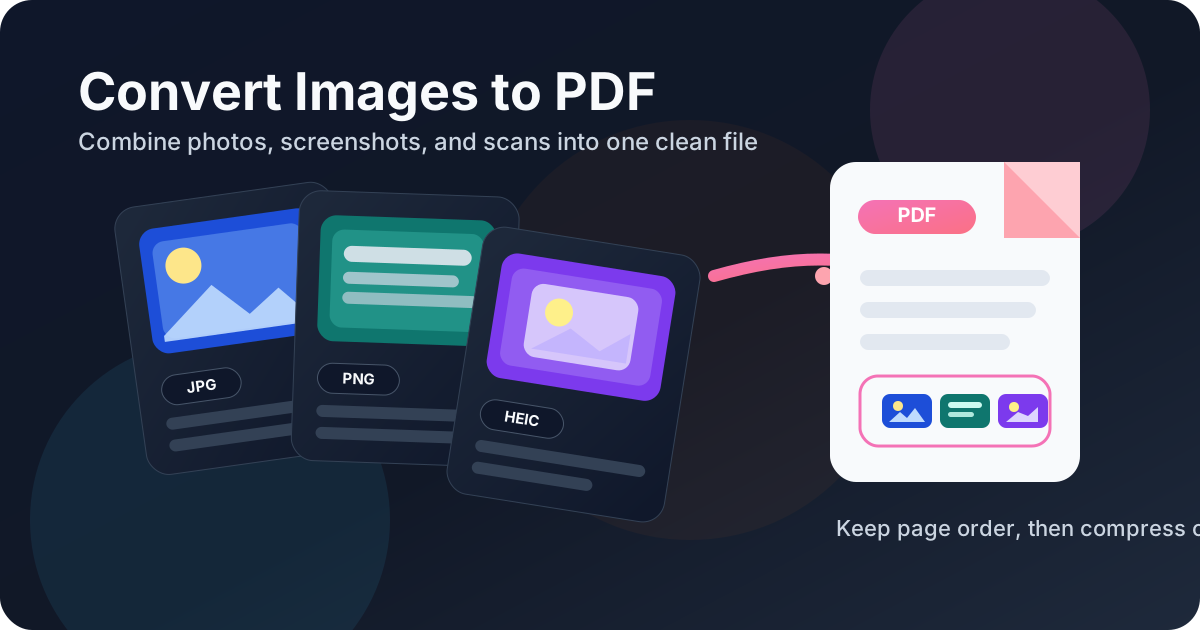
Table of contents
- Quick start: convert images to PDF in a few minutes
- Why people convert images to PDF in the first place
- Step-by-step: how to convert images to PDF
- Best workflows for photos, screenshots, and scans
- How to keep page order, orientation, and quality sane
- When to use OCR after image-to-PDF conversion
- What to do after conversion: compress, crop, rotate, merge, protect
- Common mistakes that make image-based PDFs annoying
- Related LifetimePDF tools and guides
- FAQ (People Also Ask)
Quick start: convert images to PDF in a few minutes
If the images are already on your device, the workflow is straightforward:
- Open LifetimePDF Images to PDF.
- Upload the photos, screenshots, or scanned images you want in the final file.
- Arrange them in reading order.
- Export the PDF and open it once for a fast review.
- If it is too large, use Compress PDF. If it is a scan and you need searchable text, run OCR PDF.
Why people convert images to PDF in the first place
Loose image files are fine when someone needs one picture. They become clumsy the moment the task involves a sequence: ten screenshots from a bug report, seven scanned pages from a form packet, a folder of iPhone photos that should read like a document, or a set of proofs that need one clean handoff. PDF solves that by turning separate images into one ordered file.
- Keeps every page in one file instead of a loose image pile
- Makes sharing and printing much easier
- Looks more professional for clients, applications, and internal review
- Can be compressed, OCR-processed, merged, or protected afterward
- Works better for archiving receipts, scans, and visual records
- You still need the original source assets for editing
- A designer or developer needs individual files, not a document packet
- The order does not matter and nobody will print or archive the set
- The images are being handed off for production, not presentation
In plain language, image files are the ingredients. PDF is the finished package. If the goal is delivery, submission, archiving, or review, the package is usually more useful than the loose parts.
Step-by-step: how to convert images to PDF
The cleanest workflow is not complicated, but the order matters. It is easier to get a good result when you treat the PDF as the first finished draft rather than trying to perfect every source image before you even start.
1) Gather the images that actually belong in the document
Start with the files you really want in the final handoff. Remove obvious duplicates, accidental screenshots, or blurry shots you already know will not help. This saves more time than trying to clean up the PDF later.
2) Upload the full set in one batch
Open Images to PDF and upload the whole set together if possible. That makes it easier to spot missing pages and fix sequence problems before export.
3) Arrange the pages in the order a reader will expect
This is the most underrated step. A visually sharp PDF is still frustrating if page 5 appears before page 2. Put the images in the order somebody else would naturally read, review, or print them.
4) Export the PDF and review it once
Export the file, then open it immediately. Check three things: page order, orientation, and readability. Most real-world problems show up in those first few seconds.
5) Finish the file only if it needs more work
- Too large? Use Compress PDF.
- Need searchable text from scans? Use OCR PDF.
- Need to combine it with another document? Use Merge PDF.
- Need to secure the file? Use PDF Protect.
Best practical sequence: images to PDF -> review once -> compress or OCR only if needed -> merge or protect only if the document is leaving your machine.
Best workflows for photos, screenshots, and scans
The same keyword covers several different jobs. The underlying conversion is similar, but the reason you are making the PDF changes what “good” looks like afterward.
Phone photos into one client-ready PDF
This is common when someone has receipts, inspection photos, inventory shots, site visits, or proof-of-work images sitting in a camera roll. In that situation, the important part is usually sequence and readability. The PDF should tell a story, not feel like a shuffled photo album.
Screenshots into a bug report, guide, or visual SOP
Screenshots convert especially well because they are already document-like. A single PDF is easier to share than twenty separate PNG files dropped into chat. This is useful for bug reproduction, onboarding guides, internal checklists, and support evidence.
Scanned pages into one archive file
If your source files are scans of paperwork, forms, handwritten notes, or receipts, the main goal is usually not aesthetics. It is retrieval. Build the PDF first, then run OCR if you want the finished file to become searchable later.
Mixed-format batches from different devices
Real image sets are rarely tidy. You may have JPG photos from a camera, PNG screenshots, HEIC images from an iPhone, and a stray WEBP export from the web. A good images-to-PDF tool should let you package that mixed set into one coherent file without forcing you to normalize everything by hand first.
| Source material | What matters most | Best next step after conversion |
|---|---|---|
| Phone photos | Order, orientation, and a clean final handoff | Compress if the PDF is too large |
| Screenshots | Logical reading flow and clear page sequence | Merge with other PDFs if the screenshot packet is part of a larger report |
| Scanned paperwork | Readability and later searchability | Run OCR on the exported PDF |
| Mixed image formats | One organized output despite inconsistent sources | Protect the final PDF before sharing if it contains sensitive material |
How to keep page order, orientation, and quality sane
The conversion itself is easy. What makes the result feel polished is usually a handful of small decisions.
Think like the reader, not just the uploader
Ask what order somebody else would expect. Should receipts go oldest to newest? Should screenshots follow the exact workflow path? Should site photos be grouped by room, date, or issue? Organizing the sequence before export makes the PDF more useful immediately.
Do not assume the source image order is already correct
File names, mobile uploads, and drag-and-drop order can all mislead you. Previewing the page list is faster than apologizing later for a scrambled packet.
Preserve readability before you worry about file size
If you shrink every source image too aggressively before conversion, you may throw away detail you actually need. It is usually smarter to create a readable PDF first and then reduce the final file with compression if necessary.
Fix orientation and margins only where they hurt comprehension
A sideways scan or giant white border is worth correcting. Minor imperfections that do not affect reading usually are not worth rebuilding the whole document for. Use Rotate PDF and Crop PDF when the cleanup clearly improves the final file.
When to use OCR after image-to-PDF conversion
OCR matters when the PDF looks readable to a human but is still just a stack of page images to software. If you want search, copy-paste, or easier retrieval later, OCR is the step that turns an image-based PDF into a more useful document.
Use OCR when the pages are scans of text
Receipts, contracts, printed forms, handwritten notes, and scanned reports are the obvious examples. In those cases, the PDF may look fine visually but still behave like a photograph unless you add text recognition.
Use OCR after building the final PDF, not before by default
Usually the clean sequence is: combine the pages first, confirm the order, then run OCR PDF on the finished document. That way you only do recognition work on the file you actually intend to keep.
You probably do not need OCR for ordinary screenshots
Screenshots can contain text, but the real goal is often visual reference rather than searchable archiving. OCR helps most when future search and extraction matter, not just when the document happens to contain words.
Best workflow for scanned pages: combine images into one PDF -> run OCR -> compress if needed -> protect before sharing sensitive files.
What to do after conversion: compress, crop, rotate, merge, protect
Converting images to PDF is often the first useful step, not the last one. The final action depends on what the document is about to do next.
- Need to email or upload the file? Use Compress PDF.
- Need to fix sideways pages? Use Rotate PDF.
- Need to remove giant margins? Use Crop PDF.
- Need one bigger packet? Use Merge PDF.
- Need a safer handoff? Use PDF Protect.
- Need a visible draft or client label? Use Watermark PDF.
That is also why one-off converters are rarely enough in real life. The conversion solves the first problem. The rest of the toolset solves delivery.
Common mistakes that make image-based PDFs annoying
- Uploading a random pile without checking order: the PDF becomes technically correct but practically confusing.
- Shrinking every source image too early: you lose detail before you even know whether file size is a problem.
- Ignoring orientation: one sideways page can make the whole document feel sloppy.
- Skipping OCR on scanned paperwork: the file looks fine but stays hard to search later.
- Sending sensitive image-based PDFs without protection: photos of IDs, receipts, forms, or records deserve an extra security step.
Most of these are easy to avoid. Build the PDF, read it like a recipient would, then fix only the problems that actually get in the way.
Related LifetimePDF tools and guides
Image-to-PDF conversion becomes much more useful when it sits inside a broader document workflow. These tools pair naturally with it:
- Images to PDF — combine photos, screenshots, and scans into one PDF
- OCR PDF — make scanned pages searchable after conversion
- Compress PDF — reduce file size for email, uploads, and messaging
- Crop PDF — trim unnecessary borders
- Rotate PDF — fix sideways pages
- Merge PDF — combine the image-based PDF with other documents
- PDF Protect — secure files before sending them
Related guides worth reading
- Convert Images to PDF Online Free
- Convert Images to PDF Without Monthly Fees
- How to Convert Multiple Images to One PDF
- OCR PDF Without Monthly Fees
- Compress PDF Without Monthly Fees
- Rotate PDF Online
Want the simple version? combine the images, check the order, and only then decide whether the finished PDF needs OCR, compression, or protection.
FAQ (People Also Ask)
How do I convert images to PDF?
Open an images-to-PDF converter, upload your image files, arrange them in the right order, export the PDF, and review the final file once before sharing it.
Can I combine JPG, PNG, HEIC, and screenshots into one PDF?
Yes. Mixed image sets are common in real workflows, especially when files come from phones, screenshots, scanners, and web exports. One PDF is usually a much cleaner handoff than separate files.
Should I OCR images before or after converting them to PDF?
Usually after. First combine the image files into one PDF, then run OCR PDF on the finished document if you want searchable or selectable text.
Why convert images to PDF instead of sending separate image files?
PDF keeps the pages together in one organized file, makes printing and archiving easier, and usually looks more professional for submissions, reviews, and client delivery.
What should I do if the image-based PDF is too large?
Export the PDF first, then run Compress PDF. That usually preserves page order and readability better than manually shrinking every source image in advance.
Published by LifetimePDF — Pay once. Use forever.