Convert Goods Receipt Note PDF to Excel: Extract GRN Numbers, PO References, Received Quantities, and Exceptions Faster
To convert goods receipt note PDF to Excel, upload the GRN to LifetimePDF's PDF to Excel tool, export the XLSX, and review the GRN number, PO reference, item rows, quantities received, shortages, rejected quantities, and warehouse remarks before using the spreadsheet.
If the goods receipt note is scanned or mixed into a larger packet, isolate the GRN pages and run OCR first so the spreadsheet comes out cleaner and needs less repair.
Most people searching this phrase are not trying to admire a file conversion. They are trying to stop retyping receiving data by hand, compare what arrived against the purchase order, flag damaged or short deliveries faster, and get a worksheet they can sort, filter, reconcile, or import without turning one warehouse PDF into a long cleanup session.
Fastest path: use LifetimePDF's PDF to Excel tool, and OCR the GRN first if it came from a scan, a phone photo, or an image-only archive.
In a hurry? Jump to Quick start: convert goods receipt note PDF to Excel in about 5 minutes.
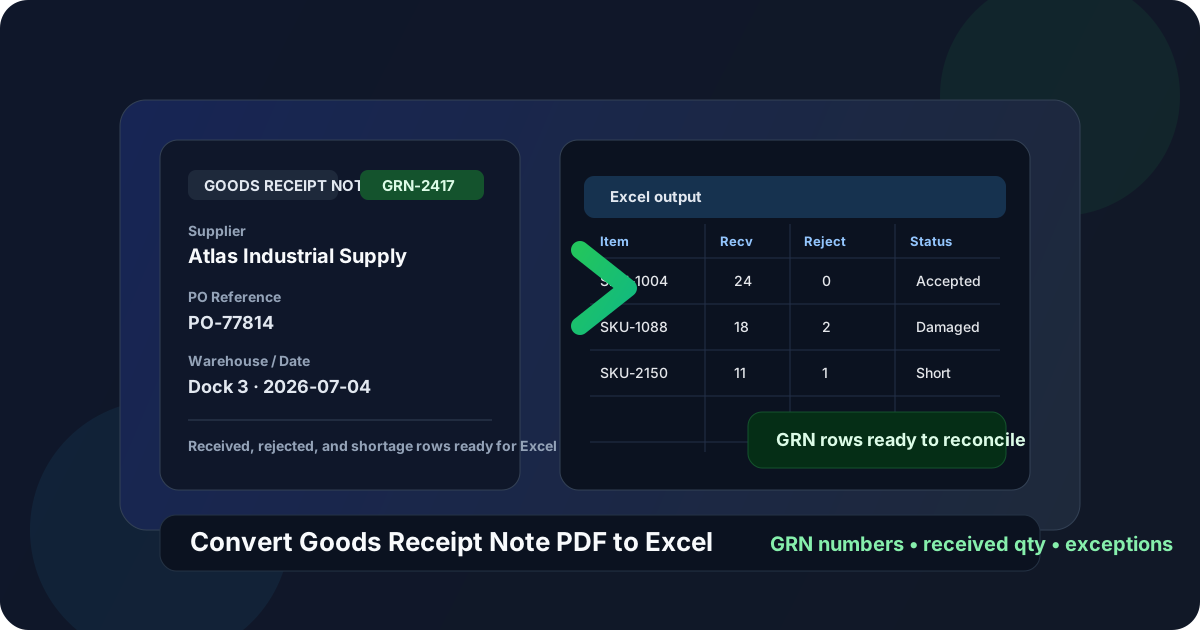
Table of contents
- Quick start: convert goods receipt note PDF to Excel in about 5 minutes
- Why teams need GRN PDFs in Excel
- Which goods receipt note fields matter most
- What converts cleanly and what usually breaks
- Step-by-step: extract GRN data with LifetimePDF
- Review checklist before you trust the spreadsheet
- Where GRN spreadsheets help most in real workflows
- Excel vs CSV for goods receipt notes
- Privacy and warehouse document hygiene
- Related LifetimePDF tools and companion guides
- FAQ (People Also Ask)
Quick start: convert goods receipt note PDF to Excel in about 5 minutes
If the GRN PDF already contains selectable text and the layout is reasonably clean, the fast workflow is simple:
- Open PDF to Excel.
- Upload the goods receipt note PDF you want to extract.
- If the file is scanned, run OCR PDF first.
- Download the generated XLSX file.
- Review GRN number, PO reference, item rows, quantities received, rejected quantities, shortage notes, and totals before using the spreadsheet.
Why teams need GRN PDFs in Excel
A goods receipt note, often shortened to GRN, records what actually arrived. It links receiving activity to a purchase order, supplier, item codes, quantities, warehouse location, and any exception such as shortage, damage, or rejection. Humans can scan a GRN quickly because we understand which fields are the reference numbers and which rows are the actual line items. Excel makes that information reusable instead of leaving it frozen in a PDF layout.
Once a GRN becomes spreadsheet data, warehouse teams can filter receipts by supplier, PO number, date, item code, or location. Procurement can compare received quantities against ordered quantities. Finance can support a cleaner three-way match. Operations can spot patterns in shortages or damaged deliveries faster. That is why the query convert goods receipt note PDF to Excel is commercially useful: people want a worksheet they can act on, not just a prettier file.
- GRN number and receipt date
- Supplier name and PO reference
- Item code, description, and unit of measure
- Ordered quantity vs received quantity
- Rejected, damaged, or short quantities
- Warehouse remarks, batch details, and totals
- Sort and filter receipts by supplier, date, or PO
- Compare expected vs received quantities quickly
- Flag shortages, damages, and partial deliveries fast
- Prepare receiving, procurement, or audit schedules
- Reuse the data in pivots, reports, or imports
Which goods receipt note fields matter most
Not every GRN uses the same layout, but most teams care about the same core fields. When those fields survive conversion cleanly, the spreadsheet becomes genuinely useful instead of becoming another repair job.
- GRN number
- Receipt date
- Supplier name
- PO number or reference
- Warehouse, store, or dock location
- Item code or SKU
- Item description
- Unit of measure
- Ordered quantity
- Received quantity
- Rejected or damaged quantity
- Short quantity
- Batch or lot number
- Inspector or receiver notes
- Totals and final remarks
The more the document mixes header information, signatures, stamps, handwritten notes, and dense item tables on the same page, the more likely the Excel output will need a quick review. That review is normal. The goal is not perfect magic. The goal is getting to a usable sheet much faster than manual retyping.
What converts cleanly and what usually breaks
Some goods receipt note PDFs convert beautifully. Others are packed with the exact kinds of layout problems that make any PDF-to-table workflow harder.
- Digitally generated GRNs with selectable text
- Single-document PDFs without extra attachments
- Consistent column layouts across all pages
- Readable tables with clear row spacing
- Straight, clean scans with high contrast
- Skewed phone photos of receiving paperwork
- Packets mixed with POs, invoices, and email printouts
- Repeated headers and footers on every page
- Long wrapped descriptions or handwritten remarks
- Stamped, low-resolution, or shadow-heavy scans
If your GRN packet is messy, the smartest workflow is often to separate the real GRN pages first, straighten or OCR the scan if needed, and then convert. That one minute of prep usually saves a lot more than one minute of spreadsheet cleanup later.
Step-by-step: extract GRN data with LifetimePDF
Here is the workflow that usually gets the cleanest result without overcomplicating the job.
1. Keep only the goods receipt note pages
If the file bundle includes the purchase order, delivery note, supplier invoice, or email chain, use Extract Pages or Split PDF so the converter only sees the GRN pages. Mixed packets are one of the easiest ways to get broken tables and random extra rows.
2. OCR the file if it is scanned
If the goods receipt note is a scan, a warehouse photocopy, or an image-only PDF, run it through OCR PDF first. OCR improves recognition of small fields like GRN numbers, batch numbers, PO references, and quantity columns.
3. Convert the PDF into Excel
Open PDF to Excel, upload the cleaned GRN PDF, and export the spreadsheet. If the document has multiple tables or repeated headers, expect one quick review pass after download.
4. Review the receiving exceptions, not just the happy-path rows
The rows that matter most are often the ones that break most easily: shortages, rejected quantities, damages, and handwritten remarks. Do not stop after checking the first page header. Scan the exception rows and totals too.
5. Save the reviewed file with a useful name
A filename like GRN-2417-reviewed.xlsx is a lot more useful than output.xlsx. If the worksheet will move into procurement, finance, or audit workflows, make the handoff obvious.
Review checklist before you trust the spreadsheet
Before the Excel file gets sent to a coworker or imported into another system, verify the fields that matter most.
- GRN number and receipt date
- Supplier name and PO reference
- Item code or description
- Received quantity and unit of measure
- Rejected, damaged, or short quantity
- Warehouse remarks and totals
- Description rows split across multiple lines
- Repeated page headers mixed into the item table
- Received and rejected quantities shifted one column over
- Batch or lot numbers dropped into the wrong row
- Blank rows created from spacing-only areas
- Remarks merged with totals or signatures
If one GRN is still messy after conversion, sometimes the smarter move is to extract a narrower page range, rerun OCR, or request a cleaner export from the ERP or warehouse system rather than fighting the worksheet row by row.
Where GRN spreadsheets help most in real workflows
GRN spreadsheets become most valuable when the document is part of a larger receiving and reconciliation process. A converted worksheet is not just convenient. It lets teams move faster in the places where mismatches usually slow people down.
Receiving control
Warehouse teams can compare delivered quantities against received quantities and spot shortages or damages without digging through multiple static PDFs.
Three-way match support
Procurement and finance teams often need to compare the purchase order, the GRN, and the invoice. A reviewed Excel sheet makes that comparison a lot easier, especially when the supplier uses dense multi-page PDFs.
Supplier dispute handling
If a shipment was partial, damaged, or overdelivered, a structured sheet helps teams pull the evidence quickly instead of hunting through scan bundles.
Audit and month-end reporting
When receiving logs need to be summarized by date, supplier, site, or item code, Excel is much easier to work with than a folder full of PDFs.
Excel vs CSV for goods receipt notes
People often ask whether GRN data should end up in Excel or CSV. The answer depends on what happens next.
Choose Excel when:
- You need to review and clean the data manually.
- You want filters, formulas, comments, or multiple tabs.
- You plan to hand the file to warehouse, procurement, or finance teammates.
- You need to compare several receipts before import.
Choose CSV when:
- You only need plain rows and columns for a downstream import.
- You do not care about worksheet formatting.
- You want the simplest structured file possible for another system.
Privacy and warehouse document hygiene
Goods receipt notes often contain more than item rows. They may include supplier contacts, internal location names, pricing context, batch data, signatures, or inspector remarks. So conversion quality matters, but document hygiene matters too.
- Only upload the pages you actually need.
- Use Redact PDF when sensitive fields should not travel further.
- Use Delete Pages to remove extras before conversion.
- Use PDF Metadata Editor if the file carries unnecessary author or software metadata.
- Follow your organization's receiving, supplier-data, and retention rules before sharing converted output.
Being selective up front saves time twice: once during conversion and again when you do not have to clean or explain unnecessary data later.
Related LifetimePDF tools and companion guides
If you are building a repeatable GRN workflow, these tools and pages fit naturally with this exact task:
- PDF to Excel for the core extraction step.
- OCR PDF for scanned goods receipt notes.
- Extract Pages and Split PDF for GRN-only page ranges.
- Compress PDF if the source file is unnecessarily heavy.
- Redact PDF for supplier-sensitive receiving documents.
- Convert Goods Receipt Note PDF to Excel Online Without Monthly Fees if you want the cost-model angle.
- Convert Purchase Order PDF to Excel, Convert Invoice PDF to Excel, and Convert Delivery Note PDF to Excel Online Without Monthly Fees for adjacent procure-to-pay workflows.
Bottom line: the best GRN-to-Excel workflow is boring in a good way — clean source pages, OCR when needed, one review pass, then use the spreadsheet to compare what was ordered with what actually arrived.
FAQ (People Also Ask)
How do I convert a goods receipt note PDF to Excel?
Upload the goods receipt note PDF to a PDF to Excel converter, export the XLSX file, and review the GRN number, supplier, PO reference, line items, quantities received, rejected quantities, shortages, warehouse remarks, and totals before using the spreadsheet. If the GRN is scanned, OCR first usually improves the result.
Can I convert a scanned goods receipt note PDF to Excel?
Yes, but the cleanest workflow is usually OCR first, then convert. Straight pages and readable scans make a big difference when the GRN contains small labels, dense tables, stamps, or handwritten exception notes.
Why do some goods receipt note PDFs create messy spreadsheets?
Because GRNs often combine supplier blocks, PO references, line items, quantity columns, remarks, signatures, and repeated headers on the same page. Mixed layouts, low-quality scans, and extra non-GRN pages are common reasons columns shift.
Is Excel better than CSV for GRN extraction?
Usually yes if a human still needs to review the output. Excel makes it easier to filter, compare quantities, correct broken columns, and hand the file to another person before importing the data elsewhere.
What should I verify after converting GRN data?
Check the GRN number, receipt date, supplier, PO reference, item rows, received quantities, rejected or short quantities, warehouse remarks, and totals. Those are the fields most likely to create downstream warehouse or finance problems if one cell shifts during conversion.