Compress PDF for Zapier: Keep Automation Attachments, Approval Packets, and Shared PDFs Small Without Losing the Details
To compress a PDF for Zapier, shrink it with LifetimePDF before the file moves through your automation, start with Medium compression, and keep the smaller copy only after checking the smallest text, tables, signatures, and screenshots once.
For most Zapier workflows, under 2MB is a strong target for routine attachments, while 2MB to 5MB is usually comfortable for scanned forms, proposals, approval packets, and image-heavy PDFs that still need to stay readable.
The useful question is not just how to make a PDF smaller. It is how to make a PDF smaller before it becomes everybody else's problem. In a Zapier workflow, one oversized file can get pushed into email, cloud storage, a CRM, a project board, an approval tool, or a support system. If you shrink it once upstream, every downstream step usually gets easier. That is the real win.
Fastest path: run the PDF through LifetimePDF's Compress PDF tool on Medium, then verify the smallest important details before the file enters your Zap.
Need the short version? Jump to Quick start: compress a PDF before your Zap runs.
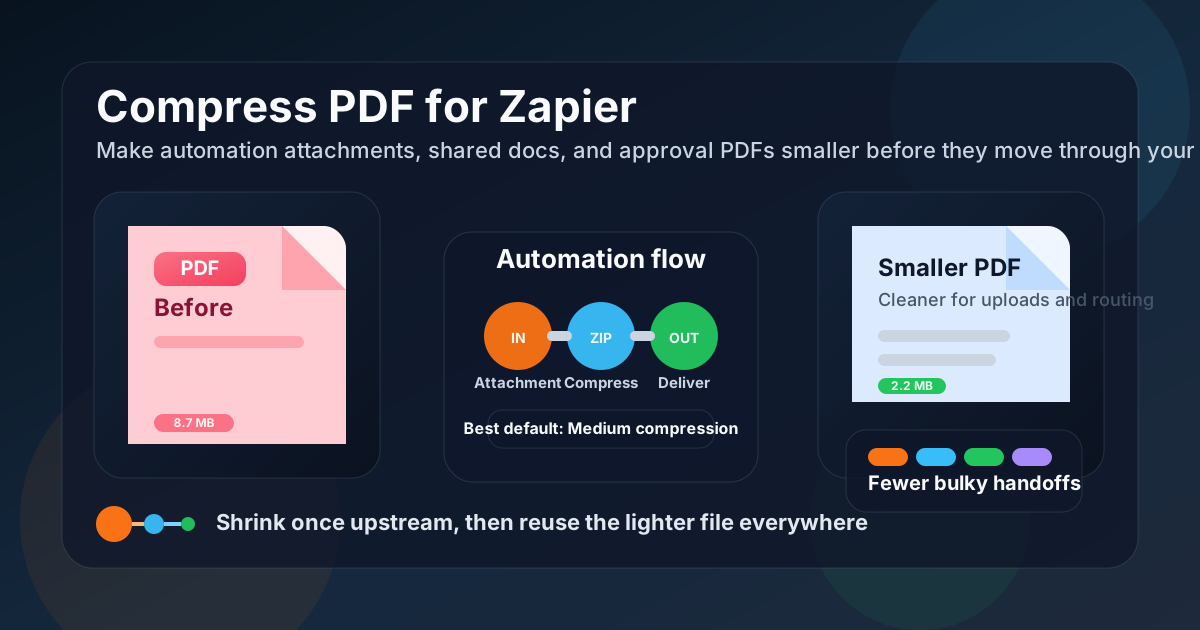
Table of contents
- Quick start: compress a PDF before your Zap runs
- Why smaller PDFs help in Zapier workflows
- What file size should you aim for?
- Which compression level should you choose?
- Step-by-step: shrink a PDF with LifetimePDF
- Best strategy for common Zapier PDF workflows
- What if the PDF is still too large?
- How to keep automation-ready PDFs readable
- Workflow habits that reduce PDF friction
- Related LifetimePDF tools and useful reading
- FAQ (People Also Ask)
Quick start: compress a PDF before your Zap runs
If your real goal is simply make this PDF smaller so the automation handles it more cleanly, this workflow is usually enough:
- Start with the final PDF that will actually enter the workflow: an invoice, form packet, proposal, contract, scanned record, report, or approval file.
- Open Compress PDF.
- Choose Medium compression first.
- Download the smaller result and compare the new size with the original.
- Review the fragile details once: totals, tables, screenshot labels, signatures, dates, small text, and any page that already looked visually dense.
- If the file is still too heavy, use Extract Pages, Delete Pages, Crop PDF, or Split PDF before forcing stronger compression.
- Feed the lighter copy into the Zap so every later step benefits from the same cleanup.
Why smaller PDFs help in Zapier workflows
Zapier itself is not the final destination. It is the bridge. Your PDF may start as a form upload, an email attachment, a generated report, or a scanned intake document, then get copied into multiple other systems. When the file is bigger than it needs to be, the weight follows it everywhere.
That is why this topic matters more than “save a little storage space.” Smaller PDFs often mean cleaner uploads, easier syncing, less awkward attachment handling, better mobile opening later, and fewer moments where somebody thinks the file is annoying even though the automation technically worked. In real workflows, that kind of friction adds up fast.
Why compression usually pays off before automation
- One lighter file benefits every downstream step: shrink once, then email it, store it, attach it, and forward it more comfortably.
- Better handoffs between apps: the document feels less bulky when it reaches a CRM, shared drive, task tool, or approval system.
- Cleaner storage: repeated uploads of oversized PDFs create clutter and heavier archives later.
- Faster human review: the next person often opens the file from email, mobile, chat, or a web app, not from your original source system.
- Fewer bloated duplicates: if your Zap branches into several destinations, compressing once upstream prevents the same heavyweight file from being copied everywhere.
What file size should you aim for?
There is no single perfect number for every Zapier workflow, but practical target ranges stop you from compressing harder than necessary:
| PDF type | Good target | What to protect |
|---|---|---|
| Short invoices, simple confirmations, one-page forms, and routine attachments | Under 2MB | Totals, dates, names, signatures, and any small text the next system or human needs immediately |
| Contracts, proposals, approval packets, and mixed text-plus-image PDFs | 2MB to 4MB | Tables, signature blocks, screenshot labels, comments, and fine print |
| Scanned forms, image-heavy reports, and appendix-rich packets | 3MB to 6MB if needed | Legibility, page order, stamps, initials, and whether the whole packet really needs to travel together |
| Anything above 8MB to 10MB | Usually needs cleanup first | At that size, duplicate pages, empty scan borders, oversized screenshots, or “just in case” appendices are often the real issue |
The right target depends on where the PDF goes next. A simple form routed into storage or email can usually be quite small. A contract, proposal, or scanned approval pack needs a little more respect because small mistakes in readability create bigger problems later.
Which compression level should you choose?
Most Zapier-bound PDFs do best when you start with Medium compression. It usually trims enough weight to matter while preserving the text, forms, screenshots, and proof points other apps and humans still need.
Use Medium compression for most automation workflows
- Invoices, receipts, and payment records moving into accounting or CRM tools
- Approval packets and signed documents heading to storage or project systems
- Form uploads and proposal PDFs that need to be emailed, archived, and attached elsewhere
- Reports and exported docs that mix text, tables, and a few screenshots
Use Low compression when visual clarity matters most
Low compression is useful for polished client-facing PDFs, dense tables, design reviews, or documents with screenshots that must stay especially crisp. If the file is already close to the size you want, Low may be enough.
Use stronger compression only after cleanup
High compression can help when the file is still heavier than the workflow really needs, but it is also where quality problems usually start. Table text softens. Signatures look rougher. Screenshot labels become annoying. Fine print stops feeling dependable. That is why stronger compression should usually come after page cleanup, not before it.
Step-by-step: shrink a PDF with LifetimePDF
- Start with the real source file. Use the invoice, report, contract, form packet, or scanned PDF that will actually enter the workflow.
- Open Compress PDF.
- Upload the file. This might be a Gmail attachment, a form-generated PDF, an exported report, or a signed document you plan to route elsewhere.
- Choose Medium compression first. It is usually the safest balance for automation-ready PDFs.
- Download the smaller result. Compare the new size so you know whether the change was meaningful.
- Check the weak spots once. Look at totals, signatures, timestamps, tables, screenshot labels, chart notes, and the smallest meaningful text.
- Trim structure only if needed. Use Extract Pages, Delete Pages, Crop PDF, or Split PDF when the file is large because it contains too much baggage, not too little compression.
- Feed the cleaned file into the Zap. If several apps will receive the same PDF, let them all benefit from the lighter upstream version.
Useful sequence: shrink the PDF before the automation fans out. One good upstream file is usually better than letting several downstream tools inherit the same oversized document.
Best strategy for common Zapier PDF workflows
Email attachment to storage, CRM, or task tool
This is one of the simplest and most common patterns. A PDF arrives by email, then the Zap saves it somewhere, creates a record, or attaches it to a task. In this case, a lighter upstream file makes every later destination easier to manage. Focus on keeping sender details, totals, dates, signatures, and page references sharp.
Form submissions and intake packets
These often look small until they include scanned IDs, appended pages, screenshots, or image-heavy supporting files. Medium compression is usually enough, but intake packets also benefit from structural cleanup. If the form package includes backup pages nobody needs in the automated handoff, extract the useful pages first.
Approval workflows and signed documents
Be conservative here. Signatures, initials, dates, and fine print matter more than dramatic percentage savings. Compress once, then check every signature area and the smallest legal text before the file enters the approval or archive path. If the document is huge because it includes exhibits or repeated scans, trim those before pushing compression harder.
Reports, dashboards, and exported PDFs
These files often mix tables, charts, screenshots, and explanatory notes. They usually compress well, but visual proof points deserve a quick review. If a report exists to support a decision, the labels and small numbers still need to be trustworthy when the PDF lands in another app.
Scanned records, invoices, and archive-heavy paperwork
These are where file sizes become silly fastest. Scanner borders, shadows, repeated backs of pages, and unnecessary appendix sheets all add weight without adding value. A smarter workflow is often to rotate, crop, delete, or split first, then compress the cleaned version once.
What if the PDF is still too large?
When a PDF stays heavy after one reasonable compression pass, the issue is often document structure rather than image density. Try these in order:
- Delete repeated or blank pages. This fixes more bulk than people expect.
- Extract only the section the Zap really needs. A focused packet is better than an oversized archive copy moving through automation.
- Split the appendix. Keep the main document in one PDF and backup material in another.
- Crop scanner waste. Empty borders and skewed margins add size without helping anybody.
- Rebuild the source export if possible. A cleaner original usually beats harsher compression.
- Only then try stronger compression. By that point, the file is usually leaner already.
How to keep automation-ready PDFs readable
Before you let the smaller file enter the workflow, review the weak details rather than the obvious ones. Large headings nearly always survive. The useful details are what quietly fail.
- Tables and totals: check small columns, decimals, tax lines, and labels.
- Signatures and initials: make sure they still look intentional rather than smudged.
- Dates and timestamps: especially on approvals, invoices, and legal records.
- Screenshots and charts: confirm interface text, labels, legends, and callouts still read clearly.
- Fine print and footnotes: zoom in on the smallest meaningful text.
- Form fields and reference numbers: these are often the exact details later systems or humans need to find quickly.
A quick 20-second review is usually enough. It saves much more time than discovering later that the automation distributed a file people can open but do not actually trust.
Workflow habits that reduce PDF friction
Compression works best when it is part of a cleaner document workflow rather than a rescue move for oversized files. A few habits help a lot:
- Shrink once upstream. If several apps will receive the file, let all of them benefit from the same smaller version.
- Separate the working copy from the archive copy. The Zap rarely needs the fattest possible version of the document.
- Avoid sending backup pages everywhere. If a downstream step only needs the core section, extract it.
- Clean metadata when appropriate. Use PDF Metadata Editor if filenames or document properties need tidying before the file spreads across several tools.
- Redact before routing wider. Use Redact PDF if the PDF contains information that should not travel into every connected app.
These habits matter because the easiest automation to maintain is the one that moves focused, readable documents instead of oversized packets stuffed with extra context nobody asked for.
Related LifetimePDF tools and useful reading
Zapier-facing PDF workflows usually lead to a few follow-on tasks. These tools pair well with compression:
- Compress PDF for the first size-reduction pass
- Extract Pages when the automation only needs part of the packet
- Delete Pages to remove duplicate or blank material
- Split PDF when one document is trying to do two jobs
- Crop PDF to remove scanner borders and wasted margins
- OCR PDF when a cleaned scan also needs searchable text
If you want companion reading around similar connected-workflow use cases, these guides fit the same family: Compress PDF for Notion, Compress PDF for Trello, Compress PDF for Slack, Compress PDF for Asana, and Compress PDF for ClickUp.
Bottom line: if a PDF is going through Zapier, compress it before the workflow fans out, protect the smallest details people still need, and trim extra pages before you use harsher compression.
FAQ (People Also Ask)
How do I compress a PDF for Zapier?
Shrink the PDF before it enters the Zap, start with Medium compression, and keep the smaller copy only after checking the smallest text, tables, screenshots, signatures, and approval notes once. In most cases, compressing upstream gives you one lighter file that is easier for every downstream app to handle.
What file size should I aim for in a Zapier workflow?
Under 2MB is a strong target for routine attachments, short invoices, and simple confirmations. Longer proposals, scanned forms, approvals, and image-heavy PDFs usually feel comfortable around 2MB to 5MB as long as the important details remain readable.
Should I compress the PDF before or after the Zap runs?
Usually before. Compressing once upstream gives the rest of the workflow a lighter file to move, store, email, and attach. If a PDF only becomes bulky after another app adds pages or exports a new version, then compress that later output instead.
Will compression break the usefulness of invoices, forms, or contracts in automation?
It can if you compress too aggressively. That is why Medium compression is the safest default and why a quick readability check matters. Totals, signatures, tables, dates, screenshot labels, and fine print should still be easy to trust before the file goes into the automation.
What if the PDF is still too large after compression?
Remove duplicate pages, crop scanner borders, extract only the pages the Zap actually needs, or split a backup appendix away from the main document. In many workflows, better document packaging solves more than stronger compression alone.