Compress PDF for Turnitin: Make Essays and Reports Smaller Without Hurting Readability
To compress a PDF for Turnitin, upload your final submission to LifetimePDF's Compress PDF tool, start with Medium compression, and keep the smaller copy only if citations, footnotes, figures, and page numbers still look clear.
For most text-first Turnitin files, aim for under 2MB; for scan-heavy assignments, image-rich reports, or appendix files, roughly 2MB to 5MB is usually a practical range.
Turnitin stress is rarely about the PDF alone. It is usually the combination of a deadline, a last-minute export, shaky Wi-Fi, and the fear that fixing the file size will make the document look worse. The goal is not to chase the tiniest number possible. It is to make the file lighter while keeping the parts that matter academically easy to read, easy to trust, and easy to reopen later.
Fastest path: run the Turnitin file through LifetimePDF's Compress PDF tool on Medium, then do one quick readability check before uploading the lighter copy.
Need the short version? Jump to Quick start: compress a PDF for Turnitin in under 2 minutes.
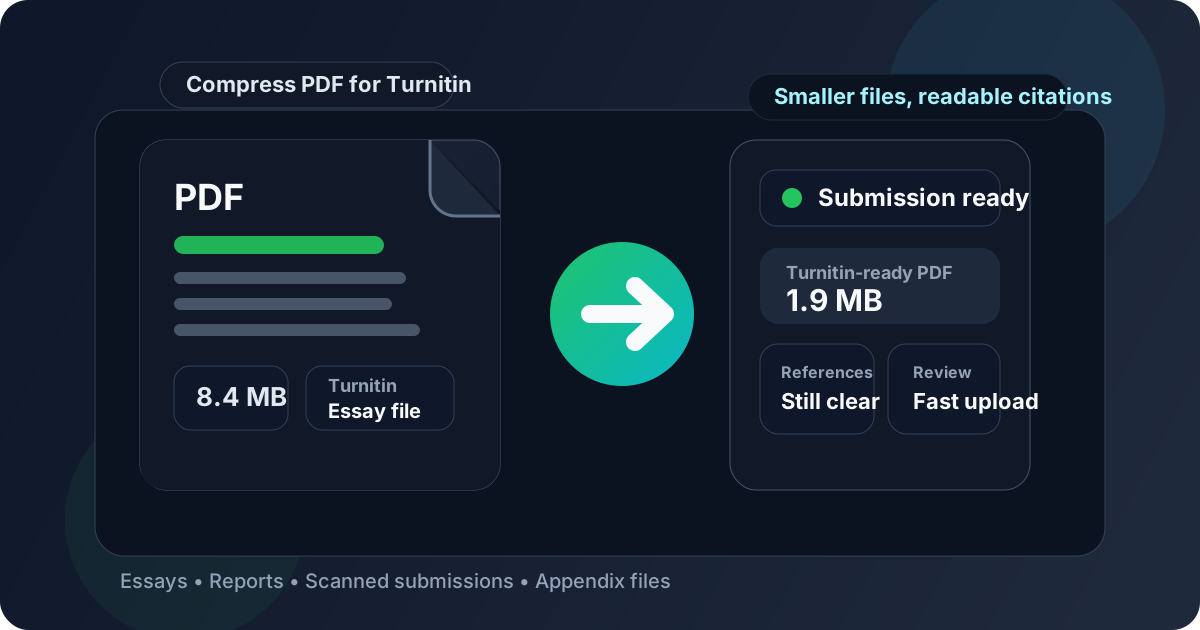
Table of contents
- Quick start: compress a PDF for Turnitin in under 2 minutes
- Why smaller PDFs help in Turnitin workflows
- What file size should you aim for?
- Which compression level should you choose?
- Step-by-step: shrink a Turnitin PDF with LifetimePDF
- Best strategy for common Turnitin file types
- What if the PDF is still too large?
- How to keep Turnitin files readable and searchable
- Submission hygiene, privacy, and file cleanup before upload
- Related LifetimePDF tools and useful internal links
- FAQ (People Also Ask)
Quick start: compress a PDF for Turnitin in under 2 minutes
If your real goal is simply make this PDF smaller so the Turnitin upload goes through cleanly, this workflow is usually enough:
- Open Compress PDF.
- Upload the final essay, report, dissertation chapter, scanned assignment, appendix file, or supporting PDF you plan to submit.
- Choose Medium compression first.
- Download the compressed PDF and compare the new size with the original.
- Open it once and check the details that matter most: title page, body text, citations, footnotes, tables, charts, page numbers, and appendix pages.
- If the file is still bulkier than you want, use Extract Pages, Delete Pages, or Crop PDF before trying stronger compression.
Why smaller PDFs help in Turnitin workflows
Turnitin usually sits at the end of work that already took time: drafting, revising, exporting, checking references, maybe fixing formatting, and then making sure the final file actually submits. That is why file friction feels worse here than it does in casual sharing. A heavy PDF can slow uploads, make deadline-time re-uploads more annoying, and add one more thing to worry about when the academic part was already hard enough.
Compression also works as a reality check. A normal text-first essay, reflective paper, or short report usually should not feel huge. If it does, there is often a reason: exported page images, phone scans, oversized screenshots, giant appendix pages, or too many documents merged into one file. Making the PDF smaller often exposes those problems faster than staring at the size label alone.
Why compression usually helps
- Faster uploads: especially useful on campus Wi-Fi, weak home connections, and last-minute hotspot uploads.
- Less re-upload hassle: lighter files are easier to replace after a typo fix or corrected attachment.
- Cleaner reopening later: smaller PDFs are easier to review if you need proof of what you submitted.
- Better file hygiene: oversized PDFs often hide duplicate pages, blank sheets, or unnecessary image weight.
- Lower deadline stress: a boring upload is better than a dramatic one.
What file size should you aim for?
There is no single Turnitin number that fits every institution, assignment, or department, but a few practical ranges can keep you from compressing harder than necessary:
| Document type | Practical target | Why it works |
|---|---|---|
| Text-heavy essay, reflection, or short report | Under 1MB to 2MB | Usually enough for fast uploads and easy reopening later |
| Research paper, dissertation section, or report with tables and figures | 2MB to 4MB | Keeps files practical without stripping away too much detail |
| Scanned assignment, appendix packet, or image-heavy report | 2MB to 5MB | Leaves room for visual detail without carrying obvious extra weight |
| Over 5MB | Review and clean first | Often means scan waste, extra pages, or oversized images are doing most of the damage |
These are not rigid rules. They are practical targets that make submission smoother while keeping the document readable and credible. The real goal is the smallest version that still works comfortably for the person opening it.
Which compression level should you choose?
LifetimePDF keeps this simple with Low, Medium, and High compression. The important question is not which option sounds strongest. It is which option gives you a lighter file without making the submission feel rough.
| Compression level | Best for | What to expect |
|---|---|---|
| Low | Already-small PDFs or documents with figures you may still print | Gentle reduction with very little visual change |
| Medium | Most Turnitin uploads | Best balance of lower size and clean readability |
| High | Bulky scans, appendix-heavy files, and oversized reports | Stronger size reduction, but you should preview the result carefully |
For most students and instructors, Medium is the right first move. It usually cuts enough size to make the upload feel smoother while keeping references, body text, charts, and page numbers easy to read. High is more of a rescue option when the file is genuinely heavy.
Step-by-step: shrink a Turnitin PDF with LifetimePDF
Step 1: Start with the final file
Do your wording, formatting, and reference checks first. If you still plan to fix a title page, replace a chart, or clean the appendix, do that in the source document before you compress anything. The cleaner approach is to optimize the exact PDF you will really submit.
Step 2: Open the compressor
Go to LifetimePDF Compress PDF and upload the file you want to use in Turnitin. That could be an essay, literature review, dissertation chapter, policy memo, lab report, appendix packet, or scanned assignment.
Step 3: Start with Medium compression
Medium is the safest default for most academic documents because it usually trims enough size without immediately hurting readability. If the document is mostly real text, Medium often solves the problem on the first try.
Step 4: Review the result like a marker will
Open the compressed copy once and inspect the details people actually notice: headings, body text, citations, references, footnotes, tables, figure labels, page numbers, and any fine print inside scans. If those still look clean, the file is probably ready.
Step 5: Clean the file instead of crushing it
If the file is still too large, stronger compression is not always the smartest next move. Often it is better to remove waste first with Extract Pages, Delete Pages, Crop PDF, or Rotate PDF.
Ready now? Compress the Turnitin file first, then clean or split only if the submission still feels heavier than it should.
Best strategy for common Turnitin file types
Not every Turnitin upload needs the same treatment. A six-page essay behaves very differently from a scan-heavy assignment or a report full of tables and screenshots.
Essays and text-first reports
These usually compress well because they are mostly real text. If yours is oddly large, the real problem is often screenshots, exported page images, or decorative visuals rather than the writing itself. Medium compression is normally enough.
Research papers with figures and tables
These need one careful preview. Do not only check paragraphs. Zoom in on figure labels, table borders, captions, and footnotes because those details tend to show quality loss first.
Scanned assignments and handwritten pages
These often behave more like images than text. Compression helps, but cleanup matters just as much. Rotate crooked pages, crop dark borders, delete blanks, and keep only the pages that really belong in the submission.
Appendix-heavy files
If the assignment instructions do not require one giant combined PDF, separate files are often cleaner than forcing everything into a single bulky upload. A lighter main paper plus a clearly labeled appendix file is often easier to manage than one oversized packet.
Dissertation chapters and long reports
These benefit from disciplined cleanup more than brute-force compression. Start with a clean export using Word to PDF if needed, then compress the final version once instead of repeatedly saving over older drafts.
What if the PDF is still too large?
If one compression pass did not fix the problem, do not assume the next answer is always compress harder. Over-compression is how solid academic files start looking cheap, fuzzy, or awkward. Cleanup usually works better.
- Too many pages? Remove extras with Delete Pages.
- Only part of the packet matters? Keep the useful range with Extract Pages.
- Large scan borders? Trim them with Crop PDF.
- Pages sideways or inconsistent? Fix them with Rotate PDF.
- Need searchable scanned text? Run OCR PDF on the cleaned copy.
- Still too heavy as one file? Break it up with Split PDF.
A smaller PDF is useful. A smaller PDF that also feels cleaner and more intentional is better. That is why removing waste first often beats using the harshest compression setting available.
How to keep Turnitin files readable and searchable
The real fear behind compression is not the number on the size label. It is the worry that the document will stop feeling usable where the academic details matter. That concern is fair, but it is manageable if you preview the result and keep the source file sensible.
- Keep real text wherever possible: text-based PDFs are easier to search, copy, highlight, and review than screenshots of pages.
- Check citations, footnotes, and figure labels first: those are often where aggressive compression shows up fastest.
- Watch scan-heavy pages: tiny handwriting, table borders, and margin notes can soften before the rest of the file looks different.
- Prefer clean exports over image-stuffed layouts: oversized screenshots create more risk than value in most submissions.
- Use OCR when needed: searchable text helps if you or an instructor ever need to find something inside the file later.
Submission hygiene, privacy, and file cleanup before upload
Academic PDFs often contain more than people realize. Beyond the visible content, they may carry metadata, old draft titles, author names, revision leftovers, or appendix pages that do not need to travel with the final upload.
- Review metadata when useful: clean file properties with PDF Metadata Editor.
- Remove accidental extra pages: do not let blank backs, old title pages, or unused appendix sheets hitch a ride.
- Keep a master copy: save the untouched source so you can make fresh versions without quality drift later.
- Redact sensitive material when needed: use Redact PDF if the file includes information that should not be shared in full.
A good workflow is usually simple: Export clean PDF - Compress - Review - Upload. Add cropping, deletion, OCR, or metadata cleanup only when the file actually needs it.
Related LifetimePDF tools and useful internal links
Compressing the PDF is often the main fix, but some Turnitin uploads benefit from one or two supporting tools first. These are the most useful follow-up options:
- Compress PDF - shrink the final file before uploading.
- Extract Pages - keep only the pages that matter.
- Delete Pages - remove blanks, duplicates, and irrelevant pages.
- Crop PDF - trim scan borders and wasted space.
- Split PDF - break oversized packets into cleaner parts.
- OCR PDF - make scan-heavy files more usable.
- Word to PDF - create a cleaner final export before compression.
- PDF Metadata Editor - clean document properties before submission.
If you want related reading around the same workflow, these guides fit naturally next: Compress PDF for Turnitin: Upload Assignments and Essays Faster, Compress PDF for Turnitin Without Monthly Fees, Compress PDF for Canvas, Compress PDF for Schoology, Compress PDF for Moodle, Compress PDF Online Free, and How to Check If a PDF Is Searchable.
Best workflow for most submissions: export a clean PDF, compress it once, preview it once, then upload the lighter version.
FAQ (People Also Ask)
1) How do I compress a PDF for Turnitin?
Upload the final PDF to a compressor, start with Medium compression, and keep the smaller copy only if citations, footnotes, body text, figures, and page numbers still look clear. For most Turnitin uploads, Medium is the safest first step because it reduces size without making the file feel rough or hard to trust.
2) What PDF size should I aim for on Turnitin?
Under 2MB is a strong target for ordinary text-first essays and reports. Scan-heavy assignments, image-rich reports, and appendix files can land around 2MB to 5MB and still feel practical for normal Turnitin use.
3) Will compression hurt readability or similarity checking on a Turnitin PDF?
Usually not if you start with Medium compression and the source file already contains real text. The bigger risk is a PDF built from screenshots, phone scans, or image-heavy exports instead of a clean text-first file.
4) Should I upload one big appendix packet or separate files for Turnitin?
Follow the assignment instructions. If separate uploads are allowed, separate files are often cleaner than forcing everything into one oversized packet that is slower to upload, slower to preview, and harder to review later.
5) Which LifetimePDF tools pair best with Turnitin uploads?
Compress PDF is the main starting point. Extract Pages, Delete Pages, Crop PDF, Split PDF, OCR PDF, Word to PDF, and PDF Metadata Editor are all useful when you need smaller, cleaner submission files without oversharing extra pages or hidden metadata.
Ready to shrink your Turnitin PDF?
Best workflow: Export clean PDF - Compress - Review - Upload.
Published by LifetimePDF - Pay once. Use forever.