Compress PDF for TOPdesk: Keep Ticket Attachments, Change Records, and Knowledge PDFs Small Without Losing Clarity
To compress a PDF for TOPdesk, upload the final incident attachment, request form, change record, supplier document, onboarding file, or knowledge PDF to LifetimePDF's Compress PDF tool, start with Medium compression, and keep the smaller copy only if screenshots, ticket references, serial numbers, signatures, and approval notes still read clearly.
For most TOPdesk workflows, under 2MB is a strong target for text-heavy files, while screenshot-heavy, scan-heavy, and mixed service-desk packets usually land better around 2MB to 5MB after light cleanup.
TOPdesk PDFs rarely stop at one handoff. A technician attaches evidence to an incident, a coordinator adds a request form, a manager reviews a change record, procurement checks supplier paperwork, or someone downloads a knowledge PDF months later. The goal is not the tiniest file possible. It is a smaller PDF that still feels reliable when the next person opens it in a hurry.
Fastest path: run the TOPdesk PDF through LifetimePDF's Compress PDF tool on Medium, then do one quick readability check before you attach, share, archive, or reuse the smaller copy.
Need the short version? Jump to Quick start: compress a PDF for TOPdesk in under 2 minutes.
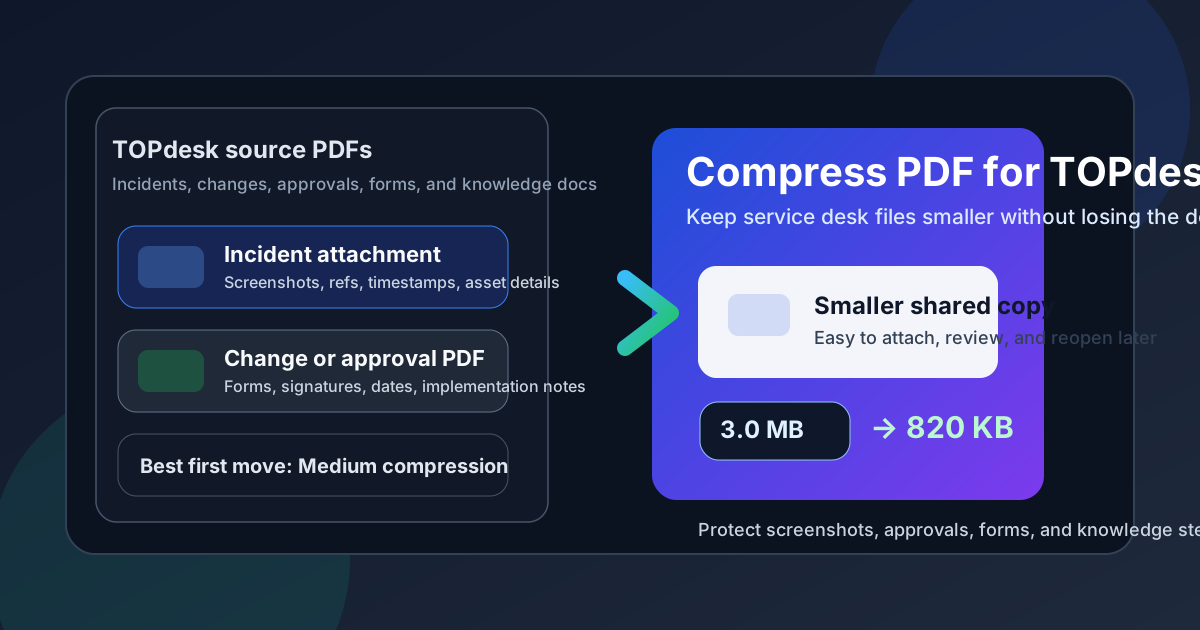
Table of contents
- Quick start: compress a PDF for TOPdesk in under 2 minutes
- Why smaller PDFs help in TOPdesk workflows
- What file size should you aim for?
- Which compression level should you choose?
- Step-by-step: shrink a TOPdesk PDF with LifetimePDF
- Best strategy for common TOPdesk PDF types
- What if the PDF is still too large?
- How to keep service-desk details readable
- Workflow habits that reduce PDF bloat
- Related LifetimePDF tools and useful reading
- FAQ (People Also Ask)
Quick start: compress a PDF for TOPdesk in under 2 minutes
If your real goal is simply make this TOPdesk PDF smaller so it is easier to attach, review, or share, this workflow is usually enough:
- Open Compress PDF.
- Upload the incident attachment, request form, change record, scanned document, supplier PDF, or knowledge file you actually plan to use.
- Choose Medium compression first.
- Download the smaller result and compare the new size with the original.
- Open it once and check the details that matter most: screenshot text, ticket references, serial numbers, signatures, dates, approval notes, and form fields.
- If the file is still bulky, use Extract Pages, Delete Pages, or Crop PDF before trying stronger compression.
Why smaller PDFs help in TOPdesk workflows
TOPdesk attachments are often part of a longer chain. An incident screenshot pack becomes part of a follow-up request, a change record gets reviewed by multiple people, a scanned vendor form sits inside a task, or a knowledge PDF gets downloaded long after the original upload. Heavy files add friction every time the document moves. They upload slower, feel awkward on mobile, and make routine reviews more annoying than they need to be.
Compression matters most when the PDF is useful but overweight. That is common with screenshot-heavy incident evidence, scanned request forms, approval packets, change records, supplier paperwork, and exported knowledge documents that include far more pages than the next person actually needs. A smaller file keeps the workflow moving, provided the important details still look easy to trust.
Why lighter PDFs work better in TOPdesk
- Faster incident updates: helpful when a technician needs to attach evidence without slowing down active work.
- Smoother request and change reviews: coordinators, approvers, and managers can reopen lighter PDFs faster.
- Cleaner knowledge sharing: smaller help articles and SOP downloads are less frustrating for staff and requesters.
- Better mobile access: lighter PDFs behave better on phones, tablets, and slower connections.
- Less repeat friction: if the same form, checklist, or guide gets reused often, trimming it once pays off every time.
What file size should you aim for?
There is no single perfect number because a one-page request form behaves differently from a screenshot-rich incident pack, a signed change approval, or a long exported knowledge guide. Still, practical targets help because they tell you when a PDF has become heavier than the job really requires.
| TOPdesk PDF type | Useful target | Why |
|---|---|---|
| Short incident notes, request forms, internal summaries | Under 2MB | These are usually text-heavy and can stay lightweight without much quality risk. |
| Change records, approvals, scanned paperwork, supplier files | 2MB to 5MB | These need enough clarity for signatures, dates, forms, and review notes to stay easy to trust. |
| Screenshot-heavy incident evidence and knowledge PDFs | 2MB to 5MB | These need image and text clarity so labels, steps, and interface details remain useful. |
| Large mixed packets with appendices and archive pages | Split when possible | One file doing multiple jobs is often the real problem, not just raw size. |
If your TOPdesk PDF is far above these ranges, do not assume you need harsher compression first. Many oversized service-desk files improve more when you remove duplicate pages, separate internal-only material, or crop dead scan borders.
Which compression level should you choose?
In most TOPdesk workflows, the real question is not can this be compressed? It is how small can I make it without weakening the file when someone has to rely on it later? That is why the safest answer is usually to start in the middle.
Low compression
Use Low when the PDF includes tiny screenshots, dense forms, approval signatures, incident evidence with small labels, or any supplier or change-control detail that must stay especially crisp. The file may remain a little heavier, but the review experience is safer.
Medium compression
Medium is the best default for most TOPdesk files. It normally cuts enough size to make the attachment easier to handle while preserving screenshot text, ticket references, signatures, dates, approval comments, and service-desk instructions. If you do not want to overthink the first pass, choose this.
High compression
High is useful when the PDF is scan-heavy, image-heavy, or still much larger than the workflow can tolerate. It can work well for long archives and bulky reference packs, but you should always review the weakest details before replacing the original file.
Step-by-step: shrink a TOPdesk PDF with LifetimePDF
- Open Compress PDF.
- Upload the exact file you intend to use in TOPdesk, not the larger working draft or export with extra appendix pages.
- Choose Medium compression first.
- Download the smaller result.
- Open the result at normal zoom and then zoom into the smallest important details.
- Check screenshot labels, incident numbers, request references, form fields, signatures, dates, and approval notes.
- If the file is still too large, remove unnecessary pages or split the packet before trying a stronger compression pass.
This order matters. Many people jump directly to aggressive compression when the better fix is simply not carrying extra pages forward. A cleaner packet usually beats a blurrier one.
Best strategy for common TOPdesk PDF types
Incident attachments with screenshots
Start with Medium compression and review the smallest visible text. If the evidence depends on tiny labels, timestamps, device names, or error details, keep the lighter file only if those details still feel effortless to read.
Change records and approval packets
These often mix forms, sign-offs, implementation notes, rollback plans, and supporting evidence. Medium compression is usually the safest first move, but always review signatures, dates, approver names, and key change notes before sharing the smaller version.
Knowledge PDFs and SOP exports
Text-heavy guides usually compress well. Under 2MB is a realistic target in many cases, especially when the document does not rely on oversized screenshots or dense diagrams. If the file is still large, it often contains repeated appendix pages that should not travel with the main instructions.
Scanned request forms and supplier paperwork
Scan-heavy PDFs usually contain more waste than expected. Empty borders, skewed pages, and blank backs add size fast. Use compression, then follow with Crop PDF or OCR PDF if the file still feels clumsy.
Mixed handoff packets
If one PDF includes internal notes, customer-facing instructions, approvals, and long reference appendices, splitting it usually works better than forcing stronger compression across everything. TOPdesk workflows are smoother when each PDF has one clear job.
What if the PDF is still too large?
If the file remains heavy after the first pass, that does not automatically mean the compression setting was too gentle. It often means the document structure is doing too much.
- Delete duplicate or blank pages: use Delete Pages to remove obvious waste.
- Extract the useful section: use Extract Pages when the incident, request, change, or knowledge article only needs part of a longer packet.
- Split one oversized file: use Split PDF if customer-facing pages and internal appendices should not live together.
- Crop dead borders: scanned forms and paperwork often shrink well after Crop PDF.
- Run OCR when appropriate: OCR PDF can make scan-based documents easier to search and reuse later.
- Redact sensitive details first: if the file contains personal data, supplier pricing, internal notes, or information that should not travel widely, use Redact PDF before sharing.
In service-desk workflows, a smaller and cleaner file is almost always better than one giant attachment nobody wants to open twice.
How to keep service-desk details readable
The safest habit is to review the details most likely to break first. In TOPdesk, that usually means the smallest visible evidence, not the big headline text.
- Zoom into the smallest screenshot labels and interface text.
- Check incident numbers, request IDs, timestamps, asset names, and serial numbers.
- Review signatures, initials, dates, and approval notes.
- Confirm forms still look natural and easy to complete or review.
- Make sure callouts, highlights, and arrows still point to the right thing.
- Open the result on mobile if staff or requesters often read the document on phones.
If any of those details feel uncertain, keep the original or rerun the file with a lighter compression setting. Trust matters more than winning a few extra megabytes.
Workflow habits that reduce PDF bloat
The easiest way to keep TOPdesk PDFs manageable is to avoid building oversized source files in the first place.
- Export the final version only: do not carry old drafts and repeated pages into the attachment.
- Keep one audience per PDF: customer instructions and internal notes often belong in separate files.
- Prefer focused evidence packs: attach the pages that solve the issue, not every related document.
- Clean scanner waste early: blank backs and giant borders add size without adding value.
- Remove hidden clutter: use PDF Metadata Editor if the file carries stale titles or document properties you do not want to pass along.
- Keep a master and a shared copy: that way you can preserve the original without forcing every review, ticket, or knowledge download to carry the heavier version.
These habits save time far beyond TOPdesk. The same smaller PDF usually behaves better in email, chat, approvals, and archive storage too.
Related LifetimePDF tools and useful reading
TOPdesk document prep usually turns into a few follow-on tasks. These tools pair especially well with compression:
- Compress PDF for the first size-reduction pass.
- Extract Pages when only part of the packet needs to travel.
- Delete Pages to strip duplicate or blank pages.
- Split PDF when one file is serving two audiences.
- Crop PDF to trim dead scan borders.
- OCR PDF for scan-based forms and paperwork.
- Redact PDF to remove sensitive information before sharing.
If you want adjacent reading, these guides fit the same workflow family: upload-focused TOPdesk guide, Compress PDF for HaloITSM, Compress PDF for ManageEngine ServiceDesk Plus, Compress PDF for Freshservice, Compress PDF for Jira Service Management, Compress PDF for SolarWinds Service Desk, and Compress PDF for Zoho Desk.
Bottom line: if the TOPdesk PDF is too large, start with Medium compression, protect the details that matter, and clean the packet structure before you force the file any harder.
FAQ (People Also Ask)
How do I compress a PDF for TOPdesk?
Upload the TOPdesk-ready PDF to a PDF compressor, start with Medium compression, and keep the smaller copy only after checking screenshots, ticket references, signatures, dates, and approval notes. For most service-desk workflows, Medium is the safest starting point because it reduces file size without weakening review clarity.
What file size should I aim for before using a PDF in TOPdesk?
Short text-heavy incident notes, request forms, and internal summaries often work well under 2MB. Screenshot-heavy evidence, scanned paperwork, change records, and knowledge PDFs usually land better around 2MB to 5MB as long as the smallest useful details remain easy to read.
Will compression make screenshots or forms blurry in TOPdesk?
It can if you compress too aggressively. That is why Medium compression is usually the best first move. Always review the smallest screenshot text, form labels, signatures, dates, and incident references before you keep the smaller file.
Should I split a large TOPdesk PDF instead of compressing it harder?
Often, yes. If one PDF mixes customer instructions, internal notes, repeated evidence, approvals, and long appendices, splitting it usually works better than forcing stronger compression across the whole document.
Which LifetimePDF tools pair best with TOPdesk workflows?
Compress PDF is the main starting point. Extract Pages, Delete Pages, Split PDF, Crop PDF, OCR PDF, PDF Metadata Editor, and Redact PDF are especially useful when you want smaller, cleaner TOPdesk documents without carrying extra pages, scan waste, or hidden document details forward.