Compress PDF for Siteliner Without Monthly Fees: Shrink Duplicate Content Reports, Internal Link Audits, and Client PDFs Without Another Subscription
If you need to compress a PDF for Siteliner without monthly fees, upload the file to LifetimePDF's Compress PDF tool, start with Medium compression, and keep the smaller copy only if page URLs, duplicate-match percentages, internal-link counts, and screenshot notes still look clear.
For most Siteliner workflows, that is enough to shrink duplicate content reports, internal link audits, and client-ready SEO PDFs without paying for another recurring subscription just to finish routine reporting cleanup.
Siteliner reports get heavy for a very normal reason. What starts as a quick duplicate-content check often turns into something that needs to be emailed to a client, attached to a task, archived in a project folder, or dropped into a wider SEO audit pack. The useful part is the evidence. The annoying part is when the PDF becomes bigger than it needs to be. A practical no-subscription workflow solves that without turning a small cleanup task into another bill.
Fastest path: save the Siteliner report as PDF, run it through LifetimePDF's Compress PDF tool at Medium, then split, extract, or trim pages only if the file still carries more weight than the next reader actually needs.
In a hurry? Jump to Quick start: compress a Siteliner PDF in about 2 minutes.
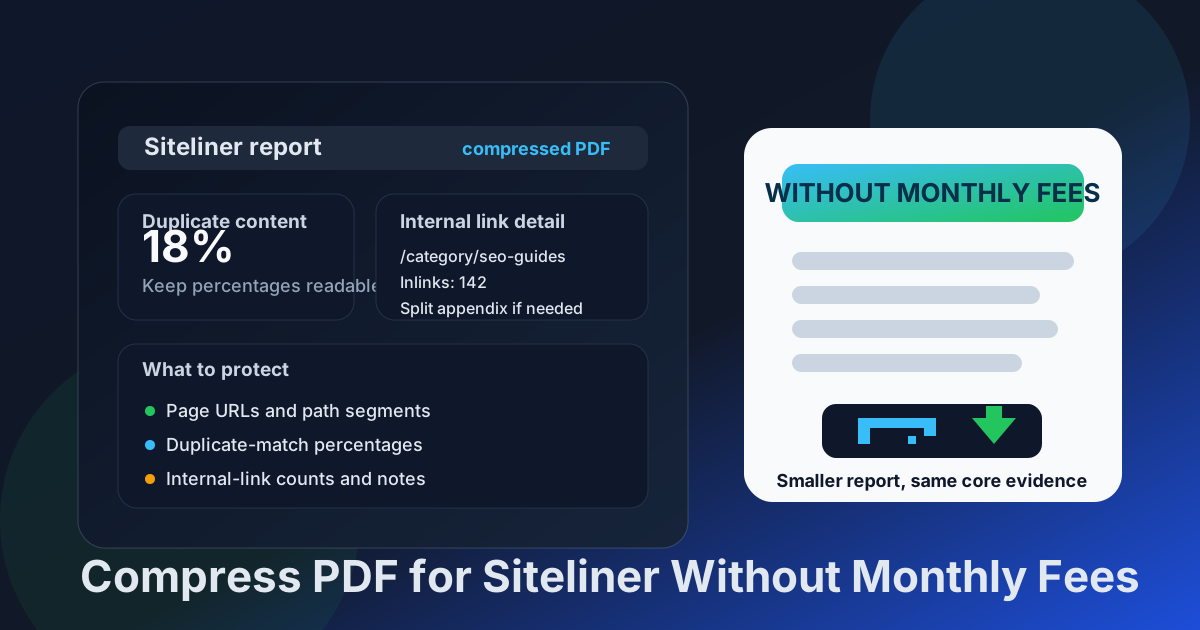
Table of contents
- Quick start: compress a Siteliner PDF in about 2 minutes
- Why "without monthly fees" matters here
- Why smaller PDFs help in Siteliner workflows
- What file size should a Siteliner PDF be?
- Which compression level should you choose?
- Step-by-step: use LifetimePDF to shrink the file
- Best approach for common Siteliner PDFs
- What to do if the PDF is still too large
- How to keep Siteliner details readable
- Workflow habits that reduce PDF bloat
- Related LifetimePDF tools and useful reading
- FAQ (People Also Ask)
Quick start: compress a Siteliner PDF in about 2 minutes
If your real goal is simply make this Siteliner PDF smaller so it is easier to share, this workflow is usually enough:
- Save the final version first, whether that is a duplicate-content summary, internal-link review, screenshot appendix, broken-page report, or client-ready audit recap.
- Open Compress PDF.
- Upload the file and choose Medium compression first.
- Download the smaller result and compare the new size.
- Preview the weakest details: page URLs, duplicate percentages, inlink counts, dates, screenshot labels, and short recommendations.
- If the file is still bulky, use Extract Pages, Split PDF, or Delete Pages before trying stronger compression.
Why "without monthly fees" matters here
Siteliner cleanup is recurring work. A consultant sends duplicate-content findings. An in-house SEO lead archives a crawl summary. A content team shares proof with editors. An agency adds the report to a monthly client packet. None of that really needs another subscription if the actual task is just to make the PDF smaller and easier to pass around.
That is why the no-subscription angle matters. Teams already pay for reporting tools, project software, storage, and communication platforms. Adding one more monthly charge just to shrink PDFs is the kind of software creep people actively try to avoid. A pay-once workflow fits better because it solves a repeated cleanup job without introducing one more recurring decision.
- Recurring work: duplicate-content and internal-link reviews are not one-time events.
- Multiple cleanup tasks: compression often leads to extraction, splitting, page deletion, or cropping.
- Better cost fit: a pay-once PDF workflow matches recurring SEO reporting better than another SaaS bill.
- Less friction: the easier the workflow is, the more likely someone fixes the file before it becomes a sharing problem.
Why smaller PDFs help in Siteliner workflows
Siteliner itself is usually used live. The PDF appears later, when someone needs a fixed copy of the findings. That could mean a duplicate-content handoff for writers, an internal-link report for a technical SEO task, or a screenshot-backed proof pack for a client. Once the report becomes a shareable artifact, file size starts to matter.
Heavy PDFs create ordinary friction. They are slower to email, more awkward to upload, and more annoying to open on smaller devices. The extra weight usually comes from full-page screenshots, repeated appendix pages, wide margins, or one oversized report trying to serve several different readers at once. Good compression removes that drag while keeping the evidence intact.
Why compression usually helps
- Faster handoffs: lighter PDFs are easier to email, upload, and attach to tasks.
- Smoother review: a smaller report opens faster when someone only needs the key findings.
- Cleaner archives: recurring SEO audit packs take up less space when they are not bloated.
- Better meeting flow: people can open the same file quickly instead of waiting on a bulky attachment.
- Less resend friction: you are less likely to hear “can you send a smaller version?” after the report is already out.
What file size should a Siteliner PDF be?
There is no single perfect number for every Siteliner workflow, so practical ranges are more useful than chasing a magic limit. You want a file that sends comfortably, opens quickly, and still leaves the important details readable.
| Siteliner PDF type | Practical target | Why it works |
|---|---|---|
| Focused duplicate-content summary or short internal-link review | Under 1MB to 2MB | Usually enough for URLs, percentages, counts, and a few short notes |
| Client-ready audit recap or mixed report pack | 2MB to 4MB | Leaves room for screenshots, commentary, and proof pages without forcing harsh compression |
| Screenshot-heavy appendix or evidence pack | Up to about 5MB if it still reads clearly | These files usually improve more from smarter packaging than from aggressive compression alone |
| Huge all-in-one audit deck | Split it instead of chasing a tiny size | At that point, one oversized PDF is often the real problem |
Which compression level should you choose?
Most people should not begin with the strongest option. That is the quickest route to blurry URLs, soft percentages, or screenshot labels that technically survived but no longer feel comfortable to read. For Siteliner PDFs, Medium is usually the right first move.
| Compression level | Best use | Main trade-off |
|---|---|---|
| Low | Dense URL tables and reports where tiny text matters more than maximum size reduction | Protects clarity best but may not reduce size enough |
| Medium | Most duplicate-content summaries, internal-link audits, and client-ready review packs | Best balance of smaller size and readable detail |
| High | Only when the file is still too large after page cleanup | Highest risk of hurting narrow URL rows, percentages, and screenshot clarity |
If the PDF started as a clean export, compression usually behaves well. If it is built from many screenshots and proof pages, trimming the report structure often helps more than stronger compression alone.
Step-by-step: use LifetimePDF to shrink the file
- Save the final version first. Use the exact report, recap deck, or appendix you plan to share, not a draft with extra pages nobody needs.
- Open Compress PDF.
- Upload the Siteliner PDF. This can be a duplicate-content summary, internal-link review, broken-page report, screenshot appendix, or client-ready SEO recap.
- Choose Medium compression. That is the safest default in most Siteliner reporting situations.
- Download the smaller copy. Compare the new size before moving on.
- Open the result once. Check page URLs, duplicate-match percentages, inlink counts, issue notes, dates, and screenshot callouts.
- Only do more if needed. If the PDF is still too heavy, clean the page mix instead of immediately forcing stronger compression.
Useful combo: compress first, then use Extract Pages or Split PDF if the audience only needs part of the report.
Best approach for common Siteliner PDFs
Duplicate-content summaries
These usually compress well because the important content is mostly table-driven. Medium compression is often enough. The main thing to protect is the readability of page URLs, duplicate percentages, and the notes that explain which pages should be rewritten, merged, canonicalized, or left alone.
Internal-link reviews
Be more careful here. Long URLs, inlink counts, and narrow columns can become annoying fast if the text softens too much. Medium is still a strong first pass, but Low can be safer when the report is mostly detailed URL rows.
Screenshot-backed proof packs
This is where file size grows quickly. Browser captures, highlighted duplicate sections, and before-and-after examples add a lot of visual weight. Compression helps, but removing repeated screenshots or splitting the appendix often helps more.
Client recaps with appendix pages
This is the classic oversized PDF. Usually the best move is to keep the summary deck lean and move raw evidence into a second file. Readers who want the headline story and readers who want every proof page are rarely the same audience.
What to do if the PDF is still too large
If Medium compression still leaves the file larger than you want, the next move is usually structural cleanup, not panic. Many oversized Siteliner PDFs have extra weight that can be removed without damaging the useful content.
- Split the summary from the appendix: keep the headline story separate from raw proof pages.
- Delete duplicate screenshots: repeated captures add weight quickly.
- Extract only the pages the next reader needs: send the summary and key evidence instead of the whole pack.
- Crop wide margins: whitespace around screenshots often wastes space.
- Trim stale evidence: old examples and repeated cover pages often survive longer than they should.
How to keep Siteliner details readable
Before you share the smaller file, check the details somebody else may need to trust later. In Siteliner workflows, that usually means:
- page URLs and path segments
- duplicate-match percentages and issue counts
- internal-link counts and summary tables
- dates, labels, and recommendation notes
- screenshot callouts, annotations, and highlighted examples
- any footers or tiny text in client-facing recap pages
If the faintest or smallest section is still readable, you are usually in good shape. If the weak details turned fuzzy, go back one step. A slightly larger file is still the better file when it keeps the evidence intact.
Workflow habits that reduce PDF bloat
The easiest way to avoid oversized Siteliner PDFs is not heroic compression. It is better report hygiene before the file gets messy.
- Export only what the next reader needs.
- Separate proof from presentation.
- Keep appendix pages outside the main recap when possible.
- Use tighter screenshots instead of full-browser captures when one area proves the point.
- Trim old examples and duplicate covers before the final PDF is created.
- Reuse a simple finishing workflow: trim, compress, review, send.
That last point matters. The best PDF workflow is rarely the fanciest one. It is the one your team can repeat quickly without turning a small reporting task into a side project.
Related LifetimePDF tools and useful reading
Useful tools
Best fit
This workflow is a strong fit if you regularly share duplicate-content findings, internal-link reviews, screenshot-backed SEO proof packs, or client-ready audit PDFs and want a pay-once way to keep recurring report cleanup under control.
Want the short version? Use LifetimePDF to compress the Siteliner PDF first, check readability once, then split or extract pages only if the audience does not need the full report.
FAQ (People Also Ask)
How do I compress a PDF for Siteliner without monthly fees?
Use a pay-once PDF tool like LifetimePDF, upload the Siteliner PDF, start with Medium compression, and review the smaller result before you send it. If the file is still bulky, split the appendix, extract the summary pages, or remove repeated screenshots instead of over-compressing everything at once.
What file size should I aim for with Siteliner PDFs?
Under 2MB is a strong target for focused duplicate-content summaries and short internal-link reviews. Client-ready audit packs and screenshot-backed proof files often work better around 2MB to 4MB as long as the smallest useful text still looks clear.
Will compression make Siteliner tables or URLs blurry?
It can if you compress too aggressively. That is why Medium compression is usually the safest first pass. Always check page URLs, duplicate-match percentages, internal-link counts, issue labels, and screenshot notes before keeping the smaller copy.
Why look for a Siteliner PDF workflow without monthly fees?
Because shrinking exported SEO reports is recurring operations work, not something most teams want another subscription for. A pay-once workflow fits better when the real need is reliable compression, cleanup, and easier sharing around reports you already create.
What if my Siteliner PDF is still too large after compression?
Delete repeated screenshots, split the appendix from the summary, crop wasted margins, and extract only the pages the next reader needs before trying stronger compression. In many Siteliner workflows, sending less PDF works better than compressing the whole pack more aggressively.
Published by LifetimePDF - Pay once. Use forever.