Compress PDF for Sitebulb: Make Technical SEO Reports Easier to Share Without Losing Crawl Detail
To compress a PDF for Sitebulb, export the report you actually plan to share, run it through Compress PDF, start with Medium compression, and keep the smaller copy only if crawl charts, hint screenshots, URL examples, and action notes still read cleanly.
For most Sitebulb PDFs, under 2MB works well for short summaries, while bigger audit decks, screenshot-heavy appendices, and client-ready technical SEO packs usually sit more comfortably around 2MB to 5MB.
Sitebulb exports are useful because they turn technical findings into something portable. They also get bulky fast. One PDF can end up carrying scorecards, hint explanations, screenshots, chart-heavy evidence, URL samples, developer notes, and a client-facing summary all at once. Good compression is not about crushing that file until it is tiny. It is about trimming the weight without making the proof harder to trust.
Fastest path: open LifetimePDF's Compress PDF tool, begin with Medium, then check one dense chart page and one screenshot-heavy page before sending the smaller copy.
Short on time? Jump to Quick start: compress a Sitebulb PDF in a few minutes.
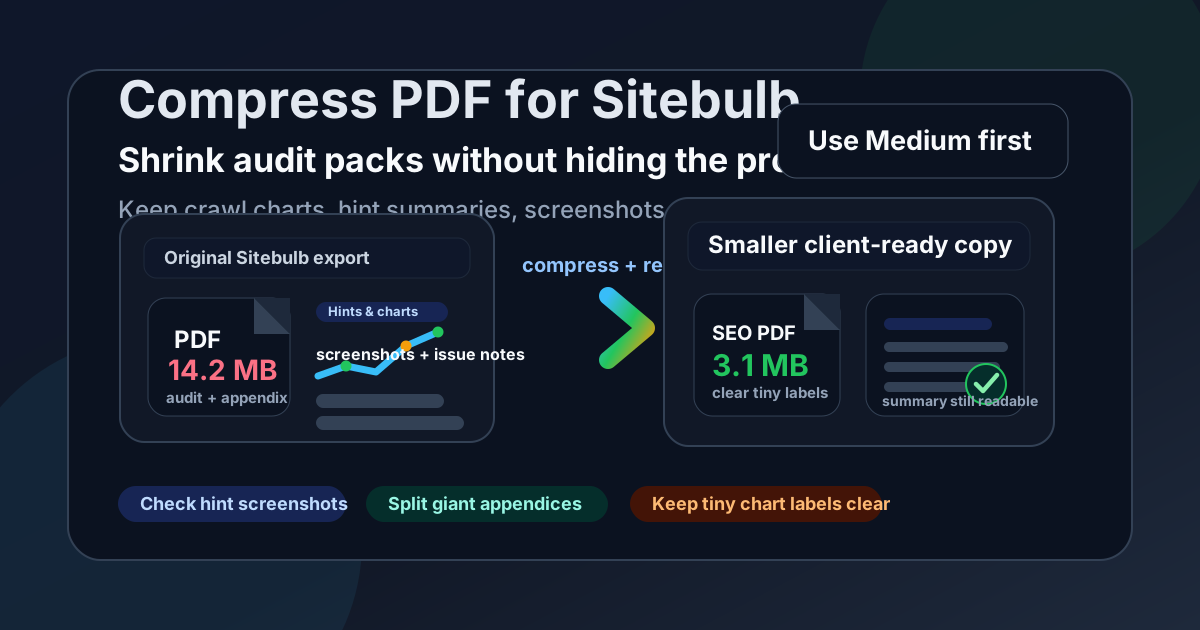
Table of contents
- Quick start: compress a Sitebulb PDF in a few minutes
- Why Sitebulb PDFs get heavy so quickly
- What file size should you aim for?
- When to compress, split, or extract pages instead
- Step-by-step: shrink a Sitebulb PDF with less risk
- Best approach for common Sitebulb report types
- Readability checklist before you send the smaller file
- Related LifetimePDF tools and guides
- FAQ (People Also Ask)
Quick start: compress a Sitebulb PDF in a few minutes
If your real goal is simply make this Sitebulb PDF easier to send without damaging the useful detail, this order is usually enough:
- Open Compress PDF.
- Upload the Sitebulb export you genuinely plan to share, such as an audit summary, crawl overview, hint appendix, screenshot pack, or client-ready report.
- Choose Medium compression first.
- Download the smaller copy and compare the new file size with the original.
- Check one chart-heavy page and one screenshot-heavy page at normal zoom.
- If the file is still awkwardly large, use Split PDF or Extract Pages instead of immediately forcing stronger compression.
Why Sitebulb PDFs get heavy so quickly
Sitebulb is built for technical detail, and technical detail takes space. A PDF that looks simple on the surface may actually contain chart images, screenshot callouts, hint explanations, URL examples, tables, annotations, and appendix pages that were added for later reference. The file grows even faster when one report tries to serve multiple audiences at once.
An executive summary only needs the main findings. A developer handoff may need issue proof and exact examples. An internal archive might keep the whole appendix. If those all live inside one export, compression helps, but better packaging often helps even more.
| What adds weight | Why it matters | Best response |
|---|---|---|
| Full-page screenshots | They are visually useful but usually much heavier than text pages | Compress gently first, then split or trim extras if needed |
| One PDF for every audience | Executives, clients, and developers rarely need the same appendix depth | Extract the pages each audience actually needs |
| Repeated evidence pages | Duplicate screenshots and recap pages quietly bloat the file | Delete repeats before compressing harder |
| Tiny labels inside charts | Those details become unreadable first if compression is too aggressive | Always check dense charts after compression |
| Long appendices | They add size even when only a few pages matter to the reader | Split the appendix from the summary |
What file size should you aim for?
There is no perfect size for every Sitebulb export, but practical ranges stop you from compressing harder than necessary:
| Sitebulb PDF type | Good target range | Why that range works |
|---|---|---|
| Short audit summary | Under 2MB | Easy to email, upload, and review quickly |
| Client-ready report deck | 2MB to 4MB | Usually enough room for charts, notes, and a few supporting visuals |
| Screenshot-heavy issue appendix | 3MB to 5MB | Heavier visuals often need a little more breathing room to stay readable |
| Developer handoff with proof pages | As small as practical while details remain clear | Clarity matters more than hitting an arbitrary number |
Treat those ranges as sanity checks, not commandments. A 3.8MB report that preserves tiny issue evidence is usually better than a 1.2MB report that turns charts, annotations, and URL examples into guesswork.
When to compress, split, or extract pages instead
Compression is the best first move when the PDF is already well packaged and just needs to be lighter. It is not always the best second move. If the file still feels bloated after one sensible pass, packaging changes usually beat brute force.
Compress when
- The PDF is already the right length.
- The main problem is upload or email friction.
- The charts and screenshots still look clean after a medium pass.
Split when
- The summary and appendix serve different readers.
- You want a light client copy plus a heavier internal evidence pack.
- One long PDF makes review feel slower than it needs to be.
Extract pages when
- The recipient only needs a few key pages.
- You are sharing one issue cluster rather than the full audit.
- You need a quick follow-up attachment for a ticket or thread.
Step-by-step: shrink a Sitebulb PDF with less risk
This workflow keeps you out of the usual trap where the file gets smaller but the evidence gets worse.
- Choose the finished export. Compress the version you actually plan to send, not an early draft that may change again.
- Open Compress PDF. Start with Medium compression because it is usually the safest balance for technical SEO material.
- Download the smaller copy. Look at the size drop, but do not stop there.
- Check the fragile details. Open one dense chart page, one screenshot-backed issue page, and one page with small text or URL examples.
- Decide whether packaging should change. If the file is still clumsy to send, use Split PDF or Extract Pages rather than pushing compression to the point where labels get muddy.
- Keep the cleanest version. The right output is the smallest file that still feels dependable when someone else opens it without context.
Best approach for common Sitebulb report types
Audit summaries and executive recaps
These are usually the easiest to compress because they rely more on concise charts and fewer appendix screenshots. If the file is still large, the report may simply contain too many supporting pages for an executive audience.
Client-ready technical SEO reports
These often need a middle ground. They should feel light enough to share easily, but they also need enough proof to make recommendations credible. Medium compression plus a short summary-and-appendix split is often the cleanest answer.
Screenshot-heavy issue appendices
These are where aggressive compression hurts fastest. If arrows, tiny labels, browser UI text, or screenshot callouts start to blur, stop compressing harder and separate the appendix instead.
Developer handoff PDFs
Developers usually care less about decorative polish and more about whether the exact issue evidence is visible. Keep the file reasonably small, but protect precision first. A slightly heavier PDF is fine if it preserves the proof needed to reproduce or fix the issue.
Readability checklist before you send the smaller file
Before you email, upload, or attach the compressed Sitebulb PDF, run this quick check:
- Can you still read the smallest chart labels at normal zoom?
- Are hint summaries and issue names still crisp?
- Do screenshot annotations and arrows still point clearly?
- Can you read URL examples, dates, priorities, and issue counts without zooming excessively?
- Does the PDF still feel trustworthy enough for a client, strategist, or developer to use without asking for the original?
If any of those answers are shaky, the file is probably too compressed or too overloaded. Go back one step. In most cases, splitting or extracting pages solves the problem more gracefully than trying to force a smaller number.
Related LifetimePDF tools and guides
If you are cleaning up Sitebulb PDFs regularly, these tools and related guides usually help:
- Compress PDF for the first size reduction pass.
- Split PDF when one report is trying to serve too many audiences.
- Extract Pages when you only need a summary or a handful of issue pages.
- Compress PDF for Sitebulb Online if your workflow is fully browser-based.
- Compress PDF for Sitebulb Without Monthly Fees if you want a pay-once angle.
- Share smaller Sitebulb SEO audit reports faster for a broader reporting workflow.
Need the fastest fix? Start with compression, then split the appendix if the report still feels bulkier than the recipient needs.
FAQ (People Also Ask)
How do I compress a PDF for Sitebulb?
Export the Sitebulb report as PDF, upload it to a compressor, start with Medium compression, and review the smaller copy before you share it. For most Sitebulb exports, Medium is the safest first pass because it cuts size while keeping charts, screenshots, issue notes, and recommendations readable.
What file size should I aim for with Sitebulb PDFs?
Short summaries often work well under 2MB. Broader client-ready reports and screenshot-heavy appendices usually land more comfortably around 2MB to 5MB as long as the smallest useful details still look clear.
Should I split a large Sitebulb PDF instead of compressing it harder?
Often, yes. If one PDF combines the executive summary, issue proof, screenshots, and archive material for different readers, splitting it usually works better than squeezing the whole report harder.
What should I check after compressing a Sitebulb report?
Check chart labels, hint summaries, screenshot callouts, URL examples, dates, priorities, and issue counts. Those are the parts most likely to become unreliable if the file is over-compressed.
Why do Sitebulb PDFs become so large?
They often pack too many jobs into one file: summary pages, detailed evidence, screenshots, charts, and appendices for multiple audiences. The real fix is usually a mix of gentle compression and smarter page packaging.