Compress PDF for Proposify: Keep Proposals, Quotes, and Attachments Small Without Losing Readability
To compress PDF for Proposify, upload the final proposal, quote, brochure, or client-facing attachment to LifetimePDF's Compress PDF tool, start with Medium compression, and keep the smaller copy only if pricing tables, headlines, charts, screenshots, and fine print still look clean.
For most Proposify-ready files, under 2MB is a strong target for text-heavy proposals and quotes, while visual decks, case studies, and appendix-heavy packets usually work best around 2MB to 5MB.
Proposify is usually close to the moment a client actually opens the document and decides whether it feels professional, easy to review, and worth taking seriously. That means size matters, but clarity matters more. Good compression removes unnecessary weight without making pricing, layout, or brand visuals feel careless.
Fastest path: run the finished Proposify PDF through LifetimePDF's Compress PDF tool on Medium, then trim appendix pages, duplicate exports, or scan waste only if the file is still heavier than the workflow needs.
Need the short version? Jump to Quick start: compress a Proposify PDF in about 2 minutes.
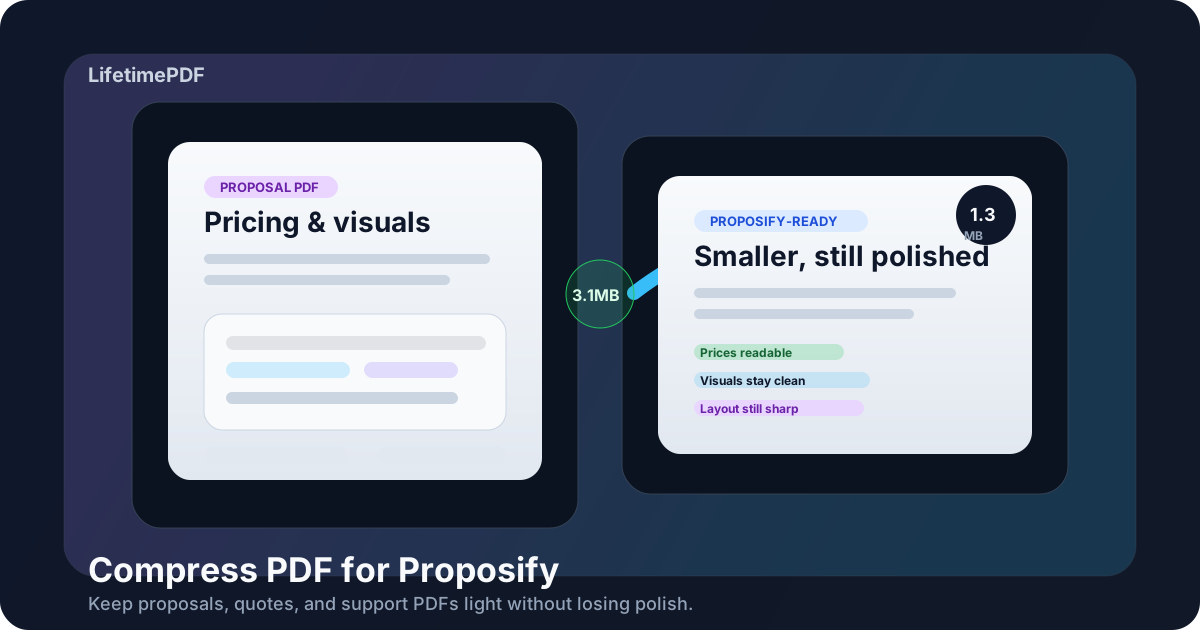
Table of contents
- Quick start: compress a Proposify PDF in about 2 minutes
- Why smaller PDFs help in Proposify workflows
- What file size should you aim for?
- Which compression level should you choose?
- Step-by-step: shrink a Proposify PDF with LifetimePDF
- Best strategy for common Proposify file types
- What to do if the PDF is still too large
- How to keep prices, visuals, and layout readable
- Workflow habits that prevent proposal bloat
- Related LifetimePDF tools and useful reading
- FAQ (People Also Ask)
Quick start: compress a Proposify PDF in about 2 minutes
If your real goal is simply make this proposal PDF smaller so it uploads cleanly and still looks good in front of a client, this workflow is usually enough:
- Start with the exact proposal, quote, statement of work, brochure, or appendix PDF you plan to use.
- Open Compress PDF.
- Choose Medium compression first.
- Download the smaller result and compare the new size with the original.
- Open it once and check the details that matter most: prices, totals, screenshots, charts, logos, section headings, and fine print.
- If the packet is still bulkier than it should be, use Delete Pages, Extract Pages, or Split PDF before you try stronger compression.
Why smaller PDFs help in Proposify workflows
Proposify files are rarely throwaway documents. They are usually client-facing proposals, quotes, branded summaries, case studies, pricing sheets, or appendix pages that support a buying decision. When those files are heavier than they need to be, the extra size rarely adds value. It usually just adds friction.
Smaller PDFs upload faster, open more smoothly on mobile, and make it easier for a client or internal approver to focus on the proposal itself instead of waiting for the document to behave. That matters even more when the file includes full-page screenshots, rich brand layouts, exported slides, or bulky support pages that quietly carry a lot of image weight. Compression helps because it strips out some of that drag without forcing you to rebuild the whole proposal from scratch.
Why lighter proposal PDFs usually work better
- Faster upload and resend cycles: useful when you need to revise a proposal quickly.
- Better mobile review: many clients open proposals on a phone before they ever see them on a large screen.
- Less friction for approvals: internal stakeholders can skim the file faster when it is not bloated.
- Cleaner handling for support material: case studies, brochures, and appendices often carry more image weight than they need.
- More polished delivery: a lighter PDF usually feels more intentional than a giant packet full of avoidable bulk.
What file size should you aim for?
There is no perfect number for every Proposify workflow, so practical size ranges are more useful than chasing the tiniest possible file. The right target depends on whether the document is mostly text, a mixed visual proposal, or a packet with heavy support material.
| Document type | Practical target | Why it works |
|---|---|---|
| Text-heavy quote or proposal | < 1MB to 2MB | Usually enough for fast uploads and smooth review without harming normal readability |
| Proposal with screenshots, charts, or branded pages | 1MB to 3MB | Leaves room for visuals while staying easier to handle |
| Case study, brochure, or appendix-heavy packet | 3MB to 5MB | Gives image-heavy pages some room without making the whole document feel clumsy |
| Over 5MB | Usually needs cleanup | At that point, trimming pages or splitting bulky support material often works better than compressing harder |
Which compression level should you choose?
The right setting depends less on the platform name and more on what is inside the PDF. Start with the gentlest option that gets the file into a practical range.
Low compression
Use Low when the file is already fairly small and only needs a modest reduction. This is a sensible choice for clean exports with delicate charts, sharp product screenshots, or layout-heavy brand pages you want to preserve as much as possible.
Medium compression
Medium is usually the best default for Proposify. It tends to remove a meaningful amount of size while keeping prices, chart labels, screenshots, section headings, and fine print readable. For most real-world proposals, this is the first setting worth trying.
High compression
High can help with bulky scans or visual-heavy support files, but it deserves a careful review afterward. If thin table lines, small labels, or weak screenshots start to look soft, it is usually better to clean the source or split the packet than to keep pushing harder.
Step-by-step: shrink a Proposify PDF with LifetimePDF
- Use the final version. Start with the proposal, quote, brochure, or appendix PDF you actually plan to send, not an old draft that still carries internal pages.
- Open Compress PDF.
- Upload the file and choose Medium compression. This is usually the safest first pass.
- Download the smaller copy. Compare the size reduction with the original file.
- Review the fragile details once. Check prices, totals, screenshots, logos, page numbers, small text, and any chart or table labels.
- Clean structure if needed. If the file still feels too large, delete duplicate pages, split a bulky appendix, or crop scan waste before you try stronger compression.
Best strategy for common Proposify file types
Quotes and text-heavy proposals
These are usually the easiest files to shrink. If the PDF feels oddly large, check for oversized cover images, full-page background graphics, or pages that were converted from screenshots instead of real text. Most clean exports in this category can land under 2MB without any visible downside.
Branded proposals with screenshots or charts
These files often benefit from compression, but they also deserve a closer review. Full-page screenshots and chart-heavy pages can become muddy sooner than text pages. Medium compression is usually enough when the source file was exported cleanly.
Brochures, case studies, and sales collateral
Marketing-heavy PDFs usually carry the most image weight. If the packet still feels too large after one sensible pass, the best answer is often fewer pages or separate support files rather than harsher compression across everything.
Appendices and support packets
This is where bloat often hides. Extra case studies, internal approval pages, duplicate pricing views, or old scope references make the main proposal heavier than it needs to be. If the appendix is useful but not essential to first review, splitting it out often creates a cleaner experience.
What to do if the PDF is still too large
If Medium compression does not get the document into a comfortable range, the answer usually is not keep squeezing until it gives up. The smarter move is to remove weight the client never needed in the first place.
- Delete duplicate pages, outdated appendices, or blank support pages.
- Extract only the proposal pages that actually need to travel.
- Split one oversized packet into a core proposal and a separate appendix.
- Crop large borders from scanned support files.
- Re-export the source PDF more cleanly if one or two oversized pages are doing most of the damage.
How to keep prices, visuals, and layout readable
When you review the compressed file, do not just glance at the first page. Check the sections that are most likely to fail first.
- Pricing tables: confirm totals, line items, and small labels still read cleanly.
- Section headings: make sure they still anchor the document visually.
- Screenshots and charts: look for muddy labels or softened details.
- Logos and brand elements: confirm the proposal still feels polished.
- Fine print: zoom in on the smallest useful text once before you replace the original.
If those details still feel dependable, the compression was probably successful. If they do not, step back and clean the source or restructure the packet instead of pretending a weaker PDF is good enough because the file-size number looks nicer.
Workflow habits that prevent proposal bloat
The easiest compression job is the one you barely need. A few upstream habits make Proposify files stay smaller from the start:
- Export directly from the source tool instead of printing and rescanning when possible.
- Keep the main proposal focused on what the client actually needs to review.
- Split large case studies or reference packs when they are optional support material.
- Compress the final packet once instead of compressing every intermediate draft.
- Keep an untouched master copy so future revisions do not inherit old quality loss.
Related LifetimePDF tools and useful reading
If you are cleaning a Proposify packet instead of just shrinking it, these tools usually help the most:
- Compress PDF for the main size-reduction step.
- Merge PDF for building one final proposal packet.
- Extract Pages and Delete Pages for trimming unnecessary content.
- Split PDF for separating bulky appendices.
- Crop PDF for scan cleanup before a second compression pass.
Useful related reading: Compress PDF for PandaDoc, Compress PDF for GetAccept, Compress PDF for HoneyBook, Compress PDF for DocuSign, and the upload-focused Proposify companion guide.
Want the fastest fix? Start with LifetimePDF's compressor, review the smaller copy once, and send the lighter Proposify-ready PDF with less friction.
FAQ (People Also Ask)
How do I compress a PDF for Proposify?
Upload the final proposal or quote to LifetimePDF's Compress PDF tool, start with Medium compression, and keep the smaller copy only if pricing tables, headlines, screenshots, logos, and fine print still look clean. Medium is usually the safest first pass because it reduces size without making a client-facing PDF feel rough.
What file size should I aim for before using a PDF in Proposify?
Under 2MB is a strong target for text-heavy proposals and quotes. Visual brochures, case studies, and appendix-heavy packets usually feel more realistic around 2MB to 5MB as long as the smallest useful details still read clearly.
Will compression blur pricing tables or proposal visuals in Proposify?
Usually not if you start with Medium compression and preview the result once. The bigger risks are weak scans, oversized screenshots, tiny chart labels, or source files that already looked soft before compression.
Should I merge attachments first or compress first for Proposify?
If you already know the final proposal packet, merge first and then compress the finished PDF once. If the bundle includes duplicate pages, outdated appendix content, or internal-only material, trim those before you build the final packet.
What if my Proposify PDF is still too large after compression?
Remove duplicate or nonessential pages, split a large appendix, crop scan borders, or export a cleaner source PDF before pushing stronger compression. Structural cleanup usually protects readability better than repeatedly squeezing the same heavy file.