Compress PDF for GetAccept
To compress PDF for GetAccept, upload the final proposal, contract, quote, or sales attachment to LifetimePDF Compress PDF, start with Medium compression, and keep the smaller copy only if pricing, signature boxes, dates, totals, and fine print still read clearly.
For most GetAccept workflows, under 2MB is a smart target for text-heavy documents, while image-heavy decks and scanned exhibits usually feel easier to handle when they stay under about 5MB.
GetAccept tends to sit close to the moment a document actually matters. A buyer is reviewing the proposal. A stakeholder is checking pricing. A signer is opening the contract on a phone. At that point, a bloated PDF does not make the document better. It just adds friction.
Fastest path: compress the finished GetAccept-ready PDF once at Medium, then trim pages or scan waste only if the file still feels larger than it should.
In a hurry? Jump to Quick start: compress a GetAccept PDF in under 2 minutes.
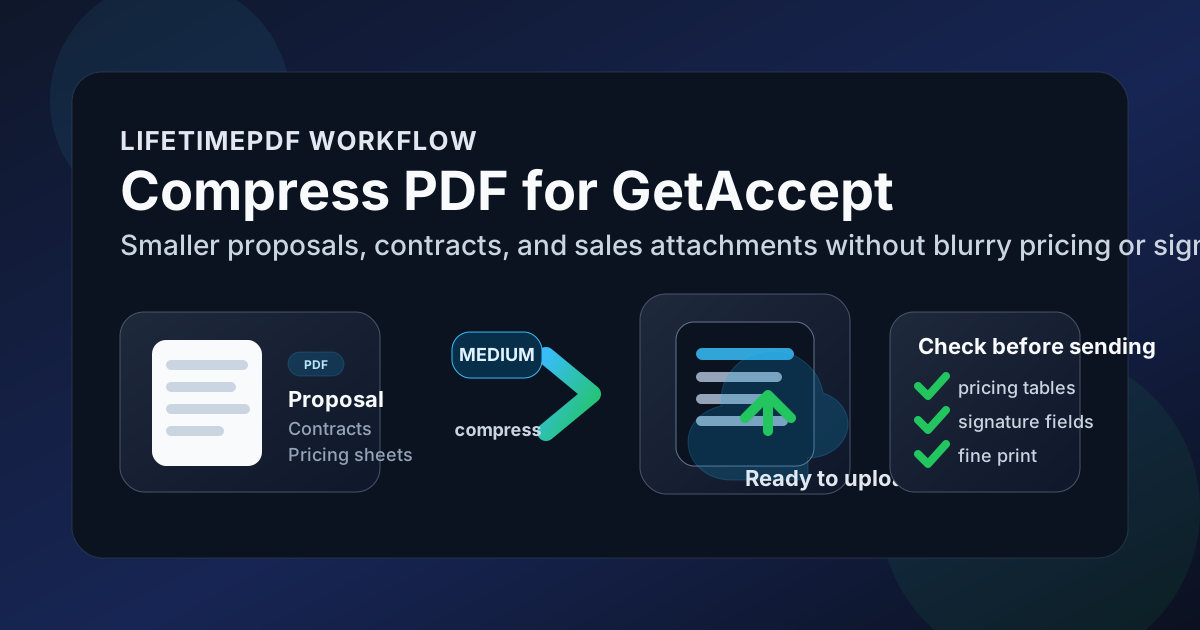
Table of contents
- Quick start: compress a GetAccept PDF in under 2 minutes
- Why smaller PDFs help in GetAccept workflows
- What file size should you aim for?
- Which compression level should you choose?
- Step-by-step: shrink a PDF with LifetimePDF
- Best strategy by document type
- What if the PDF is still too large?
- How to keep pricing, legal, and signer details readable
- Workflow habits that keep GetAccept files cleaner
- Related LifetimePDF tools and internal links
- FAQ (People Also Ask)
Quick start: compress a GetAccept PDF in under 2 minutes
If your real goal is simply make this document smaller so it is easier to use in GetAccept, this workflow is usually enough:
- Export or assemble the final PDF you actually plan to send.
- Open Compress PDF.
- Upload the file and choose Medium compression first.
- Download the smaller copy and check the file size.
- Preview names, dates, totals, signature boxes, payment terms, and fine print once before using it in GetAccept.
- If the file is still bulky, trim duplicate pages or scan waste before forcing stronger compression across the whole packet.
Why smaller PDFs help in GetAccept workflows
GetAccept sits near the handoff point. The proposal is ready. The quote is ready. The contract is ready. That means document weight matters more than it did while the file was still being edited internally. A large PDF can slow down uploads, create clumsy previews, and feel heavier than necessary when someone opens it on mobile.
Smaller PDFs help because they remove that last-mile friction. A buyer can open the document faster. A manager can skim pricing without waiting on a giant packet. A signer can review signature sections without zooming around a bloated scan bundle that should have been cleaned earlier. Compression is not really about winning a file-size contest. It is about making the document easier to move, review, and trust.
Where extra file weight usually comes from
- Scan-heavy appendices: ID pages, exhibits, signed support files, and paper-based attachments add bulk quickly.
- Too many pages: internal instructions, duplicate pages, and backup material often travel further than they need to.
- Oversized images: proposal covers, screenshots, and visual sales decks sometimes carry more weight than their visible benefit.
- Multiple audiences in one file: one packet tries to serve the buyer, approver, signer, and internal team at the same time.
- Weak source scans: large image files that already look soft rarely improve without some cleanup.
What file size should you aim for?
There is no perfect number for every GetAccept workflow, so practical ranges work better than one hard rule. The best target depends on what is inside the PDF and how it will be reviewed.
| Document type | Recommended target | Why it works |
|---|---|---|
| Text-heavy proposal, quote, or contract | < 2MB | Usually easy to upload, open, and review without compromising normal readability |
| Mixed-content sales packet | 2MB to 4MB | Leaves room for branding, tables, screenshots, and moderate visuals without feeling bloated |
| Scan-heavy appendices or image-heavy attachments | Up to 5MB | Often realistic when the file includes exhibits or support materials, though cleanup may still help |
| Over 5MB | Usually worth cleaning | At that point, page trimming, scan cleanup, or packet splitting often works better than harsher compression alone |
The key question is not just how small can it get? It is how small can it get while still feeling reliable when a real person reviews it? A slightly larger file that keeps totals, dates, pricing rows, and signer-facing details crisp is usually the better outcome.
Which compression level should you choose?
Most GetAccept-ready PDFs should begin with Medium compression. It usually cuts enough weight to help without immediately softening text or flattening the small details that make a proposal or contract usable.
Low compression
Use this when the file is already reasonably small and you only need a modest reduction. It is a good fit for clean exports from Word, Google Docs, CRM tools, or proposal builders.
Medium compression
This is the safest default for most documents going into GetAccept. It usually shrinks the file enough to make upload and review easier while keeping pricing tables, signature fields, normal legal text, and brand visuals in good shape.
High compression
Treat this as the more careful option, not the automatic one. It can help with bloated scans and image-heavy support files, but it is also the most likely to soften tiny footnotes, faint signatures, or weak screenshots.
Step-by-step: shrink a PDF with LifetimePDF
1) Start from the final version
If you know which proposal, contract, or quote is actually being sent, export that final version first. Compressing the wrong draft or an unnecessarily large packet wastes effort and often preserves avoidable file weight.
2) Open the compressor
Go to LifetimePDF Compress PDF and upload the file. That might be a proposal, pricing sheet, contract, renewal packet, order form, case study, or scanned support document.
3) Choose Medium compression first
Medium is usually the right place to start because GetAccept documents often need to stay polished. The document still has to persuade, explain, or close. That makes readability part of the result, not a nice extra.
4) Review the smaller copy once
Open the compressed file and look at the details that matter most: names, dates, currency amounts, signature sections, small tables, footnotes, and any legal or pricing language that a reviewer could hesitate over.
5) Clean structure if the file still feels heavy
If the PDF remains bulky, use page tools before you crush quality further. Delete blank or duplicate pages, crop oversized scan borders, extract only the pages that actually need to travel, or split a very large appendix into its own file.
Good workflow: finalize the packet, compress once, review once, then trim structure only if the file still feels heavier than the recipient needs.
Best strategy by document type
Proposals and quotes
These usually compress well because they are mostly text, tables, and a moderate amount of branding. Medium compression is often enough to land comfortably below 2MB without hurting clarity.
Contracts and order forms
These tend to be simpler visually, but they are unforgiving if fine print or signature sections lose clarity. Keep a close eye on names, dates, totals, initials areas, and any section that could trigger a reviewer to stop and ask for another copy.
Sales decks and case studies
These can get heavy quickly because of screenshots, charts, and image-rich layouts. Compression helps, but page trimming and cleaner exports often matter just as much.
Scanned exhibits and support attachments
This is where file-size problems usually begin. A phone scan, color photocopy, or shadow-heavy paper attachment can make one otherwise tidy packet feel clumsy. In those cases, cleanup usually does more good than raw compression.
What if the PDF is still too large?
If the first compression pass helped but not enough, the next answer is usually cleanup. Most oversized GetAccept documents stay large because of unnecessary structure, not because the compressor was too gentle.
- Delete duplicate or internal-only pages: use Delete Pages.
- Extract only what the recipient needs: use Extract Pages for signer-facing or buyer-facing sections.
- Split one large bundle: use Split PDF when one packet is doing too many jobs at once.
- Crop scan waste: use Crop PDF to remove giant borders and empty space around scanned pages.
- Re-export from the source: if a digital document already looks odd before compression, start from a cleaner PDF rather than stacking more changes onto a weak copy.
In other words, if the file still feels too large after a sensible compression pass, the document usually wants editing more than it wants punishment.
How to keep pricing, legal, and signer details readable
A smaller file only helps if the reviewer can still trust it. Before using the compressed version in GetAccept, check the parts people hesitate on first.
- Pricing tables: totals, discounts, tax rows, and package comparisons should still scan instantly.
- Signature areas: boxes, initials lines, and signer labels should remain obvious.
- Legal text: normal reading zoom should still feel reasonable for terms that matter.
- Names and dates: personal details and contract dates should not look softened.
- Brand visuals: the document should still feel polished enough to represent the business well.
If a reviewer would need to zoom immediately just to read normal information, the file was probably compressed too hard or started from a poor source. Slightly larger is often better than slightly mistrusted.
Workflow habits that keep GetAccept files cleaner
- Export fresh PDFs: a clean source file usually beats a heavily edited or repeatedly saved one.
- Separate support material: do not keep every appendix inside the main buyer-facing file by default.
- Merge intentionally: use Merge PDF only when pages truly belong together.
- Keep one master copy: preserve the original in case you need a different compression level later.
- Clean metadata when needed: use PDF Metadata Editor before wider sharing if title, author, or hidden properties need tidying.
A practical rhythm is usually: Export clean PDF → Compress → Review → Send through GetAccept. Add page cleanup only when the file clearly needs it.
Related LifetimePDF tools and internal links
Compressing a PDF for GetAccept is usually one part of a wider proposal or contract workflow. These tools pair well with it:
- Compress PDF - shrink proposals, contracts, quotes, and support documents before upload
- Merge PDF - combine pages into one clean final packet
- Extract Pages - isolate the pages a signer or approver actually needs
- Delete Pages - remove duplicate, blank, or internal-only pages
- Split PDF - break one oversized packet into more manageable files
- Crop PDF - trim scan borders and wasted space
- PDF Metadata Editor - clean hidden title, author, and keyword fields
Suggested internal blog links
- Compress PDF for GetAccept: Upload Smaller Proposals, Contracts, and Sales Attachments Faster
- Compress PDF for PandaDoc
- Compress PDF for Proposify
- Compress PDF for HoneyBook
- Compress PDF Online Free
- eSign PDF Online Free
- Fill and Sign PDF Online Free
- Browse all LifetimePDF articles
FAQ (People Also Ask)
1) How do I compress PDF for GetAccept?
Upload the file to LifetimePDF, start with Medium compression, download the smaller result, and preview it before sending it through GetAccept. That is usually the safest balance between a lighter file and readable pricing, contract language, and signature sections.
2) What file size should I aim for before using a file in GetAccept?
A practical target is under 2MB for text-heavy proposals, quotes, and contracts. For image-heavy decks or scan-heavy attachments, staying under about 5MB usually keeps the file manageable without overdoing compression.
3) Will compression make pricing tables, signature boxes, or fine print blurry?
Usually not if you start with moderate compression and review the output afterward. The bigger risks come from poor scans, tiny legal text, weak screenshots, or source files that already looked soft before compression.
4) Should I merge first or compress first for GetAccept?
If you already know the final packet, merge first and compress the finished PDF once. If the file is oversized because it includes unnecessary pages, trim those before you create the final compressed version.
5) What if my PDF is still too large after compression?
Delete blank or duplicate pages, extract only the sections that need to travel, crop scan borders, or split one oversized bundle. Structural cleanup usually protects readability better than pushing much stronger compression on the same file.
Ready to shrink your GetAccept PDF?
Best workflow: Finalize PDF → Compress → Review → Upload through GetAccept.
Published by LifetimePDF - Pay once. Use forever.