Compress PDF for PandaDoc: Keep Proposals, Contracts, and Quotes Small Without Losing the Details
To compress a PDF for PandaDoc, upload the final file to LifetimePDF's Compress PDF tool, start with Medium compression, and keep the smaller copy only if pricing tables, signature areas, logos, and fine print still look clean.
For most PandaDoc PDFs, under 2MB is a strong target for quotes, contracts, and text-heavy proposals, while brochure-style, visual, or scan-heavy files usually work best around 2MB to 5MB.
PandaDoc files often sit close to the moment a decision happens. The PDF may be the proposal a client is about to review, the order form that needs approval, the contract waiting on signature, or the supporting attachment that helps a deal make sense. When that file is heavier than it needs to be, the friction shows up in all the wrong places: slower uploads, clumsy mobile viewing, and documents that feel a little less polished than they should. Good compression helps without flattening the details people actually need to trust.
Fastest path: run the PandaDoc-ready PDF through LifetimePDF's Compress PDF tool on Medium, then trim appendix pages, duplicate exports, or scan waste only if the file is still heavier than the client-facing workflow needs.
Need the short version? Jump to Quick start: compress a PandaDoc PDF in about 2 minutes.
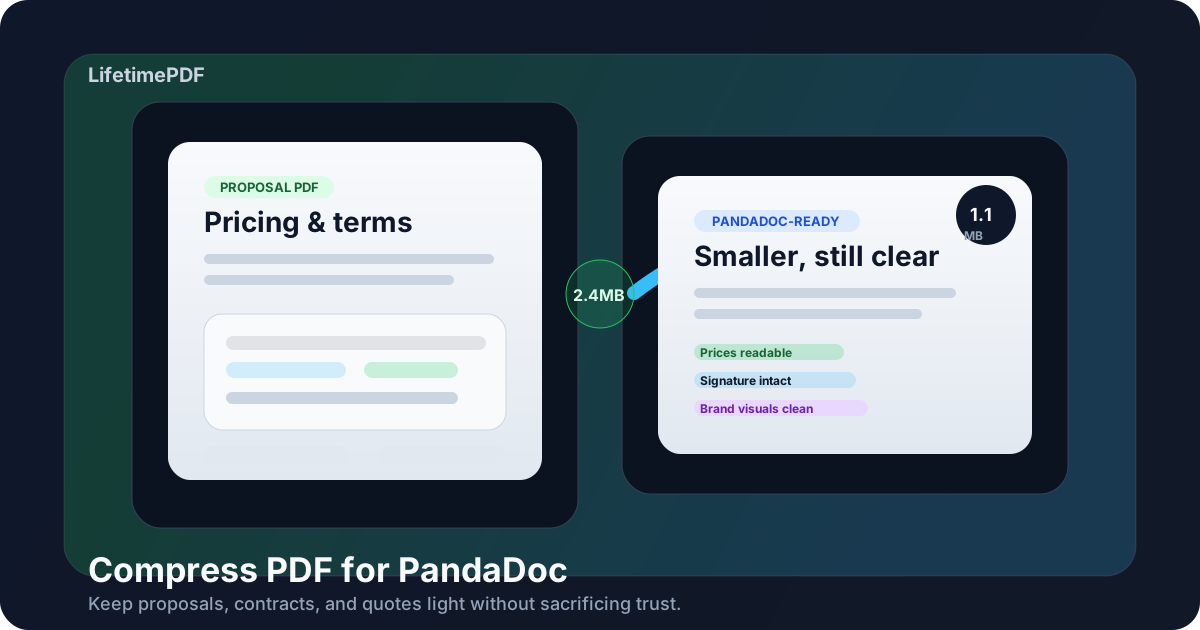
Table of contents
- Quick start: compress a PandaDoc PDF in about 2 minutes
- Why smaller PDFs help in PandaDoc workflows
- What file size should a PandaDoc PDF be?
- Which compression level should you choose?
- Step-by-step: shrink a PandaDoc PDF with LifetimePDF
- Best strategy for common PandaDoc file types
- What to do if the PDF is still too large
- How to keep pricing, signatures, and visuals readable
- PandaDoc habits that prevent PDF bloat
- Related LifetimePDF tools and useful reading
- FAQ (People Also Ask)
Quick start: compress a PandaDoc PDF in about 2 minutes
If your real goal is simply make this PandaDoc PDF smaller so it is easier to upload, share, or reopen later, this workflow is usually enough:
- Start with the proposal, quote, contract, brochure, order form, SOW, or attachment you actually plan to use.
- Open Compress PDF.
- Choose Medium compression first.
- Download the smaller result and compare the size reduction.
- Open it once and check the fragile details: prices, totals, names, dates, signature lines, logos, page numbers, and small legal text.
- If the file is still heavier than you want, use Extract Pages, Delete Pages, Split PDF, or Crop PDF before trying stronger compression.
Why smaller PDFs help in PandaDoc workflows
PandaDoc is usually not where dead documents go to sit. It is where sales packets, approvals, contracts, quotes, and supporting attachments move toward a real answer. That is why file quality matters more here than in a random archive folder. A bloated PDF does not just take up more space. It can make the whole workflow feel slower and less intentional.
Smaller PDFs upload more comfortably, preview more smoothly on normal laptops and phones, and are easier to resend when someone asks for a revision. They also reduce the risk that one attachment quietly becomes the annoying part of an otherwise clean client experience. The goal is not to make every document tiny. The goal is to make it light enough to move well while preserving the details that actually create confidence.
Why compression usually pays off
- Faster uploads: helpful when a proposal or contract needs to go out now, not after another round of manual cleanup.
- Better mobile viewing: many clients and approvers first open PDFs on a phone or tablet.
- Cleaner internal handoffs: lighter files are easier for sales, legal, operations, and finance to review and resend.
- Less hidden scan waste: rescanned exhibits, signatures, and photo-based attachments often carry borders, shadows, and empty space.
- Better downstream editing: once the PDF is leaner, splitting, reordering, redacting, and comparing versions is easier too.
What file size should a PandaDoc PDF be?
There is no single perfect number for every PandaDoc workflow, but practical size ranges keep you from compressing harder than necessary:
| Document type | Practical target | Why it works |
|---|---|---|
| Quote, order form, or text-heavy contract | < 1MB to 2MB | Usually enough for quick uploads and clean client viewing |
| Proposal with some visuals | 1MB to 3MB | Leaves room for logos, tables, screenshots, and brand elements without feeling bulky |
| Brochure-style deck, case study, or scan-heavy packet | 3MB to 5MB | Gives space for image-heavy pages while staying manageable |
| Over 5MB | Usually needs cleanup | At that point, page trimming and image cleanup often help more than stronger compression |
Which compression level should you choose?
LifetimePDF keeps the choice simple with Low, Medium, and High compression. The right setting depends on what matters more in the document: pure sharpness, a balanced result, or the smallest possible file.
Low compression
- Best when the file is already fairly small.
- Useful for highly polished proposals with delicate brand visuals, detailed charts, or small print you do not want to touch much.
- Usually not the first choice if the document still feels obviously heavier than it should.
Medium compression
- Best starting point for most PandaDoc use cases.
- Usually works well for quotes, contracts, order forms, proposals, and supporting PDFs.
- Reduces size meaningfully without pushing pricing tables, logos, and signature areas into obvious blur.
High compression
- Most useful when the source file is extremely large and you need a more aggressive size cut.
- Can help with bulky scans or image-heavy attachments.
- Requires a careful post-compression check because small text, fine table lines, and subtle visuals may degrade first.
Step-by-step: shrink a PandaDoc PDF with LifetimePDF
- Use the final version. Start with the PDF you actually plan to upload or send, not a draft plus three obsolete appendices.
- Open Compress PDF.
- Upload the file. This might be a proposal, quote, contract, brochure, SOW, case study, or signed attachment.
- Choose Medium compression. It is usually the safest first pass.
- Download the smaller copy. Compare the size reduction with the original.
- Review the fragile details once. Check prices, totals, names, dates, signature lines, page numbers, logos, small charts, and the finest text.
- Clean structure if needed. If the file still feels bulky, remove duplicate or unnecessary pages, split a large appendix, or crop scan waste before compressing harder.
In real PandaDoc prep, structural cleanup often does more good than extra compression. If you can remove five pages of backup material no client needs to see, that usually protects quality better than squeezing every page further.
Best strategy for common PandaDoc file types
Quotes and order forms
These files are often mostly text, totals, names, and signature areas. They should usually compress very well. Medium compression is often enough, and a clean result under 2MB is a strong target.
Client proposals
Proposals may include screenshots, product imagery, brand sections, pricing tables, and a few diagrams. Start with Medium compression, then review headings, logos, table spacing, and any small annotations that support the sales story.
Contracts and SOWs
Contracts often look simple, but fine print, clause references, initials boxes, and page numbers matter a lot. Be conservative. A file that is slightly larger but completely trustworthy is better than a tiny one that feels questionable.
Brochures, case studies, and visual attachments
These usually carry the most image weight. If the file stays large after Medium compression, consider splitting extra collateral into a separate PDF instead of making the main proposal packet carry everything.
Scanned approvals or signed attachments
Scanned PDFs often get big because every page is basically an image. Before compressing harder, crop empty borders, remove duplicate backs, and delete pages the next reader does not actually need.
What to do if the PDF is still too large
If the file is still heavier than you want after one solid compression pass, do not immediately assume the answer is more compression. First look for the weight that should never have been there.
- Remove duplicate pages or outdated versions.
- Split large appendices from the main client-facing packet.
- Extract only the pages the signer or reviewer truly needs.
- Crop scan borders and empty margins.
- Re-export source slides or proposals with lighter images if one page is carrying most of the bulk.
- Keep support material separate when it is useful context but not essential to the main document.
How to keep pricing, signatures, and visuals readable
The most important PandaDoc quality check is simple: open the compressed file once like a real recipient would. Do not inspect only the first page. Check the details that would cause friction if they looked weak.
Review these first
- Pricing tables: totals, line items, borders, and any small disclaimers.
- Names and dates: especially on contracts, quotes, and order forms.
- Signature blocks: labels, lines, initials areas, and page references.
- Brand visuals: logos, screenshots, product images, and case-study graphics.
- Fine print: legal clauses, footnotes, and renewal or billing language.
If one of those elements feels even slightly too soft, go back a step. In proposal and contract workflows, trust is part of the document quality. A client-facing file should feel clean, not merely passable.
PandaDoc habits that prevent PDF bloat
Good compression helps, but cleaner prep upstream saves time every single time you publish, upload, or resend a PDF.
- Export only the final pages you actually need.
- Keep main proposals and large appendices separate when they serve different purposes.
- Avoid rescanning clean digital files unless there is a real reason.
- Trim backup material before merging everything into one big bundle.
- Use lighter source images in brochures, decks, and image-heavy case studies.
- Keep a clean master PDF so future revisions do not inherit old clutter.
These habits matter because PandaDoc work often repeats. A cleaner source packet today usually means cleaner uploads, faster revisions, and fewer quality compromises the next time the same document family gets reused.
Related LifetimePDF tools and useful reading
Compress PDF is the best starting point, but these tools help when the real problem is structure, not just size:
- Compress PDF for the first size reduction pass.
- Extract Pages to pull out only the client-facing or signer-facing pages.
- Delete Pages to remove duplicates, outdated sections, or unnecessary appendices.
- Split PDF when one oversized packet should really be two smaller files.
- Crop PDF to remove wasted borders from scans.
- Merge PDF when you want to assemble the final packet cleanly before one last compression pass.
Need a lighter PandaDoc-ready file now? Start with LifetimePDF's compressor, then clean the structure only if the file is still heavier than the workflow needs.
FAQ (People Also Ask)
How do I compress a PDF for PandaDoc?
Upload the PandaDoc-ready PDF to a compressor, start with Medium compression, and keep the smaller copy only after checking pricing tables, names, dates, signature areas, logos, and fine print. For most PandaDoc workflows, Medium is the safest starting point because it cuts size without making client-facing details feel rough.
What file size should I aim for before uploading a PDF to PandaDoc?
Under 2MB is a strong target for text-heavy quotes, contracts, and order forms. Visual proposals, brochures, case studies, and scan-heavy attachments often work better around 2MB to 5MB as long as the smallest useful details still look clean.
Will compression make a PandaDoc proposal look blurry?
It can if you compress too aggressively. That is why Medium compression is usually the best first move. Always review logos, screenshots, pricing tables, signature blocks, and small text before you keep the smaller version.
Should I split a big PandaDoc packet instead of compressing it harder?
Often, yes. If one PDF mixes the main proposal, appendices, brochures, case studies, scans, and old support pages, splitting it usually works better than forcing stronger compression across everything.
Which LifetimePDF tools pair best with PandaDoc workflows?
Compress PDF is the main starting point. Extract Pages, Delete Pages, Split PDF, Crop PDF, Merge PDF, and Redact PDF are the most useful companions when you want smaller, cleaner PandaDoc-ready files without carrying extra pages or scan waste into the final packet.