Compress PDF for PageSpeed Insights Without Monthly Fees: Shrink Lighthouse Reports, Core Web Vitals Screenshots, and SEO Review PDFs Without Another Subscription
If you need to compress a PDF for PageSpeed Insights without monthly fees, upload the file to LifetimePDF's Compress PDF tool, start with Medium compression, and keep the smaller copy only if score circles, Core Web Vitals values, audit labels, and screenshot notes still look clear.
For most PageSpeed Insights workflows, that is enough to shrink Lighthouse reports, mobile and desktop review packs, and client-ready SEO PDFs without paying for another recurring subscription just to finish routine report cleanup.
This is one of those jobs that happens more often than it should. Somebody prints a Lighthouse report to PDF. Somebody else adds mobile and desktop evidence. A client deck picks up screenshots, annotations, and appendix pages. Before long, the file is heavier than the story it needs to tell. The useful fix is not another monthly tool. The useful fix is a repeatable way to shrink the PDF while keeping the performance evidence trustworthy.
Fastest path: save the PageSpeed Insights PDF, run it through LifetimePDF's Compress PDF tool at Medium, then split or extract pages only if the file still carries more weight than the reader actually needs.
In a hurry? Jump to Quick start: compress a PageSpeed Insights PDF in about 2 minutes.
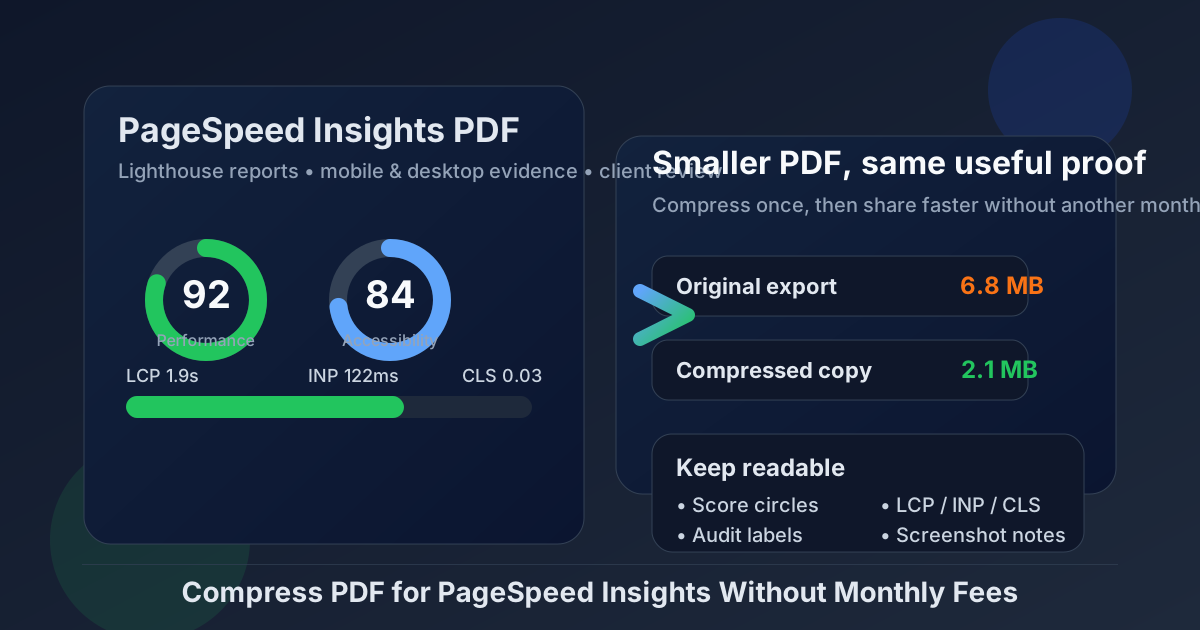
Table of contents
- Quick start: compress a PageSpeed Insights PDF in about 2 minutes
- Why "without monthly fees" matters here
- Why smaller PDFs help in PageSpeed Insights workflows
- What file size should a PageSpeed Insights PDF be?
- Which compression level should you choose?
- Step-by-step: use LifetimePDF to shrink the file
- Best approach for common PageSpeed Insights PDFs
- What to do if the PDF is still too large
- How to keep performance details readable
- Workflow habits that reduce PDF bloat
- Related LifetimePDF tools and useful reading
- FAQ (People Also Ask)
Quick start: compress a PageSpeed Insights PDF in about 2 minutes
If your real goal is simply make this PageSpeed Insights PDF smaller so it is easier to share, this workflow is usually enough:
- Save the final version first, whether that is a single-report recap, a mobile-and-desktop comparison, a screenshot appendix, or a client-ready SEO review deck.
- Open Compress PDF.
- Upload the PageSpeed Insights PDF and choose Medium compression first.
- Download the smaller result and compare the new size.
- Preview the weakest details: score circles, LCP, INP, CLS, audit labels, chart captions, and screenshot callouts.
- If the file is still bulky, use Extract Pages, Split PDF, or Delete Pages before trying stronger compression.
Why "without monthly fees" matters here
PageSpeed Insights reporting is rarely a one-time task. It repeats across technical audits, launch reviews, Core Web Vitals follow-ups, monthly reporting, SEO retainers, migration checks, and stakeholder updates. That is why the no-subscription angle matters. If the same cleanup step keeps returning, paying another monthly fee just to shrink, split, crop, and tidy ordinary PDFs gets old fast.
A pay-once workflow fits this kind of work better. You want a tool you can open whenever a Lighthouse export is too heavy for email, a mobile-and-desktop pack feels bloated, or a client PDF has more screenshot weight than useful narrative. You do not want another recurring bill just to make a normal performance-reporting PDF behave.
- Recurring work: performance reporting does not stop after one month.
- Multiple cleanup jobs: compression often leads to page extraction, splitting, cropping, or deleting duplicate screenshots.
- Better cost fit: a pay-once PDF workflow matches recurring SEO reporting better than subscription sprawl.
- Less friction: the easier the workflow is, the more likely somebody fixes the file before sending a clumsy attachment.
Why smaller PDFs help in PageSpeed Insights workflows
PageSpeed Insights data turns into a PDF when the result needs to travel. A consultant sends a recap. A developer gets a technical appendix. A client receives a before-and-after speed review. A marketing lead wants a short performance summary before a meeting. In each case, the useful part is the evidence, not the file weight.
Heavy PDFs slow down ordinary work. They feel awkward in email, slower in project tools, and more annoying to open on smaller devices. The extra weight usually comes from full-page screenshots, duplicate report rounds, wide margins, repeated cover slides, or one oversized packet trying to serve several audiences at once. Good compression removes that drag while keeping the proof intact.
Why compression usually helps
- Faster handoffs: lighter PDFs are easier to email, upload, and attach to tickets.
- Smoother review: smaller reports open faster when somebody only needs the key story.
- Cleaner archives: weekly and monthly performance packs take up less space when they are not bloated.
- Better meeting flow: people can open the same file quickly instead of waiting on a heavy attachment.
- Less resend friction: you are less likely to hear "can you send a smaller version?" after the fact.
What file size should a PageSpeed Insights PDF be?
There is no single perfect number for every PageSpeed Insights workflow, so practical ranges are more useful than chasing one magic limit. You want a file that sends comfortably, opens quickly, and still leaves the important details readable.
| PageSpeed Insights PDF type | Practical target | Why it works |
|---|---|---|
| Single-test recap or short client update | Under 1MB to 2MB | Usually enough for score summaries, one or two screenshots, and short action notes |
| Mobile and desktop comparison pack | 2MB to 3MB | Leaves room for side-by-side evidence and small metric labels without forcing harsh compression |
| Before-and-after SEO review deck | 2MB to 4MB | Gives screenshots, comparisons, and explanations enough room to stay clear |
| Huge appendix or developer evidence pack | Split it instead of chasing a tiny size | At that point, one oversized PDF is often the real problem |
Which compression level should you choose?
Most people should not begin with the strongest option. That is the quickest route to blurry score labels or screenshot notes that technically survived but are now annoying to read. For PageSpeed Insights PDFs, Medium is usually the right first move.
| Compression level | Best use | Main trade-off |
|---|---|---|
| Low | Metric-heavy reviews or screenshot pages with tiny labels | Protects clarity best but may not reduce size enough |
| Medium | Most Lighthouse reports, client recaps, Core Web Vitals reviews, and stakeholder decks | Best balance of smaller size and readable detail |
| High | Only when the file is still too large after page cleanup | Highest risk of hurting small metric labels and screenshot clarity |
If the PDF started as a clean export, compression usually behaves well. If it is built from many screenshots and appendix pages, trimming the report structure often helps more than stronger compression alone.
Step-by-step: use LifetimePDF to shrink the file
- Save the final version first. Use the exact report, recap deck, or appendix you plan to share, not a draft with extra rounds and pages you already know nobody needs.
- Open Compress PDF.
- Upload the PageSpeed Insights PDF. This can be a Lighthouse summary, mobile-and-desktop review pack, Core Web Vitals recap, client-ready SEO deck, or technical appendix.
- Choose Medium compression. That is the safest default in most reporting situations.
- Download the smaller copy. Compare the new size before moving on.
- Open the result once. Check score values, device labels, Core Web Vitals numbers, chart captions, opportunity headings, and screenshot callouts.
- Only do more if needed. If the PDF is still too heavy, clean the page mix instead of immediately forcing stronger compression.
Useful combo: compress first, then use Extract Pages or Split PDF if the audience only needs part of the report.
Best approach for common PageSpeed Insights PDFs
Single-page speed recaps
These usually compress well. One score summary, one screenshot, and a short note block often shrink cleanly with Medium compression while staying easy to read.
Mobile-and-desktop comparison packs
These are useful, but they can become bloated quickly. Compression helps, but so does trimming repeated visuals and keeping only the screenshots that actually explain the story.
Before-and-after optimization decks
These often become heavy because they include repeated screenshots and several rounds of evidence. Compression helps, but removing repetitive pages or splitting the appendix usually makes a bigger difference.
Developer handoff appendices
This is where caution matters more. Tiny labels, score details, annotations, and screenshot evidence can get muddy if you push too hard. Start with Low or Medium compression and review the smallest text before keeping the result.
What to do if the PDF is still too large
If Medium compression still leaves the file larger than you want, the next move is usually structural cleanup, not panic. Many oversized PageSpeed Insights PDFs have extra weight that can be removed without damaging the useful content.
- Split the summary from the appendix: keep the headline story separate from raw evidence pages.
- Delete duplicate screenshots: repeated captures add weight quickly.
- Extract only the pages the next reader needs: send the summary and one useful evidence page instead of the whole pack.
- Crop wide margins: whitespace around screenshots often wastes space.
- Trim stale test rounds: not every historical comparison needs to travel with the current update.
How to keep performance details readable
Before you share the smaller file, check the details somebody else may need to trust later. In PageSpeed Insights workflows, that usually means:
- score values, device labels, and test dates
- LCP, INP, CLS, and other key metric values
- opportunity headings and short recommendation notes
- chart captions, labels, and comparison notes
- screenshot callouts, annotations, and highlighted problem areas
- any footers or tiny text on client-facing slides
If the faintest or smallest section is still readable, you are usually in good shape. If the weak details turned fuzzy, go back one step. A slightly larger file is still the better file when it keeps the evidence intact.
Workflow habits that reduce PDF bloat
The easiest way to avoid oversized PageSpeed Insights PDFs is not heroic compression. It is better report hygiene before the file gets messy.
- Export only what the next reader needs.
- Separate proof from presentation.
- Keep appendix pages outside the main recap when possible.
- Use screenshots selectively instead of capturing nearly identical views.
- Trim old tests and duplicate slides before the final PDF is created.
- Reuse a simple finishing workflow: trim, compress, review, send.
That last point matters. The best PDF workflow is rarely the fanciest one. It is the one your team can repeat quickly without turning a small reporting task into a whole side project.
Related LifetimePDF tools and useful reading
Useful tools
Best fit
This workflow is a strong fit if you regularly share speed summaries, Core Web Vitals recaps, screenshot appendices, or client-ready performance PDFs and want a pay-once way to keep recurring report cleanup under control.
Want the short version? Use LifetimePDF to compress the PageSpeed Insights PDF first, check readability once, then split or extract pages only if the audience does not need the full report.
FAQ (People Also Ask)
How do I compress a PDF for PageSpeed Insights without monthly fees?
Use a pay-once PDF tool like LifetimePDF, upload the PageSpeed Insights PDF, start with Medium compression, and review the smaller result before you send it. If the file is still bulky, split the appendix, extract the summary pages, or trim duplicate screenshots instead of over-compressing everything at once.
What file size should I aim for with PageSpeed Insights PDFs?
Under 2MB is a strong target for short speed recaps, client summaries, and single-test updates. Mobile-and-desktop review packs, screenshot-heavy SEO audits, and broader performance decks often work better around 2MB to 4MB as long as the smallest useful labels and notes still look clear.
Will compression make PageSpeed Insights scores or Core Web Vitals blurry?
It can if you compress too aggressively. That is why Medium compression is usually the safest first pass. Always review score circles, LCP, INP, CLS, audit labels, and screenshot callouts before keeping the smaller file.
Why look for a PageSpeed Insights PDF workflow without monthly fees?
Because shrinking Lighthouse reports, Core Web Vitals screenshots, and recurring SEO review PDFs is routine operations work, not something most teams want another subscription for. A pay-once workflow fits better when the real need is reliable compression, cleanup, and easier sharing around reports you already make.
What if my PageSpeed Insights PDF is still too large after compression?
Delete duplicate screenshots, split the technical appendix from the summary, crop wide margins, and extract only the pages the next reader needs before trying stronger compression. In many PageSpeed Insights workflows, sharing less PDF works better than compressing the whole pack more aggressively.