Compress PDF for Freshservice Without Monthly Fees: Keep Ticket Files, Change Packs, and Knowledge PDFs Lean
If you need to compress a PDF for Freshservice without monthly fees, upload the final file to LifetimePDF's Compress PDF tool, start with Medium compression, and keep the smaller copy only if screenshots, ticket notes, approval details, and KB steps still read cleanly.
For most Freshservice workflows, text-heavy SOPs and summaries feel comfortable under 2MB, while screenshot-heavy incident evidence, scanned approvals, and mixed-content service desk files usually work better around 2MB to 5MB.
Freshservice collects practical PDFs fast: incident evidence, onboarding paperwork, vendor docs, change approval packs, request attachments, and exported knowledge articles. None of that is exotic. It is everyday service desk work. Which is exactly why paying another monthly fee just to keep those files lighter starts to feel silly. The useful goal is a clean, repeatable workflow that makes PDFs easier to upload, easier to review, and easier to pass between agents without turning them into blurry junk.
Fastest path: run the final Freshservice PDF through LifetimePDF's Compress PDF tool at Medium, then use extract, split, delete, or crop only if the file still carries more weight than the workflow actually needs.
In a hurry? Jump to Quick start: compress a Freshservice PDF in about 2 minutes.
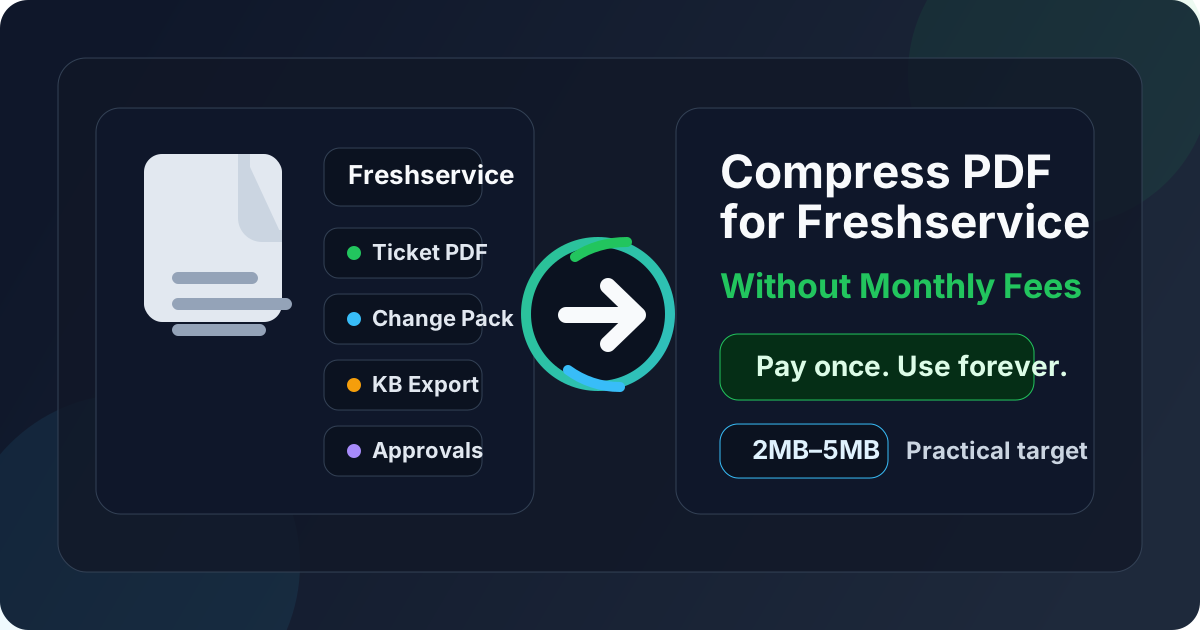
Table of contents
- Quick start: compress a Freshservice PDF in about 2 minutes
- Why “without monthly fees” matters for Freshservice work
- Why smaller PDFs help in Freshservice workflows
- What file size should a Freshservice PDF be?
- Which compression level should you choose?
- Step-by-step: use LifetimePDF to shrink the file
- Best approach for common Freshservice PDFs
- What to do if the PDF is still too large
- How to keep ticket details readable
- Workflow habits that prevent service desk PDF bloat
- Related LifetimePDF tools and useful reading
- FAQ (People Also Ask)
Quick start: compress a Freshservice PDF in about 2 minutes
If your real goal is simply make this Freshservice PDF smaller so it uploads cleanly and stays easy to review, this workflow is usually enough:
- Start with the ticket attachment, incident summary, change pack, vendor PDF, approval form, KB export, or onboarding file you actually plan to share.
- Open Compress PDF.
- Choose Medium compression first.
- Download the smaller result and compare the new size.
- Check the fragile details once: screenshots, timestamps, approval notes, serial numbers, labels, signatures, and the smallest procedural text.
- If the file is still bulky, use Extract Pages, Delete Pages, Split PDF, or Crop PDF before trying stronger compression.
Why “without monthly fees” matters for Freshservice work
Compressing a PDF for Freshservice is not some rare quarterly exercise. It keeps showing up in normal operations. A request comes in with a huge scan. A change review pack needs to move faster. A knowledge article export is larger than it needs to be. A vendor attachment gets forwarded between teams. The same cleanup work repeats, even if the documents change.
That is why the price model matters. Most teams are not looking for another subscription just to handle routine PDF chores. They need a practical toolkit they can open whenever a file has to be compressed, split, cropped, OCRed, or trimmed before it slows down a queue. A pay-once workflow is simply a better match for recurring service desk maintenance.
- Recurring work: ticket files, approvals, SOPs, and vendor PDFs keep coming back.
- More than compression: the real fix often involves extracting pages, deleting duplicates, cropping scan waste, or running OCR.
- Cleaner cost logic: a utility task that repeats all year is easier to justify when it does not create another monthly software bill.
- Better adoption: when the cleanup path is simple, people are more likely to fix the file before it becomes everyone else's problem.
Why smaller PDFs help in Freshservice workflows
Freshservice records are most useful when the next person can see what matters quickly. The PDF should support that. It should not become a side quest. When attachments are heavier than they need to be, friction shows up everywhere: uploads drag, approvals feel clunky, escalations become slower, and people on mobile delay opening the file until later.
Smaller PDFs are easier to attach, easier to reopen, and easier to move across the service desk. That matters whether the document is headed into an incident, a service request, a change, a problem record, or a knowledge workflow. The goal is not the tiniest number possible. The goal is a leaner file that still carries usable evidence and readable instructions.
Why lighter Freshservice PDFs usually work better
- Faster triage: agents can open ticket evidence and supporting docs with less delay.
- Smoother approvals: reviewers are more likely to actually read a clean packet than a bloated one.
- Better mobile use: on-call staff and managers often review files from a phone.
- Cleaner handoffs: incident, problem, and change work all benefit when attachments do not feel heavier than the issue itself.
- Less repeated drag: KB exports, standard forms, and reusable SOPs are easier to share every time if they are already lean.
What file size should a Freshservice PDF be?
There is no single perfect size because a one-page approval memo behaves differently from a screenshot-heavy incident file, a vendor packet, or a scan-based onboarding bundle. These ranges are more useful than chasing the smallest possible file:
| Freshservice PDF type | Practical target | What to protect |
|---|---|---|
| KB exports, SOPs, ticket summaries | Under 2MB | Headings, steps, tables, and small procedural text |
| Everyday incidents, approvals, and vendor docs | 2MB to 5MB | Screenshots, line items, signatures, labels, and notes |
| Scan-heavy packets and mixed evidence bundles | 5MB or less when practical | Faint text, handwriting, stamps, and image clarity |
| Large appendices or archive-style packets | Split or extract first | Keep the main record focused on the pages the next person truly needs |
Those are not hard limits. They are useful targets that keep you from either sharing a bloated file or over-compressing something until the evidence becomes frustrating to inspect.
Which compression level should you choose?
Freshservice PDFs often mix text, screenshots, forms, and scans. That makes an all-or-nothing approach risky. The best choice is usually the lightest compression that solves the sharing problem.
- Low compression: useful when dense screenshots, signatures, or small tables need to stay especially crisp.
- Medium compression: the best default for most Freshservice files because it usually cuts enough weight without hurting trust.
- High compression: only worth trying after cleanup when the file is still too large and visual softness is acceptable.
Step-by-step: use LifetimePDF to shrink the file
- Choose the final file. Use the PDF the workflow actually needs, not an earlier export with extra pages or stale context you already know nobody will use.
- Open Compress PDF.
- Upload the file. This could be an incident summary, change packet, service request form, vendor document, KB export, approval bundle, or scanned onboarding PDF.
- Start with Medium compression. It is usually enough to make the file lighter while keeping the working details clear.
- Download the smaller result. Check the new size and decide whether it already feels easier to handle.
- Preview the weak spots once. Look at screenshots, timestamps, labels, signatures, comments, serial numbers, and the smallest text on the page.
- Use structure fixes only if needed. If the file is still too heavy, delete duplicate pages, extract only the useful section, crop scan borders, or split a bulky appendix before using a harsher compression setting.
Useful sequence: compress first, then fix the packet structure. In many Freshservice workflows, the oversized file is carrying too much baggage, not too little compression.
Best approach for common Freshservice PDFs
Incident evidence and troubleshooting attachments
These usually include screenshots, exported logs turned into PDF, reproduction steps, and annotations. Medium compression is a strong first move, but always zoom into the smallest labels and timestamps before replacing the original.
Change packs and approval bundles
These are often reviewed by several people in a short window. Keep them focused. If only the summary, risk table, and approval page matter, do not force everyone to download a long appendix they will never read.
Knowledge article exports and SOPs
These are often more text-heavy and usually compress well. One moderate pass is often enough. If they still feel large, look for duplicate screenshots, repeated covers, or archive pages that do not help the actual reader.
Vendor documents and onboarding paperwork
These files often pick up weight from scans, stamps, and phone-camera margins. Crop dead space first, then compress. If people need to search the text later, add OCR PDF after cleanup.
What to do if the PDF is still too large
If one pass of Medium compression does not get you far enough, the next move is usually smarter structure, not panic. Most oversized Freshservice PDFs have removable weight.
- Extract only the needed pages: use Extract Pages when the ticket only depends on one section.
- Delete duplicates and blanks: use Delete Pages to remove stale exports, cover sheets, or repeated scans.
- Split one oversized packet: use Split PDF when one file is doing several jobs at once.
- Crop scan waste: use Crop PDF to trim empty borders and phone-capture dead space.
- Redact before broader sharing: use Redact PDF if a smaller public-facing copy should remove sensitive details completely.
In many service desk workflows, a focused five-page PDF is more useful than a fuzzy twenty-page one.
How to keep ticket details readable
The best review step is not rereading the whole document. It is checking the parts most likely to fail after compression.
- Screenshots with tiny interface text
- Timestamps, case IDs, asset tags, and serial numbers
- Approval notes, signatures, and initials
- Tables with small values or narrow columns
- Procedural steps and KB callouts
- Any page likely to be opened first on mobile
If those details still look clean, the rest of the file is usually fine. If they do not, step back and remove page bloat before you squeeze harder.
Workflow habits that prevent service desk PDF bloat
- Export once from the cleanest source available. Reprint-rescan loops usually create weight without adding value.
- Keep the main attachment focused. Archive appendices separately if the record does not need them right now.
- Trim before you merge. It is easier to keep one packet clean than repair a giant combined PDF later.
- Name files clearly. Master copy, review copy, and compressed copy beat mystery versions every time.
- Run OCR on paper-origin documents when search matters. Searchable service desk files are easier to reuse later.
- Compress near the finish line. It works best when the document structure is already final.
The point is not perfection. It is reducing the number of times the same attachment has to be repaired later for approvals, escalations, audits, or re-sharing.
Related LifetimePDF tools and useful reading
Useful tools
Best fit
This workflow is a strong fit if your team keeps handling scans, approval packets, incident evidence, KB exports, or vendor PDFs in Freshservice and wants a pay-once way to reduce routine attachment friction.
Bottom line: if the Freshservice PDF is too large, start with Medium compression, keep the pages focused, and clean the structure before you push the file any harder.
FAQ (People Also Ask)
How do I compress a PDF for Freshservice without monthly fees?
Use a pay-once PDF tool like LifetimePDF, upload the Freshservice-ready file, start with Medium compression, and keep the smaller copy only after checking screenshots, ticket references, approval notes, and small text. If the file is still too large, trim pages or scan waste before compressing harder.
What file size should I aim for for Freshservice PDFs?
Text-heavy SOPs, KB exports, and ticket summaries often feel good under 2MB. Screenshot-heavy incident evidence, vendor documents, and scan-based approval packs usually work better around 2MB to 5MB as long as important details remain readable.
Will compression blur screenshots or change details in Freshservice?
It can if you compress too aggressively. That is why Medium compression is usually the best first move. Always review screenshots, labels, timestamps, approval details, signatures, and the smallest useful text before keeping the smaller file.
Should I trim pages before compressing a Freshservice PDF?
If you already know which pages matter, yes. Removing duplicate or irrelevant sections usually protects readability better than forcing the entire packet through stronger compression.
Why use a pay-once PDF workflow for Freshservice?
Because service desk document cleanup is recurring utility work. Teams keep shrinking ticket attachments, change packs, scans, and knowledge files, but most do not want another monthly subscription just to compress, split, crop, OCR, and tidy routine PDFs.