Compress PDF for Coda: Keep Doc Attachments, Team Files, and Shared PDFs Easy to Open
To compress a PDF for Coda, upload the file to LifetimePDF's Compress PDF tool, start with Medium compression, and keep the smaller copy only if doc attachments, screenshots, tables, and comments still read clearly.
If the PDF is longer than the page actually needs, extract the useful pages first so teammates open less, load less, and get to the point faster.
Coda is built for active work, not passive storage. Teams drop in specs, SOPs, approval packets, client briefs, meeting handoffs, reports, and scanned reference files because they want context close to the doc. The problem is that full-size PDFs turn fast-moving pages into slower pages. A smaller attachment is easier to reopen, easier to reuse, and less annoying when somebody checks the same doc from a laptop during a meeting or from a phone between tasks.
Fastest path: compress the real attachment on Medium, review the important details once, then extract or split pages only if the PDF is still bulkier than the Coda page really needs.
Want the quick version? Jump to Quick start: compress a PDF for Coda in under 2 minutes.
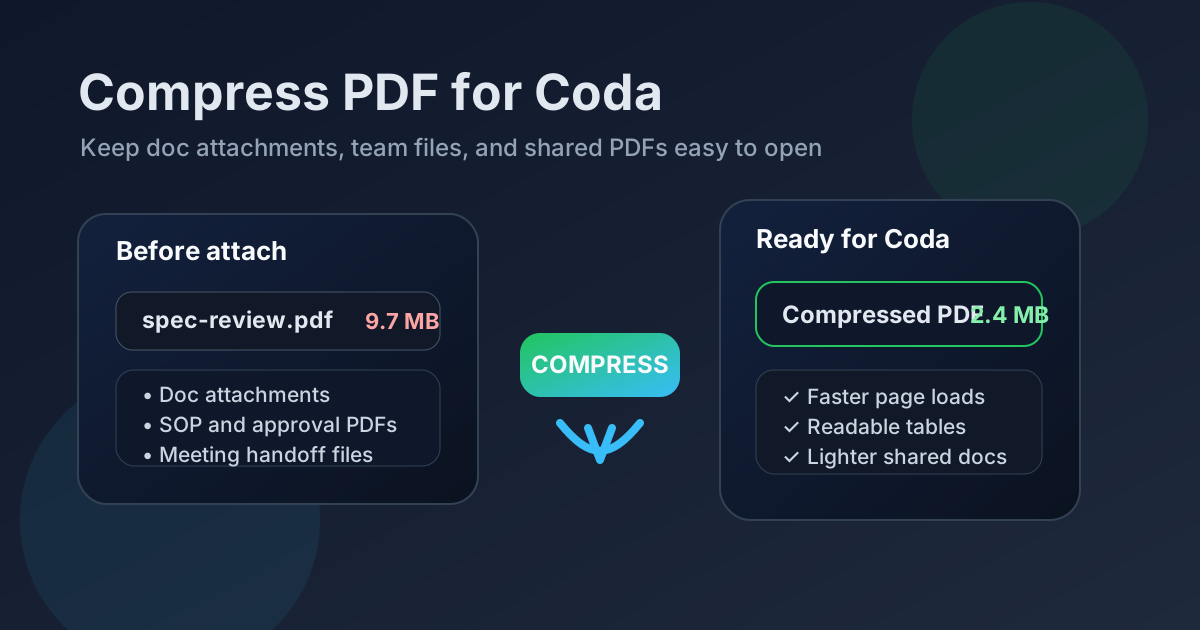
Table of contents
- Quick start: compress a PDF for Coda in under 2 minutes
- Why smaller PDFs help in Coda
- What file size should you aim for?
- Which compression level should you choose?
- Step-by-step: shrink a Coda PDF with LifetimePDF
- Common Coda PDFs that benefit from compression
- When splitting or extracting pages is smarter than more compression
- Readability checks before attaching the smaller file
- Workflow habits that keep Coda files cleaner
- Related LifetimePDF tools and internal links
- FAQ (People Also Ask)
Quick start: compress a PDF for Coda in under 2 minutes
If your goal is simply make this PDF easier to attach and reopen in Coda, this workflow is usually enough:
- Open Compress PDF.
- Upload the spec, SOP, proposal, approval packet, report, meeting handoff, or scanned reference PDF you actually plan to attach.
- Choose Medium compression first.
- Download the smaller copy and compare the new size with the original.
- Open it once and check tables, screenshot labels, signatures, comments, and any detail another person still needs to trust.
- If only part of the file matters, use Extract Pages or Split PDF instead of forcing harsher compression on the whole document.
- If the PDF is scan-heavy, use OCR PDF before you share it.
Why smaller PDFs help in Coda
Coda PDFs are usually part of an active workflow. They sit next to action items, decisions, comments, project plans, and status notes. That makes attachment weight matter more than it would in a dusty archive folder nobody opens again.
A lighter PDF uploads faster, opens faster, and feels less annoying when the same doc gets revisited throughout a week. That matters when a team lead is checking an approval packet, an operations manager is scanning an SOP, or a client-facing page includes a proposal or signed form that still needs to feel easy to access. The win is not just saving storage. The win is reducing friction around information people actually use.
Why compression usually pays off in Coda
- Faster doc use: smaller attachments are easier to open during meetings, reviews, and handoffs.
- Cleaner shared pages: team docs feel less bloated when every file is not oversized.
- Better mobile access: people can check attachments on a phone without fighting a heavy PDF.
- Smoother client sharing: lighter proposals, briefs, and approvals feel easier to trust and reopen.
- Less workflow drag: the file supports the page instead of becoming the slowest part of it.
What file size should you aim for?
There is no universal perfect number because a one-page approval PDF behaves differently from a screenshot-heavy project spec, a scan-based vendor packet, or a long internal handbook. Still, practical targets help you avoid compressing harder than the workflow really requires.
| File size target | Best fit | What to watch |
|---|---|---|
| Under 2MB | Short meeting handoffs, focused SOP excerpts, quick approval forms, and lightweight client-facing PDFs. | Tiny labels, footnotes, and screenshot annotations can soften first, so review carefully. |
| 2MB to 5MB | Most everyday Coda attachments, including specs, proposals, shared reports, and team reference docs. | This is usually the safest range for readable sharing without unnecessary weight. |
| 5MB to 10MB | Long screenshot-heavy files, scan-heavy packets, signed documents, or bundled reference material that genuinely needs more detail. | If the file is still above this range, page trimming often helps more than stronger compression. |
If the document is much larger than that, ask a blunt question: does every page belong in the doc? Many oversized Coda PDFs are not too large because compression failed. They are too large because the attachment includes appendix pages, duplicate scans, giant cover pages, or archived history that nobody needs on the page right now.
Which compression level should you choose?
Low compression
Use Low when the file contains dense tables, narrow spreadsheet exports, detailed diagrams, signatures, or branded client material that may be printed later. It trims size more gently and protects clarity better.
Medium compression
Medium is the best default for most Coda workflows. It usually removes enough weight to make sharing easier while preserving the text, screenshots, comments, charts, and page layout people still need.
High compression
Use High when the PDF is mainly scan-heavy or image-heavy and file size matters more than perfect visual polish. It can be useful for archive-style reference packs, but always check the result before replacing the original.
Step-by-step: shrink a Coda PDF with LifetimePDF
- Start with the file you will actually attach. Avoid compressing an older draft when the real PDF has more pages, comments, or screenshots.
- Open Compress PDF.
- Choose Medium compression first. This is the most reliable first pass for mixed text-and-image documents.
- Download the smaller copy. Check the size reduction before doing anything else.
- Review the weakest details once. Look at table headers, screenshot labels, signatures, initials, comments, narrow columns, and any detail another person may quote back later.
- Trim if needed. If the file is still bulky, use Extract Pages, Delete Pages, or Crop PDF before trying more aggressive compression.
- Attach the reviewed copy in Coda. Keep the original only when you genuinely need a higher-detail source version elsewhere.
Common Coda PDFs that benefit from compression
The most common Coda attachments are also the ones that bloat fastest. Here are the usual suspects and the compression strategy that tends to work best.
Project specs and planning docs
These often mix text, charts, screenshots, and tables. Medium compression is usually enough, especially if the file only needs to stay readable inside a shared team doc.
SOPs and team handoff PDFs
SOPs get reopened often and benefit from lighter file size. If the full manual is bulky, extract only the pages tied to the current workflow instead of attaching the whole thing.
Proposals, approvals, and signed documents
These usually compress well, but review signatures, initials, dates, and fine print before replacing the original. A smaller file is useful only if nobody has to squint through the important part.
Meeting recaps and status reports
These often contain screenshots, notes, and charts that get reopened several times. Compression helps, but page trimming helps even more when only one section matters to the current Coda page.
Scan-heavy admin or reference files
Scan-based PDFs often carry wasted borders, blank pages, and skewed margins. Compress them, but consider OCR and cropping first so the smaller file is not just lighter, but cleaner and more useful too.
When splitting or extracting pages is smarter than more compression
Compression reduces file weight. It does not decide which pages deserve to be there. That is why the cleanest fix is often page control, not more compression.
Split or extract pages when one PDF is trying to serve different audiences at once. A manager may need the one-page summary. A teammate may only need the implementation steps. A client may only need the signed approval section. Pushing all of that through a harsher compression setting usually creates a worse file for everybody.
- Use Extract Pages when only one section belongs in the doc.
- Use Split PDF when different readers need different chunks.
- Use Delete Pages when the file contains cover pages, blanks, or repeated appendix material.
Readability checks before attaching the smaller file
Before you replace the original, check the parts most likely to break first:
- tiny labels inside screenshots
- table headers and narrow columns
- comments, reviewer notes, and annotations
- signatures, initials, and date fields
- footnotes, appendix references, and page numbers
- scan edges where dark borders or skew can hide text
If those details still read comfortably at normal zoom, the PDF is probably good enough. If you need to zoom deep just to confirm basic information, either back off the compression or trim the document instead.
Workflow habits that keep Coda files cleaner
The easiest PDF to manage is the one that never bloats in the first place. A few habits make a real difference over time:
- Attach the relevant excerpt, not the whole source packet.
- Keep one master original elsewhere if archive fidelity matters, then attach the lighter working copy in Coda.
- Crop scan borders and blank margins before sharing.
- Merge only the pages that belong together for that doc.
- Use OCR for scan-heavy reference files so they stay more searchable and reviewable.
- Remove metadata when privacy matters. The PDF Metadata Editor helps clean author and document-property clutter before a file gets reused widely.
This is especially useful if your team already uses Coda as the operating layer across projects, notes, approvals, and client-facing material. Those pages stay cleaner when attachments are small, focused, and readable.
Related LifetimePDF tools and internal links
If you work in Coda regularly, these tools usually pair best with compression:
- Compress PDF for the main size reduction step.
- Extract Pages when only part of the file belongs in the doc.
- Split PDF for long packets with mixed audiences.
- OCR PDF for scan-heavy reference documents.
- Crop PDF to remove wasted borders before compression.
- Redact PDF before sharing sensitive information inside a broader team doc.
If you manage similar work in nearby tools, these guides may also help: Compress PDF for Notion, Compress PDF for Airtable, Compress PDF for Confluence, and Compress PDF for Monday.com.
Ready to shrink a Coda attachment? Start with the PDF you actually plan to share, use Medium compression, and keep the lighter copy only if the important details still read cleanly.
FAQ (People Also Ask)
How do I compress a PDF for Coda?
Upload the PDF to a compressor, start with Medium compression, and keep the smaller copy only if text, tables, screenshots, and comments still read clearly. If the file is still too large, extract only the relevant pages or split the document instead of forcing harder compression across the whole file.
What file size should I aim for in Coda?
Under 5MB is a strong target for many everyday doc attachments, SOPs, meeting handoffs, and approval PDFs. Under 2MB is great for especially lightweight sharing, while scan-heavy or screenshot-heavy files may reasonably land higher if they still need clear detail.
Will compression make tables or screenshots blurry?
It can if you compress too aggressively. That is why Medium compression is usually the best first pass. Always review tables, small labels, signatures, comments, and screenshot details before replacing the original file.
When should I split a PDF instead of compressing it harder?
Split or extract pages when only one section matters to the Coda page, meeting doc, approval workflow, or project handoff. A shorter, focused PDF usually works better than an over-compressed all-in-one file full of pages people do not need right now.
Which LifetimePDF tools pair best with Coda attachments?
Compress PDF is the main starting point. Extract Pages, Split PDF, Crop PDF, OCR PDF, Delete Pages, Redact PDF, and PDF Metadata Editor are especially useful when you want smaller, cleaner Coda documents that teammates can still trust.